
The 2026 Landscape: Arduino Development on Chrome
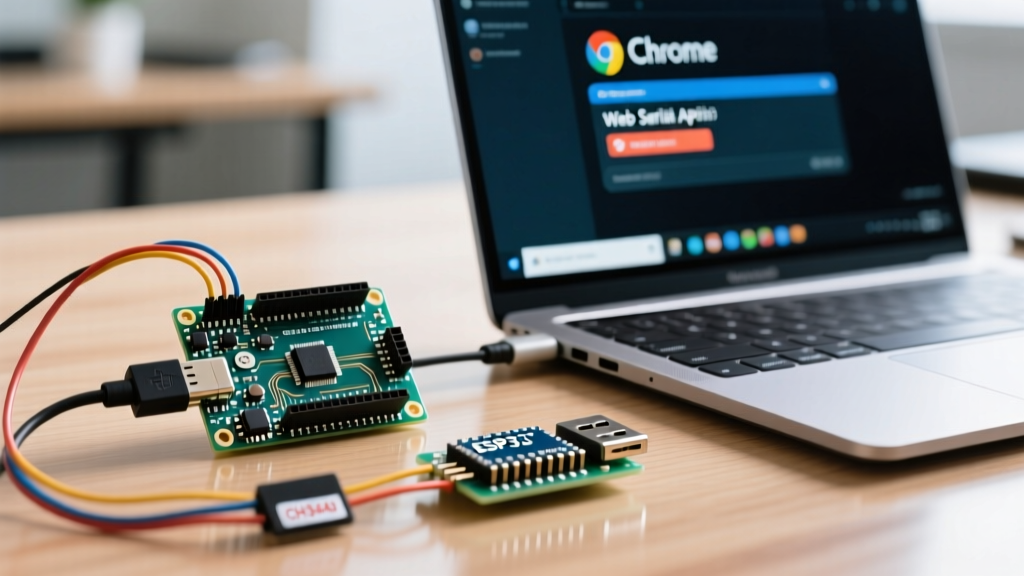
As of 2026, Chromebooks and the Chrome browser have cemented their place in STEM labs, university engineering courses, and home maker spaces. However, developing for microcontrollers on a Chrome-based environment introduces a unique set of serial communication and USB passthrough hurdles. When makers search for solutions to Arduino Chrome connection errors, they are typically dealing with one of two distinct environments: the browser-based Arduino Web Editor (relying on the Web Serial API) or the native Arduino IDE 2.3.x running inside the ChromeOS Linux (Crostini) container.
This comprehensive troubleshooting guide bypasses generic advice and dives deep into the exact kernel modules, Chrome permission flags, and udev rules required to restore serial communication between your Chrome environment and your microcontroller.
Scenario 1: Arduino Web Editor "Board Not Found" in Chrome
The Arduino Web Editor relies on the browser's Web Serial API to communicate directly with hardware connected to your Chromebook. If you click "Select Board" and see an empty list or a persistent "Port Not Found" error, the issue is almost always tied to Chrome's strict USB permission sandboxing.
Step-by-Step Fix: Clearing Chrome USB Cache
- Access USB Settings: Open a new Chrome tab and navigate to
chrome://settings/content/usbDevices. - Revoke Stale Permissions: Look for
create.arduino.ccorapp.arduino.cc. If the site is listed but failing to connect, click the trash can icon to revoke its USB access. This forces Chrome to re-poll the hardware stack. - Check Web Serial API Flags: While the Web Serial API is fully stable in 2026, enterprise or school-managed Chromebooks sometimes disable it via admin policies. Navigate to
chrome://flags, search for Experimental Web Platform features, and ensure it is set to Enabled. Restart the browser. - Physical Re-enumeration: Unplug the Arduino, wait exactly 5 seconds for the ChromeOS USB daemon to release the bus, and plug it back in. Click the browser padlock icon in the URL bar, select Site Settings, and ensure USB Devices are set to Allow.
Expert Insight: If you are using an official Arduino Nano ESP32 (priced around $21.00), ensure you have installed the latest Arduino ESP32 boards package via the Web Editor's Library/Board manager. The Web Serial API requires the correct WebUSB-compatible bootloader to handshake properly on Chromium-based browsers.
Scenario 2: ChromeOS Linux (Crostini) USB Passthrough Failures
For advanced users running the full Arduino IDE 2.3.x natively on ChromeOS via the Linux development environment, USB passthrough is a frequent point of failure. According to Google's official Chromebook Linux documentation, USB devices must be explicitly shared with the container, but sharing alone does not guarantee serial port access due to Linux user group permissions.
Diagnosing the Passthrough Chain
Open your ChromeOS Linux terminal and run the following diagnostic sequence:
lsusb
dmesg | grep tty
If lsusb shows your Arduino (e.g., Arduino SA Uno R4 Minima), the ChromeOS host sees it. If dmesg outputs cdc_acm 1-1:1.0: ttyACM0: USB ACM device, the kernel has mapped it. The error lies in user permissions.
Fixing the "Permission Denied" Error on /dev/ttyACM0
By default, the Crostini container user is not part of the dialout group, which governs serial port access. Attempting to upload a sketch will result in a SerialException: Permission denied: '/dev/ttyACM0' error in the IDE console.
- Add your user to the dialout group:
sudo usermod -a -G dialout $USER - Restart the Linux container entirely (do not just close the terminal; shut down the Linux environment from ChromeOS Settings and boot it again).
- If the error persists, create a custom
udevrule to force read/write permissions on Arduino devices. Run:sudo nano /etc/udev/rules.d/99-arduino.rules - Paste the following line:
SUBSYSTEM=="usb", ATTRS{idVendor}=="2341", MODE="0666" - Reload the rules:
sudo udevadm control --reload-rules && sudo udevadm trigger
Scenario 3: The CH340 Clone Dilemma on ChromeOS
Generic Arduino Uno clones utilizing the CH340G USB-to-serial chip (often priced between $3.50 and $5.00 on Amazon or AliExpress) are notorious for failing on ChromeOS. Unlike the official ATmega16U2 chip found on the $27.50 Arduino Uno R4 Minima, the CH340G requires the ch341 kernel module.
While the underlying ChromeOS kernel includes this module, the Crostini container sometimes fails to bind it to the /dev/ttyUSB0 interface during USB passthrough, resulting in a silent failure where the board receives power but no serial port is generated.
How to Force the CH341 Module in Crostini
If lsusb shows a device with Vendor ID 1a86 (QinHeng Electronics), but dmesg shows no ttyUSB assignment, manually probe the kernel module:
sudo modprobe ch341
lsmod | grep ch341
If the module is missing from your specific Crostini Debian build, the most time-efficient solution for makers in 2026 is to bypass the kernel debugging entirely and upgrade to an official board with native CDC-ACM support, or use the Chrome Web Editor, which handles CH340 handshakes via WebUSB wrappers more gracefully than the Linux container.
Hardware Compatibility Matrix: Chrome Environments
| Board Model | USB Chipset | Web Editor (Chrome) | Linux (Crostini) | Common Failure Mode |
|---|---|---|---|---|
| Arduino Uno R4 Minima | Renesas RA4M1 (Native USB) | Excellent | Excellent | Requires udev rule for IDE 2.x upload |
| Generic Uno R3 Clone | CH340G | Good (via WebUSB) | Poor | Crostini ch341 module binding failure |
| Arduino Nano ESP32 | ESP32-S3 (Native USB) | Excellent | Good | Bootloader handshake timeout on Linux |
| Official Uno R3 | ATmega16U2 | Excellent | Excellent | Rare; usually resolved by cable swap |
Advanced Edge Cases & FAQ
Why does my Arduino disconnect immediately after uploading via Chrome?
This is a known edge case with the Web Serial API when dealing with boards that utilize native USB (like the Arduino Leonardo or Micro). When the sketch uploads, the microcontroller reboots, which drops the USB bus. Chrome's Web Serial implementation sometimes fails to automatically re-acquire the new serial port PID/VID after the reboot. The Fix: Implement a 1200bps touch script in your workflow, or manually press the physical reset button on the board right as the Chrome browser console reports "Uploading..." to force the bootloader to hold the port open.
Can school-managed Chromebooks block Arduino connections?
Yes. Enterprise and education administrators can use the DefaultWebUsbGuardSetting policy to block all WebUSB and Web Serial API requests. If you are on a managed device and the Chrome Web Serial API documentation features are greyed out in your settings, you will need to request an IT policy exception for create.arduino.cc or pivot to a standalone Raspberry Pi running a local headless IDE.
My ChromeOS Linux container doesn't show the USB settings menu.
If the "USB Devices" option is missing from your ChromeOS Linux settings menu, your Chromebook's hardware architecture may not support Crostini USB passthrough. This is common on older ARM-based Chromebooks (pre-2021). In this scenario, your only viable path for Arduino development on that specific machine is the browser-based Arduino Web Editor.