
The Shift to Python for Hardware Control
By 2026, the maker community has largely migrated from legacy Java-based Processing sketches to Python for PC-side microcontroller dashboards. Building an Arduino Python GUI allows developers to leverage Python’s massive ecosystem for data logging, machine learning integration, and complex mathematics while the microcontroller handles real-time hardware interrupts. However, bridging the gap between a high-level interpreted language and a bare-metal C++ sketch introduces unique architectural challenges. In this community resource roundup, we evaluate the top GUI frameworks, serial communication patterns, and hardware edge cases you need to know to build robust instrumentation panels.
The Serial Backbone: PySerial and Hardware Edge Cases
Before selecting a GUI framework, you must master the physical and logical serial bridge. The pyserial library remains the undisputed standard for UART communication over USB. However, simply opening a port often triggers unintended hardware behavior.
The DTR Auto-Reset Trap
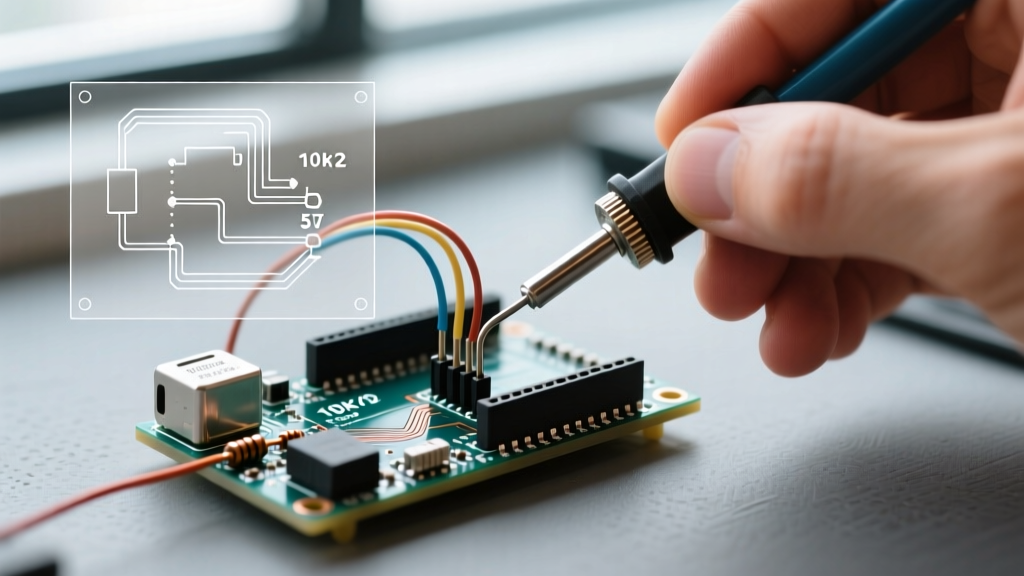
When Python opens a serial connection to an Arduino Uno or Nano (utilizing the ATmega16U2 USB-to-Serial chip), the Data Terminal Ready (DTR) line drops. This triggers the auto-reset circuit, rebooting your microcontroller and wiping your current state. To prevent this in a production GUI, configure your serial object to ignore DTR, or use the hardware workaround of placing a 10µF electrolytic capacitor between the RESET and 5V pins.
import serial
# Prevent DTR reset on ATmega328P boards
ser = serial.Serial('COM3', 115200, timeout=1, dsrdtr=False)
For boards with native USB like the Leonardo, Micro, or Teensy 4.1, the virtual serial port is handled directly by the MCU, meaning the DTR reset issue does not apply, and connection latency is significantly lower. For a deeper dive into hardware serial behaviors, refer to the official Arduino Serial documentation.
Top 4 Python GUI Frameworks for Arduino Control
The community has coalesced around four primary frameworks, each serving a distinct use case ranging from simple button-toggles to high-speed oscilloscopes.
1. Tkinter: The Legacy Workhorse
Tkinter is baked directly into the standard Python library, requiring zero pip install steps. It is ideal for simple control dashboards—such as toggling relays, reading basic temperature sensors, or sending PID tuning parameters.
- Pros: Zero dependencies, extremely lightweight, massive legacy codebase.
- Cons: Dated 1990s aesthetic, difficult to implement modern dark modes, canvas rendering is too slow for high-frequency sensor plotting.
2. CustomTkinter: Modern Aesthetics with Zero Friction
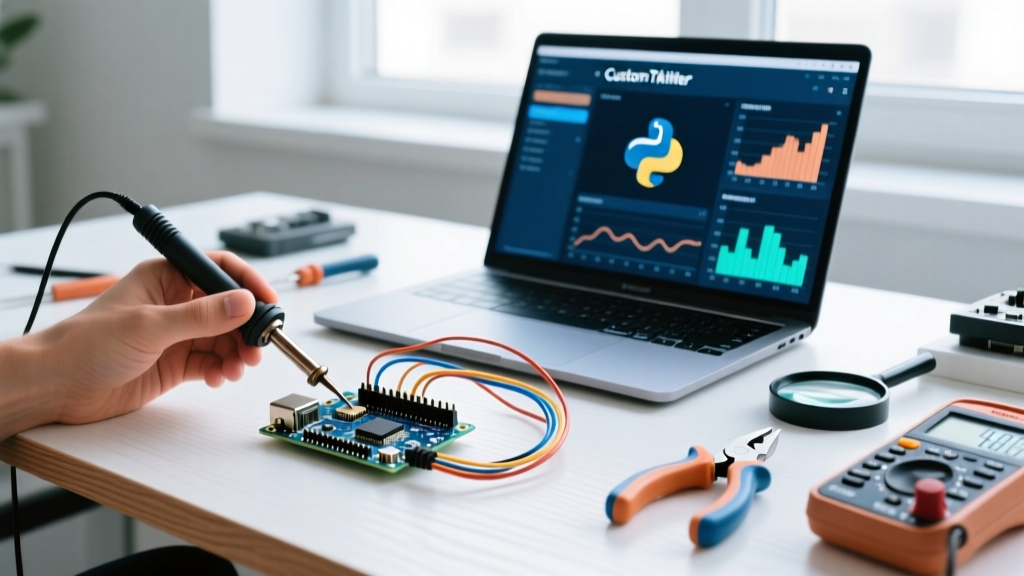
For makers who want the simplicity of Tkinter but require a modern, sleek UI (think dark mode, rounded corners, and smooth scaling), CustomTkinter is the community favorite. Wrapping standard Tkinter widgets in custom drawing routines, it allows you to build professional-looking IoT dashboards in hours. As of version 5.2+, it handles high-DPI scaling on Windows and macOS flawlessly, a common pain point when moving a GUI from a laptop to a Raspberry Pi touchscreen.
3. PyQt6 & PyQtGraph: The Instrumentation Standard
When your project requires complex multi-tab interfaces, dockable widgets, or high-speed data visualization, PyQt6 is the heavyweight champion. Crucially, when paired with PyQtGraph, it bypasses the sluggish rendering of Matplotlib. PyQtGraph utilizes Qt's QGraphicsScene to push rendering to the GPU, allowing your Python GUI to plot 10,000+ data points per frame at 60 FPS. This is the mandatory stack if you are building a custom oscilloscope or FFT analyzer reading from a Teensy 4.1 ADC.
4. Dear PyGui: GPU-Accelerated Telemetry
Dear PyGui operates differently than traditional object-oriented GUI toolkits; it uses an immediate-mode paradigm rendered entirely on the GPU. It is heavily favored in the robotics and drone communities for rendering complex node editors and real-time telemetry streams. While the learning curve is steeper, its ability to handle dozens of live-updating plots without dropping serial packets is unmatched.
Framework Comparison Matrix
| Framework | Render Engine | Setup Time | Serial Concurrency Method | Ideal Project |
|---|---|---|---|---|
| Tkinter | CPU (Tcl/Tk) | 5 Minutes | after() polling |
Basic relay control, LED toggles |
| CustomTkinter | CPU (Canvas) | 15 Minutes | Threading + Queue | Modern IoT dashboards, PID tuners |
| PyQt6 | CPU/GPU (Qt) | 1-2 Hours | QThread + Signals |
Multi-axis CNC controllers, Lab tools |
| Dear PyGui | GPU (Immediate) | 2-3 Hours | Async callbacks | High-speed oscilloscopes, FFT analysis |
Concurrency: Preventing GUI Freeze During Serial Reads
The most common failure mode for beginners building an Arduino Python GUI is the "frozen window" syndrome. This occurs when a blocking function like serial.readline() or time.sleep() is called on the main thread. Because Python GUIs rely on a continuous event loop to redraw pixels and register mouse clicks, blocking the main thread halts the UI entirely.
The Thread-Safe Queue Pattern
To solve this, the community standard is to offload serial reading to a background daemon thread and pass the data to the GUI via a thread-safe queue. According to the official Python Queue documentation, the queue.Queue class handles all necessary locking mechanisms to prevent race conditions between your serial thread and your GUI thread.
import threading
import queue
import serial

data_queue = queue.Queue()

def serial_reader(ser, q):
    while True:
        line = ser.readline().decode('utf-8').strip()
        if line:
            q.put(line)

# Start the background thread
ser = serial.Serial('COM3', 115200, timeout=1)
thread = threading.Thread(target=serial_reader, args=(ser, data_queue), daemon=True)
thread.start()
In your GUI's update loop (e.g., Tkinter's root.after(10, update_gui)), you simply check data_queue.empty() and extract the latest sensor values without ever blocking the render cycle.
Real-World Failure Modes and Debugging
Even with perfect threading, hardware realities can disrupt your Python GUI. Keep these edge cases in mind during development:
Buffer Overflows on High-Frequency Data: If your Arduino is transmitting 1000Hz sensor data (1000 lines per second) but your Python GUI only redraws at 60Hz, the OS serial buffer will eventually overflow, leading to corrupted strings and UnicodeDecodeError exceptions. Fix: Implement a ring buffer on the Arduino side, or have the Python thread clear the queue and only process the most recent value before the GUI redraws.
- COM Port Contention: If the Arduino IDE Serial Monitor is open, Python will throw an
AccessDeniedErrorwhen attempting to open the port. Always ensure no other software has a lock on the virtual COM port. - CH340 vs. CP2102 Latency: Cheap clone Arduinos using the CH340 USB-to-Serial chip often suffer from higher latency and driver instability on Windows 11 compared to the CP2102 or native ATmega16U2 chips. If your GUI feels "sluggish" when sending motor commands, upgrade your USB interface hardware.
- String Encoding Mismatches: Always explicitly define your encoding in Python (
.decode('utf-8')) and ensure your Arduino sketch uses standard ASCII viaSerial.println(). Sending raw binary structs requires thestructmodule in Python to unpack bytes accurately.
Summary
Choosing the right stack for your Arduino Python GUI depends entirely on your data throughput and aesthetic requirements. For quick weekend prototypes, CustomTkinter offers the best balance of modern design and ease of use. For rigorous lab instrumentation and high-speed telemetry, PyQt6 with PyQtGraph remains the undisputed industry standard. By implementing thread-safe queues and respecting hardware auto-reset behaviors, you can build PC-side dashboards that are as robust as the C++ firmware running on the microcontroller.