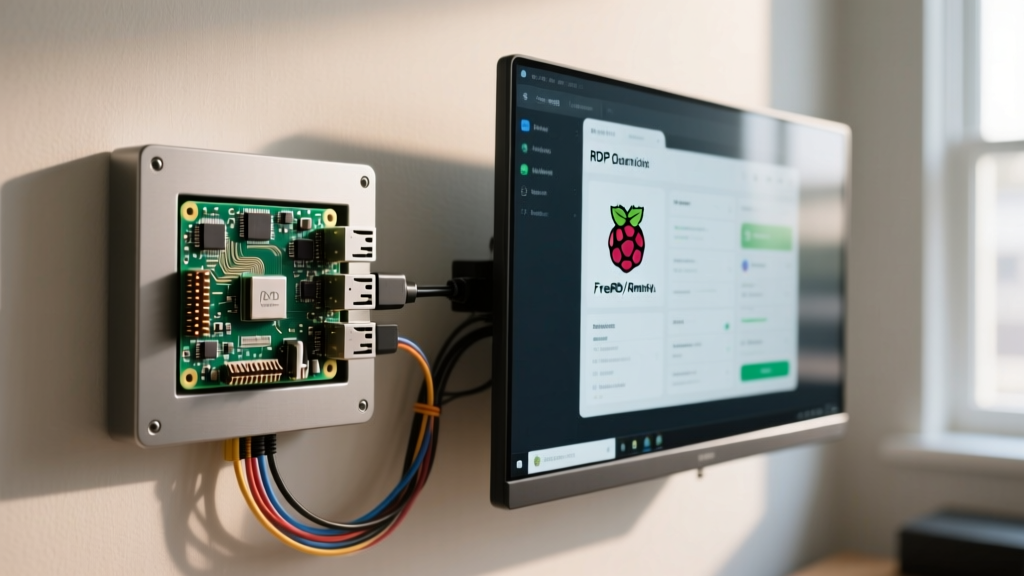
If you are staring at a black screen on your VNC viewer after flashing the latest Raspberry Pi OS, you are not alone. The mandatory shift from the X11 windowing system to the Wayland display server in Raspberry Pi OS Bookworm (and continuing forward) completely broke legacy remote desktop workflows. Tools like x11vnc that rely on scraping the X11 root window simply cannot see the Wayland compositor's buffers.
This guide cuts through the outdated forum posts. We will establish a concrete decision path for selecting the right raspberry pi remote desktop protocol in 2026, walk through a hardware-assisted GPIO status indicator build so you know exactly when a remote session is active on your bench, and debug the exact error strings that trip up embedded developers.
The 2026 Remote Desktop Decision Matrix
Choosing a remote desktop solution is no longer a one-size-fits-all scenario. Your choice must be dictated by your OS display server (Wayland vs. X11) and your network topology (Local LAN vs. Remote WAN). Here is the decision path that terminates in a concrete recommendation.
| Scenario | Display Server | Recommended Software | Verdict / Action |
|---|---|---|---|
| Local LAN, Headless Bench | Wayland (Default) | RealVNC Server (Built-in) | Use this. Enable via raspi-config. Native Wayland support. |
| Local LAN, Legacy GUI Apps | X11 (Fallback) | x11vnc / RealVNC | Only if you forced X11 in raspi-config for legacy compatibility. |
| Remote WAN, Unattended | Wayland | Tailscale + RealVNC | Use this. Mesh network bypasses port forwarding risks. |
| Remote WAN, High Frame Rate | Wayland | RustDesk / NoMachine | Use if you need hardware-accelerated video streaming over the internet. |
Hardware & Parts List: Building a Connection-Status Node
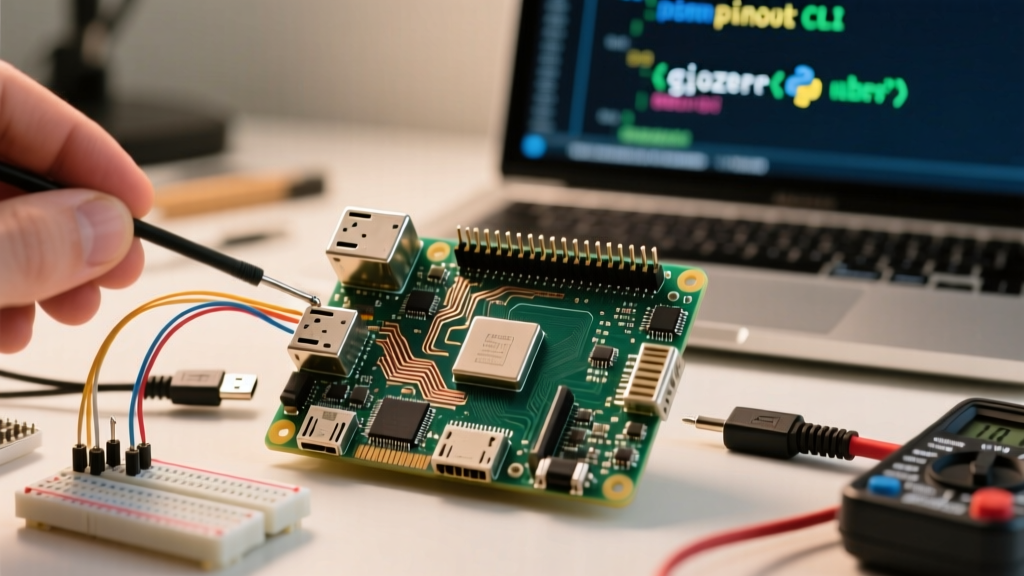
When running a headless Pi 5 on a crowded workbench, it is difficult to tell if the VNC server is actively streaming or idling. We will wire a physical status LED to illuminate only when a remote desktop session is established. This requires monitoring the background VNC daemon.
Target Board Variant: Raspberry Pi 5 (8GB model), running Raspberry Pi OS Bookworm (64-bit, Wayland default). The code and thermal assumptions below specifically target this variant.
| Component | Exact Variant / Spec | Estimated Cost | Notes |
|---|---|---|---|
| Microcontroller | Raspberry Pi 5 (8GB) | $80.00 | 8GB recommended for Wayland compositor + VNC encoding overhead. |
| Cooling | Raspberry Pi Active Cooler | $5.00 | Mandatory. VNC encoding pushes the BCM2712 die past 60°C rapidly. |
| Indicator | 5mm Green Diffused LED | $0.10 | Standard 20mA forward current. |
| Current Limiting | 330Ω 1/4W Resistor | $0.02 | Drops 3.3V GPIO down to safe LED drive levels (~10mA). |
| Wiring | 22 AWG Solid Core Hookup Wire | $0.50 | Two jumper wires or breadboard. |
Pin Mapping & Python Session Monitor Code
We will use the gpiozero library to control the LED, and the subprocess module to poll the OS for active VNC processes. On Wayland, the built-in RealVNC server runs as a user-level systemd service, typically invoking vncserver-x11 or the Wayland-native wayvnc binary depending on your exact OS patch level.
Pin Mapping Table
| Pi 5 GPIO Pin | Physical Pin | Connection | Component Leg |
|---|---|---|---|
| GPIO 17 | Pin 11 | 330Ω Resistor | LED Anode (Long Leg) |
| GND | Pin 9 | Direct Wire | LED Cathode (Short Leg) |
Complete Compilable Python Code
Save this as vnc_monitor.py. This script includes robust error handling for process polling and cleanly releases the GPIO state on exit.
#!/usr/bin/env python3
import time
import subprocess
import logging
import signal
import sys
from gpiozero import LED

# Configure logging for bench debugging
logging.basicConfig(
    level=logging.INFO,
    format='%(asctime)s - %(levelname)s - %(message)s'
)

# Pin definition matching our hardware table
VNC_STATUS_LED = LED(17)

# Processes to check (covers both Wayland and X11 fallback VNC servers)
TARGET_PROCESSES = ['wayvnc', 'vncserver-x11', 'Xvnc']

def check_vnc_active():
    '''Polls the OS for active VNC daemon processes.'''
    for proc in TARGET_PROCESSES:
        try:
            # pgrep returns 0 if process is found, 1 if not
            result = subprocess.run(
                ['pgrep', '-x', proc],
                stdout=subprocess.DEVNULL,
                stderr=subprocess.DEVNULL
            )
            if result.returncode == 0:
                return True
        except FileNotFoundError:
            logging.error('pgrep command not found. Is this a Debian-based OS?')
            return False
        except Exception as e:
            logging.error(f'Unexpected error polling process {proc}: {e}')
    return False

def graceful_exit(signum, frame):
    '''Ensures GPIO is turned off and cleaned up on Ctrl+C.'''
    logging.info('Received exit signal. Turning off LED and cleaning up.')
    VNC_STATUS_LED.off()
    VNC_STATUS_LED.close()
    sys.exit(0)

# Register signal handlers for safe termination
signal.signal(signal.SIGINT, graceful_exit)
signal.signal(signal.SIGTERM, graceful_exit)

def main():
    logging.info('Starting Raspberry Pi Remote Desktop Status Monitor...')
    logging.info(f'Targeting GPIO {VNC_STATUS_LED.pin} for status LED.')

    while True:
        try:
            is_active = check_vnc_active()
            if is_active:
                if not VNC_STATUS_LED.is_lit:
                    logging.info('Remote session detected. LED ON.')
                VNC_STATUS_LED.on()
            else:
                if VNC_STATUS_LED.is_lit:
                    logging.info('No remote sessions. LED OFF.')
                VNC_STATUS_LED.off()

            # Poll every 3 seconds to minimize CPU overhead on the Pi 5
            time.sleep(3)

        except Exception as e:
            logging.critical(f'Main loop failure: {e}')
            VNC_STATUS_LED.off()
            time.sleep(5) # Backoff on error

if __name__ == '__main__':
    main()
To run this automatically on boot, create a systemd service file at /etc/systemd/system/vnc-monitor.service pointing to this script, ensuring it runs under your standard user account (not root) so it inherits the user-level VNC session environment.
Troubleshooting: Black Screens and Connection Refused
When dealing with the raspberry pi remote desktop ecosystem post-Bookworm, you will inevitably hit compositor errors. Here are the exact error strings and their ranked causes.
Error 1: 'The connection closed unexpectedly' or 'Black Screen'
Symptom: VNC Viewer connects, authenticates successfully, but displays a pure black screen or immediately drops the connection.
- Cause (Most Likely): You are running an X11-based VNC scraper (like
x11vnc) on a Wayland session. Wayland isolates application buffers for security; X11 scrapers cannot read them. - Cause: The Pi is booted headless, and the Wayland compositor has not initialized a virtual display because no HDMI monitor is plugged in.
The Fix: Open terminal and run sudo raspi-config. Navigate to Advanced Options > Wayland and ensure the Wayland backend is selected. Then, go to Interface Options > VNC and enable it. The built-in RealVNC integration handles the virtual display creation automatically. If you absolutely must use X11 for a legacy GUI framework (like older PyQt5 builds), switch to X11 in the same Wayland menu and reboot.
Error 2: 'wayvnc: failed to bind to port 5900'
Symptom: You attempt to start a manual wayvnc instance via CLI, and it crashes immediately.
- Cause (Most Likely): The systemd-managed RealVNC server is already occupying port 5900.
- Cause: A zombie VNC process from a previous crashed session is holding the socket.
The Fix: Run sudo lsof -i :5900 to identify the PID holding the port. Kill it with sudo kill -9 [PID], or simply restart the service via systemctl --user restart vncserver-x11-serviced.
The First Three Checks When Remote Desktop Fails
Before you reflash your SD card or rip apart your network configuration, run through this exact diagnostic sequence when your remote desktop refuses to connect:
- Verify the Display Server State: Run
echo $XDG_SESSION_TYPEin your SSH terminal. If it returnswayland, you must use a Wayland-compatible server (RealVNC built-in orwayvnc). If it returnstty, you are headless and the GUI hasn't started; checksystemctl status display-manager. - Check the Firewall (UFW): If you have enabled the Uncomplicated Firewall, VNC traffic will be silently dropped. Run
sudo ufw status. If active, explicitly allow the VNC subnet:sudo ufw allow from 192.168.1.0/24 to any port 5900. - Inspect the Service Logs: Don't guess. Read the daemon logs. Run
journalctl --user -u vncserver-x11-serviced -n 50 --no-pager(or the equivalentwayvncservice). Look for authentication failures or missing DRM (Direct Rendering Manager) node permissions.
Extending or Simplifying the Build
Depending on your deployment environment, you may want to scale this setup up or strip it down.
How to Simplify (The Pure Headless Route)
If you are deploying this Pi 5 into an enclosed IoT enclosure where physical LEDs are useless, drop the GPIO hardware entirely. Instead, simplify the software stack by disabling the desktop environment completely to save RAM and CPU cycles. Run sudo raspi-config, go to System Options > Boot / Auto Login, and select Console. You can then manage the device purely via SSH and use wayvnc only when you need to temporarily launch a GUI diagnostic tool via Xwayland.
How to Extend (I2C OLED IP Display)
For a permanent bench node, extend the Python script to drive a 128x64 SSD1306 I2C OLED display. Instead of just lighting an LED, use the luma.oled Python library to render the Pi's current Tailscale IP address and the active VNC framerate on the screen. Wire the OLED SDA to GPIO 2 (Pin 3) and SCL to GPIO 3 (Pin 5). This eliminates the need to plug in a monitor or run an IP scanner app just to find your Pi's remote desktop endpoint when moving between workbenches.
By aligning your software choice with the Wayland architecture and adding physical bench feedback, you eliminate the guesswork from headless embedded development. Stick to the built-in RealVNC implementation for local tasks, layer Tailscale over it for remote access, and let the GPIO status LED tell you when the compositor is actively streaming.