
Outgrowing the Arduino IDE: The Case for an Upgrade
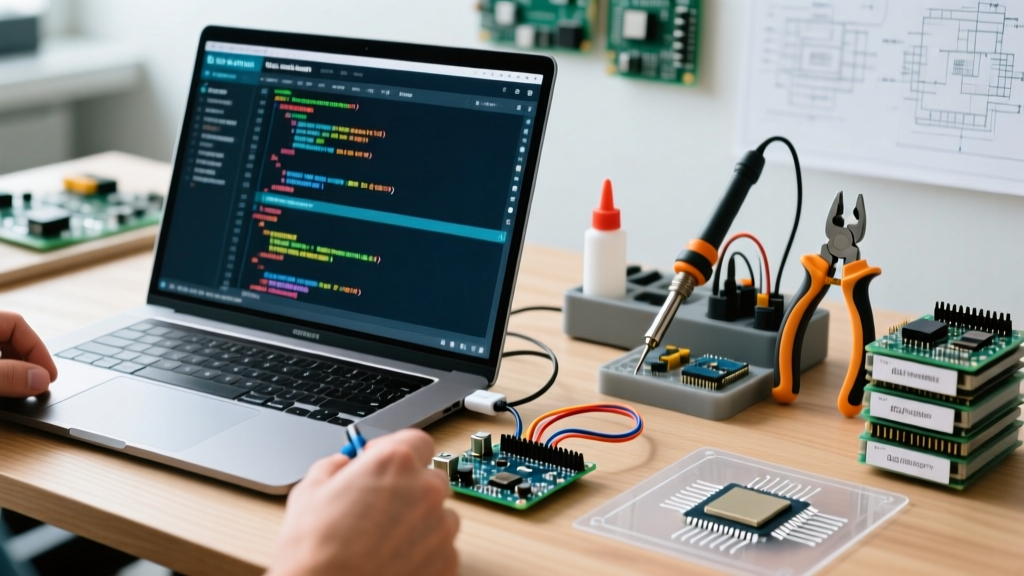
For beginners, the official Arduino IDE is a fantastic gateway into embedded systems. However, as projects scale from simple sensor reads to complex IoT architectures involving ESP32-S3 multicore processing or Teensy 4.1 DSP routines, the limitations of the standard IDE become glaringly obvious. Makers and professional engineers frequently search for visual studio for arduino workflows to gain access to advanced IntelliSense, true hardware debugging, and robust version control. Transitioning away from the `.ino` sketch paradigm to a professional C/C++ environment is a critical milestone in any embedded developer's journey.
When discussing 'Visual Studio' in the context of Arduino, developers are usually referring to one of two distinct ecosystems: the lightweight, cross-platform Visual Studio Code (VS Code) paired with PlatformIO, or the enterprise-grade Visual Studio (VS 2022) paired with the Visual Micro extension. This migration guide will break down both paths, providing actionable steps to port your existing projects, manage dependencies, and resolve common build-system edge cases.
Choosing Your Migration Path: VS Code vs. Visual Studio
Before moving a single line of code, you must select the right toolchain for your specific needs. The decision largely hinges on your background (C++ vs. C#/.NET) and your debugging requirements.
| Feature | Arduino IDE 2.x | VS Code + PlatformIO | Visual Studio + Visual Micro |
|---|---|---|---|
| Target Audience | Hobbyists, Educators | Pro Makers, C++ Engineers | Enterprise, .NET/C# Devs |
| Cost (2026) | Free / Open Source | Free (PIO Pro ~$15/mo) | $50/yr to $150 Lifetime |
| Build System | Arduino CLI (Make-based) | SCons / Python | MSBuild |
| IntelliSense | Basic (clangd) | Advanced (C/C++ Extension) | Native VS C++ Engine |
| Hardware Debug | Limited (GDB via cortex-debug) | Unified Debugger (J-Link/ST-Link) | Visual Micro Debugger |
| Library Mgmt | Global / ZIP Import | Project-scoped (`lib_deps`) | Project-scoped / NuGet |
Path A: Migrating to VS Code with PlatformIO (Industry Standard)
For 90% of embedded engineers in 2026, VS Code combined with the PlatformIO extension is the definitive upgrade. PlatformIO completely bypasses the Arduino IDE's opaque build process, utilizing a transparent `platformio.ini` configuration file. According to the official PlatformIO documentation, this setup supports over 1,000 development boards and integrates seamlessly with Git.
Step 1: Restructuring Your Project
The Arduino IDE relies on a single `.ino` file that automatically includes `Arduino.h` and generates function prototypes. PlatformIO requires a standard C++ structure.
- Create a new PlatformIO project targeting your specific board (e.g., `esp32-s3-devkitc-1`).
- Rename your main `sketch.ino` file to `main.cpp` and move it into the `src/` directory.
- Manually add `#include <Arduino.h>` at the very top of `main.cpp`.
- Move all custom `.c`, `.cpp`, and `.h` files into the `src/` or `lib/` directories.
Step 2: Translating Boards.txt to platformio.ini
In the Arduino IDE, board-specific compiler flags are hidden in `boards.txt`. In PlatformIO, you must declare them explicitly. A common failure mode during migration occurs when developers port ESP32-S3 code and experience silent boot loops or missing Serial output.
; platformio.ini configuration for ESP32-S3
[env:esp32-s3-devkitc-1]
platform = espressif32
board = esp32-s3-devkitc-1
framework = arduino
build_flags =
    -DARDUINO_USB_CDC_ON_BOOT=1
    -DCORE_DEBUG_LEVEL=4
lib_deps =
    bblanchon/ArduinoJson@^7.2.0
    knolleary/PubSubClient@^2.8
Crucial Detail: The `-DARDUINO_USB_CDC_ON_BOOT=1` flag is mandatory for native USB Serial on the ESP32-S3. The Arduino IDE injects this silently via the GUI menu; PlatformIO requires it in the INI file.
Step 3: Localizing Libraries
Stop using global library folders. Define your dependencies under `lib_deps` in your `platformio.ini` file using the Registry format (`owner/library@^version`). This ensures that when you push your project to GitHub, any collaborator can clone it and compile it immediately without manually hunting for ZIP files.
Path B: Migrating to Visual Studio with Visual Micro (Enterprise/.NET)
If your team operates heavily within the Microsoft ecosystem, or you are integrating Arduino firmware with C# desktop applications, Visual Studio 2022 with the Visual Micro extension is a powerhouse. Visual Micro hooks directly into MSBuild, allowing you to use the full weight of Visual Studio's memory profiling and advanced breakpoint debugging.
Expert Insight: Visual Micro is particularly valuable for developers working with the Arduino Nano RP2040 Connect or Teensy 4.1 who need to step through C++ code line-by-line using an SWD probe (like a J-Link) while simultaneously monitoring serial output in the VS Output window.
Migration Steps for Visual Micro
- Install the Extension: Download Visual Micro via the Visual Studio Marketplace (Requires a paid license for advanced debugging, typically ~$50/year for the standard tier).
- Import the Sketch: Unlike PlatformIO, Visual Micro can open `.ino` files directly. However, for complex projects, use the 'Convert to C++' feature in the Visual Micro menu to generate `.cpp` and `.h` headers.
- Configure Board Properties: Use the Visual Micro toolbar to select your board and port. The extension reads your local Arduino IDE `hardware` and `packages` folders, meaning you do not need to reinstall board managers.
Troubleshooting Edge Cases and Failure Modes
Migrating to a professional IDE exposes underlying code flaws that the forgiving Arduino compiler previously masked. Here are the most common issues encountered during the transition.
1. IntelliSense 'Squiggles' on Valid Code
The Problem: VS Code shows red underlines on `#include <Wire.h>` or custom library headers, even though the code compiles perfectly.
The Fix: This is a C/C++ extension configuration issue, not a compiler error. In VS Code, open the Command Palette (`Ctrl+Shift+P`) and run PlatformIO: Rebuild IntelliSense Index. If the issue persists, ensure your `c_cpp_properties.json` is not manually overriding the compiler path. Delete the `.vscode/c_cpp_properties.json` file and let PlatformIO regenerate it automatically.
2. Port Locking and Upload Failures on Windows 11
The Problem: After opening the Serial Monitor, attempting to upload new firmware results in a `Access is denied` or `Port busy` error.
The Fix: The Arduino IDE automatically closes the serial port before flashing. VS Code does not. You must manually click the 'Disconnect' (trash can) icon in the Serial Monitor pane before hitting the Upload button. Alternatively, add `monitor_speed = 115200` and `upload_flags = --before=default_reset` to your `platformio.ini` to force a soft reset via the DTR line, bypassing the need for manual port toggling on boards like the Arduino Leonardo or Pro Micro.
3. Missing F() Macro Optimizations
The Problem: Code compiled in PlatformIO consumes significantly more SRAM than the same code compiled in the Arduino IDE.
The Fix: The Arduino IDE automatically applies certain optimization flags for AVR boards (like the Uno or Mega2560) that PlatformIO leaves to the developer. Ensure your `platformio.ini` includes `build_unflags = -Os` and `build_flags = -O2 -flto` to enable Link Time Optimization and aggressive string constant folding, matching or exceeding the Arduino IDE's memory footprint.
Final Thoughts on the Migration
Upgrading your toolchain is an investment that pays immediate dividends in code reliability and development speed. While the Arduino CLI remains a fantastic tool for headless CI/CD pipelines, the interactive development experience in Visual Studio or VS Code is unmatched. By adopting explicit build configurations, project-scoped libraries, and native hardware debugging, you transition from simply 'writing sketches' to engineering robust embedded firmware.