
The Mobile Maker's Dilemma: iPadOS Serial Diagnostics
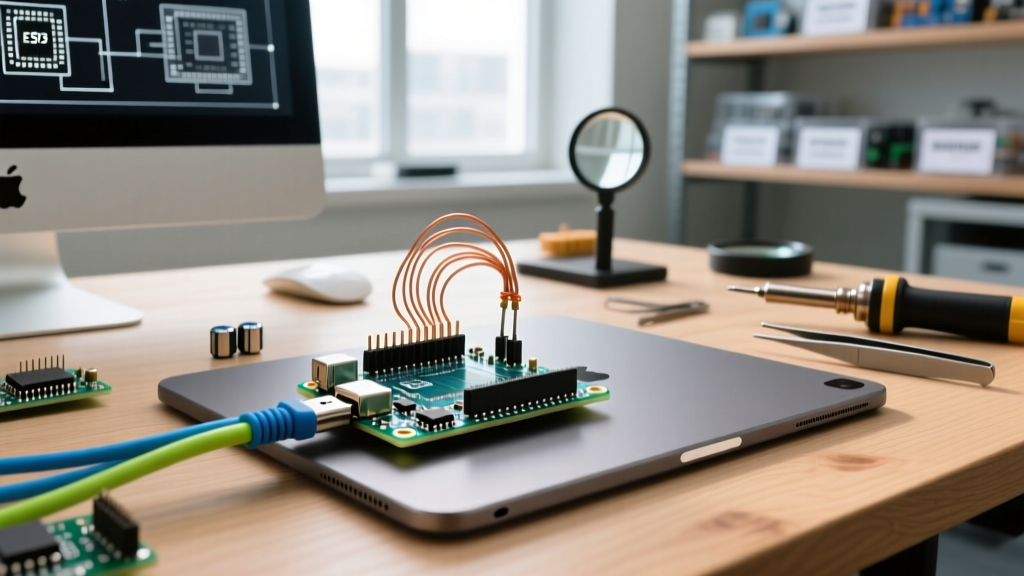
Using an iPad as a mobile development and diagnostic terminal for Arduino microcontrollers is a highly efficient workflow for field engineers and makers. Whether you are debugging a remote weather station with an iPad Pro (M4) or reading serial telemetry via an iPad Air on iOS 18, the tablet's portability is unmatched. However, the closed nature of iPadOS introduces unique hardware and software bottlenecks. Unlike Windows or macOS, iPadOS strictly enforces USB power delivery handshakes, restricts legacy Bluetooth protocols, and sandboxes file system access.
If you are attempting an Arduino to iPad connection and encountering silent failures, accessory rejection errors, or dropped data packets, this diagnostic guide will walk you through the exact hardware and software faults causing the issues—and how to engineer reliable workarounds.
Diagnosing the 'Accessory Requires Too Much Power' Error
The most frequent point of failure when hardwiring an Arduino to an iPad via USB-C OTG or Lightning adapters is the immediate iPadOS kernel rejection of the device. You will typically see a system-level popup stating:
'Cannot Use Accessory: The connected USB accessory requires too much power.'
The Hardware Reality: iPadOS Power Limits
iPadOS does not supply unlimited 5V rail power through its USB-C or Lightning ports.
- Lightning iPads (Pre-2018): Hard-limited to roughly 100mA output without the official Apple Lightning to USB 3 Camera Adapter (which requires an external power injection via its Lightning passthrough).
- USB-C iPads (M1/M2/M4 Pro & Air): While capable of higher output, iPadOS enforces strict USB Battery Charging (BC) 1.2 negotiation limits. If the connected device does not present the correct pull-up/pull-down resistor configuration on the D+ and D- data lines, iPadOS defaults to a conservative 500mA limit, and often suspends the port entirely if it detects transient voltage sags.
An authentic Arduino Uno R3 draws approximately 45mA to 50mA at idle. However, the moment you stack a 16x2 LCD shield with an active backlight (adding ~80mA) or a sensor array, the transient startup current spikes well over 150mA. If the voltage on the iPad's 5V rail sags below 4.75V during this spike, the iPadOS usbmuxd daemon instantly kills the USB port to protect the logic board.
Actionable Fixes for Power Rejections
- Use a Powered USB Hub: Bypass the iPad's internal power limits by using a powered hub. The Sabrent 4-Port USB 3.0 Hub with individual switches (Model HB-UM43, ~$18) provides dedicated 5V/2.4A power injection. Connect the hub to the iPad using the official Apple USB-C to USB Adapter (Model MJ1M2AM/A, ~$19). Do not use third-party, unbranded OTG dongles, as they often lack the necessary ESD protection and pull-up resistors required for iPadOS accessory enumeration.
- Isolate High-Draw Shields: If you must run directly off the iPad without a hub, power the Arduino's sensors and shields via the
Vinpin using an external 7V-9V battery pack, ensuring the iPad only supplies data and minimal logic power via the USB port.
Serial Monitor Silence: Baud Rates and DTR Handshake Failures
You have successfully established a wired connection, and your iOS serial terminal app (such as SerialTools or Terminus) recognizes the /dev/cu.usbmodem port. Yet, the terminal remains entirely blank despite your sketch running.
Root Cause 1: The DTR Reset Omission
On desktop environments (Windows/Linux/macOS), opening the Arduino IDE Serial Monitor toggles the DTR (Data Terminal Ready) control line. The Arduino Uno's onboard ATmega16U2 USB-to-Serial chip detects this DTR pulse and triggers a capacitor-coupled reset on the main ATmega328P microcontroller. This restarts the sketch, ensuring the serial monitor captures the initial setup() output.
Most native iPadOS serial applications do not assert the DTR line upon opening a file descriptor to the USB modem. Consequently, the Arduino is already running and has already printed its initial serial data before the iPad app begins listening.
The Fix: Modify your Arduino sketch to include a blocking delay or a handshake requirement in the setup() loop. According to the Arduino Official Serial Documentation, you can force the sketch to wait until the serial port is actively opened by the host:
void setup() {
  Serial.begin(115200);
  // Wait for iOS app to open the port (Timeout after 5 seconds to prevent infinite hang)
  unsigned long startMillis = millis();
  while (!Serial && (millis() - startMillis < 5000)) {
    delay(10);
  }
  delay(500); // Buffer time for iOS USB stack to stabilize
  Serial.println("Telemetry Initialized.");
}
Root Cause 2: Baud Rate & Parity Mismatches
iPadOS serial apps frequently default to 9600 baud, 8 data bits, No parity, 1 stop bit (8N1). If your ESP32 or Arduino sketch is configured for Serial.begin(115200), the terminal will display either nothing or a stream of garbled, high-ASCII characters. Always verify the exact baud rate in your iOS app's port configuration menu before suspecting a hardware fault.
The iOS Bluetooth Trap: Classic SPP vs. BLE Errors
Wireless diagnostics are highly desirable for enclosed or moving projects. A massive diagnostic trap for makers migrating from Android to iOS is attempting to use the ubiquitous HC-05 Classic Bluetooth module.
The MFi Certification Barrier
If your HC-05 pairs in the iPadOS Settings menu but immediately shows 'Not Supported', or if it refuses to appear in your BLE terminal app, you have hit Apple's MFi (Made for iPhone/iPad) restriction. Apple's External Accessory Framework strictly prohibits standard Serial Port Profile (SPP) over Classic Bluetooth unless the peripheral manufacturer has paid for and implemented the proprietary MFi authentication chip. The HC-05 lacks this chip.
The Fix: Migrating to BLE (HM-10 or ESP32)
To achieve wireless serial communication with an iPad, you must use Bluetooth Low Energy (BLE) via Apple's CoreBluetooth Framework.
- For 5V Arduino Boards: Replace the HC-05 with an HM-10 (CC2541 chip) module (~$6). Ensure your iOS app is scanning for the specific BLE Service UUID
0xFFE0and Characteristic UUID0xFFE1. - For 3.3V Boards (ESP32/Teensy): Use the ESP32's native BLE capabilities configured as a UART bridge.
Silent Packet Drops: The MTU Fragmentation Error
When using an ESP32 as a BLE UART to send telemetry to an iPad, you may notice that short strings transmit perfectly, but longer JSON payloads are silently dropped by iPadOS. This is an MTU (Maximum Transmission Unit) negotiation error.
By default, BLE 4.2 limits the payload to 20 bytes per packet. While iOS dynamically negotiates a higher MTU (often up to 185 bytes) upon connection, if your ESP32 sketch fires a 100-byte BLECharacteristic.setValue() command before the MTU negotiation handshake completes, the iOS BLE stack drops the fragmented packets without throwing an error.
The Fix: In your ESP32 Arduino code, implement a callback to verify the negotiated MTU before transmitting large payloads, or manually chunk your data into 20-byte arrays with a 10ms delay() between transmissions to allow the iOS Bluetooth daemon to process the buffer.
Connection Method Comparison Matrix
| Connection Method | Latency | Max Power Draw | iOS App Compatibility | Estimated Cost (2026) |
|---|---|---|---|---|
| Wired USB-C OTG | < 1ms | 500mA (w/o Hub) | Native SerialTools, Terminus | $19 (Apple Adapter) |
| Wired Lightning OTG | < 1ms | 100mA (Strict Limit) | Native SerialTools, Terminus | $39 (Camera Adapter) |
| HM-10 BLE Module | 15ms - 40ms | N/A (Ext. Powered) | BLE Terminal Apps Only | ~$6.00 |
| ESP32 Wi-Fi (TCP) | 5ms - 20ms | N/A (Ext. Powered) | TCP/UDP Terminal Apps | ~$8.00 |
Safari Web Editor Compilation & Sandboxing Errors
Many users attempt to compile and upload sketches directly from the iPad using the Arduino Web Editor via Safari. A common error encountered is 'Board not found' or 'Compilation failed: missing avr-gcc'.
This occurs because Safari on iPadOS has historically restricted the WebSerial API due to strict sandboxing and security models surrounding direct hardware access from browser contexts. Unlike Chrome on a desktop, Safari cannot reliably maintain the persistent background process required to compile and push the binary via the iPad's USB-C port.
The Diagnostic Fix: Abandon browser-based IDEs for iPadOS. Instead, utilize native iOS applications like Arduino Cloud IoT or third-party compilers that utilize native IOKit wrappers. If you must use the Web Editor, ensure you are using the Arduino Cloud IoT mobile app, which handles the local USB bridging via an internal daemon rather than relying on the browser's WebSerial implementation.
Summary of Diagnostic Flow
When troubleshooting an Arduino to iPad link, always follow this sequence: verify physical power negotiation via a powered hub, confirm the DTR reset behavior in your sketch, and ensure you are using BLE (not Classic SPP) for wireless links. By respecting the strict hardware and software boundaries of iPadOS, you can transform your tablet into a highly reliable, professional-grade mobile diagnostic station.