
What Exactly is the Arduino Sketchbook?
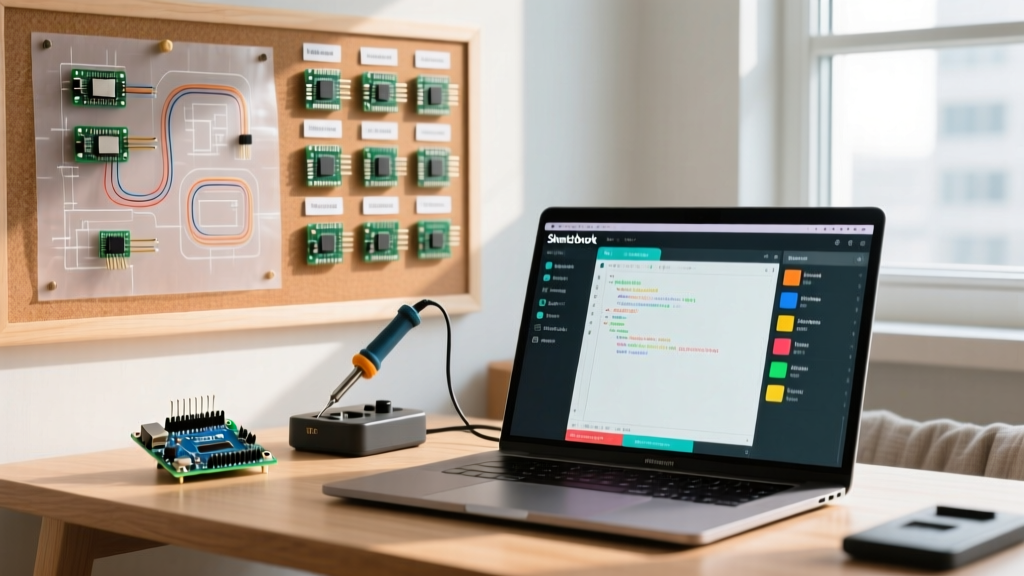
In the Arduino ecosystem, terminology can sometimes blur the lines between physical hardware and software environments. While a 'sketch' is the universal term for an Arduino program or script, the Arduino sketchbook refers to the root directory on your local machine where the Arduino IDE (Integrated Development Environment) stores, manages, and compiles these programs. Whether you are using the legacy IDE 1.8.x or the modern, Eclipse-based Arduino IDE 2.3.x in 2026, the sketchbook remains the foundational workspace for your microcontroller projects.
Unlike standard C++ or Python development environments that rely on complex workspace configurations or virtual environments, the Arduino IDE uses a highly opinionated, folder-based structure. Understanding how this directory operates is critical for managing custom libraries, integrating third-party hardware cores (like the ESP32 or STM32 packages), and troubleshooting elusive compilation errors.
Default Directory Paths Across Operating Systems
By default, the Arduino IDE creates the sketchbook folder in your user directory's 'Documents' folder. However, the exact path varies depending on your operating system. Below is the standard mapping for default sketchbook locations:
| Operating System | Default Sketchbook Path | Environment Variable Override |
|---|---|---|
| Windows 10 / 11 | C:\Users\{username}\Documents\Arduino | ARDUINO_SKETCHBOOK |
| macOS (Ventura/Sonoma/Sequoia) | /Users/{username}/Documents/Arduino | ARDUINO_SKETCHBOOK |
| Linux (Ubuntu/Debian/Fedora) | ~/Arduino | ARDUINO_SKETCHBOOK |
You can verify or change your active sketchbook path by navigating to File > Preferences in the Arduino IDE 2.x. The 'Sketchbook location' field dictates where the IDE looks for your projects and local libraries.
Anatomy of a Well-Structured Sketch Folder
Every individual project within the sketchbook is contained in its own folder, which the IDE refers to as a 'sketch folder'. The golden rule of Arduino development is that the primary .ino file must perfectly match the name of its parent folder. If your folder is named SmartThermostat, the main file must be SmartThermostat.ino. If they mismatch, the IDE will automatically rename the folder upon opening, which can wreak havoc on version control systems like Git.
The 'src' Directory and Compilation Mechanics
For simple projects, placing all .cpp, .h, and .ino files in the root of the sketch folder is sufficient. However, as projects scale, this flat structure becomes unmanageable. This is where the src/ subfolder becomes vital.
- Root Folder Behavior: The Arduino builder concatenates all
.inofiles in the root directory into a single temporary C++ file, automatically generating function prototypes. It compiles all root-level.cppfiles without recursive scanning. - The 'src' Folder Behavior: Any code placed inside a
src/subfolder is compiled recursively. More importantly, files in thesrcfolder are treated as distinct translation units. The IDE does not auto-generate prototypes for files insidesrc/, forcing you to write standard, compliant C++ with proper header guards and manual declarations.
Using the src directory is highly recommended for complex architectures, such as state machines or RTOS-based ESP32 applications, as it prevents the Arduino pre-processor from corrupting advanced C++ template logic.
The Cloud Sync Trap: OneDrive and iCloud Issues
One of the most frequent, yet poorly documented, failure modes in modern Arduino development involves cloud synchronization daemons. If your 'Documents' folder is synced via Microsoft OneDrive (default on Windows 11) or Apple iCloud Drive (default on macOS), your sketchbook is highly vulnerable to file-locking errors.
Expert Warning: Never host your active Arduino sketchbook inside a continuously syncing cloud folder. The Arduino IDE generates temporary build caches and modifies hidden lock files during compilation. Cloud sync daemons frequently intercept these file operations, resulting in 'Access Denied', 'Read-Only', or 'Cannot copy file' compilation errors.
The Solution: Move your Arduino sketchbook to a local, non-synced directory (e.g., C:\Dev\Arduino or ~/LocalDev/Arduino). Update the path in the IDE Preferences. If you require cloud backups, use a scheduled backup tool or a Git-based workflow rather than real-time file syncing.
Managing Custom Libraries and Hardware Cores
The sketchbook is not just a repository for your code; it acts as the primary injection point for custom, user-installed dependencies. According to the official Arduino library documentation, the IDE prioritizes libraries based on a specific hierarchy.
Inside your root sketchbook folder, you can manually create two critical directories:
libraries/: Any library placed here (e.g.,Arduino/libraries/MyCustomSensor/) will be globally available to all sketches in your workspace. Libraries in this folder override identically named libraries installed via the Library Manager, making it ideal for testing local forks or proprietary drivers.hardware/: This directory allows you to manually install third-party board support packages (BSPs) without using the Board Manager JSON URLs. This is heavily used by hardware vendors developing custom PCBs based on ATmega or ESP32-S3 silicon, allowing them to test custom bootloaders and pinmaps locally before publishing.
Headless Workflows and Arduino CLI Integration
For professional firmware engineers and CI/CD (Continuous Integration/Continuous Deployment) pipelines, the graphical IDE is often bypassed in favor of the Arduino CLI. The CLI relies on a configuration file (arduino-cli.yaml) to define the sketchbook path.
When configuring automated testing environments via GitHub Actions or Jenkins, explicitly defining the sketchbook directory ensures that custom libraries and hardware cores are cached correctly between builds. You can verify your CLI configuration by referencing the Arduino CLI configuration documentation. Setting the directories.user parameter in your YAML file points the CLI directly to your designated sketchbook, ensuring reproducible builds across different server environments.
Version Control: Git and the Sketchbook
Tracking your sketchbook with Git requires careful management of build artifacts. The Arduino IDE generates hidden directories and temporary files that should never be committed to a repository. To maintain a clean Arduino IDE workspace, always include a robust .gitignore file at the root of your sketch folder.
A standard .gitignore for an Arduino sketch should include:
# Arduino Build Artifacts
/build/
*.hex
*.bin
*.elf
*.map

# IDE specific hidden files
.vscode/
*.ino.*
By ignoring the build/ directory and compiled binaries, you keep your repository lightweight and prevent merge conflicts caused by machine-specific cache files.
Frequently Asked Questions
Can I have multiple sketchbooks on one computer?
Yes, but the Arduino IDE only actively recognizes one sketchbook path at a time via the Preferences menu. However, you can maintain multiple project directories and simply switch the path in the IDE settings when changing contexts, or use the Arduino CLI with different configuration profiles to manage distinct workspaces simultaneously.
Why does my sketch folder have a hidden '.theia' or '.vscode' folder?
Arduino IDE 2.x is built on the Eclipse Theia framework, which shares architecture with Visual Studio Code. These hidden folders store workspace-specific settings, debugger configurations, and serial monitor states. They are harmless but should be excluded from version control.
How do I recover a corrupted sketchbook preferences file?
If the IDE fails to launch or cannot locate your sketches, navigate to C:\Users\{username}\.arduinoIDE (Windows) or ~/.arduinoIDE (Linux/macOS). Deleting the arduino-cli.yaml and settings.json files in this hidden directory will force the IDE to regenerate default factory settings upon the next reboot.