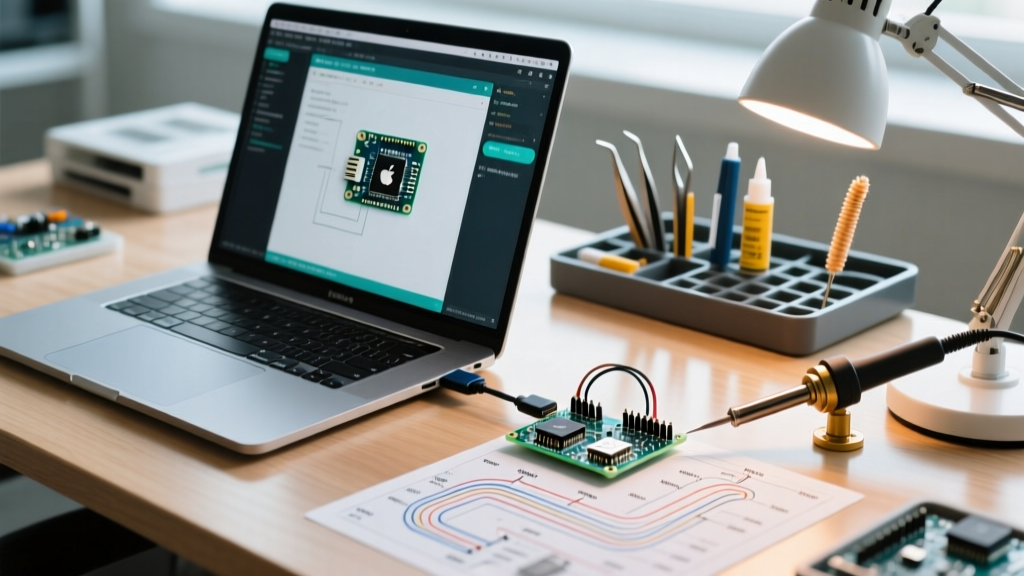

The Ultimate Quick-Reference Guide to the Arduino Mac IDE
Navigating the Arduino Mac IDE ecosystem in 2026 presents unique challenges, particularly for makers who have transitioned to Apple Silicon (M1, M2, M3, and M4 architectures). While the Arduino IDE 2.3.x series runs natively on ARM64 macOS environments, underlying serial communication protocols, third-party USB-to-UART bridge drivers, and macOS security gatekeepers frequently cause upload failures. This FAQ and quick-reference matrix is designed for rapid troubleshooting, cutting through forum noise to provide exact terminal commands, driver versions, and hardware-level diagnostics.
Quick-Reference Troubleshooting Matrix
| Symptom in IDE 2.x | Root Cause | Immediate Fix / Terminal Command |
|---|---|---|
Board at /dev/tty.usbserial-X not found |
Using tty instead of cu (Call-Up) device node. |
Select the /dev/cu.usbserial-X port in the IDE dropdown. |
| Port is busy / Upload timeout | Ghost process or Bluetooth daemon holding the serial lock. | lsof | grep cu.usb then kill -9 [PID] |
| Kernel Panic on USB insertion | Outdated CH340 x86 kernel extension on Apple Silicon. | Uninstall old driver; install WCH CH34xV3.6+ (ARM64 native). |
avrdude: stk500_recv() programmer not responding |
Auto-reset circuit failing to trigger the bootloader. | Manual reset trick: Hold RESET, click Upload, release at 1.5s. |
| Board Manager JSON 403 Forbidden | Deprecated ESP8266/ESP32 raw GitHub URLs. | Update to raw.githubusercontent.com JSON endpoints. |
Deep-Dive FAQ: Apple Silicon & macOS Sequoia Compatibility
Do I need Rosetta 2 to run the Arduino Mac IDE on M-series chips?
No. As of 2026, the official Arduino IDE 2.3.x is compiled natively for Apple Silicon (ARM64). You do not need Rosetta 2. However, if you are using third-party board packages (like older STM32duino cores or legacy ESP8266 toolchains), the underlying gcc-arm-none-eabi compilers bundled in those packages might still be x86_64 binaries. In those specific edge cases, macOS will silently invoke Rosetta 2 to compile your sketch. To verify your IDE architecture, open the Activity Monitor, locate 'Arduino IDE', and ensure the 'Kind' column reads Apple, not Intel.
Why does my Mac crash or kernel panic when I plug in a clone Arduino?
This is almost exclusively caused by the CH340/CH341 USB-to-serial chip found on $4–$8 clone boards (like the Uno R3 clones or Nano V3.0 clones). If you previously installed an older CH340 driver (pre-2023) designed for Intel Macs, the legacy kernel extension (.kext) will conflict with Apple Silicon's memory protections, resulting in a kernel panic upon USB enumeration.
Pro-Tip: Always use the/dev/cu.*ports on macOS. The/dev/tty.*(Teletype) ports are inbound-only and will lock up your Arduino Mac IDE session if the device is disconnected abruptly without unmounting.
The Fix: You must completely purge the old driver and install the modern Driver Extension (.dext). Download the official ARM64 compatible driver from the WCH CH340 Mac Driver page. After installation, navigate to System Settings > Privacy & Security > Security, and explicitly click 'Allow' for the WCH system extension. A reboot is mandatory to load the extension into the macOS IOKit registry.
Resolving 'Port is Busy' and Upload Timeouts
How do I clear a locked serial port without rebooting my Mac?
When the Arduino Mac IDE throws a 'Port is busy' or 'Resource temporarily unavailable' error, it means a background process has failed to release the file descriptor for the serial port. This often happens if the Serial Monitor was left open when the IDE crashed, or if a background 3D printer host (like OctoPrint or PrusaSlicer) is polling the port.
Open your macOS Terminal and execute the following sequence:
- Identify the process holding the port:
lsof | grep /dev/cu.usbserial - Note the PID (Process ID) in the second column of the output.
- Force kill the process:
sudo kill -9 [PID]
If the port remains locked, the macOS Bluetooth daemon (bluetoothd) is occasionally known to aggressively poll USB-serial bridges that share similar VID/PID profiles. Restarting the daemon via sudo killall -HUP bluetoothd will instantly free the port without requiring a full system reboot.
The 'Manual Reset' Timing Trick for avrdude stk500 Errors
If you are using a genuine Arduino Uno R3 or a high-quality clone with the ATmega16U2 USB bridge, but you still receive avrdude: stk500_recv(): programmer is not responding, the auto-reset capacitor (typically a 0.1µF ceramic capacitor between the DTR line and the RESET pin) may have failed or is suffering from parasitic capacitance issues on your specific USB hub.
The Hardware Bypass:
- Press and hold the physical RESET button on the Arduino board.
- Click the Upload button in the Arduino Mac IDE.
- Watch the black console window at the bottom of the IDE. The moment the text switches from 'Compiling sketch...' to 'Uploading...' (usually exactly 1.2 to 1.8 seconds into the process), release the RESET button.
This manually forces the ATmega328P into its Optiboot bootloader window, which lasts for exactly 500 milliseconds. Mastering this timing eliminates the need to replace the auto-reset capacitor.
Managing Hidden Caches and Board Manager JSONs
Where are the hidden Arduino preferences and cache files stored on macOS?
Unlike Windows, macOS hides the Arduino configuration directories inside the user Library folder. When a board package corrupts (common with ESP32 core updates failing mid-download), you must manually clear the cache.
Navigate to ~/Library/Arduino15/. Inside this directory:
- packages/: Contains all downloaded Board Manager cores and toolchains. Deleting a specific folder here (e.g.,
packages/esp32) forces a clean reinstall via the IDE. - staging/: Contains incomplete downloads. If you get 'Hash mismatch' errors, empty this folder entirely.
- arduino-cli.yaml: The master configuration file. If your IDE refuses to launch due to a corrupted workspace state, deleting this file will reset the IDE to factory defaults without deleting your actual
.inosketch files.
For advanced users who prefer bypassing the GUI entirely, the Arduino CLI is fully supported on Apple Silicon and can be installed via Homebrew (brew install arduino-cli). This is highly recommended for CI/CD pipelines or headless Mac mini maker-stations.
Why are my ESP32 Board Manager URLs failing with 403 Errors?
Espressif and the community have restructured their GitHub repositories. If you are still using the legacy github.com/espressif/... raw URLs in your Preferences > Additional Boards Manager URLs field, the Arduino Mac IDE will fail to parse the JSON index.
Always ensure your URLs point to the raw.githubusercontent.com domain. For the ESP32, the correct 2026 endpoint is:
https://raw.githubusercontent.com/espressif/arduino-esp32/gh-pages/package_esp32_index.json. You can verify the latest official endpoints via the Arduino IDE Documentation.
Hardware Diagnostics: Cables and USB Hubs
Before assuming your Arduino Mac IDE setup is corrupted, rule out physical layer failures. Apple Silicon Macs are highly sensitive to USB-C power delivery negotiation. If you are using a cheap USB-C to USB-A adapter (dongle) that lacks proper E-Marker chips, the Mac may throttle the data bus to 12Mbps or drop the connection entirely when the Arduino's servos or relays draw a sudden 500mA spike.
Always test with a certified 10Gbps data cable. If a board works perfectly when plugged directly into the Mac's Thunderbolt port but fails when plugged into a $15 unpowered USB hub, the issue is voltage droop on the hub's 5V rail, not a software bug in the IDE. Genuine Arduino boards require a stable 4.75V to 5.25V on the VUSB line to maintain stable serial enumeration.