
The Illusion of Deletion in Arduino IDE 2.x
If you have ever asked yourself how to remove a file from my Arduino sketch, you have likely encountered the frustrating 'ghost file' phenomenon. You delete a tab in the Arduino IDE, click save, and hit verify—only to be met with a wall of red text, 'multiple definition' linker errors, or deprecated function calls from a file you thought you erased.
As of 2026, the modern Arduino IDE (built on the Eclipse Theia framework and powered by arduino-cli under the hood) handles multi-file sketches differently than the legacy 1.8.x Java-based IDE. The disconnect between the IDE's visual tab manager, your operating system's file explorer, and the aggressive build caching system is the root cause of 90% of file-removal failures.
This advanced guide bypasses basic UI clicks and details the exact filesystem and cache-purging protocols required to cleanly sever a file from your Arduino project, ensuring zero compilation artifacts remain.
The Architecture of Arduino Tabs: .ino vs .cpp vs .h
To properly remove a file, you must first understand how the Arduino Builder processes your sketch folder. The IDE does not treat all tabs equally. According to the official Arduino Sketch Build Process, the compiler handles file extensions in three distinct phases:
- The Concatenation Phase (.ino): All
.inofiles in the root sketch folder are merged alphabetically into a single temporarysketch.cppfile. Function prototypes are auto-generated and injected at the top. - The Standard Compilation Phase (.cpp/.c): These files are compiled individually into object (
.o) files. They require manual#includedirectives and do not get auto-prototyping. - The Header Phase (.h): These are not compiled directly but are parsed when included by a
.cppor.inofile.
Expert Insight: Deleting a.cpptab that contains a library implementation will immediately trigger 'undefined reference' linker errors if you forget to remove the corresponding#includeand function calls. Deleting a.inotab, however, can silently break your build if the auto-prototype generator fails to reorder dependencies correctly after the file is removed.
The 4-Step Advanced Purge Protocol
Do not rely solely on the 'Delete Tab' dropdown menu. To completely and safely remove a file from your sketch ecosystem, follow this strict four-step protocol.
Step 1: Sever Dependencies in Code
Before touching the UI or filesystem, open your main .ino file and any remaining .cpp files. Search for and delete any #include "deleted_file.h" directives. Remove all function calls, class instantiations, and global variables that rely on the target file. If you skip this, the compiler will halt at the preprocessing stage, masking the actual file removal process.
Step 2: UI and Filesystem Deletion
- Click the dropdown arrow next to the file tab in the Arduino IDE 2.x top bar.
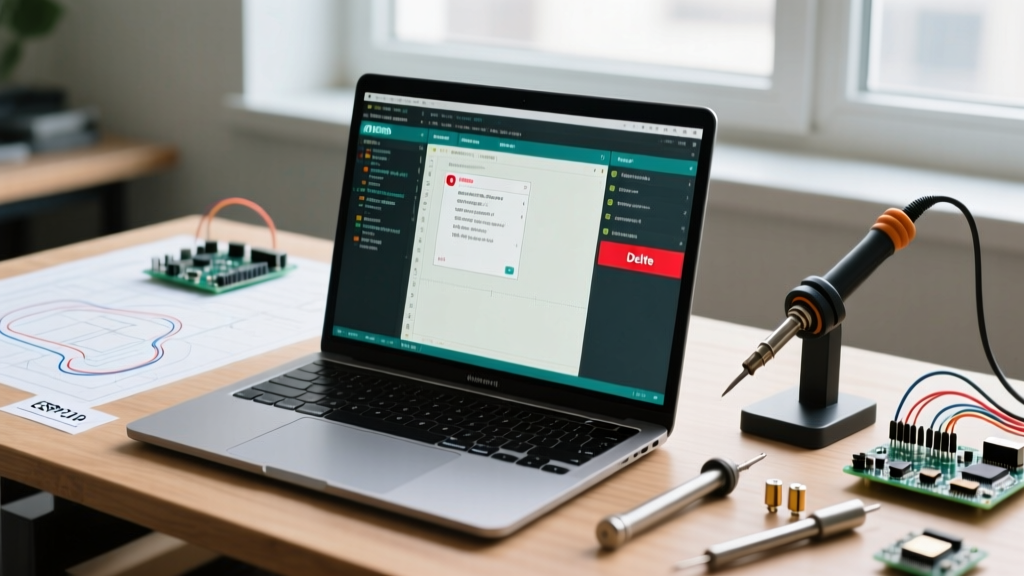
- Select Delete. When prompted, confirm that you want to move the file to the OS trash/recycle bin.
- The Critical Override: Open your OS file explorer (Windows Explorer, macOS Finder, or Linux Nautilus) and navigate to the actual sketch folder. Verify the file is gone. In edge cases involving synced cloud drives (OneDrive, iCloud, Dropbox), the IDE may fail to push the deletion to the filesystem due to file-locking. If the file remains in the folder, manually delete it at the OS level.
Step 3: Annihilate the Build Cache
This is where advanced users separate themselves from beginners. The arduino-cli caches compiled object files in a hidden temporary directory to speed up subsequent builds. If you delete a .cpp file from the sketch folder, the IDE sometimes fails to invalidate the cache hash, resulting in the linker pulling in the 'ghost' object file.
How to clear the cache manually:
- Windows: Press
Win + R, type%TEMP%, and navigate toarduino\sketches\. Delete the folder corresponding to your project hash (e.g.,A3B4C5D6...). - macOS: Open Terminal and run
rm -rf /private/var/folders/*/*/C/arduino/sketches/*(use with caution) or navigate via Finder using 'Go to Folder' and pasting/private/var/folders/, then searching for thearduinocache directory. - Linux: Clear the cache via
rm -rf ~/.cache/arduino/sketches/*.
Alternatively, in Arduino IDE 2.x, you can hold the Shift key while clicking the Verify button. This forces a clean build, bypassing the cache and forcing the compiler to re-evaluate the exact current state of the sketch folder.
Step 4: Restart the Language Server
The Arduino IDE uses a background C++ Language Server (clangd) for autocomplete and error highlighting. Even after a file is deleted and the cache is cleared, the language server may hold the deleted file in its active memory index, continuing to show false red squiggly lines. Go to File > Quit and relaunch the IDE to force the language server to rebuild its index from the physical filesystem.
Deletion Matrix: Impact by File Type
Understanding the fallout of removing specific file types helps in preemptively debugging the resulting compilation errors.
| File Extension | Builder Action | Common Post-Deletion Error | Resolution Strategy |
|---|---|---|---|
.ino |
Merged into sketch.cpp |
'was not declared in this scope' (due to lost auto-prototypes) | Manually declare missing prototypes in the main .ino or move logic to a .cpp/.h pair. |
.cpp |
Compiled to individual .o |
'undefined reference to...' (linker error) | Remove all function calls and #include statements referencing the deleted implementation. |
.h |
Parsed during preprocessing | 'No such file or directory' (fatal preprocessing error) | Delete the exact #include "file.h" line. Check for nested includes in other headers. |
.c |
Compiled via avr-gcc/arm-gcc | 'multiple definition of...' (if replaced by a .cpp) | Ensure C-linkage (extern "C") is handled if migrating legacy C code to C++. |
Troubleshooting the Dreaded 'Multiple Definition' Linker Error
The most common scenario prompting users to search for how to remove a file from an Arduino sketch occurs when they attempt to refactor code. You copy a .cpp file, rename it, and delete the original tab. Suddenly, the compiler throws a multiple definition of setup() or ld returned 1 exit status error.
The Root Cause: You deleted the tab in the IDE, but the physical .cpp file remained in the sketch folder (often hidden by an OS file-locking issue or a cloud-sync delay). The Arduino Builder scans the entire root directory, finds both the old and new .cpp files, compiles both into object files, and the linker chokes when it sees two identical function signatures.
The Fix: Always verify the physical sketch directory via your OS file manager. If you find the 'deleted' file still residing in the folder, forcefully delete it, clear the arduino/sketches temp cache as outlined in Step 3, and recompile.
Beyond the IDE: Pro Workflows for File Management
While the Arduino IDE 2.3.x series has vastly improved multi-tab handling compared to its predecessors, professional firmware engineers rarely rely on it for complex file management. As your project scales beyond 5 or 6 files, the IDE's flat-folder structure becomes a liability.
For advanced codebase management, consider migrating to PlatformIO via Visual Studio Code, or utilizing the Arduino CLI. These environments enforce strict src/ and include/ directory structures. In PlatformIO, deleting a file from the VS Code explorer instantly removes it from the build matrix, entirely eliminating the ghost-cache issues inherent to the Arduino IDE's monolithic sketch folder paradigm.
By mastering the underlying mechanics of the Arduino Builder and maintaining strict discipline over your filesystem and cache states, you will never again be held hostage by a supposedly 'deleted' file.