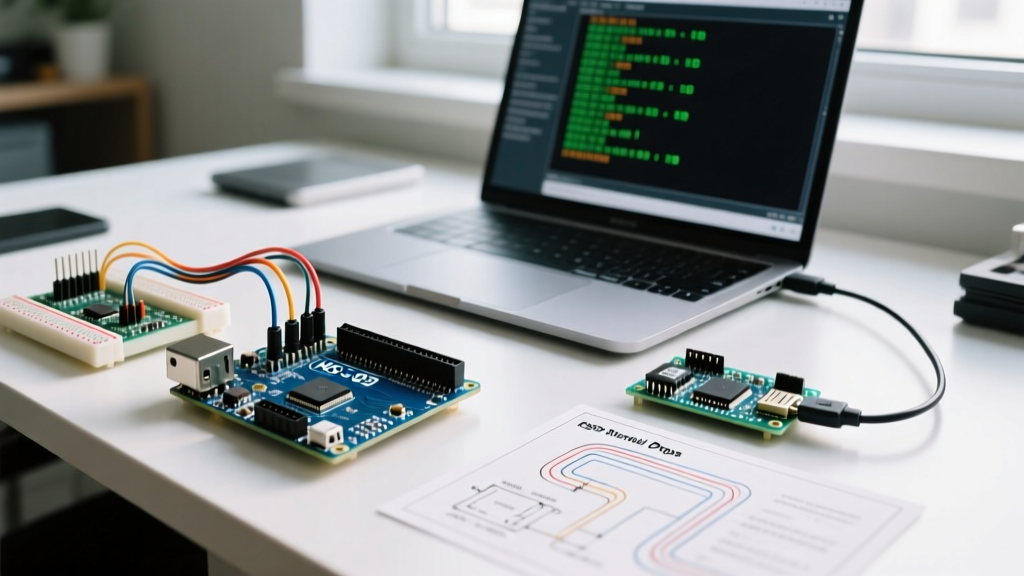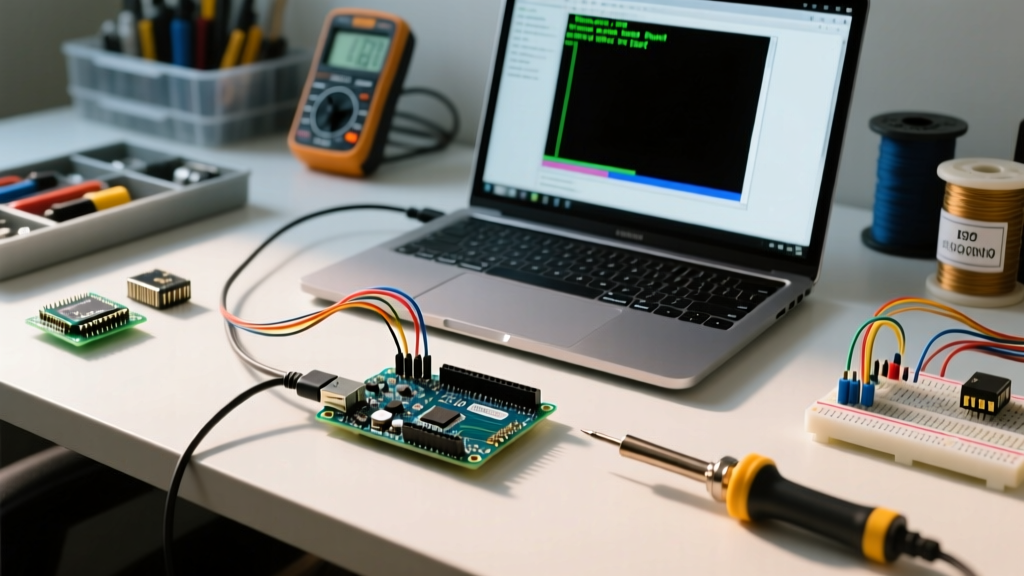

The Anatomy of the Blank Screen Failure
When developing embedded systems, few things are as disruptive as a sudden IDE crash. If your Arduino window goes blank when starting sketch execution, the root cause rarely lies in the IDE software itself. Instead, this phenomenon is almost always a protocol-level breakdown between the microcontroller's hardware serial buffers, the USB-to-Serial bridge chip, and the host operating system's virtual COM port drivers.
In 2026, whether you are using the Java-based Arduino IDE 1.8.x legacy branch or the modern Eclipse-Theia architecture of Arduino IDE 2.3+, the Serial Monitor relies on strict adherence to communication protocols. When a sketch violates these protocols—by flooding buffers, transmitting malformed UTF-8 byte streams, or halting the MCU via I2C bus lockups—the IDE's terminal renderer fails to parse the incoming data, resulting in a frozen, white, or completely blank output pane.
This guide deconstructs the exact protocol failures that cause the blank window issue and provides actionable, hardware-level solutions.
Layer 1: USB CDC Protocol and Bridge Chip Overload
Most standard Arduino boards (like the Uno R3 and Mega 2560) do not have native USB capabilities. They rely on a secondary bridge chip, typically the Microchip ATmega16U2 or a third-party alternative like the CH340G or CP2102, to translate UART signals into USB Communication Device Class (CDC) protocol packets.
The DTR Handshake and Buffer Flooding
When you open the Serial Monitor, the IDE manipulates the DTR (Data Terminal Ready) control line. The Arduino's auto-reset circuit uses a 100nF capacitor to couple this DTR pulse to the MCU's RESET pin. This restarts the sketch. If your setup() function immediately begins blasting data via Serial.print() at a high baud rate (e.g., 115200 bps) before the host PC's CDC driver has fully enumerated the virtual COM port and acknowledged the connection, the bridge chip's internal FIFO buffer overflows.
According to the USB Implementers Forum CDC Specifications, if the host is not ready to receive IN tokens, the bridge chip must NAK (Negative Acknowledge) the USB host. However, cheap clone boards using poorly configured CH340G chips often drop packets or send corrupted USB descriptors when their 64-byte hardware buffers overflow, causing the IDE's serial parser to crash and the window to go blank.
Layer 2: Asynchronous Serial and UTF-8 Rendering Failures
The Arduino IDE's Serial Monitor is fundamentally a text renderer. It expects incoming byte streams to conform to standard ASCII or UTF-8 encoding. A common reason the Arduino Serial interface causes the GUI to blank out is the transmission of raw binary data or unescaped control characters.
The Null Terminator and Control Character Trap
If your sketch reads raw sensor data (e.g., from an SPI-based ADC) and casts those bytes directly to Serial.write(), you will inevitably transmit bytes in the 0x00 to 0x1F range. These are ASCII control characters. Characters like 0x00 (Null), 0x08 (Backspace), or 0x1B (Escape) can trigger unintended behavior in the IDE's terminal emulation engine. In severe cases, sending a malformed multi-byte UTF-8 sequence causes the Java/WebKit rendering thread to throw an unhandled exception, instantly blanking the output window to prevent a full IDE crash.
Expert Insight: Never pipe raw I2C or SPI byte arrays directly into the Serial Monitor without formatting. Always cast binary data to hexadecimal strings using
Serial.print(val, HEX)to ensure the payload remains within the safe, printable ASCII range (0x20 to 0x7E).
Layer 3: I2C Bus Lockups Halting USB Initialization
Sometimes the window goes blank not because of serial data, but because the microcontroller completely halts during the setup() phase, severing the USB connection. This is heavily tied to the I2C (Inter-Integrated Circuit) protocol.
If your sketch initializes the Wire library (Wire.begin()) and attempts to communicate with a sensor on a noisy bus, or if a peripheral is holding the SDA (Serial Data) line LOW due to a power brownout, the ATmega328P's hardware I2C state machine will enter an infinite wait state. Because the Wire library lacks a default hardware timeout in older cores, the MCU freezes. The USB bridge chip stops receiving UART heartbeats, the OS marks the COM port as disconnected, and the Arduino IDE blanks the window as the device drops off the USB bus.
Diagnostic Matrix: Identifying Your Protocol Failure
Use the following matrix to diagnose why your IDE window is blanking based on the exact timing and symptoms of the failure.
| Symptom Timing | LED Behavior (Pin 13 / TX) | Protocol Layer at Fault | Root Cause |
|---|---|---|---|
| Instantly upon opening Serial Monitor | TX LED flashes rapidly once, then off | USB CDC / Bridge FIFO | Buffer overflow before host DTR handshake completes. |
| 2-5 seconds after sketch starts | TX LED stays solid ON or flickers erratically | UART / UTF-8 Rendering | Raw binary/control characters crashing the IDE text renderer. |
During setup() before any Serial output |
TX/RX LEDs completely dark | I2C Bus / MCU Execution | SDA line stuck LOW; Wire library infinite loop freezing the MCU. |
| Intermittent blanking during high-speed logging | TX LED solid bright | UART Baud Rate Mismatch | Garbage data overwhelming the OS virtual COM port driver. |
Step-by-Step Protocol Debugging Workflow
To resolve the blank window issue, implement the following protocol-safe coding practices in your firmware.
1. Implement a Serial Handshake Delay
Prevent the CDC bridge from overflowing by forcing the MCU to wait until the host PC has fully opened the COM port and asserted the DTR line. Add this to the very top of your setup() function:
void setup() {
  Serial.begin(115200);
  // Wait for USB CDC connection and DTR assertion (max 2.5 seconds)
  unsigned long startMillis = millis();
  while (!Serial && (millis() - startMillis < 2500)) {
    delay(10);
  }
  delay(50); // Allow bridge chip FIFO to clear
  Serial.println("USB CDC Handshake Complete.");
}
2. Enforce I2C Timeouts to Prevent MCU Halts
If you are using I2C sensors, you must enable the Wire library's built-in timeout feature (available in modern AVR and SAMD cores) to prevent the MCU from hanging and dropping the USB connection.
#include

void setup() {
  Wire.begin();
  Wire.setWireTimeout(3000, true); // Timeout after 3000 microseconds, auto-reset
  // Proceed with sensor initialization
}
3. Sanitize Binary Data Streams
If your application requires dumping raw memory or sensor registers, write a helper function that formats the bytes into safe, readable hexadecimal strings, completely eliminating the risk of sending terminal-crashing control characters.
void printSafeHex(uint8_t *data, size_t length) {
  for (size_t i = 0; i < length; i++) {
    if (data[i] < 0x10) Serial.print("0");
    Serial.print(data[i], HEX);
    Serial.print(" ");
  }
  Serial.println();
}
Hardware-Level Interventions for Clone Boards
If you have applied the software fixes above and the Arduino window still goes blank when starting sketch uploads or serial monitoring, the issue is likely hardware-specific to the USB bridge. Clone boards utilizing the CH340G chip are notorious for lacking proper decoupling capacitors on the chip's VCC line. When the MCU begins drawing power for high-speed UART transmission, voltage ripple on the CH340G's power rail causes the chip's internal PLL to lose lock, resulting in corrupted USB packets that crash the IDE. Replacing the clone board with an official Arduino Uno R4 Minima (which uses a native Renesas RA4M1 USB peripheral, bypassing the bridge chip entirely) or adding a 100µF electrolytic capacitor across the 5V and GND pins near the USB bridge will stabilize the CDC protocol layer.