
The Apple Silicon Shift: Migrating Your ESP32 Workflow
Transitioning your embedded development environment from Windows or Linux to an Apple Mac—specifically Apple Silicon (M1, M2, M3, and M4 architectures)—requires more than just downloading an installer. The underlying ARM64 architecture of modern Macs, combined with stringent macOS security protocols, fundamentally changes how your machine communicates with microcontrollers. For engineers and hobbyists programming the Arduino ESP32 on Apple Mac systems, these differences often manifest as cryptic serial port errors, driver signing failures, and upload timeouts.
This platform migration guide cuts through the noise. We will cover the exact hardware prerequisites, native software configurations, and macOS-specific edge cases you need to master in 2026 to ensure a seamless ESP32 development experience on your Mac.
Hardware Prerequisites: The USB-UART Bridge Dilemma
The ESP32 microcontroller does not have native USB capabilities built into its primary silicon (excluding the newer ESP32-S2/S3 variants). Standard ESP32 development boards rely on an external USB-to-UART bridge chip to translate USB data from your Mac into serial data the ESP32 understands. The chip on your board dictates your macOS driver experience.
| UART Bridge Chip | macOS Driver Requirement | Apple Silicon Compatibility | Recommended Board Example |
|---|---|---|---|
| CP2102 / CP2104 | Silicon Labs VCP Driver (Signed) | Native ARM64 Support (Excellent) | NodeMCU-32S (~$9 - $12) |
| CH340 / CH341 | WCH CH34x Driver (Often Blocked) | Problematic (Gatekeeper Issues) | Generic ESP32-DevKitC V4 (~$5 - $7) |
| FT232RL | FTDI VCP Driver | Native Support (Reliable) | Adafruit HUZZAH32 (~$15 - $18) |
Migration Pro-Tip: If you are migrating a fleet of development boards to a Mac environment, retire your CH340-based boards. Apple's Gatekeeper security frequently blocks unsigned or outdated CH340 kernel extensions, leading to hours of frustration. Invest in CP2102-based boards for a plug-and-play experience on macOS Sequoia and beyond. You can download the official Apple Silicon native drivers directly from the Silicon Labs VCP Driver portal.
Overcoming macOS Accessory Security Prompts
Since macOS Ventura, and continuing strictly through macOS Sequoia in 2026, Apple enforces a hardware security feature that blocks USB accessories from communicating with the system until explicit user permission is granted. Windows and Linux users migrating to Mac are often caught off guard by this.
When you plug your ESP32 into your Mac for the first time, a system dialog will appear asking: 'Allow accessory to connect?' If you click 'Don't Allow' or dismiss the prompt, the Mac will provide power to the board, but the data lines will remain logically disconnected. The serial port will not appear in /dev/, and the Arduino IDE will act as if the board is unplugged. To reset this, you must unplug the board, navigate to System Settings > Privacy & Security > Allow accessories to connect, and set it to 'Always Ask' or 'Automatically When Unlocked', then reconnect the device.
Step-by-Step Migration: Arduino IDE 2.x on Apple Silicon
Do not use Rosetta 2 to emulate the x86 version of the Arduino IDE. The native ARM64 build of Arduino IDE 2.3+ is highly optimized for Apple Silicon and prevents Python-based toolchain conflicts during the compilation phase.
Step 1: Native Installation and Board Manager Setup
Download the macOS Apple Silicon version directly from the official Arduino IDE documentation page. Once installed, open the IDE and navigate to Arduino IDE > Settings. In the 'Additional boards manager URLs' field, paste the official Espressif JSON link:
https://raw.githubusercontent.com/espressif/arduino-esp32/gh-pages/package_esp32_index.json
Step 2: Installing the ESP32 Core
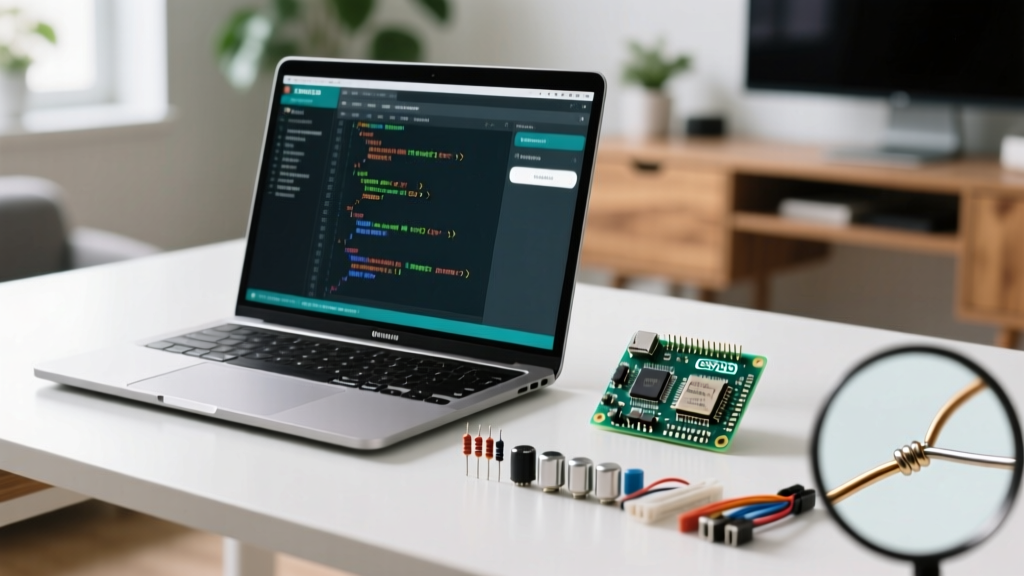
Open the Boards Manager (Cmd+Shift+P, then type 'Boards Manager'). Search for esp32 by Espressif Systems. As of 2026, ensure you are installing version 3.1.x or newer. Earlier 2.x versions relied on older Python 2.7 dependencies and legacy GCC toolchains that cause segmentation faults on Apple Silicon. The v3.x core utilizes a unified ESP-IDF framework that compiles natively on ARM64 Macs up to 40% faster than on equivalent Intel machines.
For deep architecture specifics and manual installation alternatives, refer to the Espressif Arduino-ESP32 GitHub repository.
The Golden Rule of macOS Serial Ports: cu vs tty
This is the single most critical technical distinction for serial communication on macOS. When you open your Mac's terminal and run ls /dev/tty.* and ls /dev/cu.*, you will see your ESP32 listed twice (e.g., /dev/tty.usbserial-0001 and /dev/cu.usbserial-0001).
Always use the /dev/cu.* (Call-Up) port, never the /dev/tty.* (Teletype) port.
The
ttydevices on macOS are designed to wait for an incoming carrier detect signal before allowing data transmission. Because the ESP32 does not assert this signal in the way a traditional modem does, attempting to upload code or open a Serial Monitor via attyport will result in a 'Resource Busy' error or a permanently hanging terminal process. Thecuports bypass this handshake, assuming an outgoing connection, which perfectly matches the behavior of theesptool.pyupload utility used by the Arduino IDE.
Fortunately, Arduino IDE 2.x automatically filters and prefers cu ports on macOS, but if you are using command-line tools like PlatformIO or direct esptool scripts, you must manually specify the cu path.
Troubleshooting Matrix: Upload Failures on Apple Silicon
Even with the correct drivers and ports, the interaction between macOS USB power management and the ESP32's auto-reset circuit can cause upload failures. Use this matrix to diagnose your specific error.
| Error Message | Root Cause | Actionable Solution |
|---|---|---|
Failed to connect to ESP32: Timed out waiting for packet header |
The Mac's USB stack is not toggling the DTR/RTS lines fast enough to trigger the ESP32's auto-reset circuit into bootloader mode. | Press and hold the BOOT button (GPIO0) on the ESP32. Click 'Upload' in the IDE. When the console reads 'Connecting...', release the BOOT button. |
Serial port not found or Port list is empty |
macOS Accessory Security blocked the device, or the USB-C hub lacks data pass-through. | Check Privacy & Security settings. Bypass USB-C hubs and plug directly into the Mac's Thunderbolt port to rule out power/data negotiation failures. |
A fatal error occurred: Unable to verify flash chip status |
Upload speed (baud rate) is too high for the specific USB-UART bridge chip on your Mac's current USB bus. | In the IDE 'Tools' menu, change 'Upload Speed' from 921600 to 115200 or 460800. This sacrifices a few seconds of upload time for rock-solid stability. |
ImportError: No module named serial (CLI / PlatformIO) |
The macOS system Python environment lacks the pyserial library required by the Espressif toolchain. |
Open terminal and run pip3 install pyserial. Ensure your IDE is pointing to the correct Python 3.11+ environment path. |
Optimizing the Serial Monitor Experience
When debugging sensor data or Wi-Fi connection logs, the Arduino IDE 2.x Serial Monitor is your primary tool. On Apple Silicon Macs, the default baud rate of 115200 is perfectly stable. However, if you are streaming high-frequency data (such as raw IMU readings at 1kHz), the Mac's USB polling rate can occasionally drop packets.
To mitigate this, ensure your ESP32 code utilizes hardware serial buffers effectively. Instead of using Serial.println() inside a tight interrupt service routine (ISR), push data to a FreeRTOS queue and let a secondary task handle the serial transmission. This prevents the Mac's USB stack from being overwhelmed by micro-bursts of serial data, ensuring your Serial Monitor remains responsive and crash-free.
Summary of the Mac Migration
Migrating your Arduino ESP32 workflow to an Apple Mac Silicon environment in 2026 is a highly rewarding upgrade, offering vastly superior compilation speeds and a Unix-based terminal that integrates beautifully with ESP-IDF command-line tools. By selecting CP2102-based hardware, respecting the macOS accessory security prompts, strictly utilizing /dev/cu.* ports, and leveraging the native ARM64 Arduino IDE, you will eliminate the friction traditionally associated with Mac-based embedded development. Your Mac is now a powerhouse for IoT and microcontroller engineering.