Project Overview & Hardware Spec Sheet
Getting a stable remote desktop connection for Raspberry Pi used to be a simple VNC toggle. Then Raspberry Pi OS 'Bookworm' switched the default display server from X11 to Wayland, breaking legacy VNC workflows and leaving many makers staring at black screens or auth errors. This guide cuts through the friction. We will configure a native Wayland-compatible remote desktop connection for Raspberry Pi 5, and build a physical GPIO watchdog circuit to monitor the VNC port and trigger hard reboots when the network stack locks up.
Build Specifications
| Component | Exact Variant / Value | Estimated Cost |
|---|---|---|
| Microcontroller | Raspberry Pi 5 (8GB RAM) with Active Cooler | $80.00 |
| Operating System | Raspberry Pi OS 'Bookworm' (64-bit, Wayland) | Free |
| Power Supply | Official 27W USB-C PD Power Supply | $12.00 |
| Status Indicator | 5mm Green LED + 330Ω 1/4W Resistor | $0.10 |
| Reboot Switch | 6x6mm Tactile Pushbutton (Normally Open) | $0.05 |
| Wiring | Silicone Jumper Wires (Female-to-Male) | $3.00 |
Wiring the GPIO Status & Reboot Module
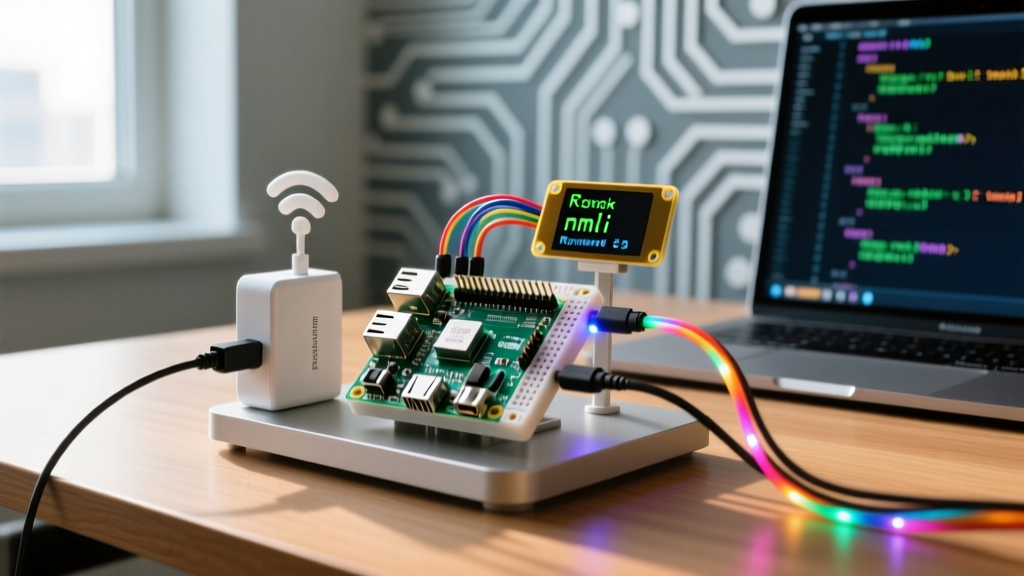
Software reboots fail when the kernel panics or the network stack drops. A physical GPIO reboot button bypasses the OS, sending a clean signal to the PMIC (Power Management IC). We are also adding a status LED that polls the local VNC port to give you a visual 'heartbeat' on your desk.
Pin Mapping Table
Use physical pin numbers on the 40-pin header. The code below uses BCM (Broadcom) GPIO numbering.
| Physical Pin | BCM GPIO | Function | Wiring Destination |
|---|---|---|---|
| Pin 11 | GPIO 17 | Status LED Output | 330Ω Resistor -> LED Anode (Long Leg) |
| Pin 9 | GND | Common Ground | LED Cathode (Short Leg) & Tactile Switch Leg 1 |
| Pin 13 | GPIO 27 | Reboot Button Input | Tactile Switch Leg 2 (Internal Pull-up enabled in code) |
Configuring the Remote Desktop Connection for Raspberry Pi (Bookworm)
Because Bookworm uses Wayland, the legacy vncserver-x11 service is deprecated. You must use the built-in Wayland VNC server (RealVNC) or switch back to X11. We will use the native Wayland method, which is significantly more performant on the Pi 5's VideoCore VII GPU.
- Update the System: Open a terminal (or SSH in) and run
sudo apt update && sudo apt upgrade -y. - Open Configuration: Type
sudo raspi-config. - Enable VNC: Navigate to Interface Options -> VNC -> Select Yes.
- Set Resolution: Wayland VNC requires a defined display resolution to render a headless session. Go to Display Options -> VNC Resolution and select 1920x1080.
- Reboot: Exit and reboot the Pi with
sudo reboot. - Connect: Download RealVNC Viewer on your host PC. Enter the Pi's IP address (e.g.,
192.168.1.50:5900) and authenticate with your Pi OS username and password.
Debugging: 'Connection Refused' and VNC Auth Failures
When your remote desktop connection for Raspberry Pi fails, the error messages are notoriously vague. Here are the exact error strings and how to fix them.
Error 1: "No matching security types"
Ranked Causes:
- VNC Viewer Mismatch: You are using a generic TightVNC or TigerVNC client that doesn't support RealVNC's default RSA-AES encryption. Fix: Use the official RealVNC Viewer.
- Missing Password: You enabled VNC but never set a user password in Pi OS (common on headless setups using empty default passwords). Fix: Run
passwdin terminal to set a valid UNIX password.
Error 2: "Connection refused (10061)"
Ranked Causes:
- Service Not Running: The Wayland VNC service crashed or didn't start. Fix: Run
systemctl status vncserver-wayland. - Firewall Blocking Port 5900: UFW is active and dropping packets. Fix: Run
sudo ufw allow 5900/tcp. - Wrong IP/Subnet: Your PC is on a guest network or different VLAN. Fix: Ping the Pi from your host PC to verify Layer 3 routing.
1. Verify the VNC service is active:
sudo systemctl status vncserver-wayland2. Confirm the Pi's IP hasn't changed via DHCP:
hostname -I3. Ensure a valid UNIX password exists for your user:
sudo passwd pi (or your username).
Python Watchdog Code (GPIO & Network Monitor)
This Python script targets the Raspberry Pi 5 (8GB) running Bookworm. It uses the gpiozero library to manage the hardware pins and the socket library to poll the local VNC port. If the port is open, the LED stays solid. If it drops, the LED blinks. If the Pi locks up entirely, holding the tactile button for 3 seconds triggers a clean OS reboot.
Prerequisite: Ensure gpiozero is installed via sudo apt install python3-gpiozero.
import time
import socket
import logging
import os
from gpiozero import LED, Button
from signal import pause

# --- PIN DEFINITIONS (BCM Numbering) ---
PIN_LED_STATUS = 17   # Physical Pin 11
PIN_BTN_REBOOT = 27   # Physical Pin 13
VNC_PORT = 5900

# Configure logging
logging.basicConfig(
    level=logging.INFO,
    format='%(asctime)s - %(levelname)s - %(message)s'
)

# Initialize Hardware
status_led = LED(PIN_LED_STATUS)
reboot_btn = Button(PIN_BTN_REBOOT, hold_time=3, pull_up=True)

def check_vnc_port():
    """Checks if the local VNC port is listening."""
    try:
        with socket.socket(socket.AF_INET, socket.SOCK_STREAM) as s:
            s.settimeout(2.0)
            # Connect to localhost VNC port
            result = s.connect_ex(('127.0.0.1', VNC_PORT))
            if result == 0:
                status_led.on()
                return True
            else:
                logging.warning('VNC port 5900 is closed or unresponsive.')
                status_led.blink(on_time=0.5, off_time=0.5)
                return False
    except socket.error as e:
        logging.error(f'Socket error during port check: {e}')
        status_led.off()
        return False

def trigger_reboot():
    """Initiates a system reboot when button is held for 3 seconds."""
    logging.warning('Reboot button held. Initiating system reboot...')
    status_led.blink(on_time=0.1, off_time=0.1)
    # Execute reboot command
    os.system('sudo reboot')

# Bind hardware events
reboot_btn.when_held = trigger_reboot

if __name__ == '__main__':
    logging.info('Starting VNC Status Watchdog on Pi 5...')
    try:
        while True:
            check_vnc_port()
            time.sleep(5)  # Poll every 5 seconds
    except KeyboardInterrupt:
        logging.info('Watchdog stopped by user (Ctrl+C).')
    except Exception as e:
        logging.critical(f'Unexpected watchdog failure: {e}')
    finally:
        status_led.off()
        logging.info('GPIO cleanup complete.')
Extending and Simplifying the Build
How to Simplify: If you don't want to wire physical components, you can strip this project down to a pure software cron job. Remove the GPIO hardware and modify the Python script to write the VNC port status to a log file, or use a tool like monit to automatically restart the vncserver-wayland service if it crashes.
How to Extend: For remote deployments (like a weather station or astrophotography rig), swap the tactile switch and LED for a Waveshare Rely HAT or a standard 5V relay module driven by an optocoupler. This allows the Pi to physically cut and restore power to its own USB-C line via a secondary microcontroller (like an ATtiny85) or a smart plug API, achieving a true 'hard' power cycle when the kernel panics and GPIO becomes unresponsive.
Remote Desktop for Raspberry Pi FAQ
How do I set up a remote desktop connection for Raspberry Pi without a monitor?
For a headless setup, you must enable VNC and configure Wi-Fi before the first boot. Flash your SD card using the official Raspberry Pi Imager. Click the 'gear' icon (OS customization settings) to enter your Wi-Fi SSID, password, and enable SSH. Once the Pi boots and connects to your network, SSH into it using PuTTY or Terminal, run sudo raspi-config, and enable the VNC interface as outlined in the steps above. You can then disconnect the monitor and use VNC exclusively.
Why is my remote desktop connection for Raspberry Pi lagging on Wi-Fi?
Wayland compositing on the Pi 5 pushes high-resolution frames that saturate 2.4GHz Wi-Fi bands. First, force your Pi onto a 5GHz Wi-Fi network (or use a CAT6 Ethernet drop). Second, open the RealVNC Server options on the Pi and lower the color depth from 'True Color (32-bit)' to 'High Color (16-bit)'. Finally, disable desktop animations in the Pi OS LXDE/Wayland settings to reduce the GPU rendering load sent over the network.
Can I use Windows Remote Desktop (RDP) instead of VNC for my Raspberry Pi?
Yes, but it requires third-party packages. You can install xrdp via sudo apt install xrdp. However, xrdp historically struggles with the Wayland display server in Bookworm. If you insist on using the native Windows RDP client, you will likely need to switch your Pi OS back to the X11 backend via sudo raspi-config (Advanced Options -> Wayland -> X11). For most users, RealVNC offers lower latency and better hardware acceleration on the Pi 5's VideoCore VII GPU.