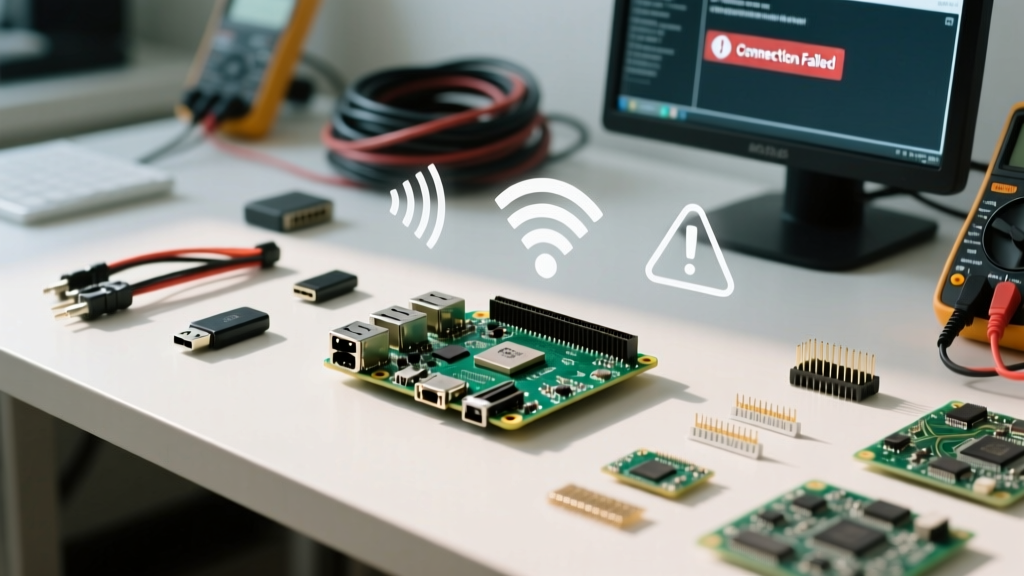

Attempting to connect raspi to wifi networks is usually a seamless experience, until it abruptly fails. Whether you are deploying a headless Raspberry Pi Zero 2 W for an IoT sensor network or setting up a Raspberry Pi 5 as a home automation hub, wireless connectivity errors can halt your project entirely. Unlike standard desktop environments, microcontroller and single-board computer (SBC) environments often lack the immediate visual feedback required to debug RF (Radio Frequency) and authentication handshake failures.
This guide bypasses generic troubleshooting advice and dives deep into the specific error diagnosis of Raspberry Pi WiFi failures, focusing on modern OS architectures, chipset-specific quirks, and hardware-level RF brownouts.
The Bookworm Paradigm Shift: NetworkManager vs. wpa_supplicant
The most common reason makers fail to connect modern Raspberry Pis to WiFi in 2024 and beyond is relying on outdated tutorials. With the release of Raspberry Pi OS Bookworm (based on Debian 12), the Raspberry Pi Foundation fundamentally changed the networking stack. The legacy wpa_supplicant and dhcpcd daemons were entirely replaced by NetworkManager.
Critical Diagnostic Check: If you are editing
/etc/wpa_supplicant/wpa_supplicant.confon a Bookworm installation, your changes will be ignored. The system will not throw an error; it will simply fail to connect.
To diagnose connection issues on modern Pi OS, you must use the nmcli (NetworkManager Command Line Interface) tool. If nmcli general status returns an error or shows the wireless interface as 'unmanaged', your diagnostic path must focus on NetworkManager service states rather than legacy WiFi configuration files.
Top 3 Raspberry Pi WiFi Connection Errors & Solutions
Error 1: 'No wireless interfaces found' or Silent 5GHz Failures
The Symptom: The Pi sees 2.4GHz networks but completely ignores 5GHz networks, or iwconfig reports 'Tx-power=0 dBm'.
The Root Cause: The Broadcom/Cypress/Infineon WiFi chipsets (such as the CYW43455 on the Pi 4 and CYW43439 on the Pi 5) enforce strict regulatory domain rules. If the ISO 31266-1 country code is not explicitly set, the kernel driver (brcmfmac) defaults to a safe, restricted state that often disables 5GHz channels entirely to prevent illegal RF transmission.
The Fix:
- Run
sudo raspi-config, navigate to Localisation Options > WLAN Country, and set your exact region. - Alternatively, use nmcli:
sudo nmcli general set wifi.country US(replace 'US' with your ISO code). - Verify the regulatory domain is applied by running
iw reg get. If it still shows '00' (Global), a reboot is required to reload thebrcmfmacfirmware with the correct EEPROM regional flags.
Error 2: Authentication Timeout on WPA3-SAE Networks
The Symptom: nmcli device wifi connect 'MySSID' hangs and eventually returns 'Error: Connection activation failed: (7) Secrets were required, but not provided' or a timeout, despite the password being correct.
The Root Cause: Modern routers default to WPA3-SAE (Simultaneous Authentication of Equals) or WPA2/WPA3 Transition Modes. While the Pi 4 and Pi 5 hardware supports WPA3, the underlying wpa_supplicant backend (which NetworkManager still uses for the actual 802.11i handshake) can struggle with PMKID caching and transition modes on specific router firmware (e.g., ASUS Merlin or Ubiquiti UniFi).
The Fix: Force the connection profile to use standard WPA2-PSK. You can modify the generated connection file in /etc/NetworkManager/system-connections/ or use nmcli to force the key management protocol:
nmcli connection modify 'MySSID' wifi-sec.key-mgmt wpa-psk
Error 3: Intermittent Disconnects and 'Link is not ready' Messages
The Symptom: The Pi connects successfully, passes the DHCP handshake, but drops the connection exactly when a high-bandwidth task begins (like pulling a Docker container or running apt upgrade). The dmesg log shows brcmfmac: brcmf_cfg80211_set_tx_power: error.
The Root Cause: This is rarely a software bug; it is a hardware-level RF brownout. The WiFi chipsets on Raspberry Pis experience massive current spikes during high-throughput TX (Transmit) operations. If your power supply cannot maintain a steady 5.0V under dynamic load, the voltage at the WiFi chip's VDD rail drops below its operational threshold, causing the silicon to reset or drop the association.
The Fix:
- Ditch third-party USB-C phone chargers. Use the official Raspberry Pi 27W USB-C Power Supply (for Pi 5) or the 15.3W supply (for Pi 4).
- Check for undervoltage throttling by running
vcgencmd get_throttled. A hex value of0x50000or0x50005confirms historical or active undervoltage events.
Diagnostic Command Cheat Sheet for NetworkManager
When diagnosing why you cannot connect raspi to wifi, rely on this structured diagnostic table to isolate the failure layer (Physical, Data Link, or Network).
| Diagnostic Layer | Command | Expected Output / What to Look For |
|---|---|---|
| Hardware / RF | rfkill list all |
Ensure 'Soft blocked' and 'Hard blocked' both say 'no' for wlan0. |
| Driver / Firmware | dmesg | grep brcmfmac |
Look for 'firmware loaded' and absence of 'timeout' or 'SDIO errors'. |
| Scan / Environment | nmcli device wifi list |
Verifies the antenna is receiving beacons. Check the SIGNAL and CHAN columns. |
| Authentication | journalctl -u NetworkManager -f |
Watch real-time logs for 'sup_iface_disconnect' or '4-way handshake timeout'. |
| IP Assignment | nmcli connection show --active |
Confirms if the profile is active and bound to the wlan0 interface. |
Advanced Headless Provisioning: The System-Connections Trap
For headless deployments where you cannot plug in a monitor to run nmcli, you must pre-configure the WiFi profile. In the Bookworm era, dropping a wpa_supplicant.conf file into the boot partition no longer works. Instead, you must inject a NetworkManager keyfile directly into the root filesystem before the first boot.
When mounting the Pi's SD card on a Linux host, navigate to /etc/NetworkManager/system-connections/ and create a file named my-wifi.nmconnection. According to the Arch Linux NetworkManager documentation, the file must have strict permissions (chmod 600) and follow this exact INI-style syntax:
[connection]
id=my-wifi
uuid=8a2b3c4d-5e6f-7a8b-9c0d-1e2f3a4b5c6d
type=wifi

[wifi]
mode=infrastructure
ssid=YourNetworkSSID

[wifi-security]
key-mgmt=wpa-psk
psk=YourSuperSecretPassword

[ipv4]
method=auto

[ipv6]
method=auto
Diagnostic Trap: If the file permissions are set to 644 (world-readable) instead of 600, NetworkManager will silently ignore the file as a security precaution, and your headless Pi will boot without WiFi. Always verify permissions via your host machine before unmounting the SD card.
Hardware-Level RF Troubleshooting: The Faraday Cage Effect
If software diagnostics yield perfect results but the Pi still refuses to maintain a stable connection, evaluate the physical enclosure. The Raspberry Pi Zero 2 W and Pi 4 utilize PCB trace antennas located on the bottom-left corner of the board.
Placing the Pi inside an unmodified aluminum or steel enclosure creates a Faraday cage, attenuating the 2.4GHz signal by up to 40dB. If your project requires a metal case for EMI shielding or thermal management, you must use a case with a dedicated RP-SMA bulkhead connector and attach an external 2.4GHz/5GHz omnidirectional antenna. Furthermore, ensure that the GPIO ribbon cables or copper heatsinks are not physically overlapping the PCB antenna keep-out zone, as this detunes the antenna impedance from the expected 50 ohms, resulting in severe packet loss.
Summary
Diagnosing WiFi failures on modern Raspberry Pis requires shifting your mental model away from legacy wpa_supplicant edits and toward NetworkManager states, regulatory domain enforcement, and hardware power delivery. By systematically checking the brcmfmac driver logs, enforcing WPA2 fallbacks for stubborn routers, and ensuring pristine 5V power rails, you can reliably connect raspi to wifi in even the most demanding edge-computing environments.