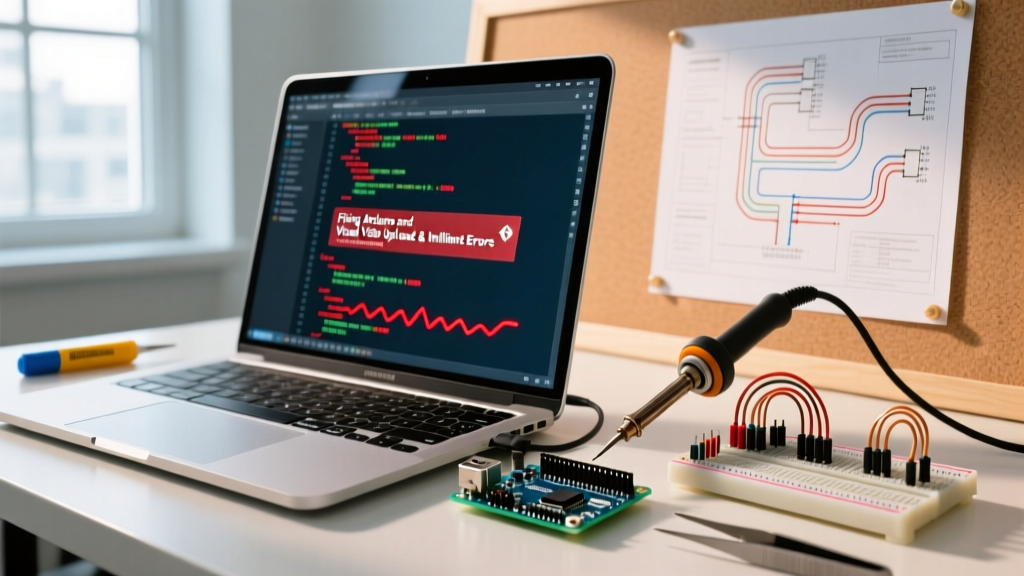

When makers search for Arduino and Visual Studio integration, they are usually referring to one of three distinct development environments in 2026: the full Visual Studio IDE utilizing the Visual Micro extension, Visual Studio Code (VS Code) running PlatformIO, or VS Code running the official Arduino extension. While these environments offer vastly superior code completion, Git integration, and debugging capabilities compared to the legacy Arduino IDE, they introduce unique configuration layers. This guide bypasses generic advice and dives directly into the specific failure modes, serial port locks, and IntelliSense misconfigurations that halt your workflow.
Environment Matrix: Identifying Your Toolchain
Before applying fixes, you must identify which bridge connects your Arduino hardware to your Microsoft IDE. The troubleshooting steps for a COM port denial differ drastically between Visual Micro's proprietary debugger and PlatformIO's open-source CLI wrapper.
| Environment | Base IDE | Build System | Primary Config File | Common Failure Mode |
|---|---|---|---|---|
| Visual Micro | Visual Studio 2022/2026 | MSBuild / Arduino CLI | .vmbuild / IDE Settings |
GDB debug server port conflicts |
| PlatformIO | VS Code | SCons / Python | platformio.ini |
IntelliSense include path drift |
| Official Arduino Ext | VS Code | Arduino CLI | .vscode/arduino.json |
Board manager JSON parse errors |
Fix 1: Resolving 'Upload Failed' and Serial Port Locks
The most frequent showstopper when linking Arduino and Visual Studio environments is the avrdude: ser_open(): can't open device or Access is denied error. This occurs when the IDE's serial monitor, a background OS process, or a 3D slicing application holds a lock on the CDC-ACM virtual COM port.
The Slicer Software Conflict
If you are using an Arduino-based 3D printer controller (like an SKR board or RAMPS shield) or simply have Ultimaker Cura / PrusaSlicer running in the background, these applications aggressively poll serial ports for firmware updates or printer handshakes. In Windows 11 and 12, this polling creates a momentary lock. If PlatformIO or Visual Micro attempts to invoke avrdude or bossac during this millisecond window, the upload halts.
- Immediate Fix: Completely close Cura, PrusaSlicer, or OctoPrint desktop instances before hitting the Upload shortcut (
Ctrl+Alt+Uin PlatformIO). - Permanent Fix: Disable USB Selective Suspend. Navigate to Windows Control Panel > Power Options > Change plan settings > Change advanced power settings > USB settings > USB selective suspend setting, and set it to Disabled.
PlatformIO Upload Protocol Mismatches
Unlike the Arduino IDE, which auto-detects the bootloader protocol, PlatformIO relies on the platformio.ini manifest. If you are uploading to an Arduino Nano with the older ATmega328P bootloader, but your environment defaults to the new bootloader protocol, the upload will time out.
[env:nanoatmega328]
platform = atmelavr
board = nanoatmega328
framework = arduino
; Force the old bootloader upload speed if using a clone board
upload_speed = 57600
According to the PlatformIO VS Code documentation, explicitly defining the upload_protocol and upload_speed bypasses the auto-negotiation phase that frequently fails on CH340G USB-to-Serial clone chips.
Fix 2: Banishing IntelliSense 'Red Squiggles'
Nothing destroys productivity like a project that compiles and uploads perfectly, yet the editor is covered in red IntelliSense errors stating #include errors detected or identifier 'Wire' is undefined. This happens because the Microsoft C/C++ extension's IntelliSense engine does not natively understand the AVR or ARM-GCC toolchain include paths without explicit mapping.
Recalibrating c_cpp_properties.json
In VS Code, IntelliSense relies on the c_cpp_properties.json file. When you install a new library via the PlatformIO library manager, the physical files are stored in the global .platformio/lib directory, not your local project folder. If the C/C++ extension hasn't refreshed its cache, it flags standard libraries as missing.
- Press
Ctrl+Shift+Pto open the Command Palette. - Type and select C/C++: Edit Configurations (UI).
- Locate the Include Path section.
- Ensure the following dynamic variables are present:
${workspaceFolder}/**${userHome}/.platformio/packages/**${userHome}/.platformio/lib/**
- Set the Compiler Path directly to the PlatformIO AVR-GCC executable (e.g.,
C:\Users\YourName\.platformio\packages\toolchain-atmelavr\bin\avr-gcc.exe).
As detailed in the official VS Code C++ IntelliSense guide, pointing the compiler path to the exact embedded toolchain allows the IntelliSense parser to resolve AVR-specific macros like PROGMEM and pgm_read_byte, which standard desktop GCC compilers ignore.
Visual Micro Include Syncing
If you are using the full Visual Studio IDE with Visual Micro, red squiggles usually occur after adding a library via the Library Manager. Visual Micro requires a manual cache rebuild to update the MSBuild include paths. Navigate to vMicro > IntelliSense > Rebuild IntelliSense. This forces the extension to parse the Arduino core directories and inject the correct /I compiler flags into the background MSBuild workspace.
Fix 3: Library Dependency and Compilation Halts
The Arduino IDE's 'kitchen sink' approach to libraries—dumping everything into a single global folder—causes massive version conflicts in professional environments. Visual Studio environments handle this via isolated manifests, but this introduces the 'Missing Library' compilation halt.
Expert Rule of Thumb: Never manually copy third-party ZIP files into your PlatformIO project's lib folder unless the library is entirely unmaintained and absent from the registry. Rely on manifest declarations to ensure reproducible builds across different machines.
Resolving PlatformIO lib_deps Conflicts
When your build fails with fatal error: Adafruit_Sensor.h: No such file or directory, despite having it listed in your platformio.ini, you are likely experiencing a Library Dependency Finder (LDF) mode restriction. By default, PlatformIO's LDF only searches for dependencies in files that are explicitly included in your main.cpp. If a library is only called from within another custom header file, the LDF ignores it.
Fix this by altering the LDF compatibility mode in your platformio.ini:
[env:esp32dev]
platform = espressif32
board = esp32dev
framework = arduino
; Force deep dependency scanning
lib_ldf_mode = deep+
lib_deps =
    adafruit/Adafruit Unified Sensor@^1.1.9
    adafruit/Adafruit BME280 Library@^2.2.2
Setting lib_ldf_mode = deep+ forces the Python build script to recursively scan all header files in your project tree, resolving hidden dependencies that cause mid-compile halts.
Advanced Debugging: Moving Beyond Serial.print()
The ultimate advantage of combining Arduino and Visual Studio is hardware-level debugging. If you are using an ARM-based microcontroller (like the Arduino Due, Zero, or Teensy 4.1), you can bypass serial printing entirely and use GDB breakpoints.
- Visual Studio (Visual Micro): Requires a compatible hardware debugger like the Atmel-ICE or Segger J-Link. Visual Micro's Pro tier (approximately $30/year in 2026) provides a visual memory window and real-time variable watch tables that map directly to the MCU's SRAM addresses.
- VS Code (PlatformIO): Utilizes the
debug_toolparameter in your manifest. For an STM32 or RP2040 board, settingdebug_tool = cmsis-dapallows you to hit the F5 key, flash the ELF binary via SWD, and halt execution directly inside theloop()function to inspect register states.
For comprehensive setup instructions on hardware debugging, refer to the Visual Micro User Guide, which details the exact SWD wiring diagrams required to bridge the IDE to the target silicon.
Summary Troubleshooting Checklist
Before tearing down your wiring or reinstalling your IDE, run through this diagnostic sequence:
- Port Lock: Close 3D slicers and serial terminals. Check Windows Device Manager for hidden COM port ghosts.
- IntelliSense Drift: Run 'C/C++: Reset IntelliSense Database' from the VS Code command palette.
- Manifest Sync: Run
pio pkg updatein the VS Code terminal to force PlatformIO to reconcile local cache with the registry. - Bootloader Mismatch: Verify the upload speed (57600 vs 115200) in your environment config against your board's physical bootloader chip.
Mastering the bridge between Arduino hardware and Visual Studio software requires treating your IDE not just as a text editor, but as a complex build-system orchestrator. By managing your include paths, respecting serial port locks, and leveraging manifest-driven dependencies, you eliminate 95% of the friction that drives makers back to the basic Arduino IDE.