
The Anatomy of an Arduino Library Installation Failure
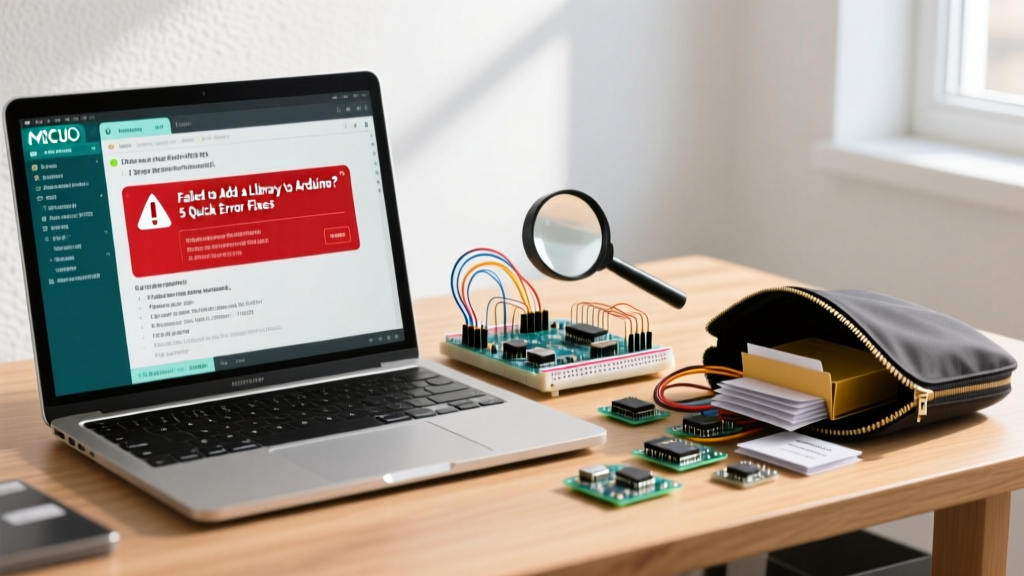
When you attempt to add a library to Arduino IDE 2.x, the process usually takes seconds. However, when it fails, it can halt your entire embedded systems project. Whether you are working with an ESP32-S3, an Arduino Nano RP2040 Connect, or a classic ATmega328P Uno, library errors generally stem from three root causes: malformed ZIP archives, architecture mismatches, or corrupted local index caches.
In this comprehensive error fix guide, we will dissect the most common roadblocks developers face when trying to install third-party and official libraries. We will move beyond generic advice and provide exact file paths, CLI fallback commands, and structural debugging techniques to get your code compiling again.
Error 1: The 'Invalid Library' ZIP Structure Trap
The most frequent error encountered when users manually add a library to Arduino via a ZIP file is the Invalid library found in...: no headers files (.h) found or Missing 'library.properties' warning. This almost always happens when downloading directly from GitHub.
The Root Cause
When you click 'Code > Download ZIP' on a GitHub repository, the resulting archive contains a parent folder named repository-name-branch. The Arduino IDE expects the root of the ZIP file to contain either the library.properties file or a single folder named exactly after the library. If the IDE encounters nested directories before finding the metadata, it aborts the installation.
The Fix
- Do not use the ZIP import feature for GitHub downloads. Instead, extract the downloaded ZIP file to your desktop.
- Locate the inner folder that actually contains the
srcdirectory,examples, and thelibrary.propertiesfile. - Rename this folder to match the library name exactly (e.g., change
Adafruit-BME280-Library-mastertoAdafruit_BME280_Library). - Move this folder directly into your sketchbook libraries directory:
- Windows:
C:\Users\[YourUser]\Documents\Arduino\libraries - macOS:
~/Documents/Arduino/libraries - Linux:
~/Arduino/libraries
- Windows:
- Restart the Arduino IDE. The library will now appear in the Sketch > Include Library menu.
Error 2: Architecture Mismatch Warnings
You successfully add a library to Arduino, but upon compiling for a newer board like the Arduino Nano 33 BLE (ARM Cortex-M4) or an ESP32, you receive a yellow warning: WARNING: library claims to run on avr architecture(s) and may be incompatible with your current board.
Understanding the 'architectures' Field
Inside every compliant library is a library.properties file. The architectures parameter dictates which microcontroller families the code supports. If a library was written in 2015 specifically for AVR direct-port manipulation (using registers like PORTB or DDRD), it will fail to compile on ARM or Xtensa (ESP32) architectures because those registers do not exist.
How to Resolve Architecture Errors
- Check for Forks: Search GitHub for forks of the library that have been updated for ESP32 or SAMD architectures. Community forks often replace AVR-specific C-macros with the hardware-agnostic
digitalWriteFastor standard Arduino API calls. - Force Compatibility (Use with Caution): If the library only uses standard Arduino functions (
Wire.h,SPI.h,digitalRead) but the author lazily setarchitectures=avr, you can manually edit thelibrary.propertiesfile in your local libraries folder. Change the line toarchitectures=*to force the IDE to compile it. Note: This will still fail at the compiler level if the C++ code contains hardware-specific register calls.
Error 3: Dependency Hell and Missing Sub-Libraries
Modern sensor libraries rarely operate in isolation. If you add a library to Arduino for a complex I2C sensor, you might immediately hit a fatal compilation error: fatal error: Adafruit_Sensor.h: No such file or directory.
Expert Insight: The Arduino IDE 2.x Library Manager automatically parses the
depends=field inlibrary.properties. If you install via the manager, it prompts you to 'Install All'. However, if you install via ZIP, the IDE ignores dependencies, leaving you to hunt them down manually.
Tracing the Dependency Tree
When faced with missing header errors, open the library.properties file of the library you just installed. Look for the depends= line. For example, the Adafruit BME280 library requires both the Adafruit Unified Sensor library and the Adafruit BusIO library. You must manually download and install these foundational libraries in the exact same manner before the primary library will compile.
Error 4: IDE 2.x Index Corruption (The Silent Killer)
Sometimes, the IDE's Library Manager search bar returns zero results, or the background indexing process hangs indefinitely at 'Updating Index'. This prevents you from using the GUI to add a library to Arduino entirely.
Purging the Corrupt Cache
Arduino IDE 2.x relies on a local JSON index file to map library metadata. If your internet connection drops during an index update, this file corrupts. To fix this:
- Close the Arduino IDE completely.
- Navigate to the IDE configuration directory:
- Windows:
%APPDATA%\arduino-ide - macOS:
~/.arduinoIDE - Linux:
~/.config/arduino-ide
- Windows:
- Delete the
library_index.jsonandlibrary_index.json.sigfiles. - Restart the IDE. It will automatically fetch a fresh, uncorrupted index from the Arduino servers. This process takes roughly 45 seconds on a standard broadband connection.
Comparison: Installation Methods and Error Rates
Choosing the right installation method can preemptively save you hours of debugging. Below is a comparison of the four primary ways to add a library to Arduino.
| Method | Best Used For | Pros | Cons & Common Errors |
|---|---|---|---|
| IDE Library Manager | Official & vetted 3rd-party libraries | Auto-resolves dependencies; handles versioning. | Requires internet; limited to submitted libraries. |
| Import .ZIP | Specific release versions from vendors | Works offline; good for locked-down corporate networks. | High error rate due to GitHub nested folder structures. |
| Manual Folder Copy | Local development & custom forks | Instant; bypasses ZIP extraction bugs entirely. | No automatic update tracking; manual dependency resolution. |
| arduino-cli | CI/CD pipelines & headless environments | Scriptable; bypasses GUI index corruption bugs. | Requires terminal knowledge; steep learning curve. |
The Ultimate Fallback: Using arduino-cli
If the Arduino IDE 2.x GUI is hopelessly stuck or throwing Java/Node backend errors, you can bypass it entirely using the official command-line interface. The arduino-cli tool interacts directly with the same backend servers but without the overhead of the Electron-based GUI.
To force-install a library and its dependencies via the terminal, use the following command:
arduino-cli lib install "Adafruit BME280 Library" --include-dependenciesThis command queries the remote index, downloads the correct architecture-specific binaries, resolves the depends= tree automatically, and places the files in your sketchbook directory. It is the most reliable method to add a library to Arduino when working in automated build environments or when troubleshooting a corrupted local IDE installation. For more advanced CLI configurations, refer to the Arduino Official Documentation.
Frequently Asked Questions (FAQ)
Why does my library install but not show up in the 'Include Library' menu?
This usually happens if the library folder name contains illegal characters (like hyphens or spaces) that the IDE's parser rejects. Ensure the folder name matches the name= field in the library.properties file exactly, using only alphanumeric characters and underscores.
Can I have multiple versions of the same library installed?
The Arduino IDE does not natively support side-by-side versioning in the local libraries folder. If you install a newer version, it overwrites or conflicts with the old one. To use an older version for a specific legacy project, rename the older library's folder and change its name= parameter in library.properties to trick the IDE into treating it as a distinct library.
How do I completely uninstall a library that refuses to delete?
If the IDE's 'Remove' button fails, close the IDE and manually delete the library's folder from your local Documents/Arduino/libraries directory. Additionally, check the staging folder inside your AppData or .arduinoIDE hidden directories to ensure no cached ZIP files are forcing a reinstall upon reboot.