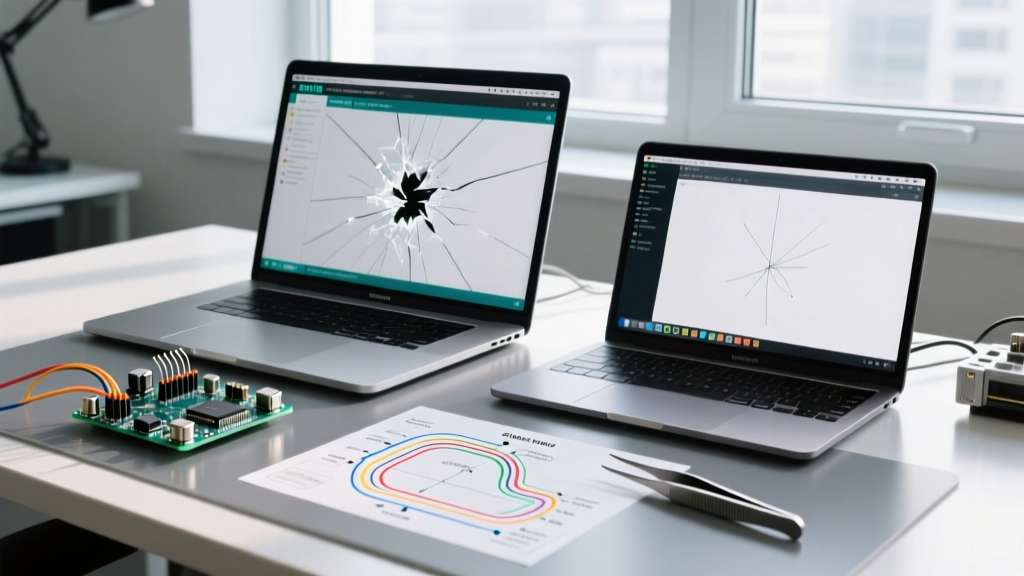

Understanding the Error: Why Does Arduino IDE Go Blank Randomly?
Staring at a completely white or blank screen in the middle of a complex microcontroller project is one of the most frustrating experiences for embedded developers. If you have been searching for why does arduino ide go blank randomly, you are not alone. This issue, often referred to as the White Screen of Death (WSOD), typically occurs during resource-intensive tasks like compiling large sketches, rendering the Serial Plotter, or initializing board manager JSON files.
Critical Warning: A blank screen usually indicates that the UI rendering thread has crashed or deadlocked, but the backend compilation process may still be running. Force-quitting the application via Task Manager or Activity Monitor will result in the loss of any unsaved code in your active tabs.
To fix this, we must first distinguish between the two major architectures of the Arduino IDE. The legacy Arduino IDE 1.8.x is built on Java and Processing, meaning blank screens are usually tied to Java Heap Space exhaustion or corrupted preference files. The modern Arduino IDE 2.x (2.3.x and newer) is built on the Eclipse Theia framework and Electron (Chromium). In IDE 2.x, random blank screens are almost always caused by GPU hardware acceleration bugs, display scaling conflicts, or USB serial polling deadlocks.
How to Fix Arduino IDE 2.x Blank Screen Errors (Electron)
The transition to Electron brought a modern UI and IntelliSense to the Arduino ecosystem, but it also inherited Chromium's susceptibility to GPU rasterization bugs. When the IDE attempts to render complex serial data or heavy graphical libraries (like LVGL or TFT_eSPI preview buffers), the GPU memory can spike, causing the Electron renderer process to drop the UI thread.
Method 1: Disable Hardware Acceleration via Command Line
The most reliable fix for Electron-based white screens is forcing the IDE to use software rendering. This bypasses buggy GPU drivers (common on older Intel HD Graphics or dual-GPU laptops).
- Windows: Right-click your Arduino IDE desktop shortcut and select Properties.
- In the Target field, add a space at the very end of the existing path, followed by:
--disable-gpu - The final target should look like:
"C:\Program Files\Arduino IDE\Arduino IDE.exe" --disable-gpu - macOS: Open the Terminal and launch the IDE directly with the flag:
/Applications/Arduino\ IDE.app/Contents/MacOS/Arduino\ IDE --disable-gpu
If the IDE stabilizes after this change, you have confirmed that your local graphics driver is conflicting with Chromium's hardware acceleration. Update your GPU drivers via NVIDIA GeForce Experience, AMD Adrenalin, or Intel Driver & Support Assistant to eventually re-enable hardware acceleration.
Method 2: Clear the Theia and Electron Cache
Corrupted workspace caches can cause the IDE to hang on a blank screen during the initial loading phase. Clearing these forces the IDE to rebuild its layout configuration.
- Windows: Navigate to
C:\Users\[YourUsername]\.arduinoIDEandC:\Users\[YourUsername]\AppData\Roaming\arduino-ide. Delete the contents of both folders. - macOS: Open Finder, press
Cmd+Shift+G, and delete the contents of~/.arduinoIDEand~/Library/Application Support/arduino-ide. - Linux: Delete the contents of
~/.arduinoIDEand~/.config/arduino-ide.
Note: This will not delete your sketches or installed board packages, but it will reset your custom UI layout and recent files list.
Method 3: Fix Windows Display Scaling Glitches
High-DPI monitors (4K or ultrawide) using Windows display scaling (125% or 150%) frequently cause Electron apps to miscalculate window boundaries, resulting in a blank canvas. Right-click the Arduino IDE executable, go to Properties > Compatibility > Change high DPI settings, and check Override high DPI scaling behavior. Set the dropdown to Application. This forces the IDE to handle its own scaling math rather than relying on the Windows DWM compositor.
Resolving Arduino IDE 1.8.x White Screens (Java-Based)
If you are maintaining legacy projects on Arduino IDE 1.8.19, the blank screen issue stems from Java Virtual Machine (JVM) limitations.
Method 1: Increase Java Heap Space Allocation
When compiling massive sketches (e.g., ESP32 firmware with large SPIFFS/LittleFS partitions), the Java compiler runs out of allocated RAM. Instead of throwing an "Out of Memory" error, the Java Swing UI thread simply deadlocks, freezing the screen.
- Navigate to your Arduino installation directory (e.g.,
C:\Program Files (x86)\Arduino). - Locate the file named
arduino.l4j.ini(Windows) or thearduinoshell script (Linux/macOS). - Open it with a plain text editor like Notepad++.
- Find the line
-Xmx512m. Change this to-Xmx2048mto allocate 2GB of RAM to the IDE. - Save the file and restart the IDE as an Administrator.
Method 2: Delete Corrupted preferences.txt
If the IDE crashes or your PC loses power while the Board Manager is downloading a JSON index (like the Espressif ESP32 package), the preferences.txt file becomes truncated. On the next launch, the Java UI fails to parse the corrupted JSON and hangs on a blank splash screen. Navigate to C:\Users\[YourUsername]\AppData\Local\Arduino15 (Windows) or ~/Library/Arduino15 (macOS) and delete preferences.txt. The IDE will generate a fresh, default configuration upon reboot.
The Hidden Culprit: USB UART Driver Conflicts
Sometimes, the IDE itself is perfectly fine, but the operating system's USB polling thread locks up, causing the IDE to freeze and appear blank. This is incredibly common when using third-party microcontroller boards equipped with clone UART bridge chips like the CH340G or CP2102.
When you press "Upload," the IDE sends a DTR (Data Terminal Ready) signal to reset the MCU. Cheap CH340 clones with outdated 2014 Windows drivers often send malformed USB descriptors back to the host during this reset sequence. The Electron main thread (in IDE 2.x) or the Java RXTX library (in 1.8.x) gets trapped in an infinite wait-state for a serial port lock, freezing the UI completely.
The Fix: Download the official, updated CH340 driver (version 3.5 or newer) directly from the WCH (Nanjing Qinheng Microelectronics) website. Alternatively, if you are designing custom PCBs, invest in genuine FTDI FT232RL or Silicon Labs CP2102N chips, which have rock-solid driver support across all modern operating systems.
Diagnostic Comparison: IDE 2.x vs 1.8.x Failure Modes
| Symptom / Trigger | Arduino IDE 2.x (Electron) | Arduino IDE 1.8.x (Java) |
|---|---|---|
| Blank screen on startup | Corrupted Theia cache or GPU driver conflict | Corrupted preferences.txt or bad board JSON |
| Freezes during compilation | Chromium renderer OOM (Out of Memory) | Java Heap Space limit reached (-Xmx) |
| Freezes when opening Serial Monitor | USB UART driver deadlock (CH340/CP2102) | RXTX serial library native crash |
| UI flickers then goes white | Windows High-DPI scaling miscalculation | Java Swing rendering bug on macOS Retina |
Best Practices to Prevent Future UI Freezes
To maintain a stable development environment and ensure you never lose progress to a random blank screen, implement these professional workflows:
- Enable Auto-Save: In IDE 2.x, go to File > Advanced > Auto Save. This ensures your code is written to the disk continuously, protecting you if the UI thread crashes.
- Use External Serial Monitors: If your project requires constant, high-speed serial logging (e.g., 115200 baud or higher streaming from an IMU), do not use the built-in IDE Serial Monitor. Use a dedicated, lightweight terminal like PuTTY, Tera Term, or Serial Studio. This offloads the rendering burden from the IDE.
- Migrate to PlatformIO: If you are working on enterprise-level firmware with complex build flags, multi-file architectures, and heavy dependencies, consider migrating to PlatformIO via Visual Studio Code. VS Code's architecture handles memory management and serial polling far more gracefully than the standalone Arduino IDE, virtually eliminating UI-level white screens.
Authoritative Resources & Further Reading
For ongoing tracking of IDE bugs and community-driven patches, refer to these official channels:
- Arduino IDE GitHub Issues - The primary repository for tracking Electron and Theia-based rendering bugs.
- Arduino Forum IDE 2.x Category - Community discussions and workarounds for specific OS-level conflicts.
- Arduino Support Center - Official documentation for software installation, driver troubleshooting, and environment setup.