To get Netflix running smoothly on a Raspberry Pi in 2026, you must use a Raspberry Pi 5 (8GB variant) running Raspberry Pi OS (64-bit) with Chromium's hardware-accelerated Widevine DRM, paired with an HDMI-CEC auto-launch script. There is no official native Netflix app for Linux ARM; attempting to use Android TV builds results in poor hardware decoding and broken DRM certificates. The most robust, production-ready method is a Chromium kiosk wrapper controlled via GPIO and HDMI-CEC to seamlessly wake your TV and launch the stream.
The Hardware Reality: Pi 5 vs Older Boards for Netflix
Historically, streaming Netflix on a Raspberry Pi was a frustrating exercise in managing software-decoded video. The Pi 3 and Pi 4 lacked the raw CPU throughput to software-decode 1080p60 Widevine L3 DRM content without dropping frames, and their hardware video decode blocks (H.264/HEVC) were bypassed by Chromium's DRM sandbox.
The Raspberry Pi 5 changes this equation. With its quad-core Cortex-A76 processor and the RP1 southbridge, the Pi 5 can brute-force software decode 1080p DRM content while maintaining UI responsiveness. However, to turn this raw compute into a seamless 'smart TV' experience, we need to bridge the gap between the Pi's OS and your television's power state using the HDMI-CEC (Consumer Electronics Control) protocol.
Parts List & GPIO Pin Mapping
This build targets the Raspberry Pi 5 (8GB RAM). The 4GB variant will work, but 8GB is recommended to prevent Chromium tab-crashing during heavy DRM memory allocation. We are adding two physical GPIO buttons: one to wake the TV and launch Netflix, and one to gracefully shut down the Pi.
| Component | Exact Model / Variant | Purpose |
|---|---|---|
| Microcontroller | Raspberry Pi 5 (8GB) | Compute & Chromium Kiosk Host |
| Power Supply | Official 27W USB-C PD | Prevents brownout warnings under load |
| HDMI Cable | Micro-HDMI to HDMI 2.1 (Certified) | Must have Pin 13 (CEC) continuity |
| Switch 1 | Momentary Pushbutton (Normally Open) | Netflix Launch & TV Wake Trigger |
| Switch 2 | Momentary Pushbutton (Normally Open) | Safe OS Shutdown Trigger |
GPIO Pin Mapping Table
| Function | Pi 5 Physical Pin | BCM GPIO Number | Wiring Note |
|---|---|---|---|
| Netflix Button Signal | Pin 11 | GPIO 17 | Connect to one side of Switch 1 |
| Netflix Button GND | Pin 9 | Ground | Connect to other side of Switch 1 |
| Shutdown Button Signal | Pin 13 | GPIO 27 | Connect to one side of Switch 2 |
| Shutdown Button GND | Pin 14 | Ground | Connect to other side of Switch 2 |
Step-by-Step: OS Prep and CEC Utility Installation
Before writing the control script, we must configure Raspberry Pi OS (Bookworm or later, 64-bit) to support CEC and auto-login.
- Flash the OS: Use Raspberry Pi Imager to flash Raspberry Pi OS (64-bit) with Desktop. In the OS customization settings, enable 'Auto-login' for your user account.
- Update and Install Dependencies: Open a terminal and install the CEC utilities and Python GPIO libraries.
sudo apt update sudo apt install cec-utils python3-gpiozero python3-rpi.gpio - Verify CEC Communication: Turn on your TV. Run the following command to scan the CEC bus:
You should see your TV listed (usually Logical Address 0). If you see 'COM ERROR', check your cable and TV settings.echo 'scan' | cec-client -s -d 1 - Enable TV CEC: On your television's settings menu, enable the CEC feature. Brands call this Anynet+ (Samsung), Bravia Sync (Sony), SimpLink (LG), or CEC (Vizio/TCL).
Python Auto-Launch & CEC Control Script
This script listens for the physical GPIO button press, sends a CEC 'One Touch Play' command to wake the TV and switch its input, and then launches Chromium in kiosk mode directly to Netflix. It includes robust error handling for missing dependencies.
import subprocess
import time
import sys
from gpiozero import Button
from signal import pause

# --- PIN DEFINITIONS ---
# Physical buttons connected to GPIO and GND
NETFLIX_BTN_PIN = 17  # Physical Pin 11
SHUTDOWN_BTN_PIN = 27 # Physical Pin 13

# Initialize buttons with internal pull-ups and debounce
netflix_btn = Button(NETFLIX_BTN_PIN, pull_up=True, bounce_time=0.3)
shutdown_btn = Button(SHUTDOWN_BTN_PIN, pull_up=True, bounce_time=0.3)

def wake_tv_and_launch():
    print('Button pressed: Waking TV and launching Netflix...')
    try:
        # Send CEC command to wake TV and switch to Pi's HDMI input
        # 'on' = power on, 'is' = set input to this device
        subprocess.run(['cec-client', '-s', '-d', '1', '-t', 'p', '-o', 'on'], check=True, stdout=subprocess.DEVNULL)
        time.sleep(2) # Allow TV HDMI handshake to complete

        # Launch Chromium in Kiosk mode
        subprocess.Popen([
            'chromium-browser',
            '--kiosk',
            '--incognito',
            '--disable-features=TranslateUI',
            '--disable-session-crashed-bubble',
            '--disable-infobars',
            'https://www.netflix.com/browse'
        ])
    except FileNotFoundError:
        print("CRITICAL ERROR: 'cec-client' not found. Run: sudo apt install cec-utils")
    except subprocess.CalledProcessError as e:
        print(f'CEC Command failed. Is the TV plugged in and CEC enabled? Error: {e}')
    except Exception as e:
        print(f'Failed to launch Netflix: {e}')

def safe_shutdown():
    print('Shutdown button pressed. Halting system...')
    subprocess.run(['sudo', 'shutdown', '-h', 'now'])

# Bind functions to button presses
netflix_btn.when_pressed = wake_tv_and_launch
shutdown_btn.when_pressed = safe_shutdown

print('Kiosk controller active. Waiting for GPIO input...')
pause() # Keep script running efficiently
Save this as netflix_kiosk.py and add it to your user's ~/.config/autostart/ directory as a .desktop entry to run on boot.
Debugging: DRM Failures and CEC Dropouts
Embedded media projects live and die by their edge cases. When your Raspberry Pi Netflix build fails, it almost always falls into one of two categories: Widevine DRM rejections or CEC bus timeouts.
The First Three Things to Check
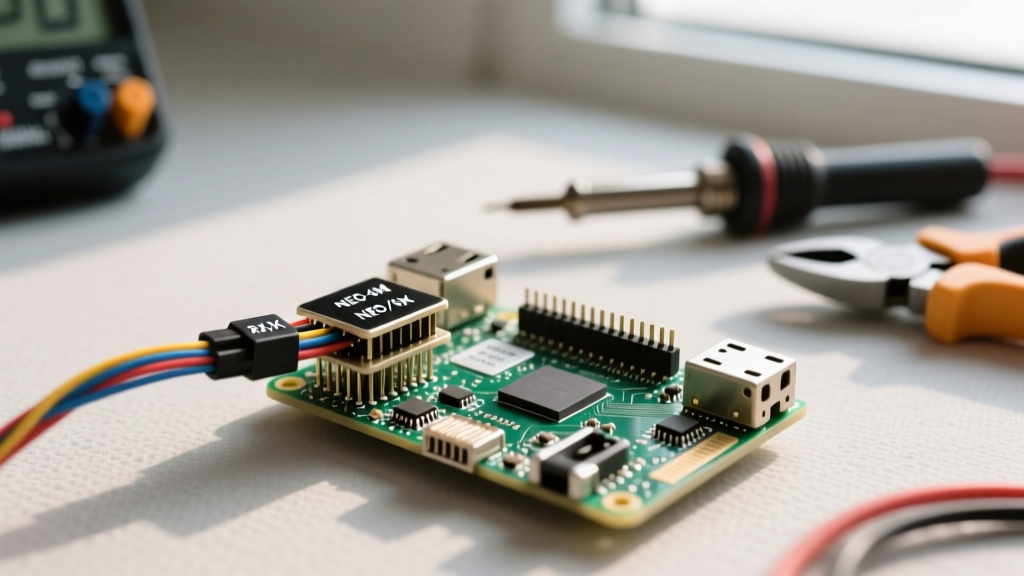
- HDMI Pin 13 Continuity: Use a multimeter in continuity mode. Probe Pin 13 on the micro-HDMI plug and Pin 13 on the standard HDMI plug. If it doesn't beep, your cable is CEC-blind. Replace it.
- TV CEC Logical Address Conflict: Run
cec-client -l. If the Pi reports it cannot allocate a logical address, another device (like a soundbar or Chromecast) is hogging the bus. Unplug other HDMI devices to isolate the fault. - Chromium Hardware Acceleration Flags: Open
chrome://flagsin the Pi's browser. Ensure 'Override software rendering list' is Enabled, and verify that 'Video Decode' is not explicitly forced to software if the OS supports the V4L2 stateful decoder.
Exact Error Strings and Ranked Causes
Error 1: libwidevinecdm.so: cannot open shared object file: No such file or directory
- Cause A (Most Likely): You are running a 32-bit OS. Widevine DRM for ARM on Linux is strictly distributed for 64-bit architectures in modern Chromium builds.
- Cause B: The Widevine component update failed due to a network timeout during the first Chromium launch. Fix by running
sudo apt install libwidevinecdm0(if available in your repo) or clearing the Chromium profile cache.
Error 2: [ERROR:widevine_cdm_component_installer.cc] Widevine CDM is not available
- Cause A: Netflix requires Widevine L3 for standard definition, but attempts to negotiate higher tiers. If the OS certificate store is outdated, the handshake fails. Run
sudo apt install --reinstall ca-certificates. - Cause B: You are using an unsupported Chromium fork (like Ungoogled-Chromium) which strips the proprietary DRM blob downloader.
Error 3: FileNotFoundError: [Errno 2] No such file or directory: 'cec-client'
- Cause: The Python script cannot find the CEC binary in the system PATH. This happens if you installed the Python
cecmodule via pip but skipped the underlying OS library. Fix:sudo apt install cec-utils.
Extending or Simplifying the Build
To Simplify: If you don't need physical buttons and just want the Pi to act as a headless streaming stick that turns on when the TV turns on, strip the Python script down to just the subprocess.Popen Chromium launch command, and rely entirely on your TV's native CEC 'Auto Power On' feature to wake the Pi via the tvservice daemon.
To Extend: Add a TSOP38238 IR Receiver to GPIO 18 (Pin 12). By configuring lirc (Linux Infrared Remote Control), you can map the 'Netflix' button on your existing TV remote to trigger the Python script via a Unix socket, eliminating the need for physical wiring on the Pi itself. You can also integrate libcec directly into Python via C-bindings for granular control over TV volume, rather than just power states.
Frequently Asked Questions
Can I install the native Android Netflix app on Raspberry Pi?
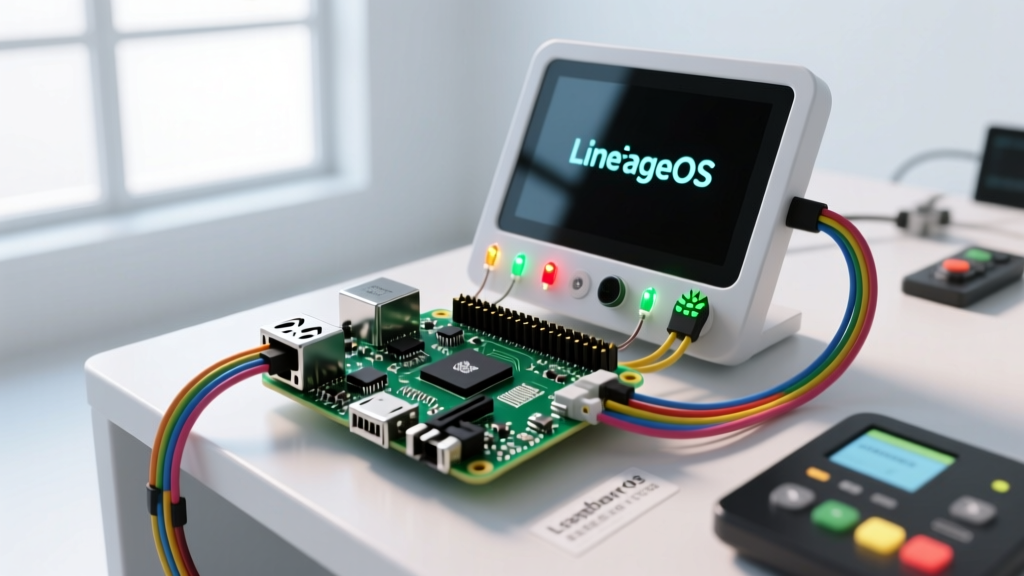
No. Netflix strictly certifies its Android app for specific hardware DRM implementations (like hardware-backed Trusted Execution Environments found in smartphones and official Android TV boxes). While you can sideload the Android APK via LineageOS builds on the Pi, it will fail to play video, throwing a 'Netflix UI-800-3' or DRM handshake error because the Pi lacks the required hardware security modules to decrypt the stream.
Why does Raspberry Pi Netflix playback stutter at 1080p?
Stuttering is almost always a thermal or memory allocation issue. The Pi 5's Cortex-A76 cores generate significant heat under sustained software video decode loads. If you are not using the official Active Cooler, the CPU will thermal throttle at 80°C, dropping clock speeds and causing frame drops. Additionally, ensure you are using the 8GB Pi 5; Chromium's DRM sandbox can easily consume 3GB+ of RAM, and the 4GB model may begin swapping to the microSD card, causing massive I/O latency and video stutter.
How do I auto-login to Netflix on a Raspberry Pi Chromium kiosk?
Netflix actively blocks automated login scripts and does not support URL-based credential passing for security reasons. The standard workflow for a kiosk build is to launch Chromium in standard mode (not incognito) for the initial setup, log in manually using a wireless keyboard, check 'Remember Me', and then switch your launch script to use a dedicated, persistent Chromium user profile directory (via the --user-data-dir=/home/pi/netflix_profile flag) so the session cookies survive reboots.