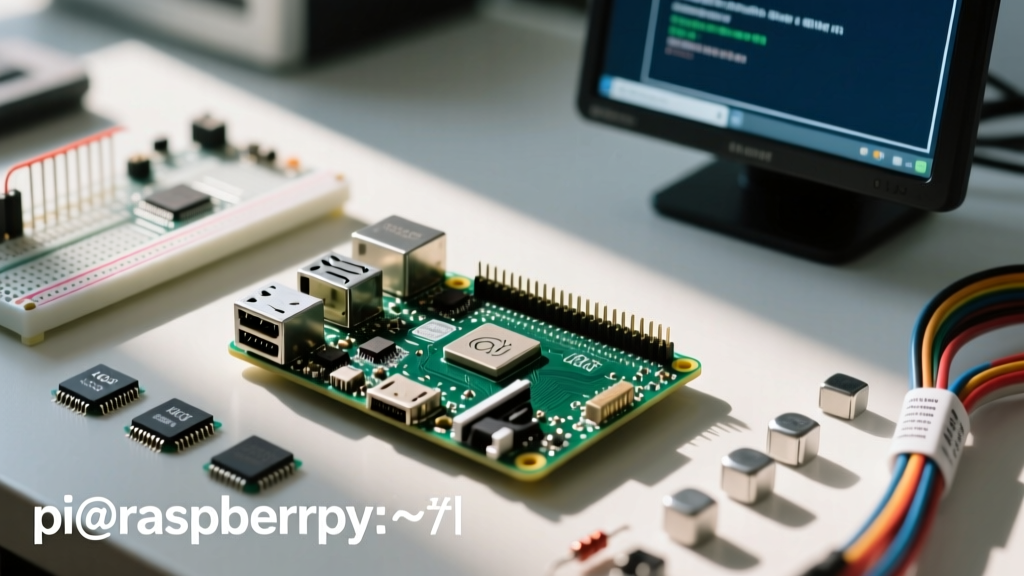

The Paradigm Shift: Why Pi Connect Changes Remote SBC Management
For years, remote access to a Raspberry Pi meant wrestling with router port forwarding, setting up reverse SSH tunnels, or deploying third-party overlay networks like Tailscale or ZeroTier. While effective, these methods require client-side software or expose your network to the harsh realities of the public internet. Enter Raspberry Pi Connect, an official remote access service developed by Raspberry Pi Ltd. that leverages WebRTC to provide secure, browser-based shell and screen sharing.
Unlike traditional VNC setups that require inbound port 5900 to be punched through your firewall, Pi Connect relies entirely on outbound connections. Your Raspberry Pi initiates a secure handshake with the Raspberry Pi signaling servers, establishing a peer-to-peer WebRTC data channel. If your NAT topology is too restrictive, the traffic seamlessly falls back to a secure TURN relay. The result? Zero inbound ports opened, no client software required on your host machine, and enterprise-grade access control.
Hardware and OS Compatibility Matrix
Before diving into the terminal, it is critical to verify your stack. Pi Connect is tightly coupled with modern Raspberry Pi OS architectures and relies on specific systemd user-session behaviors.
| Device Model | Architecture | Recommended OS | Connect Support Status |
|---|---|---|---|
| Raspberry Pi 5 (4GB/8GB) | ARM64 | Bookworm 64-bit (Desktop) | Full Support (Shell + Screen) |
| Raspberry Pi 4 Model B | ARM64/ARMHF | Bookworm 64-bit | Full Support |
| Raspberry Pi 3B+ | ARM64 | Bookworm 64-bit | Supported (Shell recommended) |
| Raspberry Pi Zero 2 W | ARM64 | Bookworm Lite (Headless) | Shell Only (VNC too heavy) |
| Legacy Models (Pi 1, 2, Zero) | ARMv6 | Bullseye / Buster | Not Supported |
Note: Screen sharing requires the Wayland compositor (Wayfire) found in the Desktop edition of Raspberry Pi OS Bookworm. Headless Lite editions only support remote shell access.
Phase 1: Provisioning and the Systemd User Trap
Assuming you have flashed a fresh copy of Raspberry Pi OS Bookworm using the Raspberry Pi Imager, boot your device and open a local terminal or SSH session. The installation process is remarkably lightweight, but it contains a hidden trap regarding systemd user services that catches many administrators off guard.
Installing the Daemon
Update your package repositories and install the Connect daemon:
sudo apt update
sudo apt install rpi-connect
Once installed, the rpi-connect service is registered as a systemd user service, not a system-wide service. This is a deliberate security choice by Raspberry Pi Ltd, ensuring the service runs with the privileges of the active user rather than root.
Solving the Session Destruction Bug
If you are setting up your Pi via SSH and you start the Connect service, it will immediately die the moment you close your SSH session. This happens because systemd destroys the user's DBus session bus upon logout. To make Pi Connect survive reboots and SSH disconnects, you must enable "lingering" for your user account:
sudo loginctl enable-linger $USERThis single command is the difference between a reliable remote node and one that constantly drops offline when you aren't actively logged in locally.
Phase 2: Authentication and Device Claiming
With the daemon persistent, initiate the sign-in sequence:
rpi-connect signinThe CLI will output a unique URL and a verification code. Open this URL on your host machine, log into your Raspberry Pi ID, and enter the code. This cryptographically binds the local device certificate to your cloud account. You can now manage the device via the Raspberry Pi Connect Portal.
Pro-Tip: Name your devices logically in the portal immediately. If you are deploying a fleet of Pi 5s for a smart home dashboard, use hostnames likeha-display-kitchenrather than the defaultraspberrypito avoid WebRTC routing confusion later.
Phase 3: The Wayland Headless Trap (Screen Sharing)
The most common failure mode reported by early adopters of Pi Connect is the "Screen Sharing Unavailable" error on headless Pi 4 and Pi 5 setups. This is not a bug in Pi Connect; it is an artifact of the Wayland display server architecture in Bookworm.
When a Raspberry Pi boots without an HDMI monitor attached, the kernel does not initialize a DRM (Direct Rendering Manager) framebuffer. Consequently, the Wayfire compositor never starts, leaving Pi Connect with no pixel buffer to capture and stream via WebRTC.
Forcing a Virtual DRM Device
To fix this, you must force the Pi to generate a dummy headless display. Do not attempt to edit xorg.conf (X11 is deprecated in Bookworm). Instead, use the official configuration tool:
- Run
sudo raspi-configin your terminal. - Navigate to Display Options > VNC Resolution.
- Select a standard resolution (e.g., 1920x1080).
- Reboot the Raspberry Pi.
Upon reboot, the firmware allocates a virtual DRM output. Wayfire will attach to it, and the Pi Connect portal will instantly show the Screen Sharing toggle as active, allowing you to interact with the desktop environment directly from your browser.
Security Posture: Network Isolation and Access Control
From a network engineering perspective, Pi Connect is vastly superior to exposing SSH (Port 22) or VNC (Port 5900) to the WAN. According to the Raspberry Pi Connect Documentation, the architecture utilizes a strict signaling and relay model.
- Zero Inbound Ports: Your router firewall can remain entirely closed. The Pi initiates outbound TLS/WebSocket connections to the signaling server.
- End-to-End Encryption: WebRTC mandates DTLS-SRTP encryption. Even if traffic passes through a Raspberry Pi TURN relay server, the payload is encrypted and opaque to the relay.
- Identity Verification: Access requires a valid Raspberry Pi ID session. For enterprise or critical infrastructure deployments, enabling Two-Factor Authentication (2FA) on your Raspberry Pi ID account effectively wraps your Pi fleet in hardware-backed MFA.
Real-World Troubleshooting: Failure Modes and Fixes
Even with a flawless setup, environmental factors can disrupt WebRTC streams. Here is a diagnostic framework for common Pi Connect anomalies.
1. Status Stuck on "Offline" in Portal
Symptom: The Pi has internet access (verified via ping 8.8.8.8), but the portal shows it offline.
Diagnosis: The systemd user service has crashed or is blocked by a local firewall.
Fix: Check the user-level journal logs. Run journalctl --user -u rpi-connect.service -f. Look for TLS handshake timeouts. If you are behind a corporate proxy or Pi-hole, ensure that WebSocket connections to *.raspberrypi.com are whitelisted.
2. Shell Connects, but Screen Sharing is Black/Laggy
Symptom: You can open the terminal, but the VNC stream drops frames or shows a black screen.
Diagnosis: Hardware acceleration mismatch or insufficient GPU memory allocation.
Fix: WebRTC video encoding relies on the Pi's hardware video scaler. Ensure your gpu_mem allocation in /boot/firmware/config.txt is set to at least 128 for 1080p screen sharing. If you are using a Pi Zero 2 W, downgrade the headless resolution to 720p to prevent CPU bottlenecking during software encoding.
3. "Failed to Connect" on Corporate Networks
Symptom: Pi Connect works perfectly on your home Wi-Fi, but fails when you try to access the portal from your office network.
Diagnosis: Strict enterprise firewalls blocking UDP WebRTC traffic, forcing the connection to rely on TURN relays which may also be blocked.
Fix: Unfortunately, WebRTC requires specific UDP port ranges. If your corporate network blocks outbound UDP entirely, Pi Connect screen sharing will fail. In these highly restricted environments, you may need to fall back to a traditional TCP-based SSH tunnel or a commercial ZeroTier deployment.
Conclusion: A New Standard for SBC Telemetry
Raspberry Pi Connect eliminates the friction that has historically plagued remote SBC management. By abstracting away NAT traversal and leveraging browser-native WebRTC, it allows makers, home-labbers, and industrial deployers to access their fleet securely from any device. Mastering the systemd user-lingering and Wayland headless DRM quirks ensures your deployment remains resilient, responsive, and secure against the backdrop of an increasingly hostile public internet.