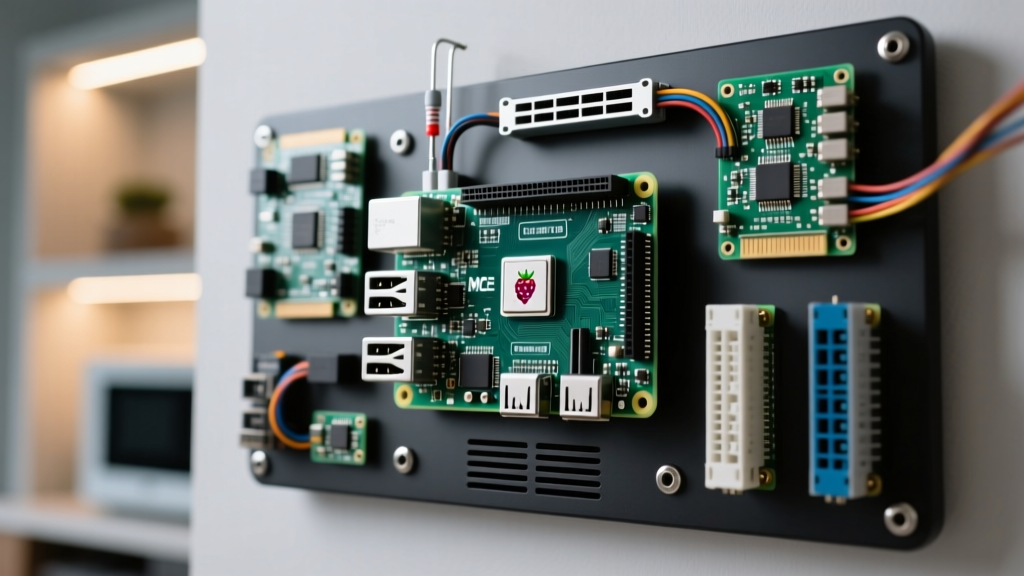
Setting up an FTP server for Raspberry Pi boards is rarely about modern web development; it is usually about bridging the gap between modern networking and legacy industrial hardware. Older CNC routers, PLC data loggers, and legacy barcode scanners often only speak plain FTP. When you need to drop a lightweight, headless file drop-point into a network closet or factory floor, the Pi is the perfect tool. But configuring it securely and debugging the inevitable chroot and passive-mode errors requires precise execution.
This guide targets the Raspberry Pi 4 Model B (4GB variant) running Raspberry Pi OS (64-bit, Bookworm release). We will configure vsftpd, wire a GPIO status LED to monitor the daemon, and provide a concrete debugging path for the most common FTP failures.
The Verdict: Which FTP Daemon Should You Run?
Before touching the terminal, you must choose the right daemon. The Linux ecosystem offers three primary paths for file transfers, but only one is the correct default for legacy IoT and industrial FTP logging.
| Daemon / Protocol | Footprint & Complexity | Legacy IoT Compatibility | Security Profile | Verdict |
|---|---|---|---|---|
| OpenSSH (SFTP) | Zero extra install (built-in) | Poor (requires SSH client) | Excellent (AES encrypted) | Use if your client supports SSH. |
| ProFTPD | Heavy, Apache-like config | Excellent | Good (supports FTPS/TLS) | Overkill for a Pi; use on enterprise servers. |
| vsftpd | Ultra-lightweight, secure defaults | Excellent | Moderate (Plain FTP) to Good (FTPS) | DEFAULT PICK. Best balance for Pi. |
vsftpd. It uses minimal RAM, handles chroot jails securely, and is the industry standard for embedded Linux FTP.
Hardware Spec Sheet & GPIO Pin Mapping
For a reliable, always-on FTP drop-point, do not rely on a standard USB-C wall wart and a plastic case. Use a PoE+ HAT so you can run a single Cat6 cable to the enclosure for both power and data.
Parts List
- Compute: Raspberry Pi 4 Model B (4GB RAM) - $55
- Power/Network: Raspberry Pi PoE+ HAT (official) - $20
- Storage: SanDisk Extreme Pro 128GB microSD (A2 rating for high IOPS) - $22
- Indicator: 5mm Green LED + 330Ω through-hole resistor + 2x DuPont jumper wires
- Enclosure: DIN-rail mountable Pi 4 case with PoE passthrough (e.g., Uctronics or GeeekPi)
GPIO Pin Mapping (Status LED)
We will use a physical LED to indicate if the vsftpd service is active. This saves you from plugging in a monitor when the Pi is mounted in a ceiling or electrical panel.
| Component | Pi Physical Pin | BCM GPIO Number | Notes |
|---|---|---|---|
| LED Anode (+) | Pin 11 | GPIO 17 | Connect via 330Ω current-limiting resistor |
| LED Cathode (-) | Pin 9 | GND | Direct to ground |
Step-by-Step: Configuring vsftpd with Chroot and Passive Mode
Follow these exact steps to install and lock down the FTP server. We are configuring a "chroot jail" to prevent FTP users from navigating outside their designated home directory, and opening a specific passive port range for firewall compatibility.
- Install the daemon:
sudo apt update sudo apt install vsftpd -y - Create the FTP user and directory:
sudo useradd -m -d /home/ftpuser -s /usr/sbin/nologin ftpuser
sudo passwd ftpuser
sudo mkdir -p /home/ftpuser/ftp/uploads
sudo chown root:root /home/ftpuser/ftp
sudo chmod 755 /home/ftpuser/ftp
sudo chown ftpuser:ftpuser /home/ftpuser/ftp/uploads
Note: The root of the chroot (
/home/ftpuser/ftp) MUST be owned by root and not writable, otherwise vsftpd will refuse to start. Theuploadssubfolder is where the user actually writes files. - Allow nologin shell in PAM:
By default, Debian/Ubuntu PAM blocks users without a valid shell (like
/usr/sbin/nologin). Edit the PAM config:
Comment out the line:sudo nano /etc/pam.d/vsftpd#auth required pam_shells.so - Configure vsftpd.conf:
Back up the original and write the new configuration:
Ensure these exact parameters are set:sudo cp /etc/vsftpd.conf /etc/vsftpd.conf.bak sudo nano /etc/vsftpd.conflisten=YES listen_ipv6=NO anonymous_enable=NO local_enable=YES write_enable=YES local_umask=022 chroot_local_user=YES user_sub_token=$USER local_root=/home/$USER/ftp pasv_enable=YES pasv_min_port=30000 pasv_max_port=30100 allow_writeable_chroot=YES - Configure the Firewall (UFW):
sudo ufw allow 21/tcp sudo ufw allow 30000:30100/tcp sudo ufw reload - Restart and Enable:
sudo systemctl restart vsftpd
sudo systemctl enable vsftpd
Python Watchdog: Monitoring FTP Status via GPIO
Headless Pis in industrial environments need physical feedback. This Python script uses gpiozero to poll the vsftpd systemd service. If the daemon crashes, the LED turns off. Save this as ftp_watchdog.py and run it via a cron @reboot directive or a systemd service.
#!/usr/bin/env python3
"""
FTP Watchdog for Raspberry Pi
Monitors vsftpd service status and drives a GPIO indicator LED.
Targets: Raspberry Pi 4 Model B (Bookworm 64-bit)
"""

import subprocess
import time
import logging
from gpiozero import LED
from signal import pause

# --- PIN DEFINITIONS ---
FTP_STATUS_PIN = 17  # BCM 17 / Physical Pin 11

# --- CONFIGURATION ---
SERVICE_NAME = "vsftpd"
POLL_INTERVAL_SEC = 5

# Setup logging
logging.basicConfig(
    level=logging.INFO,
    format="%(asctime)s [%(levelname)s] %(message)s"
)

# Initialize GPIO
status_led = LED(FTP_STATUS_PIN)

def check_service_active(service: str) -> bool:
    """Checks if a systemd service is active using systemctl."""
    try:
        result = subprocess.run(
            ["systemctl", "is-active", "--quiet", service],
            check=False,
            capture_output=True,
            text=True
        )
        return result.returncode == 0
    except Exception as e:
        logging.error(f"Subprocess error checking service: {e}")
        return False

def main():
    logging.info(f"Starting FTP Watchdog on GPIO {FTP_STATUS_PIN}")
    try:
        while True:
            if check_service_active(SERVICE_NAME):
                if not status_led.is_lit:
                    logging.info(f"{SERVICE_NAME} is running. LED ON.")
                status_led.on()
            else:
                if status_led.is_lit:
                    logging.warning(f"{SERVICE_NAME} is DOWN! LED OFF.")
                status_led.off()

            time.sleep(POLL_INTERVAL_SEC)

    except KeyboardInterrupt:
        logging.info("Watchdog interrupted by user.")
    except Exception as e:
        logging.critical(f"Unexpected watchdog failure: {e}")
    finally:
        status_led.off()
        status_led.close()
        logging.info("GPIO cleaned up. Exiting.")

if __name__ == "__main__":
    main()
Debugging the "500 OOPS" and Login Failures
FTP on Linux is notorious for cryptic error codes. When your PLC or client fails to connect, do not guess. Match the exact error string to the solutions below.
Error 1: The Chroot Writable Root Failure
Exact Error String: 500 OOPS: vsftpd: refusing to run with writable root inside chroot()
Ranked Causes:
- Missing config flag (90%): You forgot to add
allow_writeable_chroot=YESto/etc/vsftpd.conf. Older versions of vsftpd required a complex directory structure to avoid this; modern Debian packages support the flag. - Incorrect directory permissions (10%): The
local_rootdirectory itself is owned by the FTP user instead of root.
Fix: Add allow_writeable_chroot=YES to the config, run sudo chown root:root /home/ftpuser/ftp, and restart the service.
Error 2: Authentication Rejection
Exact Error String: 530 Login incorrect.
Ranked Causes:
- PAM Shell Restriction (70%): The user has
/usr/sbin/nologinas their shell, and PAM is blocking it. (See Step 3 in the setup guide). - FTPUsers Blocklist (20%): The username is listed in
/etc/ftpusers, which is a hardcoded deny-list. - Typo in credentials (10%): Self-explanatory, but common when configuring headless PLCs with limited keyboards.
Fix: Comment out auth required pam_shells.so in /etc/pam.d/vsftpd and ensure the user is not in /etc/ftpusers.
Error 3: Passive Mode Timeouts
Exact Error String: Connection timed out (specifically after the initial login succeeds and directory listing is attempted).
Ranked Causes:
- Firewall blocking passive ports (80%): UFW or iptables is blocking the 30000-30100 TCP range.
- NAT/Router mismatch (20%): If accessing from outside the LAN, the router isn't forwarding the passive range, or
pasv_addressisn't set to the public IP in vsftpd.conf.
Fix: Run sudo ufw allow 30000:30100/tcp.
- Service Status: Run
systemctl status vsftpd. If it's dead, checkjournalctl -u vsftpd -n 20for syntax errors in your config file. - Config Syntax: Ensure there are no spaces before or after the
=sign invsftpd.conf(e.g.,write_enable=YESis valid;write_enable = YESwill crash the daemon silently). - Port Accessibility: From a separate machine on the same VLAN, run
telnet [PI_IP_ADDRESS] 21. If it times out, your network firewall or Pi UFW is blocking the connection before vsftpd even sees it.
How to Extend or Simplify the Build
Once your baseline FTP server for Raspberry Pi is stable, you will eventually hit the physical limits of the microSD card. Here is how to scale the build based on your actual deployment needs.
Extending: High-IOPS USB3 Storage
MicroSD cards will die within months if subjected to constant FTP write cycles from industrial loggers. To extend the build:
1. Purchase a USB 3.1 to NVMe M.2 enclosure that supports UASP (USB Attached SCSI Protocol). UASP is mandatory; without it, the Pi's USB controller will bottleneck at ~40MB/s.
2. Format the NVMe drive as ext4.
3. Mount it to /mnt/ftp_data via /etc/fstab using the drive's UUID.
4. Update local_root in vsftpd.conf to point to a folder inside /mnt/ftp_data, and use mount --bind if you need to maintain the chroot jail structure.
Simplifying: Ditch FTP for SFTP
If you control the client software (e.g., you are writing a Python script on another machine to pull files, or using a modern Windows 11 PC), delete vsftpd entirely.
Run sudo apt purge vsftpd. Enable the built-in SSH server (sudo systemctl enable ssh). Use an SFTP client like WinSCP or FileZilla, or use Python's paramiko library. SFTP runs over port 22, requires zero extra daemon configuration, encrypts all traffic, and completely eliminates the "500 OOPS" chroot headaches. Only stick with vsftpd if legacy hardware strictly forces your hand.
For more on securing embedded Linux services, refer to the official Raspberry Pi configuration documentation and the vsftpd security design notes by Chris Evans.