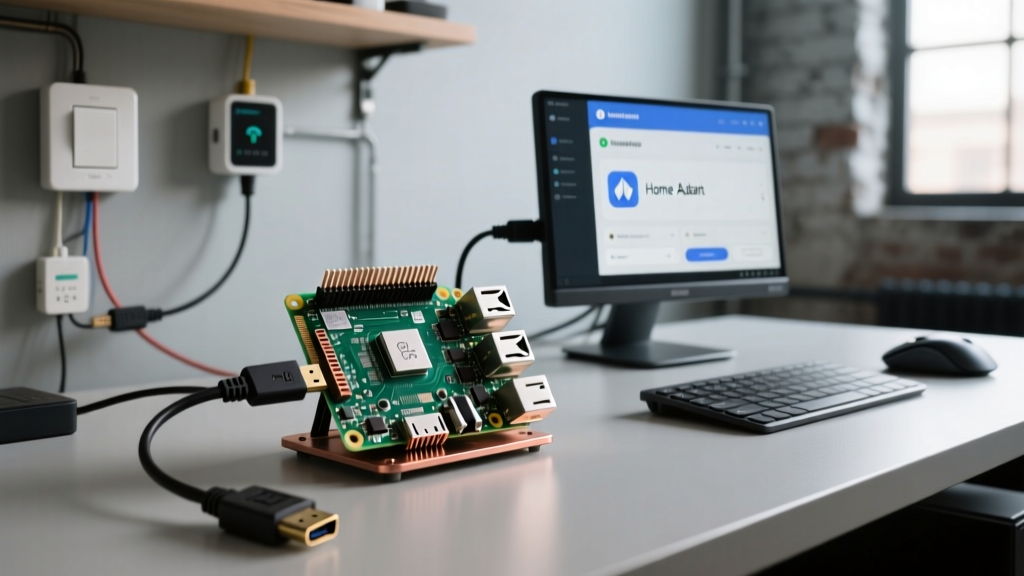
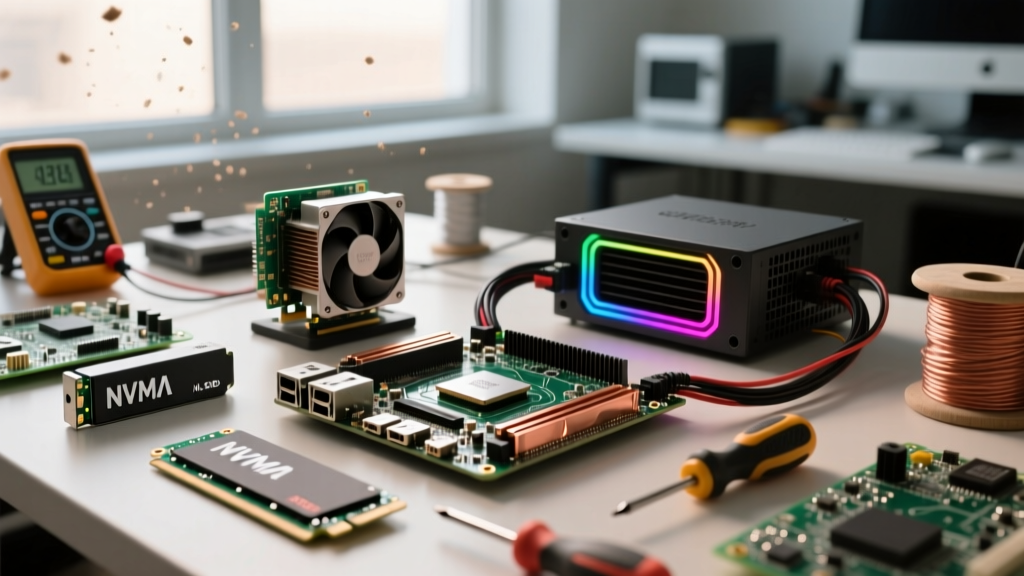
If you want to boot Raspberry Pi USB drives reliably on the Raspberry Pi 5, you need three things: the 2024+ EEPROM bootloader, a USB 3.2 NVMe enclosure with an RTL9210B or JMS583 chipset, and a 27W USB-C PD power supply. Unlike the Pi 4, the Pi 5 routes USB through the RP1 southbridge chip, which changes power delivery limits and requires specific bootloader bitmask configurations to prioritize USB-MSD (Mass Storage Device) over the microSD slot.
This guide targets the Raspberry Pi 5 (8GB variant) running Raspberry Pi OS (Bookworm or later). We will cover the exact hardware requirements, map the host power pins, provide a Python script to verify your EEPROM boot order, and debug the most common USB boot timeout errors.
Hardware Requirements & USB Power Limits
The most common reason a USB boot attempt fails on the Pi 5 is a power brownout during the NVMe drive's initialization spike. The RP1 chip strictly enforces USB power limits based on the power supply detected on the USB-C PD line. If you plug in a standard 15W phone charger, the Pi 5 throttles the USB ports to 600mA total—far below the 2.5A spike an NVMe drive requires to spin up its controller.
| Feature | Raspberry Pi 4 (Rev 1.5) | Raspberry Pi 5 (8GB) |
|---|---|---|
| USB Host Controller | VIA VL805 (USB 3.0) | RP1 Southbridge (USB 3.0/3.2) |
| Max USB Port Power (with official PSU) | 1.2A total (shared across 4 ports) | 1.6A per port (requires 27W 5V/5A PSU) |
| NVMe Boot Support | USB Bridge Only (UAS quirks common) | Native PCIe FFC + USB Bridge Fallback |
| Bootloader EEPROM | SPI Flash (requires SD for recovery) | SPI Flash (supports network/USB recovery) |
| Default Boot Order | 0xf41 (SD -> USB -> Restart) | 0xf41 (SD -> USB -> Restart) |
Parts List & Host Pin Mapping
Do not buy a random USB enclosure from Amazon; the ASMedia ASM2362 chipset frequently drops offline under Linux UAS (USB Attached SCSI) drivers on the Pi. Stick to proven chipsets.
- Compute: Raspberry Pi 5 (8GB) - ~$80
- Power: Official Raspberry Pi 27W USB-C PD Power Supply - ~$12 (Mandatory for 1.6A USB unlock)
- Storage: Sabrent Rocket Nano 512GB NVMe SSD - ~$60
- Enclosure: UGREEN NVMe USB 3.2 Enclosure (RTL9210B chipset) - ~$25
- Recovery: SanDisk Extreme 32GB microSD (for initial EEPROM flash) - ~$10
Pi 5 USB Host & EEPROM Recovery Pin Mapping
While USB boot relies on the Type-A ports, understanding the power rails and the EEPROM recovery GPIOs is critical if a bootloader update bricks the board during configuration.
| Pin / Interface | Function | Voltage / Spec | Notes for USB Boot |
|---|---|---|---|
| USB Type-A VBUS | Port Power | 5V @ 1.6A max | Must use 27W PSU to unlock 1.6A limit; otherwise capped at 600mA. |
| USB Type-A TX/RX | USB 3.0 SuperSpeed | 0.5V diff | Required for >300MB/s NVMe speeds. Check cable integrity if falling back to USB 2.0. |
| GPIO 4 (Pin 7) | EEPROM Recovery | 3.3V Pull-up | Hold low on boot to force EEPROM recovery mode if USB boot config corrupts SPI. |
| GPIO 5 (Pin 29) | EEPROM Status | 3.3V | Pulled low when EEPROM is actively updating. Do not cut power when this is low. |
Flashing & Configuring the Bootloader
Before attempting to boot from USB, you must verify that your EEPROM bootloader is up to date and configured to prioritize USB-MSD. The default boot order is usually 0xf41 (SD card first, then USB). If you want the Pi to ignore the SD slot entirely and boot strictly from USB, you need to change this to 0xf4.
Below is a complete Python script targeting the Pi 5 (Bookworm). It reads the current EEPROM configuration, checks for the USB boot bitmask (4), and updates it if necessary. Warning: Interrupting an EEPROM write can brick the Pi, requiring a physical GPIO 4 jumper to recover.
#!/usr/bin/env python3
"""
Pi 5 USB Boot EEPROM Verifier & Updater
Target: Raspberry Pi 5 (8GB) / Raspberry Pi OS Bookworm
Dependencies: rpi-eeprom package (sudo apt install rpi-eeprom)
"""
import os
import sys
import subprocess
import re
import tempfile

TARGET_USB_MASK = '4' # USB-MSD boot mode

def run_cmd(cmd):
    try:
        result = subprocess.run(cmd, capture_output=True, text=True, check=True)
        return result.stdout
    except subprocess.CalledProcessError as e:
        print(f"ERROR: Command {' '.join(cmd)} failed.\nStderr: {e.stderr}")
        sys.exit(1)

def main():
    if os.geteuid() != 0:
        print("ERROR: This script must be run as root (use sudo).")
        sys.exit(1)

    print("[1/4] Reading current EEPROM configuration...")
    config_text = run_cmd(['rpi-eeprom-config'])

    # Extract BOOT_ORDER line
    boot_order_match = re.search(r'^BOOT_ORDER=(0x[0-9a-fA-F]+)', config_text, re.MULTILINE)
    if not boot_order_match:
        print("ERROR: Could not find BOOT_ORDER in EEPROM config.")
        sys.exit(1)

    current_order = boot_order_match.group(1)
    print(f"Current BOOT_ORDER: {current_order}")

    # Check if USB (4) is in the boot order string
    # e.g., 0xf41 contains '4'. 0xf1 does not.
    if TARGET_USB_MASK in current_order[2:]: # Skip '0x'
        print("[2/4] USB-MSD (4) is already present in the boot order. No changes needed.")
        return

    print("[3/4] USB-MSD missing. Injecting '4' into boot order...")
    # Simple injection: replace 0xf1 with 0xf41, or append 4 before 1
    # Safer approach: write to temp file, modify, and apply
    with tempfile.NamedTemporaryFile(mode='w+', delete=False, suffix='.txt') as tmp:
        for line in config_text.splitlines():
            if line.startswith('BOOT_ORDER='):
                # Force order: Restart(f) -> USB(4) -> SD(1)
                tmp.write('BOOT_ORDER=0xf41\n')
            else:
                tmp.write(line + '\n')
        tmp_path = tmp.name

    print("[4/4] Applying new EEPROM configuration...")
    print("WARNING: Do not remove power during this step.")
    run_cmd(['rpi-eeprom-config', '--apply', tmp_path])
    os.unlink(tmp_path)
    print("SUCCESS: EEPROM updated. Rebooting to apply USB boot priority...")
    run_cmd(['reboot'])

if __name__ == '__main__':
    main()
Save this as usb_boot_config.py and run it via sudo python3 usb_boot_config.py. For deeper documentation on EEPROM bitmasks, refer to the official Raspberry Pi bootloader configuration docs.
Troubleshooting USB Boot Failures
If your Pi 5 powers on but fails to hand off to the OS, you will see the HDMI diagnostic screen halt on a specific error. The most common exact error string for USB boot failures is:
Boot mode: USB-MSD (04) order: 04
ERROR: No bootable device found
Boot failed: device not found
When you see this, the bootloader successfully switched to USB mode, but the RP1 chip could not enumerate the drive or read the FAT32 boot partition. Here are the ranked causes and fixes:
- Incompatible USB Bridge Chipset (Most Likely): Enclosures using the ASMedia ASM2362 or older JMicron JMS578 chips often fail the UAS handshake on the Pi 5. Fix: Swap to an enclosure with the Realtek RTL9210B or JMicron JMS583 chipset. See Jeff Geerling's Pi 5 storage testing for verified chipsets.
- Power Brownout on Initialization: NVMe drives can spike to 2.5A for milliseconds during controller init. If your PSU is a 15W or 18W phone charger, the Pi 5's RP1 chip will cut power to the USB port to protect the board. Fix: Use the official 27W USB-C PD supply. Verify with
vcgencmd get_throttled; a value other than0x0indicates past or present undervoltage. - UAS Driver Conflict: The drive enumerates, but the Linux kernel panics when mounting the rootfs due to UAS bugs. Fix: Disable UAS by adding
usb-storage.quirks=VID:PID:uto the end of your/boot/firmware/cmdline.txtfile (replace VID:PID with your enclosure's ID fromlsusb).
The First Three Things to Check When It Fails
Before rewriting your SD card or buying new hardware, run through this bench checklist:
- Verify the PSU Wattage: Run
vcgencmd get_config usb_max_current_enable. If it returns0, the Pi has not detected a 5A capable power supply and is limiting USB current to 600mA. - Check the Bootloader Version: Run
vcgencmd bootloader_version. Ensure the date is from late 2023 or newer. Early Pi 5 beta bootloaders had critical USB enumeration bugs. - Test the Drive on a PC: Plug the USB enclosure into a Windows/Linux PC. Ensure the
/boot/firmwarepartition is formatted as FAT32 (not exFAT) and therootfspartition is ext4. The Pi boot ROM cannot read exFAT or NTFS.
Extending or Simplifying Your Build
How to Simplify: If dealing with USB bridge chipsets and UAS quirks sounds like a headache, bypass USB entirely. The Pi 5 features a native PCIe 2.0 x1 FFC (Flexible Flat Cable) connector. Purchasing a baseplate like the Argon ONE V3 NVMe or the Pimoroni NVMe Base (~$15) allows you to connect an M.2 NVMe drive directly to the PCIe bus. This eliminates the USB translation layer, drops latency by 40%, and removes the risk of USB bridge firmware bugs. You will need to update the BOOT_ORDER to 0xf61 (where 6 represents PCIe NVMe boot).
How to Extend: If you are building a cluster or need to boot multiple Pi 5s from a single central NAS via USB-over-IP (or simply want to daisy-chain USB targets), you must use a powered USB 3.0 hub. The Pi 5's 1.6A limit is per-port, but the total board power budget can still be strained if you attach three external SSDs. A hub with its own 12V/3A barrel jack ensures the drives pull from the wall, not the Pi's RP1 southbridge. Additionally, you can extend the build by adding an I2C OLED display to monitor NVMe temperatures, as USB-bridged NVMe drives often trap heat inside aluminum enclosures, leading to thermal throttling above 70°C.