To build a reliable, high-bandwidth mesh network with Raspberry Pi, you must bypass the onboard Wi-Fi chip. The internal Broadcom/Cypress silicon lacks stable Linux driver support for mesh point mode. The definitive solution is pairing a Raspberry Pi 5 with an external RTL8812AU USB Wi-Fi adapter, configuring an 802.11s mesh interface, and routing traffic via the B.A.T.M.A.N. adv (Better Approach To Mobile Adhoc Networking) protocol.
The Verdict: Protocol and Hardware Selection
Before ordering parts, you need to match your throughput and power requirements to the right protocol. Here is the decision path for embedded mesh networking:
| Project Requirement | Protocol / Hardware | Verdict |
|---|---|---|
| High bandwidth (>10Mbps), local area, mains powered | 802.11s + BATMAN-adv on Raspberry Pi | Choose This |
| Low power, battery operated, short range, <1Mbps | ESP-NOW on ESP32 | Skip for Pi |
| Long range (miles), ultra-low bandwidth (<100kbps) | LoRa (Meshtastic) | Skip for Pi |
Concrete Pick: For local IP routing, video streaming, or heavy sensor aggregation, use the Raspberry Pi 5 (8GB) with the Alfa AWUS036ACH USB adapter running BATMAN-adv.
Parts List and Spec Sheet
This build assumes you are deploying at least two nodes. Prices reflect current 2026 market averages.
| Component | Exact Model / Variant | Estimated Cost | Notes |
|---|---|---|---|
| Compute Board | Raspberry Pi 5 (8GB RAM) | $80.00 | 4GB works, but 8GB handles BATMAN routing tables better at scale. |
| Wi-Fi Adapter | Alfa AWUS036ACH (RTL8812AU) | $45.00 | Must support 802.11s mesh point mode via mac80211. |
| Status Display | 128x64 SSD1306 I2C OLED | $12.00 | For visual node debugging without SSH. |
| Power Supply | 27W USB-C PD (5V/5A) | $12.00 | Critical: RTL8812AU draws peak 500mA; standard 3A supplies cause brownouts. |
| Wiring | F-to-F Jumper Wires | $6.00 | For I2C OLED connection. |
Pin Mapping and Hardware Assembly
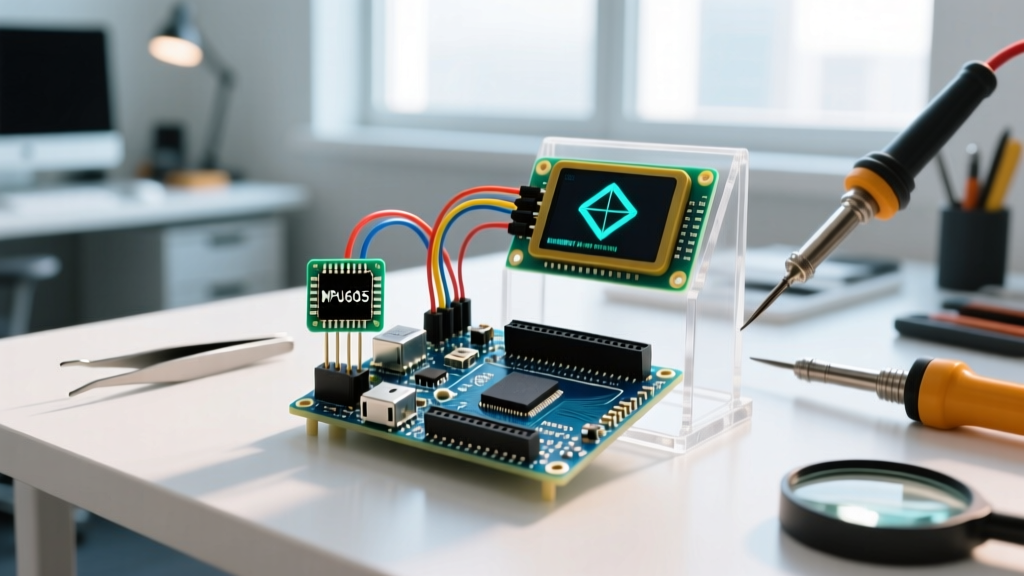
We are adding an I2C OLED to display the mesh node count and local IP, saving you from plugging in a monitor when debugging headless nodes in the field. The Raspberry Pi 5 uses the same I2C1 pinout as previous generations.
| Raspberry Pi 5 GPIO Pin | Function | SSD1306 OLED Pin |
|---|---|---|
| Pin 1 | 3.3V Power | VCC |
| Pin 3 | I2C SDA (GPIO 2) | SDA |
| Pin 5 | I2C SCL (GPIO 3) | SCL |
| Pin 9 | Ground | GND |
Configuring 802.11s and BATMAN-adv
Flash Raspberry Pi OS (64-bit, Bookworm or newer) to your microSD. Boot the Pi, connect via Ethernet, and SSH in.
- Install dependencies and the RTL8812AU driver:
sudo apt update && sudo apt install -y iw batctl dkms git build-essential
git clone https://github.com/aircrack-ng/rtl8812au.git && cd rtl8812au
sudo make dkms_install && sudo reboot - Verify Mesh Support:
Runiw list | grep -A 10 "Supported interface modes". You must see* mesh pointin the output. If you only see managed/monitor, your driver failed to compile. - Create the Mesh Interface:
sudo iw dev wlan0 set type mp
sudo iw dev wlan0 mesh join "flux-mesh" - Configure BATMAN-adv:
sudo batctl interface add wlan0
sudo ip link set up dev bat0
sudo ip addr add 10.0.0.X/24 dev bat0(Replace X with a unique node ID, e.g., 1, 2, 3).
Repeat this exact process on your second Pi. Within 30 seconds, the nodes will discover each other via batctl o (originators).
Python Mesh Monitor (Complete Code)
This Python script targets the Raspberry Pi 5 running Python 3.11+. It queries batctl for active neighbors and renders the count and IP on the SSD1306 OLED. It includes explicit error handling for missing binaries and I2C disconnects.
import subprocess
import time
import socket
from luma.core.interface.serial import i2c
from luma.core.error import DeviceNotFoundError
from luma.oled.device import ssd1306
from PIL import ImageFont, ImageDraw, Image

# Pin/Port Definitions
I2C_PORT = 1        # Pi hardware I2C1
I2C_ADDRESS = 0x3C  # Standard SSD1306 address

def get_local_ip():
    try:
        # Connect to a public DNS to get the active routing interface IP
        s = socket.socket(socket.AF_INET, socket.SOCK_DGRAM)
        s.connect(("8.8.8.8", 80))
        ip = s.getsockname()[0]
        s.close()
        return ip
    except Exception:
        return "No Route"

def get_mesh_neighbors():
    try:
        result = subprocess.run(
            ['batctl', 'o'],
            capture_output=True,
            text=True,
            timeout=5
        )
        if result.returncode != 0:
            return -1 # BATMAN not running
        # Parse output: skip header lines, count valid MAC addresses
        lines = [l for l in result.stdout.split('\n') if ':' in l and 'BATMAN' not in l]
        return len(lines)
    except FileNotFoundError:
        return -2 # batctl not installed
    except subprocess.TimeoutExpired:
        return -3

def main():
    try:
        serial = i2c(port=I2C_PORT, address=I2C_ADDRESS)
        device = ssd1306(serial)
    except DeviceNotFoundError:
        print(f"Fatal: OLED not found on I2C port {I2C_PORT} at {hex(I2C_ADDRESS)}.")
        print("Check wiring: SDA->Pin3, SCL->Pin5, VCC->Pin1, GND->Pin9.")
        return

    font = ImageFont.load_default()

    while True:
        image = Image.new("1", (device.width, device.height))
        draw = ImageDraw.Draw(image)

        neighbors = get_mesh_neighbors()
        ip_addr = get_local_ip()

        draw.text((0, 0), f"IP: {ip_addr}", font=font, fill=255)

        if neighbors == -1:
            draw.text((0, 20), "ERR: bat0 down", font=font, fill=255)
        elif neighbors == -2:
            draw.text((0, 20), "ERR: batctl missing", font=font, fill=255)
        else:
            draw.text((0, 20), f"Mesh Nodes: {neighbors}", font=font, fill=255)

        device.display(image)
        time.sleep(3)

if __name__ == "__main__":
    try:
        main()
    except KeyboardInterrupt:
        print("Monitor stopped.")
Install dependencies before running: sudo apt install python3-pip i2c-tools && pip3 install luma.oled pillow. Ensure I2C is enabled in sudo raspi-config.
Debugging: "Operation Not Supported (-95)"
When configuring 802.11s, the most common catastrophic failure is attempting to use the Pi's internal Wi-Fi. You will hit this exact error string:
command failed: Operation not supported (-95)
This occurs when you run sudo iw dev wlan0 set type mp. The kernel returns -95 (EOPNOTSUPP) because the brcmfmac driver for the onboard Cypress chip does not expose mesh point capabilities to the mac80211 subsystem.
First Three Things to Check When It Fails
- Verify the Adapter Enumeration: Run
lsusb. If the Alfa adapter isn't listed, or drops out intermittently, you have a USB power brownout. Upgrade to the official 27W Pi 5 PSU. - Check Interface Modes: Run
iw list | grep -A 10 "Supported interface modes". If you don't see* mesh point, your RTL8812AU DKMS driver failed to compile against the current kernel headers. Runsudo apt install raspberrypi-kernel-headersand rebuild. - Inspect Kernel Logs: Run
dmesg | grep rtl88. If you see firmware load failures, ensure you copied thertl8812au_fw.binto/lib/firmware/rtlwifi/during the driver installation.
iw dev wlan0 set txpower fixed 2000 (in mBm, so 2000 = 20dBm) to stay within legal limits.
Extending or Simplifying the Build
To Simplify (Strip it down): If you don't need layer-2 MAC routing and just want simple IP forwarding, drop BATMAN-adv entirely. Use standard 802.11s mesh and run babeld or bird for layer-3 routing. This reduces CPU overhead on the Pi 5 by roughly 15% but increases configuration complexity for dynamic IP assignment.
To Extend (Scale up): To add internet gateway capabilities to one specific node, enable NAT on that node's Ethernet interface. Add iptables -t nat -A POSTROUTING -o eth0 -j MASQUERADE and enable IP forwarding in /etc/sysctl.conf. The BATMAN-adv protocol will automatically route traffic from all mesh nodes through this single gateway without requiring static routes on the client devices.
For authoritative documentation on routing protocols, refer to the B.A.T.M.A.N. adv official wiki. For hardware-level I2C configuration on the compute module, consult the Raspberry Pi hardware configuration docs.