
The Great Serial Misconception: Hardware vs. Software
When makers and engineers ask, "where are Arduino serial libraries stored?", they are usually battling a compilation error or trying to modify low-level UART behavior. To configure your environment correctly, you must first understand a fundamental architectural distinction in the Arduino ecosystem: HardwareSerial versus SoftwareSerial.
The native Serial object you use to communicate with the Serial Monitor (e.g., Serial.begin(115200)) is not stored in your standard sketchbook libraries folder. It is deeply embedded within the microcontroller's hardware core. Conversely, software-emulated serial ports (like SoftwareSerial or AltSoftSerial) are treated as standard add-on libraries. Misunderstanding this distinction leads to hours of searching in the wrong directories.
Expert Insight: If you are trying to modify the serial buffer size (e.g., changing
SERIAL_RX_BUFFER_SIZEfrom 64 bytes to 256 bytes to prevent data loss at high baud rates), you will not find this in thelibrariesfolder. You must dig into the hidden Board Manager core directories.
Standard Library Paths (SoftwareSerial & Third-Party)
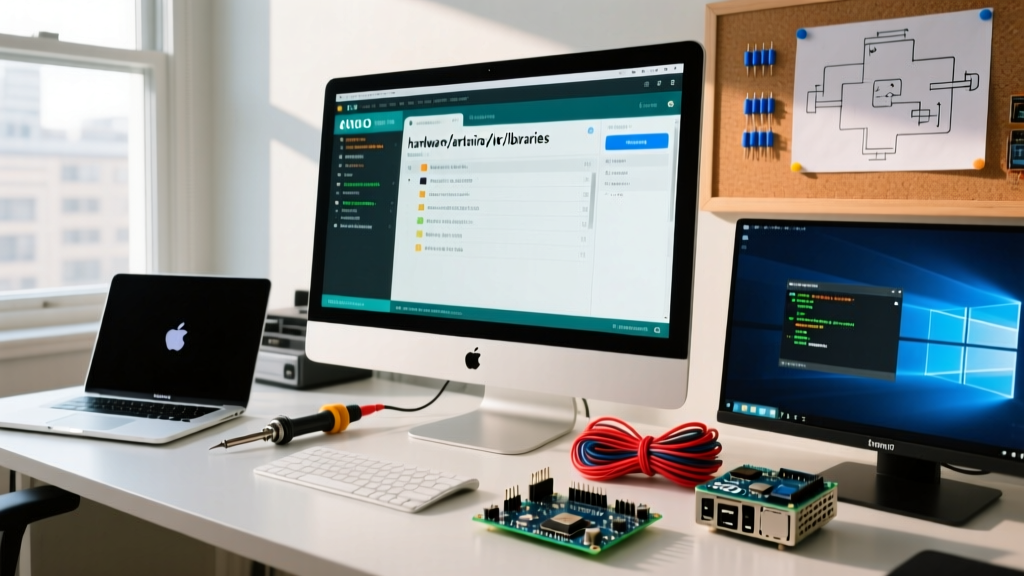
If you are installing, updating, or modifying software-based serial libraries (like SoftwareSerial, NeoSWSerial, or third-party RS485 wrappers), these reside in your user-level sketchbook directory. According to the official Arduino IDE v2 documentation, the IDE automatically creates this folder upon first launch.
| Operating System | Default Library Path | Hidden Folder? |
|---|---|---|
| Windows 10 / 11 | C:\Users\[Username]\Documents\Arduino\libraries |
No |
| macOS (13+) | /Users/[Username]/Documents/Arduino/libraries |
No |
| Linux (Ubuntu/Debian) | /home/[Username]/Arduino/libraries |
No |
Configuration Tip: You can verify or change this path in the Arduino IDE by navigating to File > Preferences (or Arduino IDE > Settings on macOS) and checking the "Sketchbook location" field. Any serial library placed in a subfolder here will be indexed by the IDE upon restart.
Locating Hardware Serial (The Hidden Core Paths)
The native HardwareSerial.h and HardwareSerial.cpp files—which control the physical UART pins on your microcontroller—are stored in the hidden Arduino15 configuration directory. This is where the IDE stores packages downloaded via the Boards Manager. The Arduino Cores documentation outlines how these hardware abstractions are separated from the IDE itself.
Windows Core Paths
On Windows, the core files are hidden inside the AppData folder. For a standard Arduino UNO R3 (AVR architecture), the exact path to the serial implementation is:
C:\Users\[Username]\AppData\Local\Arduino15\packages\arduino\hardware\avr\[version]\cores\arduino
Note: You must enable "Show hidden files" in Windows Explorer to access the AppData directory.
macOS Core Paths
On macOS, the configuration folder is located in the user's hidden Library directory:
/Users/[Username]/Library/Arduino15/packages/arduino/hardware/avr/[version]/cores/arduino
Access shortcut: In Finder, press Cmd + Shift + G and paste ~/Library/Arduino15.
Linux Core Paths
Linux stores the core configurations in a hidden directory within the user's home folder:
/home/[Username]/.arduino15/packages/arduino/hardware/avr/[version]/cores/arduino
The Ultimate Source of Truth: Verbose Compiler Output
Because custom board packages (like ESP32, STM32, or Teensy) use entirely different core structures, guessing the path can be frustrating. The most reliable way to find exactly where the IDE is pulling the serial library from for your specific board is to use the compiler's verbose output.
- Open Arduino IDE and go to Preferences.
- Check the box for "Show verbose output during: compilation".
- Write a basic sketch containing
Serial.begin(9600);and click Verify/Compile. - Scroll through the black console window at the bottom. Look for the
-I(include) flags in theavr-g++orxtensa-lx106-elf-g++command.
You will see the exact absolute file path the compiler is using to resolve HardwareSerial.h. This bypasses all guesswork and is an essential troubleshooting step for advanced firmware engineers.
Edge Case: Portable Installations
In industrial or field-service environments, engineers often run the Arduino IDE from a USB drive to maintain a standardized, isolated environment. If you have created a portable folder next to the Arduino IDE executable, the standard user paths are completely ignored.
In a portable configuration, all serial libraries and hardware cores are stored inside the portable directory:
- Libraries:
[IDE_Directory]\portable\sketchbook\libraries - Cores (HardwareSerial):
[IDE_Directory]\portable\packages\[vendor]\hardware\[arch]\[version]\cores
This is highly recommended for teams deploying custom firmware where a modified HardwareSerial.cpp (e.g., altering RS485 direction pin timing) must be shared uniformly across multiple workstations without altering local OS environments.
Troubleshooting Common Serial Path Errors
When configuring serial libraries, you may encounter specific compilation warnings. Here is how to resolve them based on path priority.
Warning: "Multiple libraries were found for SoftwareSerial.h"
This occurs when the IDE finds a version of the library in your sketchbook folder and a legacy version bundled with an older core. The Arduino IDE resolves conflicts using a strict priority hierarchy:
- Sketchbook / User Libraries (Highest Priority)
- Board Manager Cores (Medium Priority)
- IDE Built-in / Legacy Libraries (Lowest Priority)
The Fix: Navigate to your user libraries folder and delete the redundant SoftwareSerial folder. Rely on the version provided by the Board Manager core, as it is specifically optimized for your target microcontroller's timer interrupts.
Error: "fatal error: avr/pgmspace.h: No such file or directory"
If you are trying to compile a legacy serial library on an Arduino UNO R4 Minima or WiFi (which uses an ARM Cortex-M4 Renesas RA4M1 chip), the library may be hardcoded to look for AVR-specific memory paths. The ARM core stores its serial implementations in a completely different architecture tree. You must update the library via the Library Manager to a version that supports the ArduinoCore-renesas API.
Modifying Core Serial Buffers Safely
If your project requires modifying the HardwareSerial buffer size to handle high-throughput NMEA GPS sentences or DMX512 lighting protocols, do not edit the files in the Arduino15 directory directly. An IDE or Board Manager update will overwrite your changes instantly.
Instead, use the build flags override method if your core supports it, or create a local copy of the core in your hardware folder within your sketchbook. By creating a local hardware package, you take full ownership of the HardwareSerial.cpp file, ensuring your custom buffer configurations survive IDE updates. For more on core architecture, refer to the ArduinoCore-avr GitHub repository.
Summary
Understanding where Arduino serial libraries are stored requires separating the concept of native hardware UART (stored in hidden Arduino15 core directories) from software-emulated serial (stored in the user Documents/Arduino/libraries folder). By leveraging verbose compiler outputs and understanding the IDE's resolution hierarchy, you can confidently debug, modify, and configure serial communications for any microcontroller architecture in your toolkit.