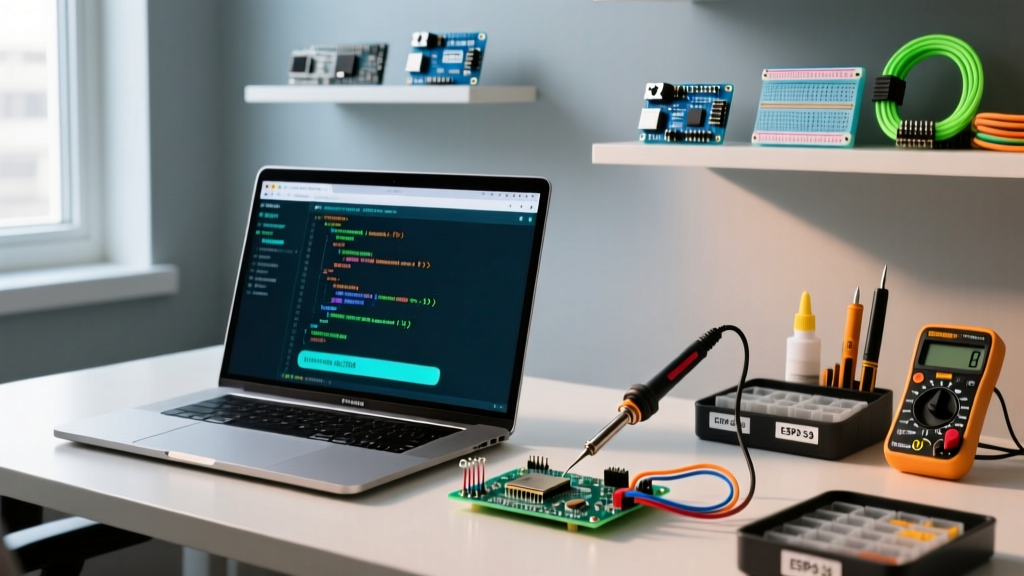

The Apple Silicon Shift: Navigating Arduino for Mac in 2026
For years, the Arduino for Mac experience was a straightforward plug-and-play affair. However, the industry-wide migration to Apple Silicon (M1 through M4 chips) and the tightening of macOS security architectures—specifically System Integrity Protection (SIP) and Gatekeeper—have fundamentally changed how makers compile, flash, and debug microcontrollers. In 2026, the community has moved past the early adoption hurdles of ARM64 translation, but new edge cases continue to emerge with every macOS update.
This community resource roundup curates the most reliable, battle-tested tools, driver workarounds, and terminal commands vetted by the electricalflux.com maker community. Whether you are flashing an ESP32-S3 via PlatformIO or debugging an ATmega328P clone over a USB-C hub, this guide provides the exact specifications and fixes you need.
IDE Landscape: What the Mac Community is Actually Using
The days of relying solely on the legacy Java-based Arduino IDE 1.8.x are over. The community has largely fractured into three distinct camps based on project complexity. Below is our 2026 comparison matrix of the primary development environments for macOS.
| Environment | Apple Silicon Native? | Compile Speed (Blink) | Board Manager Ease | Best Use Case |
|---|---|---|---|---|
| Arduino IDE 2.3.x | Yes (ARM64) | ~1.2 seconds | Excellent (GUI) | Beginners, quick prototyping, basic AVR |
| PlatformIO (VS Code) | Yes (via VS Code ARM) | ~0.8 seconds | Moderate (INI files) | Complex ESP32/STM32 projects, CI/CD, RTOS |
| arduino-cli (Homebrew) | Yes (Native Binary) | ~0.7 seconds | Advanced (Terminal) | Headless Macs, automated testing, Makefiles |
For professional firmware engineers, PlatformIO remains the undisputed champion due to its isolated project environments and native integration with the ESP-IDF framework. However, for rapid hardware validation, the Arduino IDE 2.x series has finally matured, offering native Apple Silicon support and a robust serial plotter that no longer crashes on macOS Sonoma or Sequoia.
The CH340 & CP210x Driver Nightmare (And Community Fixes)
If you are using budget-friendly Arduino Nano clones or NodeMCU ESP8266 boards, you are likely dealing with WCH CH340 or Silicon Labs CP210x USB-to-Serial chips. On macOS, third-party kernel extensions (kexts) are heavily restricted. Apple now mandates System Extensions, which require explicit user approval in Recovery Mode.
The WCH CH340 Apple Silicon Workaround
The community has standardized on the official WCH V3.8 macOS driver, which supports both Intel and Apple Silicon natively without requiring you to disable SIP.
- Download the verified package directly from the WCH IC official repository.
- Extract the
CH34x_Install_V3.8.pkgand run the installer. - Navigate to System Settings > Privacy & Security. You will see a prompt stating "System software from developer 'wch.cn' was blocked." Click Allow.
- Critical Step: Reboot your Mac. The driver will not mount the
/dev/cu.*node until the kernel cache is rebuilt during a fresh boot.
Community Warning: Avoid third-party GitHub forks of the CH340 driver that claim to "bypass" security prompts. Many of these are outdated Intel-only binaries that will trigger a kernel panic on M-series Macs running macOS 14.0 or later.
Port Troubleshooting: The "cu" vs "tty" UNIX Distinction
One of the most frequent questions on our forums is: "Why does my serial monitor hang when I try to connect via the Mac terminal?" The answer lies in macOS's BSD UNIX heritage.
When you plug in an Arduino, macOS mounts two device nodes:
/dev/tty.usbmodem14101(Call-in device)/dev/cu.usbmodem14101(Callout device)
The tty (teletype) node waits for a hardware Carrier Detect (CD) signal to go high before allowing a connection. Because most Arduino USB-Serial chips do not assert the CD line, attempting to use screen /dev/tty.usbmodem... will result in a silent, infinite hang. The community standard is to always use the cu (Callout) equivalent, which bypasses the CD check and connects immediately.
# CORRECT: Connects immediately to the serial monitor
screen /dev/cu.usbmodem14101 115200

# INCORRECT: Will hang indefinitely on most Arduino boards
screen /dev/tty.usbmodem14101 115200
Essential Mac-Specific Maker Utilities
Beyond the IDE, the macOS maker community relies on a specific stack of command-line and GUI utilities to manage firmware and bypass OS-level friction.
1. avrdude via Homebrew
When the Arduino IDE fails to upload a sketch due to a bootloader timeout, the community falls back to avrdude. Instead of hunting for standalone binaries, install it via Homebrew to ensure it is compiled natively for your Apple Silicon chip.
brew install avrdudeUsing the Homebrew avrdude formula ensures you have the latest configuration files for modern ATmega and ATtiny chips, allowing you to manually flash hex files directly from the terminal.
2. Clearing Gatekeeper Quarantine Flags
When adding third-party Board Manager URLs (like the Espressif ESP32 core or STM32duino), macOS Gatekeeper often flags the downloaded JSON or tarballs as "unverified," resulting in "Permission Denied" compilation errors. Instead of disabling SIP, open Terminal and strip the quarantine flag from the Arduino15 directory:
xattr -cr ~/Library/Arduino15/packages/This recursively clears the com.apple.quarantine attribute, allowing the GCC toolchains to execute without macOS blocking them.
3. SerialTools (App Store)
For makers who prefer a GUI over the screen command, SerialTools (available for free on the Mac App Store) is the community-recommended alternative to the deprecated CoolTerm. It natively supports Apple Silicon, remembers baud-rate presets, and correctly parses ANSI color codes often used in ESP32 debug logs.
Real-World Edge Cases & Hardware Friction
Edge Case: USB-C Hub Enumeration Failures
Are you using a CalDigit TS4 or Anker 7-in-1 USB-C hub? macOS Sequoia's AppleUSBXHCI controller occasionally drops the cdc_acm enumeration if the hub's internal controller enters selective suspend to save power. If your Arduino Nano 33 IoT or Raspberry Pi Pico disconnects mid-upload, plug it directly into the Mac's Thunderbolt port. If you must use a hub, disable USB selective suspend using third-party utilities like AlDente or by keeping the hub actively powered with a high-wattage PD brick.
Edge Case: Rosetta 2 and Python Flash Scripts
When working with older ESP8266 board packages, the underlying Python flash scripts (like esptool.py) may attempt to call deprecated 32-bit Intel binaries. Ensure you are using Python 3.11 or higher installed natively via Homebrew (brew install python), and configure PlatformIO to use the Homebrew Python path in your platformio.ini file to prevent Rosetta 2 translation crashes during the flash verification stage.
Final Thoughts
Mastering the Arduino for Mac ecosystem in 2026 requires looking beyond the official IDE. By leveraging native ARM64 toolchains, understanding BSD device node behaviors, and utilizing community-vetted terminal commands, you can eliminate the OS-level friction that plagues less experienced developers. Keep your Homebrew packages updated, respect the cu.* device nodes, and your Apple Silicon machine will remain one of the most powerful embedded development platforms available.