
The Shift to Headless: Why Your OS Choice Matters
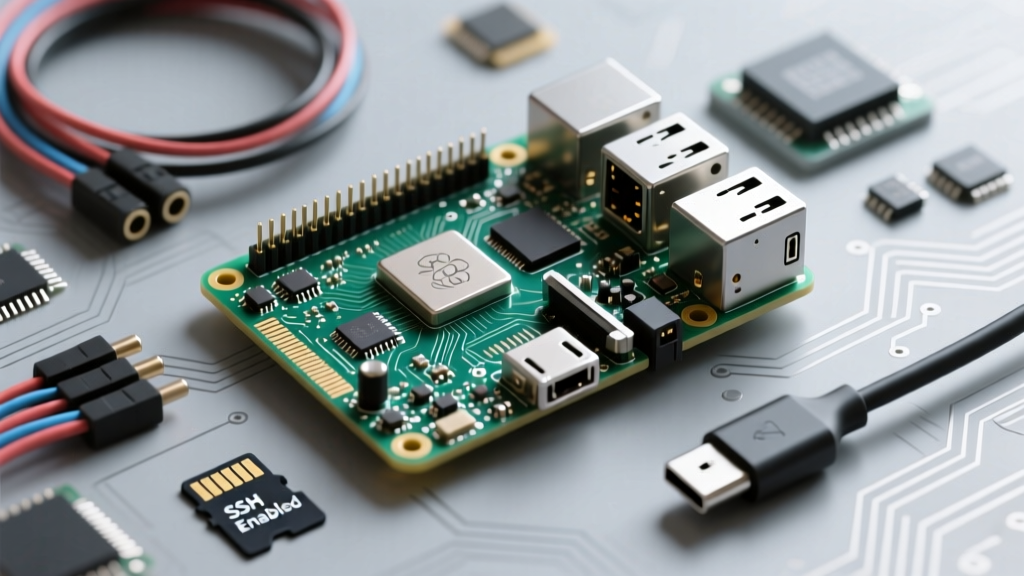
Deploying a single-board computer in a remote location—whether for an off-grid Home Assistant node, an industrial edge gateway, or a distributed environmental sensor array—means you will rarely have the luxury of a connected monitor and keyboard. When configuring a remote access Raspberry Pi node, the operating system you flash to the microSD card or NVMe drive dictates your entire management experience. An OS optimized for headless operation provides out-of-the-box SSH provisioning, predictable network behavior, and low memory overhead, ensuring your device remains reachable even after unexpected power cycles.
In this guide, we evaluate the top Linux distributions tailored for remote SBC management, analyzing their provisioning workflows, network stacks, and fleet management capabilities.
Core Requirements for Headless Remote Access
Not all Linux distributions are created equal when it comes to remote deployment. A robust OS for headless environments must satisfy three critical criteria:
- Pre-boot Provisioning: The ability to inject SSH keys, user credentials, and Wi-Fi/Ethernet configurations into the boot partition before the first power-on.
- Network Predictability: A reliable DHCP client or static IP assignment mechanism that survives kernel updates and reboots.
- Low Idle Overhead: Minimal background services to preserve RAM and CPU cycles for your actual application, reducing the need for active cooling in remote enclosures.
Evaluating the Contenders: OS Deep-Dive
Raspberry Pi OS (Lite) - The Standard
Raspberry Pi OS (specifically the 64-bit Lite version) remains the baseline for most projects. However, remote deployment has changed drastically since the release of Bookworm. The legacy wpa_supplicant.conf method for injecting Wi-Fi credentials is officially deprecated.
Crucial E-E-A-T Warning: In Raspberry Pi OS Bookworm and newer, networking is handled by NetworkManager. For headless Wi-Fi setup, you must use the Raspberry Pi Imager's advanced settings to generate the correct NetworkManager connection profiles on the boot partition, or use the
nmclicommand post-boot. Attempting the oldwpa_supplicantmethod will result in a permanently offline device.
For user provisioning, Raspberry Pi OS utilizes a userconf.txt file in the boot partition. You can generate an encrypted password hash using openssl passwd -6 and format it as username:encrypted-password to bypass the default user lockout on first boot.
Ubuntu Server - The Enterprise Heavyweight
Ubuntu Server for ARM is the preferred choice for enterprise edge deployments and Docker-heavy environments. Its superpower for remote access lies in cloud-init. By placing a user-data and network-config YAML file in the boot partition, you can define complex bonding setups, VLANs, and SSH authorized keys before the Pi ever connects to the network.
While Ubuntu Server consumes more idle RAM (typically ~250MB-350MB compared to DietPi's ~100MB), its integration with enterprise tools like Ansible, Juju, and standard systemd-networkd makes it ideal for remote access Raspberry Pi clusters managed via CI/CD pipelines.
DietPi - The Minimalist's Dream
DietPi is a highly optimized Debian-based distribution designed specifically for low-resource SBCs. It strips away unnecessary background services, resulting in an incredibly lean idle footprint. For remote setups, DietPi offers dietpi.txt and Automation_Custom_Script.sh in the boot partition. You can automate the installation of Fail2Ban, Tailscale, and specific software packages (via dietpi-software) entirely unattended. If your remote Pi is running on a PoE HAT with strict thermal limits, DietPi's low CPU overhead is a massive advantage.
BalenaOS - The Fleet Management Powerhouse
BalenaOS abandons the traditional SSH-centric management model in favor of containerized fleet management. Based on Yocto Linux, it is an immutable, read-only OS designed to run Docker containers. Remote access is handled via the Balena Cloud dashboard, which provisions secure, reverse-tunneled SSH and web terminal access without requiring you to open firewall ports or configure dynamic DNS. According to the BalenaOS Configuration Documentation, the OS uses a config.json file for initial network provisioning and relies on the balena-supervisor container to handle over-the-air (OTA) application updates.
Distribution Comparison Matrix
| OS Distribution | Base Architecture | Default SSH State | Network Provisioning | Idle RAM Footprint | Best Remote Use Case |
|---|---|---|---|---|---|
| Raspberry Pi OS (Lite) | Debian | Disabled (Enable via Imager) | NetworkManager / Imager | ~120 MB | Standard DIY & Home Assistant |
| Ubuntu Server | Debian/Ubuntu | Enabled (Keys via cloud-init) | Cloud-Init / Netplan | ~280 MB | Enterprise Edge & Kubernetes |
| DietPi | Debian | Enabled (Root/Pw or Keys) | dietpi.txt / NetworkManager | ~90 MB | Low-Power / PoE Sensor Nodes |
| BalenaOS | Yocto Linux | Cloud-Managed (No local SSH) | config.json / Dashboard | ~150 MB (OS only) | Fleet Management & OTA Apps |
OS-Level Security & Provisioning Workflows
Exposing SSH to the internet for remote access is a critical security risk. Regardless of the OS you choose, implement these OS-level hardening techniques during your initial headless provisioning:
- Enforce Ed25519 Keys: Disable password authentication entirely. Generate an Ed25519 key pair (
ssh-keygen -t ed25519 -C 'remote-pi-node') and inject the public key via your OS's pre-boot configuration file. - Automate Fail2Ban: Use your OS's automation script (e.g.,
Automation_Custom_Script.shin DietPi orruncmdin Ubuntu's cloud-init) to install and enable Fail2Ban, configuring it to ban IPs after 3 failed SSH attempts. - Implement Tailscale or ZeroTier: Instead of port-forwarding SSH (Port 22) on your remote router, inject a script that installs and authenticates a Tailscale client on first boot. This creates a secure WireGuard mesh network, allowing you to access your Pi via a private IP from anywhere in the world. Refer to the Raspberry Pi Headless Configuration Guide for foundational scripting methods.
Diagnosing Headless Network Dropouts
The most common failure mode for a remote access Raspberry Pi is a network dropout following a kernel update or power flicker. Here is how to troubleshoot based on your chosen OS:
- Raspberry Pi OS (Bookworm+): If the device drops offline, NetworkManager may have failed to auto-connect to the Wi-Fi SSID due to MAC address randomization. Disable MAC randomization by creating a custom NetworkManager conf file in
/etc/NetworkManager/conf.d/during your provisioning phase. - Ubuntu Server: Check your Netplan YAML syntax. A single spacing error in the
network-configfile will result in the interface failing to request a DHCP lease. Always validate Netplan configurations usingnetplan tryif you have temporary physical access, or ensure your cloud-init schema is strictly validated. - BalenaOS: If a Balena node goes offline, it is rarely a network stack issue and more likely a corrupted Docker overlay or a failed supervisor update. Use the Balena Cloud diagnostic download feature to pull system logs remotely via the fallback tethering interface.
Final Verdict
Selecting the right OS for your remote access Raspberry Pi project depends entirely on your management scale. For single-node DIY smart home setups, Raspberry Pi OS Lite (with careful attention to NetworkManager) is sufficient. For enterprise edge computing requiring complex networking, Ubuntu Server and cloud-init are unmatched. If you are deploying dozens of nodes across different geographical locations and need zero-touch OTA updates, migrating to BalenaOS will save you hundreds of hours of remote SSH troubleshooting. By aligning your OS choice with your remote management strategy, you ensure your SBCs remain resilient, secure, and accessible.