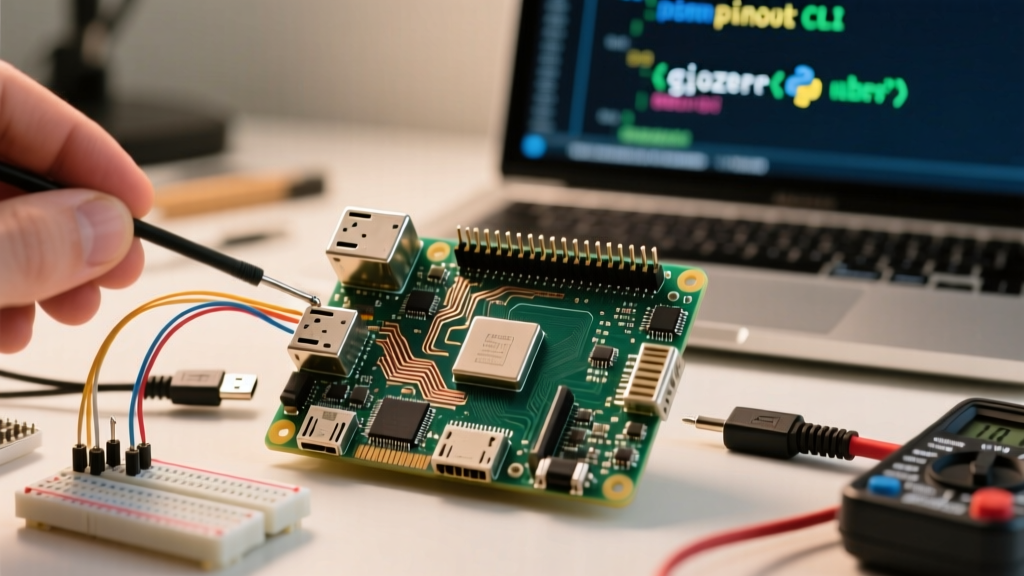
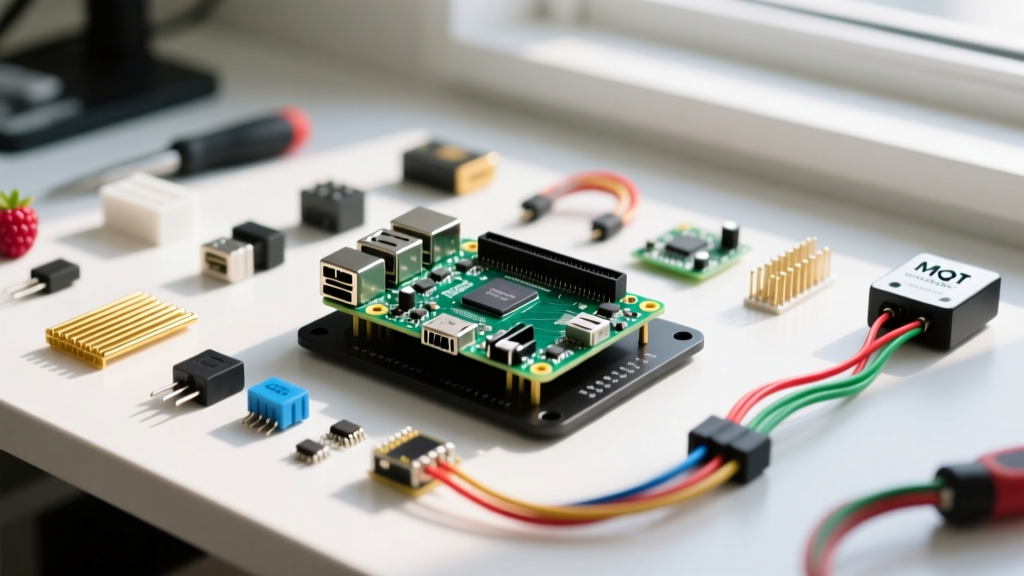
A failing Raspberry Pi wireless internet connection almost always traces back to one of three culprits: power supply undervoltage throttling the Wi-Fi chip, the shift from wpa_supplicant to NetworkManager in Raspberry Pi OS Bookworm, or 2.4GHz RF interference from unshielded USB 3.0 peripherals. If your Pi drops offline or refuses to associate with your router, you do not need to reflash the SD card. You need to check the power rail, verify the nmcli state, and rule out physical layer noise.
This guide walks through the exact hardware requirements, the first three diagnostic steps to take when the network drops, and provides a complete Python script to build a physical GPIO network status monitor so you never have to guess if your Pi is online.
Hardware Spec Sheet & Parts List
The code and debugging steps in this guide target Raspberry Pi OS Bookworm (64-bit) running on the Raspberry Pi 5 (8GB) and Raspberry Pi 4 Model B (4GB). The Pi Zero 2 W is also supported, though its 512MB RAM requires swapping the desktop environment for the Lite version to prevent memory-induced network stack crashes.
| Component | Exact Variant / Specification | Notes |
|---|---|---|
| Microcontroller | Raspberry Pi 5 (8GB) or Pi 4 Model B (4GB) | Both feature dual-band 802.11ac (Wi-Fi 5) via the Cypress CYW43455 chip. |
| Power Supply | Official 27W USB-C PD (Pi 5) or 15W USB-C (Pi 4) | Critical: Third-party phone chargers often drop to 4.6V under load, triggering Wi-Fi brownouts. |
| Storage | 32GB microSD (Application Class A2) | A2 rating ensures random I/O performance for OS logging. |
| Status LED | 5mm Green LED + 330Ω Resistor | For the physical network monitor build. |
| Wiring | Female-to-Female Dupont Jumper Wires | Requires 2 wires for GPIO and Ground. |
Time Required: 20 minutes for hardware assembly and script deployment.
Pin Mapping for Physical Network Status Monitor
Because the Wi-Fi module is integrated directly into the PCB, there are no physical data pins to wire for the antenna itself. Instead, we map a GPIO pin to drive a physical status LED, giving you an at-a-glance hardware indicator of your Raspberry Pi wireless internet connection state without needing to SSH in.
| Component Lead | Raspberry Pi GPIO (BCM) | Physical Pin Number |
|---|---|---|
| LED Anode (Long Leg, via 330Ω Resistor) | GPIO 17 | Pin 11 |
| LED Cathode (Short Leg) | GND | Pin 9 |
The First Three Things to Check When Wi-Fi Fails
Before digging into kernel logs, run through this numbered diagnostic sequence. These resolve 90% of bench and field failures.
- Verify the 5V Power Rail Under Load: The Cypress Wi-Fi chip is highly sensitive to voltage drops. If the Pi's internal PMIC detects voltage below 4.63V, it will silently throttle the CPU and disable the wireless radios to save the system. Run
vcgencmd get_throttledin the terminal. If it returns anything other thanthrottled=0x0, your power supply or USB-C cable is inadequate. Replace it with an official supply. - Confirm NetworkManager State (Bookworm OS): Raspberry Pi OS Bookworm deprecated
wpa_supplicantin favor ofNetworkManager. If you are copying legacy/etc/wpa_supplicant/wpa_supplicant.conffiles from older tutorials, they will be ignored. You must usesudo nmcli device wifi connect 'SSID' password 'PASSWORD'or theraspi-configtool to provision credentials. - Check for USB 3.0 RFI (Radio Frequency Interference): Unshielded USB 3.0 cables and external SSDs emit broadband noise centered around 2.4GHz. If your Pi connects to 5GHz but drops on 2.4GHz when a drive is plugged in, this is physical layer interference. Move the USB drive away from the Pi's antenna (located near the USB ports) or use a shielded cable.
Debugging the 'Device is Not Ready' Error
When attempting to bring up the wlan0 interface via nmcli, you may encounter this exact error string:
Error: Connection activation failed: (5) Device is not ready for the connection.
This error indicates that NetworkManager sees the interface, but the underlying kernel driver (brcmfmac) has not finished initializing or has crashed. Here are the ranked causes and fixes:
- Cause: Soft-Blocked by rfkill. The OS has logically disabled the radio to save power.
Fix: Runrfkill list. If Wi-Fi shows 'Soft blocked: yes', runsudo rfkill unblock wlan. - Cause: brcmfmac Kernel Module Crash. A power brownout caused the SDIO bus to drop the Wi-Fi chip, leaving the driver in a hung state.
Fix: Check logs withdmesg | grep brcmfmac. If you see 'failed to power up', reload the driver without rebooting:sudo modprobe -r brcmfmac && sudo modprobe brcmfmac. - Cause: Missing Firmware (Ubuntu/Third-Party OS). If you are running Ubuntu Server instead of Raspberry Pi OS, the proprietary Broadcom firmware blobs might be missing.
Fix: Install the firmware package viasudo apt install linux-firmware-raspiand reboot.
Python Network Monitor Script
This complete, compilable Python script uses the gpiozero library to monitor your Raspberry Pi wireless internet connection. It attempts a socket connection to Cloudflare's DNS (1.1.1.1) on port 53. If the connection succeeds, the LED stays solid. If it fails, the LED blinks rapidly. The script includes full error handling for GPIO allocation and socket timeouts.
import socket
import time
import sys
from gpiozero import LED

# --- PIN DEFINITIONS ---
# GPIO 17 (Physical Pin 11) wired to LED anode via 330-ohm resistor
NETWORK_STATUS_PIN = 17
status_led = LED(NETWORK_STATUS_PIN)

def is_connected(hostname='1.1.1.1', port=53, timeout=3):
    """
    Attempts a TCP socket connection to verify internet routing.
    Using port 53 (DNS) bypasses most captive portal HTTP blocks.
    """
    try:
        socket.setdefaulttimeout(timeout)
        socket.create_connection((hostname, port))
        return True
    except OSError:
        return False

def main():
    print('Starting Raspberry Pi Wireless Network Monitor...')
    print(f'Monitoring GPIO {NETWORK_STATUS_PIN} for network state.')

    try:
        while True:
            if is_connected():
                status_led.on()
                time.sleep(5) # Check every 5 seconds when healthy
            else:
                # Blink rapidly on disconnect to signal physical layer or routing failure
                status_led.blink(on_time=0.2, off_time=0.2, n=5, background=False)
                time.sleep(1) # Check every 1 second when recovering

    except KeyboardInterrupt:
        print('\nMonitor stopped by user (Ctrl+C).')
        status_led.off()
        sys.exit(0)
    except Exception as e:
        print(f'Critical GPIO or Socket Error: {e}')
        status_led.off()
        sys.exit(1)

if __name__ == '__main__':
    main()
Note: Ensure you have the required libraries installed by running sudo apt install python3-gpiozero before executing the script.
Extending and Simplifying the Build
Depending on your deployment environment, you may want to adjust the complexity of this monitoring setup.
To Simplify: If you do not want to wire a physical LED or run a Python daemon, you can achieve similar terminal-based monitoring using NetworkManager's built-in tool. Run nmcli monitor in your SSH session. This streams real-time state changes (e.g., wlan0: connected or Networkmanager is now in the 'disconnected' state) directly to standard output without requiring external scripts.
To Extend: For remote IoT deployments where physical LEDs are useless, extend the Python script to publish connection states to an MQTT broker. By importing the paho.mqtt.client library, you can push a payload of {'status': 'offline', 'uptime': 4320} to a Home Assistant server the moment the socket test fails, triggering an automated alert to your phone before the Pi's watchdog timer forces a reboot.
Frequently Asked Questions
How do I set a static IP for my Raspberry Pi wireless internet connection?
Under Bookworm's NetworkManager, you no longer edit /etc/dhcpcd.conf. Instead, use nmcli to assign a static IPv4 address, gateway, and DNS directly to the connection profile. For example:
sudo nmcli con mod 'MyWifiSSID' ipv4.addresses 192.168.1.50/24 ipv4.gateway 192.168.1.1 ipv4.dns '8.8.8.8' ipv4.method manual
Then restart the connection with sudo nmcli con up 'MyWifiSSID'.
Why does my Raspberry Pi wireless internet connection drop when I plug in a USB 3.0 drive?
This is caused by Radio Frequency Interference (RFI). USB 3.0 data cables emit broadband noise that overlaps heavily with the 2.4GHz Wi-Fi spectrum. The noise floor rises, drowning out the router's beacon frames. To fix this, switch your Pi to a 5GHz Wi-Fi network (which is unaffected by USB 3.0 noise), use a high-quality shielded USB cable, or place a USB extension cord between the Pi and the drive to physically separate the antenna from the noise source.
Can I use a 5GHz wireless internet connection on the Raspberry Pi Zero 2 W?
No. The Raspberry Pi Zero 2 W uses the same single-band 2.4GHz 802.11n Wi-Fi chip (Cypress CYW43436P) as the original Pi Zero W. If you require 5GHz AC Wi-Fi for higher bandwidth or to avoid 2.4GHz congestion, you must upgrade to the Raspberry Pi 4 Model B, Raspberry Pi 5, or use a supported USB Wi-Fi dongle.
How do I connect to a hidden SSID using NetworkManager?
Hidden networks do not broadcast their beacon frames, so nmcli device wifi list will not show them. You must explicitly tell NetworkManager to scan for the specific SSID and connect. Use this command:
sudo nmcli device wifi connect 'HiddenNetworkName' password 'YourPassword' hidden yes