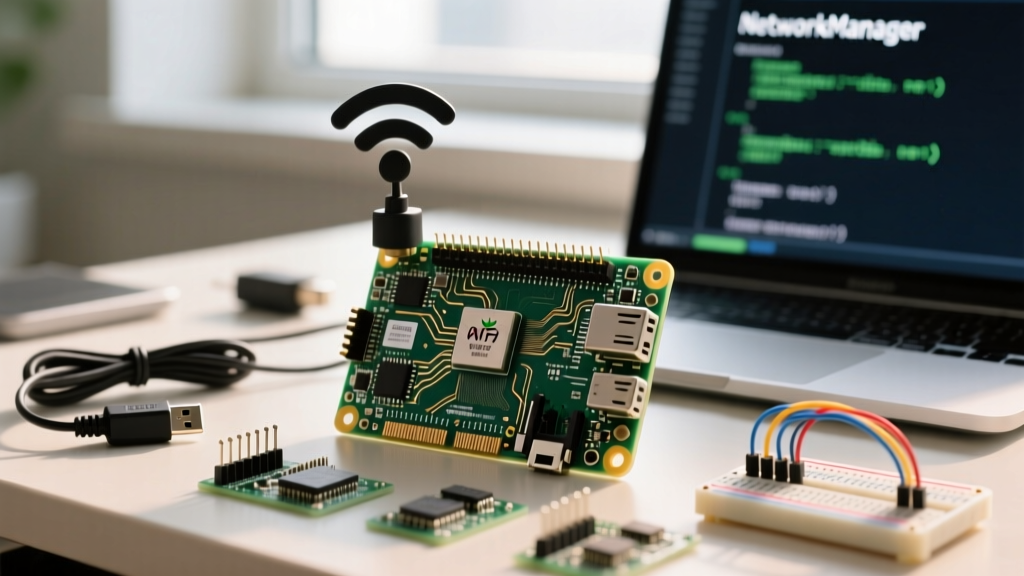
If you are raspberry pi setting up wifi on a modern OS, the very first thing you need to know is that the legacy wpa_supplicant and dhcpcd daemons are dead. As of Raspberry Pi OS "Bookworm" and later, networking is entirely managed by NetworkManager. Following a 2021 tutorial will leave you with a disconnected board and a blinking router light.
This guide targets the Raspberry Pi 5 (8GB variant) running Raspberry Pi OS Bookworm (64-bit). We will cover the exact nmcli terminal commands for headless setup, map GPIO pins for a physical status indicator, and provide a complete, compilable Python watchdog script to auto-recover your connection when it drops.
sudo nmcli device wifi connect "YOUR_SSID" password "YOUR_PASSWORD"
The 2026 Reality: NetworkManager vs. Legacy Daemons
For years, hobbyists relied on dropping a wpa_supplicant.conf file into the /boot partition for headless WiFi setup. That method is completely ignored by Bookworm. NetworkManager (NM) now handles all interface states, routing, and DNS resolution. This shift aligns the Pi with standard enterprise Linux distributions (like Fedora and Ubuntu), meaning your nmcli skills here translate directly to server administration.
Hardware Spec Sheet & GPIO Pin Mapping
WiFi dropouts on the Pi 5 are rarely software bugs; they are usually power starvation or thermal throttling affecting the PCIe and USB buses. Ensure you are using the exact hardware listed below.
| Component | Exact Variant / Specification | Why It Matters for WiFi |
|---|---|---|
| Compute Board | Raspberry Pi 5 (8GB RAM) | Dual-band 802.11ac; requires stable 5V/5A rail. |
| Power Supply | Official 27W USB-C PD (5V/5A) | Undervoltage throttles the WiFi radio TX power. |
| Status LED | 5mm Green LED + 330Ω Resistor | Visual heartbeat for headless network monitoring. |
| Reset Button | 6x6mm Tactile Switch (Normally Open) | Manual trigger to force NetworkManager reconnection. |
GPIO Pin Mapping Table
We will use gpiozero in our Python script. Wire your breadboard exactly to these BCM (Broadcom) pin numbers.
- BCM 24 (Physical Pin 18): WiFi Status LED (Anode via 330Ω resistor)
- BCM 25 (Physical Pin 22): Manual WiFi Reset Button (Switch to GND, internal pull-up enabled)
- GND (Physical Pin 6): Common Ground for LED cathode and Button
- 3.3V (Physical Pin 1): Not used directly here (LED driven by GPIO HIGH), but available for active-high button logic if modified.
Step-by-Step: Setting Up WiFi via nmcli
Whether you are SSH'd in over Ethernet or using a serial console, follow these numbered steps to establish and persist your wireless connection.
- Scan for available networks:
sudo nmcli device wifi list
Note the exact SSID and the BSSID (MAC address) of your target router. - Connect to the network:
sudo nmcli device wifi connect "YourNetworkName" password "YourPassword123" - Verify the connection profile was saved:
nmcli connection show
Ensure your SSID appears in the list and the "DEVICE" column showswlan0. - Set the connection to auto-connect on boot:
sudo nmcli connection modify "YourNetworkName" connection.autoconnect yes - Prioritize this network over Ethernet (optional for headless nodes):
sudo nmcli connection modify "YourNetworkName" ipv4.route-metric 50
Python WiFi Watchdog: Auto-Recover from Dropouts
Embedded nodes in metal enclosures or at the edge of your router's range will inevitably drop packets. Instead of relying on external cron jobs, this Python script uses gpiozero to monitor connectivity via ICMP ping, illuminates a physical LED, and forces a NetworkManager reset if the link dies.
Difficulty Rating: Intermediate | Estimated Build Time: 20 Minutes
#!/usr/bin/env python3
"""
Raspberry Pi WiFi Watchdog using NetworkManager (nmcli) and gpiozero.
Targets: Raspberry Pi 5 / Bookworm OS
"""

import subprocess
import time
import logging
from gpiozero import LED, Button
from signal import pause

# --- PIN DEFINITIONS ---
# BCM 24 (Physical Pin 18) -> Status LED
WIFI_LED = LED(24)
# BCM 25 (Physical Pin 22) -> Reset Button (Active Low, internal pull-up)
RESET_BTN = Button(25, pull_up=True, bounce_time=0.1)

# --- NETWORK CONFIG ---
CONNECTION_NAME = "YourNetworkName" # Must match nmcli profile name exactly
PING_TARGET = "1.1.1.1"
CHECK_INTERVAL = 30 # Seconds between health checks

logging.basicConfig(level=logging.INFO, format='%(asctime)s - %(levelname)s - %(message)s')

def check_internet():
    """Pings a reliable DNS server. Returns True if successful."""
    try:
        subprocess.run(
            ["ping", "-c", "1", "-W", "2", PING_TARGET],
            stdout=subprocess.DEVNULL,
            stderr=subprocess.DEVNULL,
            check=True
        )
        return True
    except subprocess.CalledProcessError:
        return False

def reset_wifi():
    """Toggles the NetworkManager connection down and up."""
    logging.warning("WiFi dropout detected. Attempting NetworkManager reset...")
    WIFI_LED.blink(0.2, 0.2) # Visual indicator of reset process

    try:
        subprocess.run(["nmcli", "connection", "down", CONNECTION_NAME], check=True)
        time.sleep(3)
        subprocess.run(["nmcli", "connection", "up", CONNECTION_NAME], check=True)
        logging.info("NetworkManager reset command issued successfully.")
    except subprocess.CalledProcessError as e:
        logging.error(f"nmcli command failed with exit code {e.returncode}. Check profile name.")

    time.sleep(10) # Wait for DHCP handshake
    WIFI_LED.stop()

# --- EVENT HANDLERS ---
def manual_reset():
    logging.info("Manual reset button pressed.")
    reset_wifi()

RESET_BTN.when_pressed = manual_reset

# --- MAIN LOOP ---
if __name__ == "__main__":
    logging.info(f"Starting WiFi Watchdog for profile: {CONNECTION_NAME}")
    try:
        while True:
            if check_internet():
                WIFI_LED.on() # Solid green = good connection
            else:
                WIFI_LED.off() # Off = no route to internet
                reset_wifi()

            time.sleep(CHECK_INTERVAL)
    except KeyboardInterrupt:
        logging.info("Watchdog terminated by user.")
        WIFI_LED.off()
Debugging: The First Three Things to Check When It Fails
When your Pi refuses to connect, do not immediately rewrite your code. 95% of WiFi failures on the Pi 5 stem from one of these three environmental or configuration issues.
1. Power Supply Undervoltage (The Silent Killer)
Symptom: Random disconnects under load, or dmesg shows Voltage normalised warnings.
Cause: The Pi 5 WiFi chip draws peak current during TX bursts. If you are using a generic phone charger that sags below 4.8V, the Pi throttles the radio.
Fix: Check vcgencmd get_throttled. If it returns anything other than throttled=0x0, replace your power supply with the official 27W USB-C PD unit.
2. The 5GHz DFS Channel Blackhole
Symptom: sudo nmcli device wifi list shows your 2.4GHz network, but your 5GHz network is completely invisible.
Exact Error String: Error: No network with SSID 'My5GNetwork' found.
Cause: Your router is using a DFS (Dynamic Frequency Selection) channel (typically channels 52 through 144). The Pi's WiFi firmware must passively listen for radar signals on these channels for up to 10 minutes before it is legally allowed to connect. During this window, the network is hidden from scan results.
Fix: Log into your router and hardcode the 5GHz control channel to 36, 40, 44, or 48. These are non-DFS channels and will appear instantly in nmcli.
3. NetworkManager Keyring Secrets
Symptom: You type the password correctly, but the connection fails.
Exact Error String: Error: Connection activation failed: (7) Secrets were required, but not provided.
Cause: NetworkManager stores passwords in a user-specific keyring. If you run nmcli with sudo to connect, but then try to manage it as a standard user (or vice versa), the root user's keyring doesn't have the PSK.
Fix: Force the password into the system-wide connection file:
sudo nmcli connection modify "YourNetworkName" wifi-sec.psk "YourPassword123"
Extending and Simplifying Your Network Build
To Simplify: If you are deploying a fleet of headless Pis and don't want to type nmcli commands on first boot, use the Raspberry Pi Imager on your desktop. Click the "Gear" icon (OS Customization) before flashing the SD card. You can inject the WiFi SSID, password, and SSH keys directly into the image. The Imager now generates the correct NetworkManager configuration files natively for Bookworm.
To Extend: For mission-critical nodes (like a remote weather station or gate controller), add a secondary USB WiFi adapter (e.g., TP-Link Archer T3U Plus with RTL8812BU chipset). You can configure NetworkManager to treat wlan1 as a failover route by assigning it a higher ipv4.route-metric (e.g., 600) than your primary wlan0 (metric 50). If the primary radio fails, Linux routing tables will automatically shift traffic to the USB dongle without dropping active TCP sockets.
Frequently Asked Questions
How do I headlessly configure raspberry pi setting up wifi on first boot without a monitor?
The legacy method of placing a wpa_supplicant.conf file in the /boot/firmware directory no longer works on Bookworm. Instead, use the Raspberry Pi Imager's "OS Customization" menu to inject WiFi credentials before flashing. Alternatively, if building images programmatically, use the pi-gen tool or write a custom NetworkManager connection file (.nmconnection) directly into /etc/NetworkManager/system-connections/ via a startup script.
Why is my raspberry pi setting up wifi failing on 5GHz but working perfectly on 2.4GHz?
This is almost always a regional domain or DFS channel issue. First, ensure your Pi's regulatory domain matches your physical location by running sudo iw reg set US (replace US with your ISO country code). Second, check your router's 5GHz channel. If it is set to "Auto" and selects a DFS channel (52-144), the Pi will ignore it to comply with radar-avoidance laws. Lock your router to channel 36-48.
Can I still use wpa_supplicant for raspberry pi setting up wifi if I prefer it?
Technically yes, but it is highly discouraged. You would have to sudo apt purge network-manager, install wpasupplicant and dhcpcd, and manually write systemd service files to manage the interfaces. This breaks compatibility with the Pi's desktop GUI network applet and will likely be overwritten during the next major OS release. Stick to nmcli and learn the NetworkManager syntax; it is the industry standard for modern Linux.