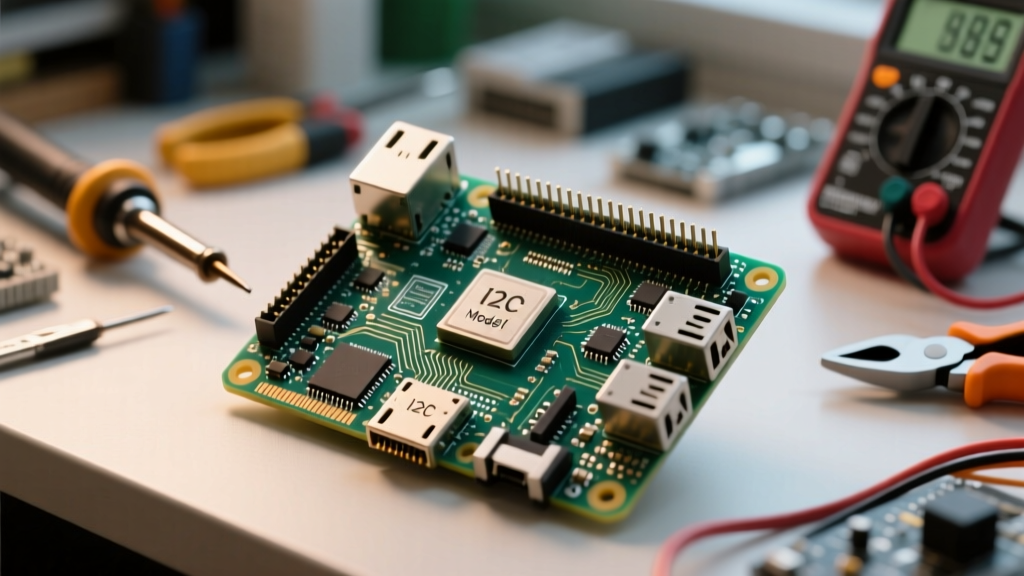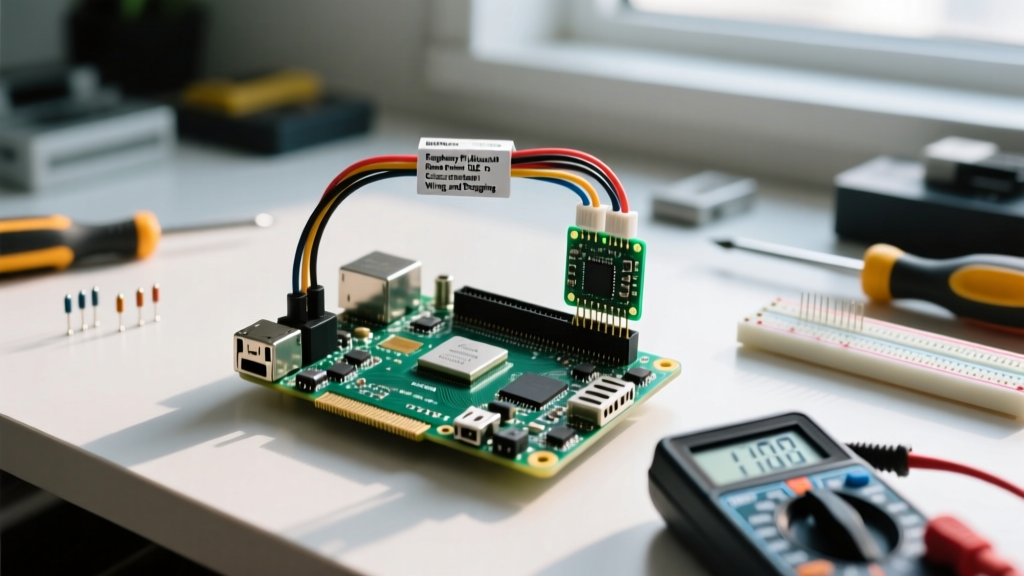

When makers talk about Raspberry Pi Bluetooth, they usually jump straight to Python scripts or pairing menus. But Bluetooth isn't just a software abstraction; it is a complex 2.4 GHz RF physical layer that shares silicon and antenna traces with your Wi-Fi. Whether you are using the onboard CYW43455 chip on a Raspberry Pi 4/5, or wiring an external UART module to a Compute Module, understanding the physical bus mechanics is the difference between a rock-solid sensor node and a dropped connection.
This primer breaks down the physical layer, compares Classic vs. BLE for your specific use case, provides a minimal working exchange, and shows you how to sniff the bus when things go wrong.
The Physical Layer: RF Specs and UART Wiring
Bluetooth operates on two distinct physical layers in a maker environment: the RF Air Interface (how the Pi talks to the peripheral) and the UART Host Bus (how the Pi's CPU talks to an external Bluetooth module, if you aren't using the onboard chip).
Bus Mechanics Comparison
| Parameter | Bluetooth RF (Air Interface) | UART (Host to External BT Module) |
|---|---|---|
| Wires / Medium | 2.402 - 2.480 GHz RF Spectrum | 4 Wires (TX, RX, VCC, GND) + optional CTS/RTS |
| Speed | 1-3 Mbps (Classic) / 1-2 Mbps (BLE PHY) | 9600 - 115200 bps (up to 3Mbps w/ flow control) |
| Addressing | 48-bit BD_ADDR (MAC) / 16-bit Handles | Point-to-Point (No addressing required) |
| Distance | 10m (Class 2) to 100m (Class 1) | < 1 meter (PCB trace or jumper wire) |
Physical Wiring and Pull-Up Requirements
If you are using a Pi Zero (older generations), a Compute Module, or simply need a longer range via an external Class 1 module (like an HC-05 or a Bluesmirf), you will wire it via the Pi's 40-pin UART header.
- Pull-Up Resistors: You must place a 10kΩ pull-up resistor on the Pi's RX line (GPIO 15). During boot, the Pi's UART floats. Without a pull-up, the floating line generates garbage noise that can force the external Bluetooth module into AT command mode or cause the Pi's boot sequence to halt if the console is mapped to serial.
- Hardware Flow Control: If you push the UART baud rate above 115,200 bps to stream high-frequency sensor data, you must wire the CTS (Clear to Send) and RTS (Request to Send) pins. Without them, the Pi's small UART FIFO buffer will overflow, silently dropping bytes.
Classic vs. BLE: Choosing the Right Protocol
The Raspberry Pi's onboard chip supports both Bluetooth Classic (BR/EDR) and Bluetooth Low Energy (BLE). Choosing the wrong one is the most common architectural mistake in IoT projects.
| Criteria | Bluetooth Classic (BR/EDR) | Bluetooth Low Energy (BLE) |
|---|---|---|
| Best For | Continuous high-throughput (Audio, SPP Serial) | Bursty sensor data, beacons, battery devices |
| Topology | Point-to-Point / Scatternet (Complex) | Star / Mesh / Broadcast (Scalable) |
| Device Count | ~7 active connections per piconet | 20+ simultaneous connections (Central role) |
| Power Draw | High (Watts during TX) | Ultra-low (Microamps in sleep) |
| Pi Setup | Requires PulseAudio/PipeWire or rfcomm | Native GATT via BlueZ / Python Bleak |
The Verdict: Choose Classic if you are building a Bluetooth speaker or need a drop-in replacement for a physical RS-232 serial cable (using the SPP profile). Choose BLE for 95% of maker projects involving microcontrollers (ESP32, nRF52, Arduino Nano 33 BLE) sending telemetry to the Pi.
Minimal Working Exchange: Python BLE GATT Client
Let's look at a minimal working exchange. In this scenario, the Raspberry Pi 5 acts as the BLE Central (Client), reading temperature data from an ESP32-C3 acting as the Peripheral (Server). The ESP32 is physically wired to a BME280 sensor via I2C (SDA to GPIO 4, SCL to GPIO 5).
We use the Bleak library, which wraps the native Linux BlueZ D-Bus API. Install it via pip install bleak.
import asyncio
import sys
from bleak import BleakClient, BleakScanner

# Nordic UART Service (NUS) UUIDs commonly used in maker BLE peripherals
UART_SERVICE_UUID = '6e400001-b5a3-f393-e0a9-e50e24dcca9e'
UART_TX_CHAR_UUID = '6e400003-b5a3-f393-e0a9-e50e24dcca9e' # Pi receives on TX
UART_RX_CHAR_UUID = '6e400002-b5a3-f393-e0a9-e50e24dcca9e' # Pi sends on RX

TARGET_DEVICE_NAME = 'ESP32-BME-Sensor'

def notification_handler(sender, data):
    """Called when the ESP32 sends a telemetry packet."""
    print(f"[Telemetry] {data.decode('utf-8').strip()}")

async def main():
    print(f"Scanning for {TARGET_DEVICE_NAME}...")
    device = await BleakScanner.find_device_by_name(TARGET_DEVICE_NAME, timeout=10.0)

    if not device:
        print("Device not found. Check ESP32 power and advertising status.")
        sys.exit(1)

    print(f"Found {device.name} at {device.address}. Connecting...")

    async with BleakClient(device.address) as client:
        print(f"Connected: {client.is_connected}")

        # Subscribe to notifications from the ESP32
        await client.start_notify(UART_TX_CHAR_UUID, notification_handler)

        # Send a command to the ESP32 to start streaming
        await client.write_gatt_char(UART_RX_CHAR_UUID, b'START_STREAM\n')

        # Keep the loop alive to receive async notifications
        await asyncio.sleep(30.0)

        await client.stop_notify(UART_TX_CHAR_UUID)

if __name__ == '__main__':
    try:
        asyncio.run(main())
    except KeyboardInterrupt:
        print("\nScan aborted.")
Debugging and Sniffing the Bluetooth Bus
When your Pi refuses to pair, or data silently drops, you need to look at the raw packets. The Linux Bluetooth stack (BlueZ) provides powerful sniffing tools.
How to Sniff the Bus
Forget hcitool; it is deprecated in modern BlueZ versions. Use btmon (Bluetooth Monitor) to see the actual HCI (Host Controller Interface) traffic between the Pi's CPU and the CYW43455 RF chip.
sudo btmonWatch for > HCI Event and < HCI Command lines. If you see Disconnect (0x08) with reason 0x13 (Remote User Terminated), your peripheral is actively dropping the Pi. If you see 0x08 (Connection Timeout), you have an RF interference or power issue.
Classic Failures and Fixes
- Baud Mismatch (External UART Modules): You wired an HC-05, but the Pi reads garbage. The HC-05 defaults to 9600 baud, but your Python script opens
/dev/serial0at 115200. Fix: Explicitly set the port speed usingstty -F /dev/serial0 9600before running your script, or reconfigure the HC-05 via AT commands. - Address Clash / MAC Randomization: Your Pi scanner script connects to a BLE device once, but fails on reboot. Modern BLE peripherals use Resolvable Private Addresses (RPA) that change every 15 minutes to prevent tracking. Fix: Never hardcode a BLE MAC address in your Pi code. Always scan and filter by the device's advertised Local Name or a specific Service UUID.
- Missing Pull-Up on RX: The Pi boots, but the external BT module locks up and stops responding. Fix: Add the 10kΩ pull-up resistor to 3.3V on the module's TX line (which connects to the Pi's RX) to prevent floating states during Pi boot.
- Wi-Fi Coexistence Interference: The Pi's onboard Bluetooth and Wi-Fi share the same 2.4 GHz antenna and RF front-end. Heavy Wi-Fi downloads will starve Bluetooth of airtime, causing audio stutter or BLE disconnects. Fix: Connect the Pi to a 5 GHz Wi-Fi network, or use an external USB Bluetooth 5.3 dongle and disable the onboard BT via
/boot/config.txt(dtparam=krnbt=off).
Raspberry Pi Bluetooth FAQ
How do I fix Raspberry Pi Bluetooth dropping connections when Wi-Fi is active?
The onboard CYW43455 chip uses a time-division multiplexing scheme to share the 2.4 GHz antenna between Wi-Fi and Bluetooth. If the Wi-Fi radio saturates the airtime (e.g., downloading a large dataset or streaming video), the Bluetooth stack misses its transmission windows, triggering a supervision timeout. The most reliable fix is to connect your Raspberry Pi to a 5 GHz Wi-Fi network, leaving the 2.4 GHz spectrum entirely to the Bluetooth radio. If 5 GHz isn't an option, plug in an external USB Bluetooth dongle and blacklist the internal module.
Why does my Raspberry Pi Bluetooth audio stutter on the Pi 4 and Pi 5?
Audio stutter over A2DP (Classic Bluetooth) is rarely an RF issue; it is usually a PulseAudio or PipeWire buffer underrun caused by CPU scheduling or USB polling latency. On the Pi 4 and 5, ensure you are using PipeWire (the default in recent Raspberry Pi OS Bookworm releases) rather than the legacy PulseAudio. You can increase the Bluetooth audio buffer size in the PipeWire configuration (~/.config/pipewire/pipewire.conf) by adjusting the node.latency parameter to a higher fraction like 512/48000 to absorb scheduling jitter.
Can I use an external USB Bluetooth dongle instead of the onboard chip?
Yes, and it is highly recommended for industrial or high-interference environments. When you plug in a USB dongle (like a TP-Link UB500 or an Asus BT500), the Linux kernel will often default to the onboard chip. To force the Pi to use the dongle, you must disable the onboard UART-to-BT bridge. Add dtparam=krnbt=off to your /boot/firmware/config.txt file and reboot. Verify the new dongle is active by running hciconfig -a and checking the USB vendor ID.
How do I auto-connect a Bluetooth device on boot without a desktop environment?
On a headless Raspberry Pi OS Lite install, the desktop pairing applet isn't running. You must use the bluetoothctl CLI tool to establish trust and auto-connect. Run bluetoothctl, then type scan on to find your device's MAC address. Once found, execute trust [MAC_ADDRESS] followed by pair [MAC_ADDRESS] and connect [MAC_ADDRESS]. The 'trust' command is the critical step; it tells the BlueZ daemon to automatically attempt reconnection whenever the peripheral advertises itself and the Pi's Bluetooth service starts on boot.