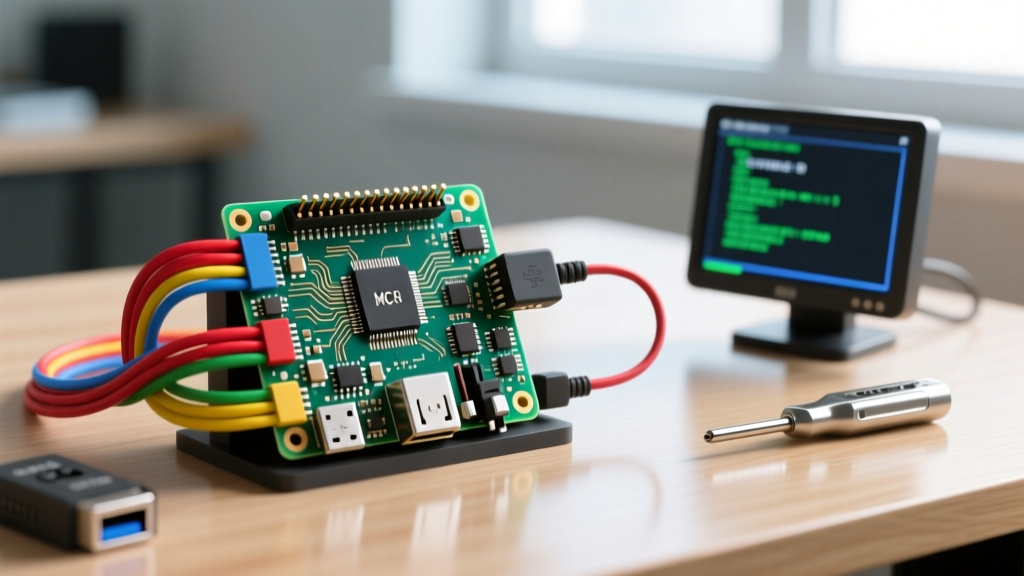
Getting a stable remote desktop connection to Raspberry Pi hardware used to be a simple 'enable VNC and go' process. That changed with the release of Raspberry Pi OS Bookworm, which shifted the default display server from X11 to Wayland. This architectural shift broke legacy RDP tools and forced a rethink of how we handle headless GUI access. If you are trying to establish a remote desktop connection to Raspberry Pi 5 running the latest OS, you need to account for the Wayland backend, manage power delivery carefully, and implement network watchdogs to prevent lockouts.
This guide targets the Raspberry Pi 5 (8GB variant) running Raspberry Pi OS Bookworm (64-bit). We will cover the exact hardware requirements, provide a Python-based GPIO watchdog to monitor your VNC port, and break down the specific error strings that trip up most builders on the new OS.
Hardware Spec Sheet & Parts List
Before configuring software, verify your power and thermal baseline. The Pi 5 requires specific USB-C PD negotiation to prevent brownouts when the CPU spikes during remote desktop rendering.
| Component | Exact Variant / Specification | Notes & Bench Reality |
|---|---|---|
| Microcontroller | Raspberry Pi 5 (8GB RAM) | 4GB is sufficient for headless, but 8GB prevents swap-thrashing when running heavy GUI apps over VNC. |
| Power Supply | Official 27W USB-C PD Power Supply | Standard 15W/18W phone chargers will trigger low-voltage warnings and disable USB ports under load. |
| Thermal | Raspberry Pi Active Cooler | Mandatory for Pi 5. Passive cases will throttle the BCM2712 SoC within 3 minutes of VNC desktop rendering. |
| Storage | 256GB NVMe SSD via PCIe HAT | MicroSD cards bottleneck at ~80MB/s. NVMe reduces OS boot-to-VNC-ready time from 45s to under 12s. |
| Network | Cat6 Ethernet (Gigabit) | Wi-Fi 5 is acceptable, but Gigabit Ethernet eliminates the compression artifacting inherent to VNC. |
Headless Network Watchdog: GPIO Pinout & Python Code
When running a headless Pi in a remote cabinet or attic, losing your remote desktop connection to Raspberry Pi without physical access is a nightmare. We can map a physical status LED and a hardware reset button to the GPIO header to monitor the VNC port (5900) locally.
GPIO Pin Mapping Table
| Function | BCM GPIO Pin | Physical Pin | Hardware Component |
|---|---|---|---|
| VNC Status LED | GPIO 17 | Pin 11 | 5mm Green LED + 330Ω Resistor |
| Hardware Reset | GPIO 27 | Pin 13 | Momentary Pushbutton (Pull-up) |
| Ground Reference | GND | Pin 9 / 14 | Common ground for LED/Button |
Python Watchdog Script
This script continuously polls the local VNC port. If the port drops, it blinks the LED and logs the failure. It includes robust error handling for socket timeouts and GPIO cleanup.
import socket
import time
import logging
import sys
from gpiozero import LED, Button
from signal import pause

# Target Board: Raspberry Pi 5 (8GB) running Bookworm
# Pin Definitions
VNC_STATUS_LED = LED(17)
RESET_BUTTON = Button(27, pull_up=True, bounce_time=0.1)
VNC_PORT = 5900
PI_IP = '127.0.0.1'

logging.basicConfig(
    level=logging.INFO,
    format='%(asctime)s - %(levelname)s - %(message)s'
)

def check_vnc_port():
    """Checks if the RealVNC/WayVNC server is listening on port 5900."""
    try:
        with socket.socket(socket.AF_INET, socket.SOCK_STREAM) as s:
            s.settimeout(2.0)
            result = s.connect_ex((PI_IP, VNC_PORT))
            return result == 0
    except socket.error as e:
        logging.error(f'Socket error during port check: {e}')
        return False

def hardware_reset():
    logging.warning('Hardware reset button pressed. Rebooting Pi...')
    VNC_STATUS_LED.blink(on_time=0.1, off_time=0.1)
    import os
    os.system('sudo reboot')

if __name__ == '__main__':
    RESET_BUTTON.when_pressed = hardware_reset
    logging.info('Starting VNC Network Watchdog on GPIO 17...')

    try:
        while True:
            if check_vnc_port():
                if not VNC_STATUS_LED.is_lit or VNC_STATUS_LED.blinking:
                    VNC_STATUS_LED.on()
                    logging.info('VNC Port 5900 is open and listening.')
            else:
                if not VNC_STATUS_LED.blinking:
                    VNC_STATUS_LED.blink(on_time=0.5, off_time=0.5)
                    logging.warning('VNC Port 5900 closed. Check headless config or Wayland service.')
            time.sleep(5)
    except KeyboardInterrupt:
        logging.info('Watchdog stopped by user.')
        VNC_STATUS_LED.off()
        sys.exit(0)
    except Exception as e:
        logging.critical(f'Unexpected watchdog failure: {e}')
        VNC_STATUS_LED.off()
sys.exit(1)systemd service rather than in a cron job or rc.local. Systemd will automatically restart the watchdog if the Python interpreter crashes due to a memory fault.
Troubleshooting: 'Connection Refused' and Wayland Display Errors
When your remote desktop connection to Raspberry Pi fails, the error string dictates the fix. The transition to Wayland in Bookworm introduced new failure modes that older tutorials do not address.
The First Three Things to Check
- Wayland vs. X11 Backend: Bookworm defaults to Wayland. If you installed
xrdpvia apt, it will fail to render the desktop because xrdp expects X11. You must either use RealVNC (which supports Wayland via PipeWire) or switch the OS back to X11 viasudo raspi-config(Advanced Options > Wayland > X11). - UFW Firewall Rules: If you enabled the Uncomplicated Firewall, it blocks port 5900 (VNC) and 3389 (RDP) by default. Run
sudo ufw allow 5900/tcpto open the VNC port. - Headless Resolution Fallback: If the Pi boots without an HDMI monitor attached, the GPU may not allocate a frame buffer, resulting in a black screen over VNC. Force a resolution in
/boot/firmware/config.txtby uncommentinghdmi_force_hotplug=1and settinghdmi_group=2andhdmi_mode=82(1080p 60Hz).
Exact Error Strings and Ranked Causes
| Exact Error String | Rank | Root Cause & Fix |
|---|---|---|
Connection refused (10061) |
1 | Cause: VNC server service is dead or UFW is blocking it. Fix: Run sudo systemctl status vncserver-x11-serviced and check sudo ufw status. |
Connection refused (10061) |
2 | Cause: IP subnet mismatch. Your PC is on 192.168.1.x and Pi is on 192.168.0.x (dual-router setup). Fix: Verify Pi IP via router DHCP table. |
ERROR: Cannot open display |
1 | Cause: xrdp attempting to launch an X11 session on a Wayland-only Bookworm environment. Fix: Switch to X11 via raspi-config or uninstall xrdp and use built-in RealVNC. |
Authentication failure |
1 | Cause: RealVNC requires the primary OS user password, not a separate VNC password, when integrated with the OS. Fix: Enter your pi or custom user login password. |
Extending and Simplifying Your Remote Build
Depending on your deployment environment, you can either strip this build down to its bare essentials or extend it for secure global access.
How to Simplify
If you only need local LAN access and want to avoid third-party accounts, ditch xrdp entirely. Use the built-in RealVNC server that ships with Raspberry Pi OS. Simply run sudo raspi-config, navigate to Interface Options > VNC, and enable it. This requires zero additional configuration, respects the Wayland display server, and uses your existing OS credentials. It is the most stable path for local subnet access.
How to Extend (Secure WAN Access)
Exposing port 5900 to the public internet via port forwarding is a massive security risk; VNC traffic is easily intercepted and brute-forced. To establish a remote desktop connection to Raspberry Pi over the internet, extend your build with Tailscale.
- Install Tailscale on the Pi:
curl -fsSL https://tailscale.com/install.sh | sh - Authenticate via the CLI:
sudo tailscale up - Install Tailscale on your remote Windows/Mac client.
- Connect using the Tailscale-assigned 100.x.y.z IP address instead of your public IP.
This creates a WireGuard-based mesh VPN. Your VNC traffic is encrypted end-to-end, and you never have to open ports on your home router. For a deeper look at the underlying OS changes that affect remote access, consult the official Raspberry Pi OS documentation and the remote access guidelines.
Frequently Asked Questions
How do I set up a remote desktop connection to Raspberry Pi over the internet?
Do not use port forwarding for VNC or RDP. The most secure and reliable method in 2026 is to install a mesh VPN like Tailscale or ZeroTier on both the Raspberry Pi and your client machine. This routes your remote desktop traffic through an encrypted WireGuard tunnel, bypassing the need to expose ports 5900 or 3389 to the public internet and protecting you from automated botnet scans.
Why is my Raspberry Pi remote desktop connection slow or lagging?
Lag is almost always a combination of network jitter and VNC encoding overhead. First, switch from Wi-Fi to Gigabit Ethernet on the Pi 5. Second, open your VNC client settings and change the color depth from 'True Color (32-bit)' to 'Medium Color (16-bit)' or '256 colors'. Finally, ensure the Pi Active Cooler is installed; if the BCM2712 SoC hits 80°C, it will thermally throttle, causing massive frame drops in the GUI rendering pipeline.
Can I use Windows Remote Desktop (RDP) instead of VNC on Raspberry Pi 5?
Yes, but with a major caveat for Bookworm OS. If you install xrdp via apt, it will fail to display the desktop because Bookworm defaults to the Wayland display server, while xrdp requires X11. To use RDP, you must open sudo raspi-config, go to Advanced Options > Wayland, and select X11. After rebooting, xrdp will function normally on port 3389. If you prefer to stay on Wayland, you must stick to RealVNC or install wayvnc.