
To run Kodi on a Raspberry Pi reliably in 2026, use a Raspberry Pi 4 Model B (4GB) running LibreELEC 12 (Omega). The 4GB variant prevents Out-Of-Memory (OOM) crashes when scraping large local media libraries, and LibreELEC strips away the desktop environment overhead, dedicating system resources entirely to hardware video decoding. While flashing an SD card and plugging in HDMI works for basic setups, a true embedded media center requires hardware-level integration: physical shutdown buttons, custom IR receivers, and Consumer Electronics Control (CEC) debugging.
This guide walks through building a robust Kodi on Raspberry Pi setup, wiring a custom GPIO IR/shutdown circuit, writing the Python daemon to manage it, and debugging the most common CEC and boot failures you will encounter on the bench.
Hardware Spec Sheet & Parts List
Do not buy generic SD cards or unbranded power supplies for a Kodi build. Media centers require high random I/O for database queries and stable voltage to prevent brownout-induced SD card corruption.
| Component | Exact Model / Variant | Why This Specific Part |
|---|---|---|
| Microcontroller | Raspberry Pi 4 Model B (4GB) | 4GB RAM handles large Kodi SQL databases; dual 4K micro-HDMI ports support CEC on both. |
| Storage | SanDisk Extreme 32GB microSD (A2 Rated) | The 'A2' rating guarantees high random IOPS. Standard A1 cards cause severe UI stutter in Kodi menus. |
| Power Supply | Official Raspberry Pi 27W USB-C PD | Prevents the 'lightning bolt' undervoltage warning. Third-party supplies often drop below 4.8V under load. |
| IR Receiver | TSOP38238 (38kHz) | Standard carrier frequency for most modern TV and universal remote controls. |
| Push Button | Momentary Tactile Switch (6x6mm) | Used for graceful hardware shutdown when the UI is frozen or remote is dead. |
Wiring the IR Receiver & GPIO Pin Mapping
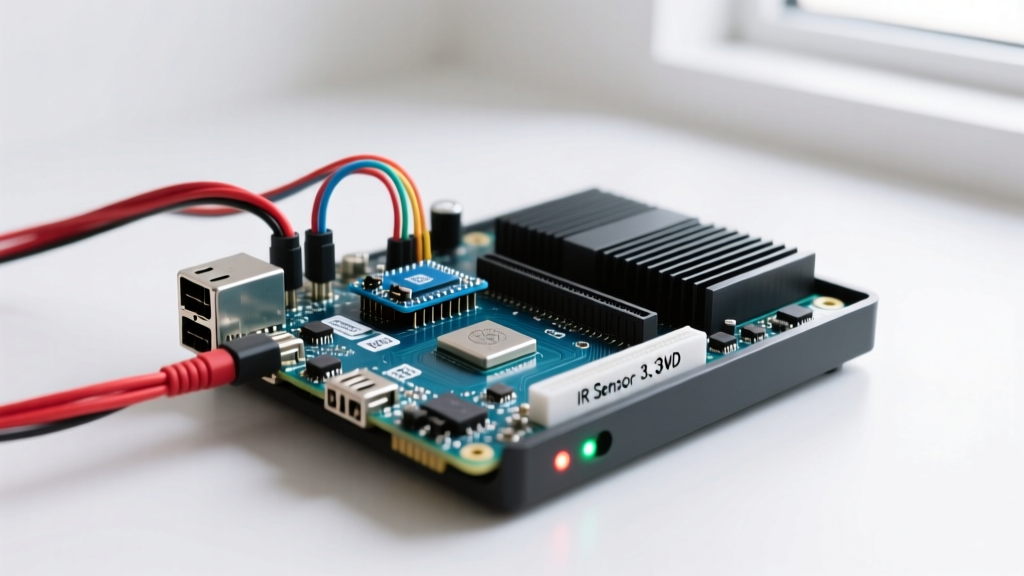
We are wiring a physical shutdown button and a status LED. While LibreELEC has built-in LIRC (Linux Infrared Remote Control) support for the TSOP38238, adding a physical shutdown button is critical for headless debugging when the system locks up during a bad addon installation.
| Physical Pi Pin | BCM GPIO | Component | Wire Color (Standard) |
|---|---|---|---|
| Pin 1 | 3.3V Power | TSOP38238 VCC | Red |
| Pin 6 | GND | TSOP38238 GND & Button GND | Black |
| Pin 12 | GPIO 18 | TSOP38238 Data (OUT) | Yellow |
| Pin 38 | GPIO 20 | Status LED Anode (via 220Ω) | Green |
| Pin 40 | GPIO 21 | Shutdown Button (to GND) | Blue |
Python System Monitor & Graceful Shutdown Code
The following Python script targets the Raspberry Pi 4 Model B running a Debian-based Pi OS or OSMC (LibreELEC requires running this via a Docker container or custom systemd overlay, so OSMC or Raspberry Pi OS Lite is preferred for custom Python GPIO scripts). It monitors for a button press on GPIO 21 and triggers a graceful system halt, preventing SD card corruption.
#!/usr/bin/env python3
"""
Kodi Hardware Assistant for Raspberry Pi 4 Model B
Monitors for physical shutdown button and manages status LED.
Target OS: OSMC / Raspberry Pi OS Lite
Requires: gpiozero, RPi.GPIO
"""
import time
import logging
import subprocess
from gpiozero import Button, LED
from signal import pause

# Pin Definitions (BCM Numbering)
SHUTDOWN_BTN_PIN = 21
STATUS_LED_PIN = 20

# Setup logging to journalctl
logging.basicConfig(
    level=logging.INFO,
    format='%(asctime)s - %(levelname)s - %(message)s'
)

def graceful_shutdown():
    """Triggers a safe OS shutdown to protect the SD card filesystem."""
    logging.info('Shutdown button pressed. Halting system...')
    status_led.blink(0.2, 0.2)
    try:
        # Works on systemd-based Pi OS and OSMC
        subprocess.run(['systemctl', 'poweroff'], check=True)
    except subprocess.CalledProcessError as e:
        logging.error(f'Systemctl failed: {e}. Attempting kodi-send...')
        try:
            # Fallback for Kodi-native environments
            subprocess.run(['kodi-send', '--action', 'ShutDown()'], check=True)
        except Exception as ex:
            logging.critical(f'All shutdown methods failed: {ex}')

if __name__ == '__main__':
    # Initialize hardware with internal pull-up resistor
    shutdown_btn = Button(SHUTDOWN_BTN_PIN, pull_up=True, bounce_time=0.1)
    status_led = LED(STATUS_LED_PIN)

    # Bind event handler
    shutdown_btn.when_pressed = graceful_shutdown

    # Solid LED indicates system is ready
    status_led.on()
    logging.info('Kodi Hardware Assistant active on Pi 4 Model B.')

    try:
        # Keep main thread alive
        pause()
    except KeyboardInterrupt:
        logging.info('Interrupted by user.')
    finally:
        status_led.off()
        logging.info('GPIO cleanup complete.')
First three things to check when this script fails:
- GPIO Permissions: Ensure the user running the script is in the
gpiogroup (sudo usermod -aG gpio pi). - Pull-up Conflicts: If the script triggers immediately on boot, your physical wiring is floating. Verify the button is wired to GND, not 3.3V, since the code uses
pull_up=True. - Missing Dependencies: Run
sudo apt install python3-gpiozero. The script will throw anImportErrorif the hardware abstraction layer is missing.
Debugging: 'ERROR: CEC: Failed to find a CEC adapter'
CEC (Consumer Electronics Control) allows your Kodi remote to turn on your TV and control its volume via HDMI Pin 13. When it breaks, Kodi throws a very specific error in the log (~/.kodi/temp/kodi.log).
ERROR <general>: CEC: Failed to find a CEC adapter
Ranked Causes and Fixes:
- Non-Compliant HDMI Cable (Most Likely): Many cheap HDMI cables omit the physical wire for Pin 13 to save copper. Fix: Swap to a certified Premium High-Speed HDMI cable. Verify continuity on Pin 13 with a multimeter if you have a breakout board.
- TV CEC Handshake Failure: TVs from Samsung (Anynet+), LG (SimpLink), and Sony (Bravia Sync) often lock up their CEC bus if too many devices are connected. Fix: Unplug all other HDMI devices, reboot the TV from the wall (not just the remote), and reconnect the Pi.
- config.txt Override: In LibreELEC, the boot configuration might be ignoring CEC. Fix: SSH into the Pi, mount the flash partition (
mount -o rw,remount /flash), edit/flash/config.txt, and ensurehdmi_ignore_cec=0is set. Addcec_osd_name=kodito force a bus handshake.
Extending and Simplifying the Build
How to Simplify: If writing Python daemons and wiring breadboards feels like overkill, replace the TSOP38238 and GPIO wiring with a Flirc USB receiver. Flirc acts as a standard HID keyboard, meaning you can map any IR remote to keyboard shortcuts without installing LIRC, editing config.txt, or writing a single line of code. It just works out of the box in Kodi.
How to Extend: For a premium appliance feel, add a 0.96-inch I2C OLED display (SSD1306) to GPIO 2 (SDA) and GPIO 3 (SCL). You can write a secondary Python script using the luma.oled library to poll the Kodi JSON-RPC API (http://localhost:8080/jsonrpc) and display the currently playing movie title and CPU temperature directly on the media center cabinet.
Frequently Asked Questions
Can I run Kodi on Raspberry Pi 5?
Yes, but with caveats. The Raspberry Pi 5 uses a different VideoCore VII GPU architecture. While hardware decoding for H.265 (HEVC) 4K is excellent, the software ecosystem (specifically LibreELEC) has historically lagged behind Pi 4 support regarding proprietary driver blobs and CEC stability. For a rock-solid, zero-tinkering media center in 2026, the Pi 4 remains the most stable choice. If you use a Pi 5, ensure you are running the absolute latest LibreELEC nightly or stable Omega release, and use an active cooler, as the Pi 5 will thermal throttle at 85°C during high-bitrate 4K transcoding.
Why is Kodi on Raspberry Pi buffering 4K HEVC?
Buffering is rarely a CPU issue; it is almost always an I/O or network bottleneck. First, check your SD card. If you used an A1-rated card, the random read speeds will choke when Kodi tries to load thumbnail caches while streaming. Second, check your network protocol. If you are streaming from a NAS via SMBv1, the Pi's network stack will bottleneck. Force SMBv3 in Kodi's sources.xml or switch to NFS, which has significantly lower overhead on ARM processors. Finally, ensure your router is not throttling the 2.4GHz Wi-Fi band; always use 5GHz Wi-Fi or a wired Ethernet connection for 4K remux files.
How do I update Kodi on Raspberry Pi without losing my library?
If you are using LibreELEC, the OS and Kodi are bundled together. To update, simply download the latest .tar update file from the LibreELEC website and drop it into the /storage/.update/ folder via SMB, then reboot. Your library, addons, and settings are stored in the /storage/.kodi/ partition, which is completely untouched during the OS swap. Always back up the /storage/.kodi/userdata/ folder to a USB drive before performing a major version jump (e.g., Nexus to Omega) to protect your database.