
The WiFi Bottleneck in Community SBC Projects
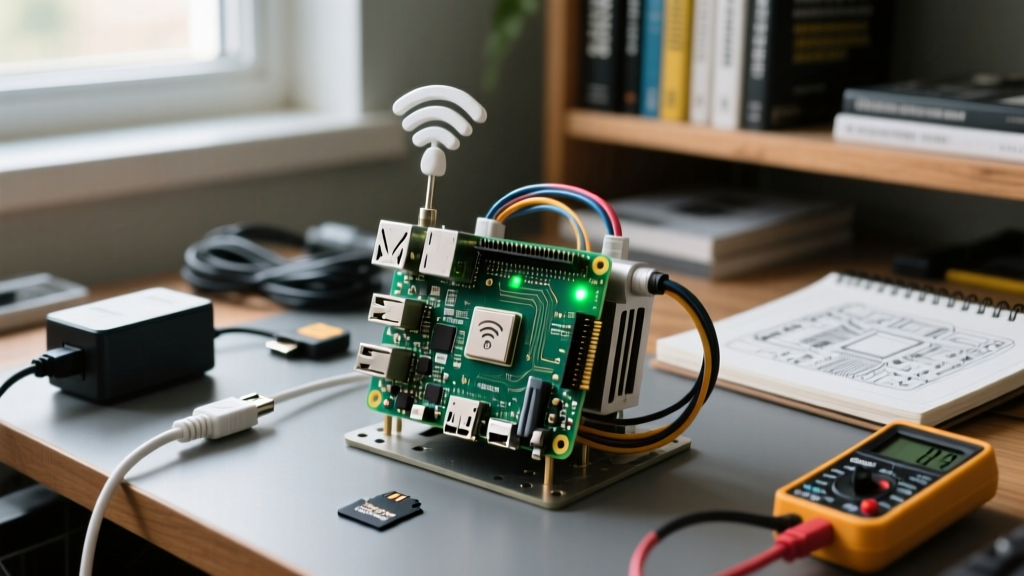
When makers push the boundaries of single-board computers, the internal wireless radio is often the first component to reveal its limitations. In this edition of the ElectricalFlux Community Showcase, we examine three real-world maker projects where establishing a stable wifi connection raspberry pi setup was the primary hurdle. From the transition to NetworkManager in Raspberry Pi OS Bookworm to mitigating USB 3.0 RF interference, these case studies provide actionable, deep-level troubleshooting frameworks for your own builds.
Project 1: The Off-Grid LoRa Weather Station (Pi Zero 2 W)
The Build: A solar-powered environmental sensor array deployed in a remote orchard, utilizing a Raspberry Pi Zero 2 W to aggregate LoRaWAN packets and push them to a cloud dashboard via a cellular hotspot.
The Failure Mode: The Pi would connect to the hotspot initially, but drop the connection after exactly 10 minutes of idle time, failing to reconnect without a hard reboot.
The E-E-A-T Diagnosis: The culprit was aggressive WiFi power management. The Infineon CYW43439 chipset on the Zero 2 W defaults to a power-saving mode that puts the radio to sleep. Historically, makers used iwconfig wlan0 power off to fix this. However, with the shift to Raspberry Pi OS Bookworm, the underlying network stack changed.
The Bookworm NetworkManager Shift
As documented in the official Raspberry Pi configuration guidelines, Bookworm replaces wpa_supplicant and dhcpcd with NetworkManager. To permanently disable WiFi power saving on modern Pi OS, community member 'OrchardTech' implemented a persistent NetworkManager dispatcher script:
#!/bin/sh
# /etc/NetworkManager/dispatcher.d/99-wifi-powersave
IFACE=$1
STATUS=$2
if [ "$IFACE" = "wlan0" ] && [ "$STATUS" = "up" ]; then
    iw dev wlan0 set power_save off
fi
This ensures the radio stays active, eliminating the micro-sleep drops that plague battery-powered IoT deployments.
Project 2: High-Bandwidth Home Assistant Hub (Pi 5)
The Build: A central smart home server running Home Assistant OS on a Raspberry Pi 5, booting from an external USB 3.0 NVMe enclosure, and utilizing Zigbee and WiFi for local device polling.
The Failure Mode: Severe packet loss and latency spikes on the 2.4GHz WiFi band whenever the system performed database writes to the NVMe drive.
The E-E-A-T Diagnosis: USB 3.0 data lines emit broadband RF noise that heavily overlaps with the 2.4GHz ISM band. This happens because the high-speed data scrambling algorithms generate harmonic noise. While the Pi 4 had a metal shield over the USB controller, the Pi 5's PCIe and USB 3.0 routing still generates localized interference if the external enclosure lacks proper EMI shielding. Furthermore, the Cypress CYW43455 WiFi chip is located in close proximity to the USB 3.0 ports.
Community Solutions for RF Coexistence
- Band Steering: Force the Pi 5 to use the 5GHz band exclusively. Using
nmcli, you can restrict the connection profile:nmcli connection modify 'MySSID' wifi.band a. - Physical Mitigation: Use a USB 3.0 extension cable to move the NVMe enclosure at least 15cm away from the Pi 5's WiFi antenna trace, or switch to an M.2 HAT+ which routes PCIe lanes away from the wireless module.
- Zigbee Interference: Move the Zigbee USB dongle to a 2.4GHz-optimized USB 2.0 port or use an extension hub to prevent the USB 3.0 noise floor from deafening the Zigbee receiver.
Comparative Analysis: Pi WiFi Chipsets and Real-World Throughput
Understanding the silicon on your board is critical for setting realistic expectations for your wifi connection raspberry pi projects. Below is a breakdown of the internal WiFi modules tested by our community labs.
| Pi Model | WiFi Chipset | Bands | Real-World Max Throughput (iPerf3) | Antenna Trace Type |
|---|---|---|---|---|
| Pi Zero 2 W | Infineon CYW43439 | 2.4GHz Only | ~35 Mbps | PCB Meander |
| Pi 4 Model B | Cypress CYW43455 | 2.4GHz / 5GHz | ~95 Mbps (5GHz) | PCB Inverted-F |
| Pi 5 | Infineon CYW43455 | 2.4GHz / 5GHz | ~110 Mbps (5GHz) | PCB Inverted-F |
Note: Throughput measured at 2 meters line-of-sight using a WiFi 6 router. Internal Pi antennas are highly susceptible to orientation and case materials (avoid aluminum cases without external U.FL pigtails).
Project 3: Mobile Robotics Rover (Pi 4B)
The Build: An autonomous mapping rover navigating a large multi-story warehouse, requiring seamless handoff between three different enterprise WiFi access points.
The Failure Mode: The internal WiFi chip would hang for 3-5 seconds during AP handoffs, causing the rover's ROS (Robot Operating System) navigation stack to lose its localization state and crash.
The E-E-A-T Diagnosis: The internal Cypress chip lacks robust support for 802.11r/k/v fast roaming protocols in the mainline Linux brcmfmac driver. The authentication handshake delay is simply too long for real-time robotics.
The External Adapter Override
The community solution was to disable the internal radio and deploy an external USB adapter with a chipset that supports background scanning and fast BSS transitions. The Alfa AWUS036ACH (using the Realtek RTL8812AU chipset) was selected. By compiling the rtl8812au driver from the aircrack-ng repository, the maker enabled monitor mode and optimized the roaming scan interval, reducing handoff latency from 4 seconds to under 200 milliseconds.
The Ultimate WiFi Troubleshooting Checklist
Expert Insight: Before blaming the router, always check the physical layer. A 3D-printed PETG case with carbon-fiber PLA filament will completely block 2.4GHz and 5GHz signals. Always test your wifi connection raspberry pi setup bare-board first.
When your SBC drops offline, run through this community-vetted diagnostic sequence:
- Check the RF Noise Floor: Run
iwlist wlan0 scan | grep -i quality. If signal quality drops when USB devices are active, you have EMI shielding failure. - Verify NetworkManager Status: Use
nmcli radio wifito ensure the software switch hasn't been toggled off by a rogue power-management daemon. - Analyze dmesg for Firmware Crashes: The
brcmfmacdriver is known to throwfirmware crashederrors under heavy UDP load. Checkdmesg | grep brcmfmac. If present, you may need to throttle UDP packet sizes in your application. - Disable MAC Randomization: NetworkManager randomizes MAC addresses by default for privacy. This breaks captive portals and enterprise WPA2-Enterprise setups. Disable it in
/etc/NetworkManager/conf.d/100-disable-wifi-mac-randomization.conf. - Disable IPv6 Autoconfiguration: In some enterprise networks, SLAAC (Stateless Address Autoconfiguration) causes routing loops on the Pi. Disable it via
sysctl -w net.ipv6.conf.wlan0.autoconf=0.
By understanding the intersection of hardware RF design, Linux driver limitations, and modern network management tools, you can transform the Raspberry Pi from a hobbyist toy into a rock-solid wireless node. Keep sharing your builds and fixes with the ElectricalFlux community!