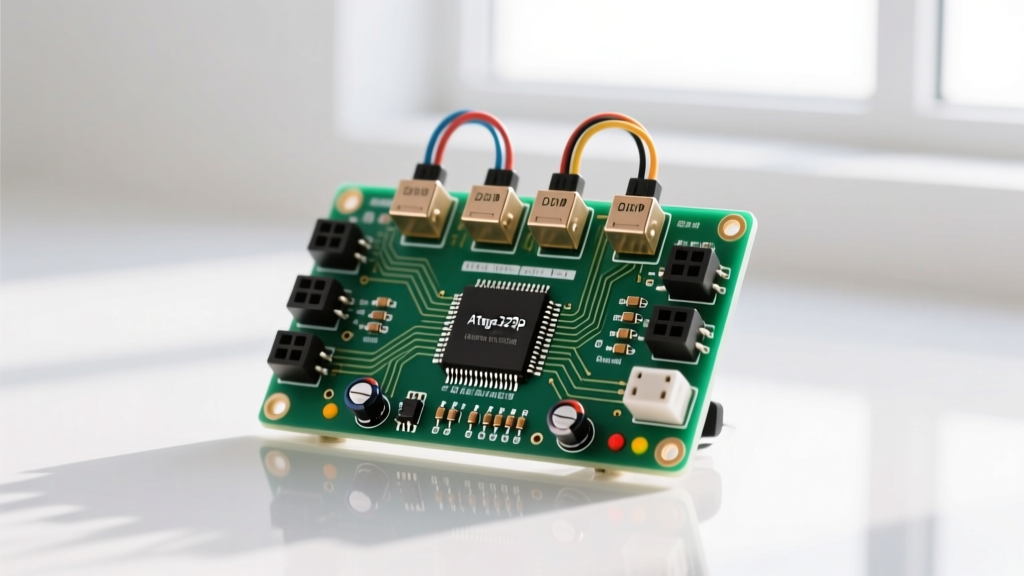
To build a hardwired, low-profile Raspberry Pi with Ethernet on a compact footprint, pair the Raspberry Pi Zero 2 W with a W5500 SPI Ethernet HAT. This combination delivers a stable 10/100 Mbps hardwired connection, bypassing the latency, RF interference, and dropouts inherent to 2.4GHz WiFi in industrial enclosures or crowded network environments. While the Pi 4 and Pi 5 feature native Gigabit Ethernet, the Zero 2 W remains the go-to board for space-constrained embedded sensor nodes where adding a reliable physical layer is mandatory.
Hardware Spec Sheet & Parts List
Sourcing the exact variants matters here. The W5500 chipset has dedicated hardware TCP/IP offloading, which drastically reduces the SPI bus overhead compared to older ENC28J60 modules. Do not buy the ENC28J60 for anything exceeding a few kilobytes per second.
| Component | Exact Model / Variant | Est. Price | Notes |
|---|---|---|---|
| Compute Board | Raspberry Pi Zero 2 W (v1.0) | $15.00 | Requires quad-core 64-bit OS for best W5500 driver support |
| Ethernet HAT | Waveshare W5500 Ethernet HAT | $18.50 | Includes onboard RJ45 magjack and 3.3V LDO regulator |
| Storage | Samsung EVO Plus 32GB microSD | $9.00 | A2 rated for better random I/O during OS logging |
| Power Supply | Official Pi 27W USB-C PD (or 5V 2.5A) | $12.00 | W5500 draws ~130mA peak; ensure PSU can handle transient spikes |
| Headers | 2x20 Pin Female GPIO Header | $2.00 | Must be soldered to Pi Zero 2 W if not pre-installed |
SPI Pin Mapping & Physical Wiring
The W5500 communicates via the SPI0 bus. Because the Raspberry Pi Zero 2 W lacks native Ethernet, the Linux kernel uses the w5500 module to map the SPI data into a standard eth0 network interface. Below is the physical BCM GPIO mapping required for the device tree overlay.
| W5500 HAT Pin | Pi Zero 2 W BCM GPIO | Physical Pin # | Function |
|---|---|---|---|
| MISO | GPIO 9 | 21 | SPI Master-In Slave-Out |
| MOSI | GPIO 10 | 19 | SPI Master-Out Slave-In |
| SCLK | GPIO 11 | 23 | SPI Clock |
| CS (SS) | GPIO 8 | 24 | SPI Chip Select (CE0) |
| INT | GPIO 24 | 18 | Interrupt Pin (Optional but recommended) |
| RST | GPIO 25 | 22 | Hardware Reset (Active Low) |
Software Configuration & Kernel Overlays
Raspberry Pi OS Bookworm shifted from dhcpcd to NetworkManager. Before writing any monitoring scripts, you must load the SPI overlay and bind the W5500 driver.
- Open the boot configuration file:
sudo nano /boot/firmware/config.txt - Add the SPI and W5500 overlay lines at the bottom of the file:
dtparam=spi=on dtoverlay=w5500,cs=0,int_pin=24,speed=30000000 - Reboot the Pi:
sudo reboot - Verify the kernel module loaded successfully:
lsmod | grep w5500. You should see the module listed. - Check interface creation:
ip link show eth0. The state should beUPorDOWN(depending on cable insertion), but the interface must exist.
speed=30000000 in the overlay prevents silent packet corruption under heavy load.
Python Link-Monitor Script with Error Handling
SPI Ethernet modules can occasionally lock up due to bus contention or ESD events on the Cat6 cable. This Python script monitors the eth0 link, verifies routing, and performs a hardware reset via the RST pin if it catches the notorious RTNETLINK routing error.
import subprocess
import time
import logging
import RPi.GPIO as GPIO

# Hardware & Interface Definitions
ETH_INTERFACE = 'eth0'
W5500_RST_PIN = 25  # BCM GPIO 25 mapped to W5500 RST
TARGET_IP = '8.8.8.8'
CHECK_INTERVAL = 60 # Seconds

logging.basicConfig(
    level=logging.INFO,
    format='%(asctime)s - %(levelname)s - %(message)s'
)

def setup_gpio():
    GPIO.setmode(GPIO.BCM)
    GPIO.setup(W5500_RST_PIN, GPIO.OUT, initial=GPIO.HIGH)

def hardware_reset_w5500():
    logging.warning('Performing hardware reset on W5500 via GPIO 25...')
    GPIO.output(W5500_RST_PIN, GPIO.LOW)
    time.sleep(0.5) # Hold reset for 500ms
    GPIO.output(W5500_RST_PIN, GPIO.HIGH)
    time.sleep(3.0) # Wait for PHY link negotiation
    subprocess.run(['sudo', 'ip', 'link', 'set', ETH_INTERFACE, 'up'])

def check_network_health():
    # Ping test to verify actual routing, not just link state
    result = subprocess.run(
        ['ping', '-I', ETH_INTERFACE, '-c', '2', '-W', '3', TARGET_IP],
        capture_output=True, text=True
    )

    if result.returncode == 0:
        logging.info(f'{ETH_INTERFACE} link and routing healthy.')
        return True

    # Catch specific RTNETLINK error when interface is up but routing table is broken
    stderr_out = result.stderr
    if 'RTNETLINK answers: Network is unreachable' in stderr_out:
        logging.error('Caught exact error: RTNETLINK answers: Network is unreachable')
        return False

    logging.error(f'Ping failed with return code {result.returncode}')
    return False

def main():
    setup_gpio()
    try:
        while True:
            if not check_network_health():
                # Flush routes and reset hardware
                subprocess.run(['sudo', 'ip', 'route', 'flush', 'dev', ETH_INTERFACE])
                hardware_reset_w5500()
                # Force NetworkManager to re-evaluate the interface
                subprocess.run(['sudo', 'nmcli', 'device', 'reapply', ETH_INTERFACE])
            time.sleep(CHECK_INTERVAL)
    except KeyboardInterrupt:
        logging.info('Monitor stopped by user.')
    finally:
        GPIO.cleanup()

if __name__ == '__main__':
    main()
Debugging: First Three Things to Check When It Fails
When your terminal spits out RTNETLINK answers: Network is unreachable while trying to use eth0, it means the kernel knows the interface exists, but has no valid route to the destination. Here are the first three things to check, ranked by likelihood on a Pi Zero 2 W:
- Routing Metric Conflict (WiFi vs. Ethernet): By default, Raspberry Pi OS assigns a lower metric (higher priority) to
wlan0thaneth0. If both are connected, the default gateway points to WiFi. When you force a ping viaeth0to an external IP, the kernel rejects it. Fix: Edit your NetworkManager connection profile for Ethernet to setipv4.route-metric=50(lower than WiFi's default 600). - SPI Bus Starvation / Driver Crash: If another process (like an SPI-based ADC or RFID reader) is polling SPI0 simultaneously, the W5500 CS line can glitch, causing the kernel driver to drop the PHY state. Fix: Check
dmesg | grep w5500for SPI transfer timeouts. Move secondary SPI devices to SPI1 or lower their polling rate. - DHCP Timeout on Link-Up: The W5500 takes ~2.5 seconds to negotiate a 100Mbps link. If NetworkManager requests an IP before the PHY reports 'link up', the DHCP discover packet is dropped into the void. Fix: Add
[connection] wait-device-timeout=3000to your nmcli profile to force the OS to wait for the hardware link.
Extending and Simplifying the Build
How to Simplify: If your enclosure has physical space and you do not strictly need the Zero form factor, abandon the SPI HAT and use a Raspberry Pi 4 Model B or Pi 5. Their native Gigabit Ethernet controllers are connected via PCIe (Pi 5) or an internal USB 3.0 bus (Pi 4), entirely bypassing SPI overhead, eliminating the need for hardware reset scripts, and supporting true iperf3 speeds up to 940 Mbps.
How to Extend: For remote installations where running a power supply is impractical, extend this build by adding Passive 48V PoE (Power over Ethernet). You can wire a 48V-to-5V PoE splitter module (like the Ubiquiti INS-3AF-I) inline with your Cat6 cable before it hits the W5500 RJ45 jack. This delivers both data and up to 15W of power over a single cable, perfect for ceiling-mounted sensor nodes. Ensure your W5500 HAT's RJ45 magjack supports PoE (most Waveshare revisions do, but verify the datasheet for integrated bridge rectifiers).
Frequently Asked Questions
Can I use a Raspberry Pi with Ethernet and WiFi simultaneously?
Yes, but you must manage the routing tables. Out of the box, Linux will route all outbound traffic through the interface with the lowest metric (usually WiFi). To use both, you must configure policy-based routing (via iproute2) or adjust NetworkManager metrics so Ethernet handles local LAN traffic and WiFi handles external WAN traffic, or use Ethernet for inbound server requests while WiFi acts as a fallback outbound client.
Why is my Raspberry Pi with Ethernet dropping packets under heavy load?
SPI Ethernet modules like the W5500 are limited by the Pi's SPI clock speed and the CPU's ability to service interrupts. At 30MHz SPI, maximum theoretical throughput is roughly 12-15 Mbps. If you attempt to push a 50Mbps video stream through the W5500, the Pi's SPI buffer will overflow, resulting in dropped packets. For high-bandwidth applications, you must use a Pi 4/5 with native Gigabit Ethernet or a USB 3.0 to Gigabit Ethernet adapter (like the ASIX AX88179 chipset).
How do I assign a static IP to my Raspberry Pi with Ethernet in Bookworm?
Since Bookworm uses NetworkManager instead of dhcpcd.conf, you must use nmcli. Run the following command to set a static IP, gateway, and DNS for the SPI Ethernet interface:
sudo nmcli con mod 'Wired connection 1' ipv4.addresses 192.168.1.50/24 ipv4.gateway 192.168.1.1 ipv4.dns '1.1.1.1 8.8.8.8' ipv4.method manual
Then restart the connection with sudo nmcli con up 'Wired connection 1'. For deeper network configuration details, refer to the official Raspberry Pi configuration documentation.