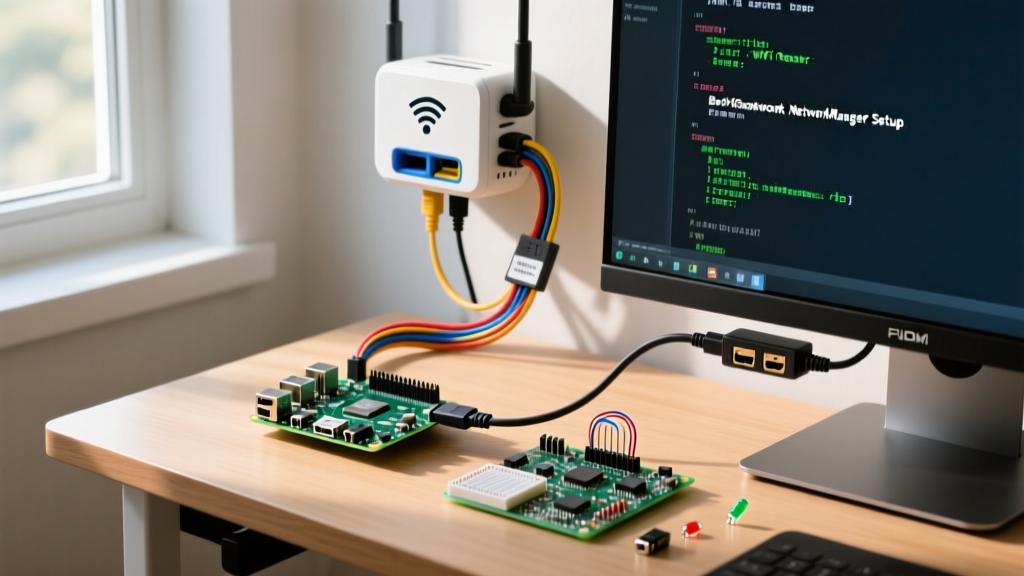

To connect a Raspberry Pi WiFi to a WiFi router on modern Raspberry Pi OS (Bookworm and later), you must use NetworkManager via the nmcli command-line tool. The legacy wpa_supplicant.conf method in the boot partition is deprecated and will fail on fresh Bookworm installs. This guide targets the Raspberry Pi 5 (8GB) and Raspberry Pi 4 Model B running the 64-bit Bookworm release, providing the exact configuration steps, a hardware status monitor, and the specific debugging paths for connection failures.
Hardware Spec Sheet & Parts List
When running headless, losing your SSH session due to a WiFi drop is a major pain point. Adding a physical I2C OLED display gives you instant visibility into your IP address and connection state without needing a network scanner.
| Component | Exact Variant / Model | Notes |
|---|---|---|
| Microcontroller | Raspberry Pi 5 (8GB) or Pi 4 Model B (4GB+) | Pi 5 requires 27W USB-C PD supply for full peripheral power. |
| Display | SSD1306 128x64 I2C OLED (Adafruit 326 or generic) | Must be I2C variant (4-pin), not SPI (7-pin). |
| Wiring | Female-to-Female Jumper Wires (20cm) | Standard 2.54mm pitch. |
| Power Supply | Official 27W USB-C PD (Pi 5) or 15W (Pi 4) | Under-voltage will disable the WiFi radio to save power. |
I2C Pin Mapping Table
Wire the SSD1306 display to the Raspberry Pi GPIO header as follows. This mapping uses the primary I2C bus (Bus 1).
| OLED Pin | Raspberry Pi Pin (Physical) | GPIO / Function |
|---|---|---|
| VCC / VDD | Pin 1 | 3.3V Power |
| GND | Pin 6 | Ground |
| SCL | Pin 5 | GPIO 3 (I2C SCL) |
| SDA | Pin 3 | GPIO 2 (I2C SDA) |
Step-by-Step: Connecting Raspberry Pi WiFi to WiFi Router
Because Raspberry Pi OS Bookworm replaced dhcpcd and wpa_supplicant with NetworkManager, the workflow for connecting to a router has changed. Follow these steps via an active SSH session, serial console, or direct terminal.
- Enable I2C (for the display): Run
sudo raspi-config, navigate to Interface Options > I2C, and enable it. Reboot the Pi. - Scan for available networks: Identify your router's exact SSID and signal strength.
nmcli dev wifi list - Connect to the router: Replace
YOUR_SSIDandYOUR_PASSWORDwith your actual router credentials. The--askflag is optional but useful if your password contains special characters.sudo nmcli dev wifi connect "YOUR_SSID" password "YOUR_PASSWORD" - Verify the connection: Check that the wireless interface (
wlan0) has pulled an IP address from the router's DHCP server.nmcli -t -f active,ssid,device con show
firstboot script that configures NetworkManager automatically before the Pi boots.Python WiFi Monitor & Auto-Recovery Script
This Python script polls NetworkManager, displays the IP address and SSID on the SSD1306 OLED, and attempts an automatic reconnection if the link drops.
pip install. Install the required libraries via apt: sudo apt install python3-luma.oled python3-smbus2.#!/usr/bin/env python3
"""
Raspberry Pi WiFi to Router Monitor & Auto-Recovery
Target Board: Raspberry Pi 5 / Pi 4 (Bookworm 64-bit)
Hardware: SSD1306 128x64 I2C OLED (Addr: 0x3C)
Pins: SDA=GPIO2(Pin3), SCL=GPIO3(Pin5)
"""
import subprocess
import time
import sys
try:
from luma.core.interface.serial import i2c
from luma.core.render import canvas
from luma.oled.device import ssd1306
except ImportError:
print("Missing luma.oled. Run: sudo apt install python3-luma.oled")
sys.exit(1)
# --- Configuration ---
TARGET_SSID = "YOUR_SSID"
TARGET_PASS = "YOUR_PASSWORD"
I2C_PORT = 1
I2C_ADDRESS = 0x3C
# Initialize I2C Display
try:
serial = i2c(port=I2C_PORT, address=I2C_ADDRESS)
device = ssd1306(serial)
except Exception as e:
print(f"I2C Display Init Failed: {e}. Check wiring on Pins 1,3,5,6.")
sys.exit(1)
def get_wifi_status():
"""Fetches active SSID and IP via nmcli."""
try:
ssid_cmd = subprocess.run(
["nmcli", "-g", "general.connection", "device", "show", "wlan0"],
capture_output=True, text=True, timeout=5
)
ip_cmd = subprocess.run(
["nmcli", "-g", "IP4.ADDRESS", "device", "show", "wlan0"],
capture_output=True, text=True, timeout=5
)
ssid = ssid_cmd.stdout.strip() if ssid_cmd.returncode == 0 else "Disconnected"
ip_raw = ip_cmd.stdout.strip() if ip_cmd.returncode == 0 else "No IP"
ip = ip_raw.split('/')[0] if '/' in ip_raw else ip_raw
return ssid, ip
except subprocess.TimeoutExpired:
return "Timeout", "Error"
except Exception as e:
return "Error", str(e)
def attempt_reconnect():
"""Forces NetworkManager to reconnect to the target router."""
try:
subprocess.run(
["nmcli", "dev", "wifi", "connect", TARGET_SSID, "password", TARGET_PASS],
capture_output=True, timeout=15
)
except Exception:
pass
# --- Main Loop ---
try:
while True:
ssid, ip = get_wifi_status()
with canvas(device) as draw:
draw.text((0, 0), f"SSID: {ssid}", fill="white")
draw.text((0, 16), f"IP: {ip}", fill="white")
draw.text((0, 32), "Router Link: UP" if ip != "No IP" else "Router Link: DOWN", fill="white")
# Auto-recovery trigger
if ip == "No IP" and ssid != TARGET_SSID:
print("Link lost. Attempting nmcli reconnect...")
attempt_reconnect()
time.sleep(10) # Wait for DHCP
else:
time.sleep(5)
except KeyboardInterrupt:
device.cleanup()
print("Monitor stopped.")
Debugging: Exact Error Strings & Ranked Causes
When your Raspberry Pi WiFi to WiFi router connection fails, NetworkManager spits out specific error strings. Here is how to decode them.
First Three Things to Check When It Fails
- WLAN Country Code: If the country code is unset, the 5GHz radio is legally disabled by the kernel. Run
sudo raspi-config> Localisation Options > WLAN Country and set it. - Power Supply Brownout: The Pi 5 will silently disable the WiFi/BT module if it detects under-voltage. Check
dmesg | grep -i voltagefor warnings. - Band Steering (2.4GHz vs 5GHz): If you are using a Pi Zero 2 W or Pi 3B+, they only support 2.4GHz. If your mesh router uses a single SSID for both bands and forces 5GHz steering, the Pi will fail to associate.
Error: "No network with SSID 'X' found"
Exact String: Error: No network with SSID 'MyRouter' found.
- Cause 1: The router is broadcasting on a DFS (Dynamic Frequency Selection) 5GHz channel (e.g., channels 52-144) that the Pi's firmware hasn't scanned yet, or the Pi is a 2.4GHz-only model.
- Cause 2: The router's SSID is hidden. NetworkManager requires explicit configuration for hidden networks (see FAQ below).
- Fix: Log into your router and split the SSIDs into
MyRouter_2GandMyRouter_5G, or force the router to use a standard non-DFS channel like 36, 40, 44, or 48.
Error: "Connection activation failed: (53)"
Exact String: Error: Connection activation failed: (53) The requested connection is invalid.
- Cause 1: WPA3-SAE transition mode incompatibility. Older Pi WiFi chips (like the Cypress CYW43455 on the Pi 4) struggle with WPA2/WPA3 transition modes on certain mesh routers (e.g., Eero, Orbi).
- Cause 2: MAC Address Randomization. NetworkManager randomizes MAC addresses by default on scan, which some enterprise or strict home routers block.
- Fix: Disable MAC randomization for this specific connection:
sudo nmcli con modify "MyRouter" wifi.cloned-mac-address permanent, then reconnect.
Extending and Simplifying the Build
To Simplify: If you don't need the OLED display and just want a reliable headless connection, strip the Python script down to a simple cron job. Add @reboot sleep 30 && nmcli con up "YOUR_SSID" to your crontab to force a connection check on every boot.
To Extend: Turn this into an IoT edge gateway. Add a DHT22 temperature sensor to the GPIO, and use the paho-mqtt Python library to publish the sensor data over the WiFi connection to a Home Assistant MQTT broker. You can also add a physical push-button on GPIO 17 to trigger a nmcli dev wifi list scan and display the strongest available router on the OLED.
Frequently Asked Questions
How do I connect Raspberry Pi WiFi to WiFi router without a monitor?
The most reliable method for headless setup on Bookworm is using the Raspberry Pi Imager on your desktop computer. Before flashing the OS, click the Advanced Settings gear icon, check "Configure Wireless LAN", and enter your SSID and password. The Imager injects these credentials into the firstboot configuration, allowing the Pi to connect to the router automatically the first time it powers on. Alternatively, if you have physical access to the router, plug the Pi into the router via Ethernet, SSH in using the raspberrypi.local hostname, and use nmcli to configure the WiFi.
Why is my Raspberry Pi dropping WiFi connection to the router intermittently?
Intermittent drops are almost always caused by aggressive power-saving modes in the Pi's WiFi chip or router-side client eviction. First, disable WiFi power management on the Pi by running sudo nmcli con modify "YOUR_SSID" 802-11-wireless.powersave 2 (where 2 means disable). Second, check your router's settings and disable "Airtime Fairness" or "Legacy Client Disconnect" features, which frequently misidentify the Pi's Broadcom/Cypress WiFi chip as a legacy 802.11g device and drop it to protect network speed.
Can I connect Raspberry Pi WiFi to a hidden WiFi router network?
Yes, but nmcli dev wifi connect will fail because it cannot see the SSID in the scan list. You must create the connection profile manually and flag it as hidden. Run:
sudo nmcli con add type wifi ifname wlan0 con-name "HiddenNet" ssid "HiddenNet"
sudo nmcli con modify "HiddenNet" wifi-sec.key-mgmt wpa-psk
sudo nmcli con modify "HiddenNet" wifi-sec.psk "YOUR_PASSWORD"
sudo nmcli con modify "HiddenNet" wifi.hidden yes
sudo nmcli con up "HiddenNet"