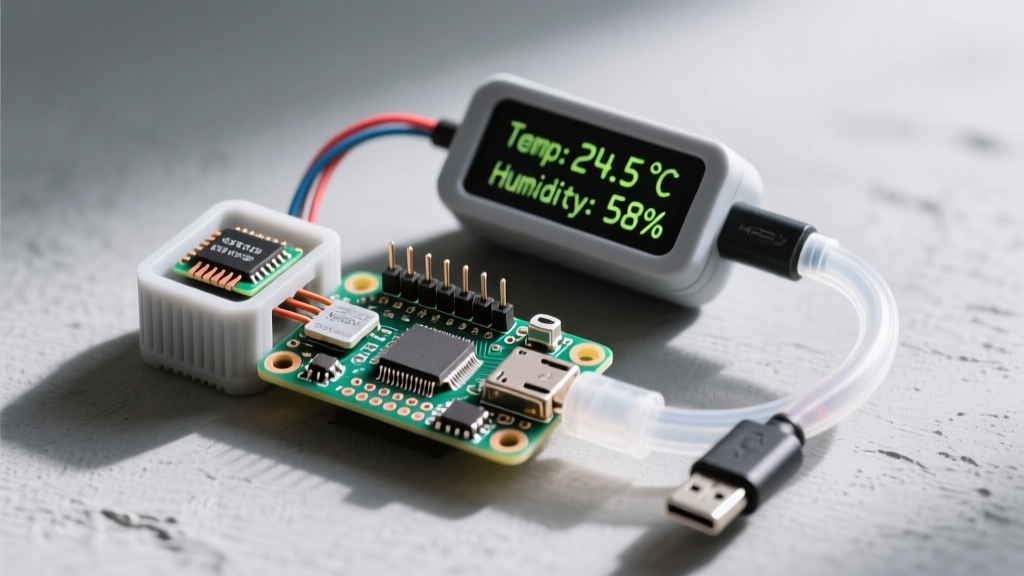
For a dedicated, headless internet radio in 2026, the Raspberry Pi Zero 2 W paired with a MAX98357A I2S DAC is the definitive choice. It draws under 1.2W at idle, costs under $25 in core components, and delivers 3.2W of clean digital audio. If you have ever tried using the Pi’s native PWM audio pins, you already know about the unbearable background hiss and CPU-stuttering pops. Moving to an I2S (Inter-IC Sound) DAC bypasses the Pi’s lackluster onboard audio hardware entirely, handing the digital-to-analog conversion off to a dedicated chip.
This guide walks through the exact hardware selection, I2S wiring, Music Player Daemon (MPD) configuration, and a robust Python control script with physical buttons and comprehensive error handling.
The Verdict: Which Pi and DAC to Choose
Before ordering parts, you need to decide on the compute module and the audio output stage. Here is the decision matrix based on typical bench constraints for a dedicated radio build.
| Criteria | Raspberry Pi Zero 2 W | Raspberry Pi 4 Model B | Raspberry Pi 5 |
|---|---|---|---|
| Idle Power Draw | ~1.2W (Ideal for 24/7) | ~2.7W | ~3.5W+ |
| Form Factor | 65mm x 30mm (Fits in altoids tin) | 85mm x 56mm (Standard) | 85mm x 56mm (Standard) |
| UI Requirement | Headless / Web UI / Physical Buttons | Can drive local 7" Touchscreen | Can drive dual 4K displays |
| Cost (Board Only) | $15 | $35 - $55 | $60 - $80 |
For the DAC, skip the $30+ HATs. The Adafruit MAX98357A I2S Class-D Mono Amp breakout ($6) provides 3.2W of power, requires only 5 wires, and fits directly onto a half-size perfboard.
Exact Parts List and Wiring Pinout
This build targets the Raspberry Pi Zero 2 W running Raspberry Pi OS Lite (64-bit, Bookworm). Below is the precise bill of materials and the physical mapping.
Bill of Materials
- Compute: Raspberry Pi Zero 2 W (with headers pre-soldered)
- DAC: Adafruit MAX98357A I2S DAC Breakout (Product ID: 3006)
- Speaker: 3W 4-Ohm full-range driver (e.g., CUI Devices CSS-50504N)
- Controls: 4x 12mm tactile momentary switches
- Power: 5V 2.5A USB-C power supply (official Pi PSU recommended)
- Storage: 16GB+ MicroSD (Class 10, A1 rated)
Pin Mapping Table (BCM Numbering)
The I2S interface on the Pi uses the PCM (Pulse Code Modulation) hardware pins. Do not move these; they are hardcoded in the Broadcom silicon. The button pins are software-defined but chosen to avoid I2C, SPI, and UART conflicts.
| Component | Breakout Pin | Pi Zero 2 W Pin (Physical) | Pi GPIO (BCM) |
|---|---|---|---|
| DAC | VIN | Pin 2 (5V Power) | N/A |
| DAC | GND | Pin 6 (Ground) | N/A |
| DAC | BCLK (Bit Clock) | Pin 12 | GPIO 18 (PCM_CLK) |
| DAC | LRC (Left/Right Clock) | Pin 35 | GPIO 19 (PCM_FS) |
| DAC | DIN (Data In) | Pin 40 | GPIO 21 (PCM_DIN) |
| Button 1 | Play / Pause | Pin 11 | GPIO 17 |
| Button 2 | Next Station | Pin 13 | GPIO 27 |
| Button 3 | Volume Up | Pin 15 | GPIO 22 |
| Button 4 | Volume Down | Pin 16 | GPIO 23 |
Note: Wire one leg of each tactile switch to the GPIO pin, and the other leg to a common Ground rail. We will use the Pi's internal pull-up resistors in software.
Software Stack: Configuring MPD and ALSA for I2S
We are using Music Player Daemon (MPD) as the backend. It runs headless, uses minimal RAM, and handles network stream buffering gracefully.
- Enable the I2S Overlay: Open
/boot/firmware/config.txtand add the following line to the bottom to load the I2S driver and disable the onboard PWM audio:
We use thedtoverlay=hifiberry-dac dtparam=audio=offhifiberry-dacoverlay because it perfectly maps the standard I2S pins required by the MAX98357A. Read more on Pi device tree overlays in the official Raspberry Pi documentation. - Install Packages: Reboot, then run:
sudo apt update sudo apt install mpd mpc python3-pip python3-gpiozero pip3 install python-mpd2 --break-system-packages - Configure MPD: Edit
/etc/mpd.conf. Find theaudio_outputsection and configure it for ALSA:audio_output { type "alsa" name "I2S MAX98357A" device "default" mixer_type "software" } - Add Stations: Create a playlist file
/var/lib/mpd/playlists/radio.m3uand add your stream URLs (e.g.,http://stream.somafm.com/groovesalad). Restart MPD:sudo systemctl restart mpd.
Complete Python Control Code with Error Handling
This script maps the physical buttons to MPD commands. It includes debounce logic, graceful socket handling for MPD disconnects, and safe GPIO cleanup.
#!/usr/bin/env python3
"""
Physical Internet Radio Controller
Target Board: Raspberry Pi Zero 2 W (BCM2837)
Dependencies: gpiozero, python-mpd2
"""

import time
import signal
import sys
from gpiozero import Button
from mpd import MPDClient, ConnectionError as MPDConnectionError, CommandError

# --- Pin Definitions (BCM) ---
PIN_PLAY_PAUSE = 17
PIN_NEXT_STATION = 27
PIN_VOL_UP = 22
PIN_VOL_DOWN = 23

# --- MPD Configuration ---
MPD_HOST = "localhost"
MPD_PORT = 6600
VOLUME_STEP = 10

def get_mpd_client():
    """Establishes a connection to the MPD server with error handling."""
    client = MPDClient()
    client.timeout = 10
    client.idletimeout = None
    try:
        client.connect(MPD_HOST, MPD_PORT)
        return client
    except (MPDConnectionError, OSError) as e:
        print(f"[FATAL] Cannot connect to MPD: {e}")
        sys.exit(1)

def handle_play_pause():
    client = get_mpd_client()
    try:
        state = client.status()['state']
        if state in ('stop', 'pause'):
            # If stopped, start the first station in the playlist
            if state == 'stop':
                client.load('radio')
                client.play(0)
            else:
                client.pause(0)
        else:
            client.pause(1)
    except CommandError as e:
        print(f"[ERROR] MPD Command failed: {e}")
    finally:
        client.disconnect()

def handle_next_station():
    client = get_mpd_client()
    try:
        client.next()
    except CommandError as e:
        print(f"[ERROR] Could not skip track: {e}")
    finally:
        client.disconnect()

def handle_volume(direction):
    client = get_mpd_client()
    try:
        current_vol = int(client.status()['volume'])
        new_vol = max(0, min(100, current_vol + (VOLUME_STEP * direction)))
        client.setvol(new_vol)
        print(f"Volume set to {new_vol}%")
    except (CommandError, KeyError, ValueError) as e:
        print(f"[ERROR] Volume adjustment failed: {e}")
    finally:
        client.disconnect()

def graceful_exit(signum, frame):
    """Cleanup GPIO and exit safely on SIGINT/SIGTERM."""
    print("\nShutting down radio controller...")
    sys.exit(0)

if __name__ == "__main__":
    signal.signal(signal.SIGINT, graceful_exit)
    signal.signal(signal.SIGTERM, graceful_exit)

    # Initialize buttons with internal pull-ups and hardware debounce
    btn_play = Button(PIN_PLAY_PAUSE, pull_up=True, bounce_time=0.05)
    btn_next = Button(PIN_NEXT_STATION, pull_up=True, bounce_time=0.05)
    btn_vol_up = Button(PIN_VOL_UP, pull_up=True, bounce_time=0.05)
    btn_vol_down = Button(PIN_VOL_DOWN, pull_up=True, bounce_time=0.05)

    # Bind events
    btn_play.when_pressed = handle_play_pause
    btn_next.when_pressed = handle_next_station
    btn_vol_up.when_pressed = lambda: handle_volume(1)
    btn_vol_down.when_pressed = lambda: handle_volume(-1)

    print("Radio controller active. Press Ctrl+C to exit.")

    # Keep script running
    signal.pause()
Save this as radio_control.py and set it to run on boot via a systemd service so it survives reboots without needing an active SSH session.
Debugging: The First Three Things to Check When It Fails
When building embedded audio projects, the failure modes are almost always tied to ALSA routing or socket permissions. If your radio is silent or the script crashes, check these three things first.
1. Exact Error: ConnectionRefusedError: [Errno 111] Connection refused
Ranked Causes:
- MPD Service is Dead: MPD crashed on boot due to a malformed playlist. Check status with
sudo systemctl status mpd. Fix by clearing/var/lib/mpd/playlists/and restarting. - Bind Address Mismatch: In
/etc/mpd.conf, thebind_to_addressis set to a specific IP or IPv6 only, but the Python script is queryinglocalhost(which might resolve to::1or127.0.0.1). Fix: Setbind_to_address "any"inmpd.conf. - AppArmor/Firewall: Rare on Pi OS Lite, but if you installed UFW, port 6600 is blocked locally.
2. Exact Error: ALSA lib pcm_dmix.c:1035:(snd_pcm_dmix_open) unable to open slave
Ranked Causes:
- Missing I2S Overlay: You forgot to add
dtoverlay=hifiberry-dactoconfig.txt, or you typo'd it. The Pi is trying to route audio to the disabled onboard PWM chip. Runaplay -lto verify the I2S soundcard is listed. - Hardware Conflict: Another process (like PulseAudio or PipeWire, if you accidentally installed the Desktop OS instead of Lite) has locked the ALSA device. Fix:
sudo apt purge pulseaudio pipewire.
3. Exact Error: RuntimeError: Failed to add edge detection or ValueError: A physical pull up resistor is fitted on this channel
Ranked Causes:
- GPIO Pin Conflict: You accidentally assigned a button to GPIO 2 or GPIO 3. These pins have hardwired 1.8kΩ physical pull-up resistors on the Pi PCB for the I2C bus.
gpiozerowill throw an error if you try to enable software pull-ups on them. Move your button to a standard GPIO (like 17, 22, 23, 27). - Zombie Process: A previous instance of your Python script crashed without cleaning up the GPIO states. Run
killall python3to clear the locks.
Extending or Simplifying the Build
Once the baseline radio is operational, you can scale the complexity up or down based on your enclosure constraints and use case.
How to Simplify (The "Zero-Button" Approach)
If physical buttons are too difficult to wire inside your chosen enclosure, drop the Python script entirely. Instead, configure MPD to auto-start playing on boot. Add restore_paused "no" and state_file "/var/lib/mpd/state" to mpd.conf. Then, use a smartphone on the same WiFi network with an app like MPDroid (Android) or MPoD (iOS) to control playback and volume. This eliminates the GPIO wiring and reduces the build to just the Pi, DAC, and speaker.
How to Extend (Adding Hardware Features)
- Rotary Encoder for Volume: Replace the volume up/down tactile switches with a KY-040 rotary encoder. You will need to swap the
gpiozero.Buttonlogic for arotaryioorgpiozero.RotaryEncoderimplementation to track quadrature steps. - OLED Display: Add a 128x64 SSD1306 I2C OLED screen. Wire it to the I2C pins (GPIO 2/3). You can query the MPD client for
client.currentsong()and render the station name and track title using theluma.oledPython library. Ensure you add a 0.1s sleep in your display loop to prevent I2C bus saturation. - Auto-Power Amp: If you are driving larger passive bookshelf speakers, swap the MAX98357A for an Adafruit I2S 3W Stereo Amp or a TPA3116D2-based board, feeding it 12V-24V from a separate buck converter powered by a larger DC supply.