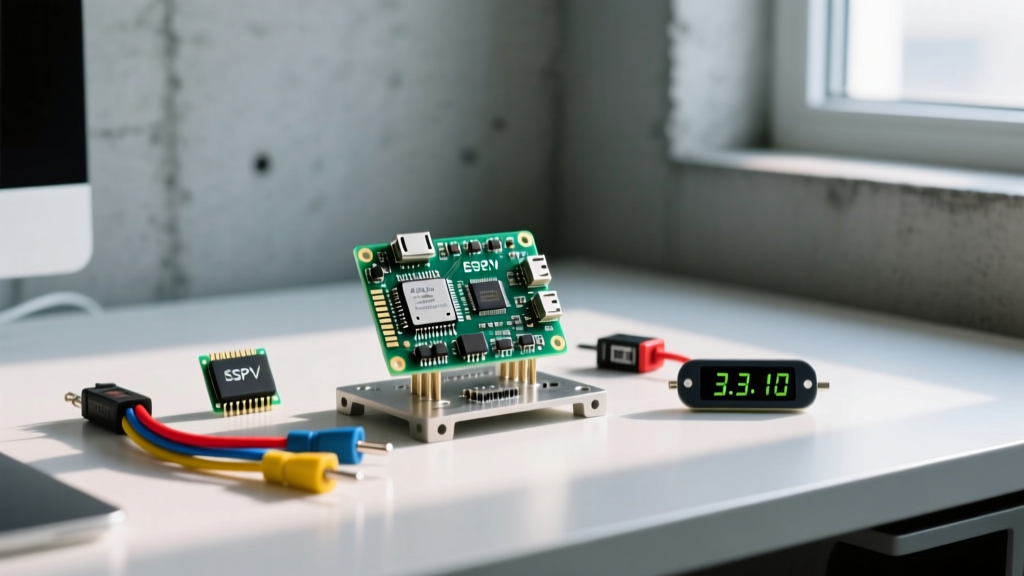
The GT-U7 is a budget-friendly GPS receiver module (typically based on the NEO-6M chipset or a functional clone) that communicates via standard UART serial. To interface the GT-U7 Raspberry Pi combination successfully, you must connect the module's TX pin to the Pi's hardware RX pin (GPIO 15) and configure the Pi to disable the serial console login, freeing up /dev/serial0 for raw NMEA data at 9600 baud.
This guide targets the Raspberry Pi 4 Model B (4GB variant) running Raspberry Pi OS (64-bit, Bookworm release). While the physical wiring is identical for the Pi 3 and Pi 5, the Pi 5 requires additional Device Tree overlays to route the primary UART to the GPIO header, which we will bypass here by sticking to the Pi 4's native mapping.
Hardware Specifications and Pin Mapping
Before stripping wires, verify your module's logic levels. Many GT-U7 boards feature a 3.3V LDO regulator and accept 5V on the VCC pin, but the TX output is strictly 3.3V. This is ideal for the Raspberry Pi, which will suffer permanent GPIO damage if subjected to 5V logic. Always power the GT-U7 from the Pi's 3.3V rail to eliminate back-feed risks.
Parts List
- Microcontroller: Raspberry Pi 4 Model B (4GB) with active cooling
- GPS Module: GT-U7 (NEO-6M clone) with 25x25mm ceramic patch antenna
- Wiring: 4x Female-to-Female Dupont jumper wires (24 AWG)
- Software: Python 3.11+,
pyserial,pynmea2
GT-U7 Module Specs & Pi 4 Pinout Table
| Parameter / Connection | Value / Pi 4 Pin | Technical Notes & Constraints |
|---|---|---|
| Chipset Architecture | NEO-6M (Clone) | 50 channels, -160 dBm tracking sensitivity, 2.5m CEP accuracy |
| Default Baud Rate | 9600 bps (8N1) | Configurable via UBX protocol, but 9600 is hardcoded on most GT-U7s |
| VCC (Power In) | Pin 1 (3.3V Power) | Module draws ~45mA during acquisition; Pi 3.3V rail is rated for 50mA+ |
| GND (Ground) | Pin 6 (Ground) | Must share common ground with Pi; do not rely on antenna shielding |
| GPS TX (Data Out) | Pin 10 (GPIO 15 / RXD) | Outputs 3.3V logic NMEA sentences; safe for Pi RX pin |
| GPS RX (Data In) | Pin 8 (GPIO 14 / TXD) | Used only if sending UBX config commands; leave disconnected for basic reads |
Step-by-Step Wiring and UART Configuration
1. Physical Wiring
- Connect GT-U7 VCC to Raspberry Pi Pin 1 (3.3V).
- Connect GT-U7 GND to Raspberry Pi Pin 6 (Ground).
- Connect GT-U7 TX to Raspberry Pi Pin 10 (RXD).
- Leave GT-U7 RX disconnected unless you plan to send configuration commands later.
- Plug the ceramic patch antenna into the U.FL connector and mount it flat with a clear view of the sky.
2. Enable Hardware UART in Raspberry Pi OS
By default, the Pi routes the serial console (login prompt) to the UART, which will corrupt your GPS data. You must disable the console while keeping the hardware port enabled.
- Boot the Pi and open a terminal.
- Run
sudo raspi-config. - Navigate to Interface Options > Serial Port.
- When asked "Would you like a login shell to be accessible over serial?", select No.
- When asked "Would you like the serial port hardware to be enabled?", select Yes.
- Reboot the Pi:
sudo reboot.
After rebooting, verify the serial port exists by running ls -l /dev/serial0. It should symlink to /dev/ttyAMA0 (or ttyS0 depending on the exact board revision and Bluetooth state).
Python Implementation: Reading NMEA Sentences
The GT-U7 outputs standard NMEA 0183 sentences. The two most useful are $GPRMC (Recommended Minimum Specific GNSS Data) for speed, date, and basic coordinates, and $GPGGA (Global Positioning System Fix Data) for altitude and fix quality. We will use the pynmea2 library to parse these strings into usable Python objects.
Install the required dependencies:
pip install pyserial pynmea2Complete GPS Parsing Script
This script targets the Pi 4 hardware UART, includes robust error handling for serial drops, and filters out unparsed noise.
import serial
import pynmea2
import sys
import time

# --- PIN & PORT DEFINITIONS ---
# On Linux, we address the mapped serial port, not raw BCM GPIO numbers.
# /dev/serial0 maps to GPIO 14 (TXD) and GPIO 15 (RXD) on the Pi 4.
SERIAL_PORT = '/dev/serial0'
BAUD_RATE = 9600
TIMEOUT_SEC = 1.0

def initialize_gps():
    try:
        port = serial.Serial(
            SERIAL_PORT,
            baudrate=BAUD_RATE,
            timeout=TIMEOUT_SEC,
            parity=serial.PARITY_NONE,
            stopbits=serial.STOPBITS_ONE,
            bytesize=serial.EIGHTBITS
        )
        return port
    except serial.SerialException as e:
        print(f"[FATAL] Hardware Serial Error: {e}")
        sys.exit(1)

def parse_gps_data(port):
    print(f"Listening on {SERIAL_PORT} at {BAUD_RATE} baud...")
    print("Move the antenna near a window or outdoors for a cold fix (takes 1-5 mins).\n")

    while True:
        try:
            raw_line = port.readline().decode('ascii', errors='replace').strip()

            # Filter out empty reads and non-NMEA noise
            if not raw_line or not raw_line.startswith('$'):
                continue

            msg = pynmea2.parse(raw_line)

            # Extract data from GGA (Fix data) and RMC (Recommended minimum)
            if isinstance(msg, pynmea2.types.talker.GGA):
                print(f"[FIX] Lat: {msg.latitude:.6f} | Lon: {msg.longitude:.6f} | "
                      f"Alt: {msg.altitude}m | Satellites: {msg.num_sats}")

            elif isinstance(msg, pynmea2.types.talker.RMC):
                if msg.status == 'A':  # 'A' = Active/Valid, 'V' = Void/No Fix
                    print(f"[NAV] Speed: {msg.spd_over_grnd} knots | "
                          f"Date: {msg.datestamp} | Time: {msg.timestamp}")

        except pynmea2.ParseError as e:
            # Common with GT-U7 clones that occasionally drop bytes
            continue
        except serial.SerialException as e:
            print(f"[ERROR] Port dropped: {e}. Attempting reconnect...")
            time.sleep(2)
            port = initialize_gps()
        except KeyboardInterrupt:
            print("\n[INFO] GPS monitoring stopped by user.")
            port.close()
            break

if __name__ == '__main__':
    gps_port = initialize_gps()
    parse_gps_data(gps_port)
Debugging: Serial Exceptions and Checksum Failures
When working with budget GPS modules and Linux serial ports, you will inevitably hit roadblocks. If your script crashes or outputs garbage, follow this diagnostic tree.
The First Three Things to Check When It Fails
- Verify the symlink: Run
ls -l /dev/serial0. If it says "No such file or directory", the hardware UART is disabled or hijacked by Bluetooth. - Check raw output: Run
cat /dev/serial0in the terminal. If you see a scrolling wall of text starting with$GPGGA, your wiring and OS config are perfect; the issue is in your Python environment or permissions. - Inspect the antenna connection: The U.FL connector on the GT-U7 is fragile. If the center pin is depressed or the cable is loose, the module will output valid NMEA sentences, but the "Valid Fix" flag will remain 'V' (Void) indefinitely.
Exact Error: Port Not Found
Error String: serial.serialutil.SerialException: [Errno 2] could not open port /dev/serial0: [Errno 2] No such file or directory: '/dev/serial0'
Ranked Causes & Fixes:
- Bluetooth Mini-UART Conflict (Most Likely): On the Pi 4, the primary UART (
ttyAMA0) is often routed to the Bluetooth chip, leaving the slower mini-UART (ttyS0) on the GPIO pins. Fix this by addingdtoverlay=disable-btto the bottom of/boot/firmware/config.txt(or/boot/config.txton older OS versions) and rebooting. Reference: Raspberry Pi Configuration Docs. - Console Login Still Active: You selected "Yes" to the login shell prompt in
raspi-config. Re-run it and explicitly disable the serial console. - Wrong Board Variant: If you are actually using a Raspberry Pi 5,
/dev/serial0does not map to the GPIO header by default without addingdtoverlay=uart0to your config file.
Exact Error: NMEA Parse Failures
Error String: pynmea2.ParseError: could not parse NMEA sentence: b'$GPGGA,123519,4807.038,N...' (often accompanied by a Checksum Error)
Ranked Causes & Fixes:
- Baud Rate Mismatch: Some GT-U7 modules are factory-set to 38400 baud. If
cat /dev/serial0shows pure garbage characters, changeBAUD_RATE = 38400in the Python script. - Voltage Droop on TX Line: If the Pi's 3.3V rail is sagging under load, the GT-U7's TX high-state might drop below the Pi's 1.8V logic threshold, causing dropped bits and failed checksums. Power the GT-U7 from a dedicated 3.3V breadboard supply if using a Pi with heavy USB peripherals attached.
Extending and Simplifying the Build
How to Simplify (The "No-Code" Approach)
If you only need to verify that the module is receiving a fix and don't want to write Python, use the built-in gpsd daemon.
- Install the tools:
sudo apt install gpsd gpsd-clients - Start the daemon:
sudo gpsd /dev/serial0 -F /var/run/gpsd.sock - View the interactive sky view:
cgps -s
This gives you a real-time terminal UI showing satellite signal-to-noise ratios (SNR), which is invaluable for troubleshooting poor antenna placement.
How to Extend (Data Logging and Time Sync)
To turn this into a standalone vehicle tracker or stratum-1 time server:
- CSV Logging: Modify the Python script to append
msg.latitude,msg.longitude, andtime.time()to a CSV file on a USB thumb drive. Use a 10kΩ NTC thermistor on an MCP3008 ADC to log ambient temperature alongside GPS coordinates. - Stratum 1 NTP Server: The GT-U7 outputs highly accurate UTC time. By configuring
chronyorntpdto read the PPS (Pulse Per Second) pin—requires a GT-U7 board with the PPS trace exposed and wired to GPIO 18—you can synchronize your local network to atomic clock precision, independent of internet connectivity.