
While learning how to install a library in Arduino is often treated as a trivial first step in microcontroller development, the reality of modern IoT and robotics projects tells a different story. With the Arduino ecosystem expanding to include complex architectures like the ESP32-S3, RP2040, and the ARM-based Uno R4 Minima, library management has become a frequent source of compilation failures. In 2026, developers are no longer just blinking LEDs; they are managing recursive dependencies, DMA buffers, and hardware-specific I2C implementations. When a library installation fails or causes silent runtime bugs, it can halt a project for hours.
This guide bypasses the basic "click install" tutorials and dives deep into the debugging and troubleshooting aspects of Arduino library management. We will dissect the exact failure modes of the Arduino IDE 2.3.x, decode cryptic compiler warnings, and provide actionable frameworks for resolving dependency hell and architecture mismatches.
The 3 Installation Methods and Their Failure Modes
The Arduino ecosystem provides three primary vectors for importing code. Each has a distinct failure profile that you must understand to troubleshoot effectively.
| Method | Trigger Action | Common Error / Warning | Root Cause & Debug Strategy |
|---|---|---|---|
| Library Manager | Sketch > Include Library > Manage Libraries | "Library not found" or silent version downgrade | Repository lacks a valid release tag or library.properties. Check the Arduino Library Specification for indexing rules. |
| ZIP Import | Sketch > Include Library > Add .ZIP Library | "Library is not valid" or "Missing library.properties" | Incorrect directory nesting inside the ZIP. The parser requires the metadata file at the root or inside a single root folder. |
| Git Clone / Manual | Cloning directly into the libraries/ directory |
"Multiple libraries were found for X.h" | Duplicate installations or conflicting board-manager core libraries overriding user-space libraries. |
Debugging the "Invalid Library" ZIP Error
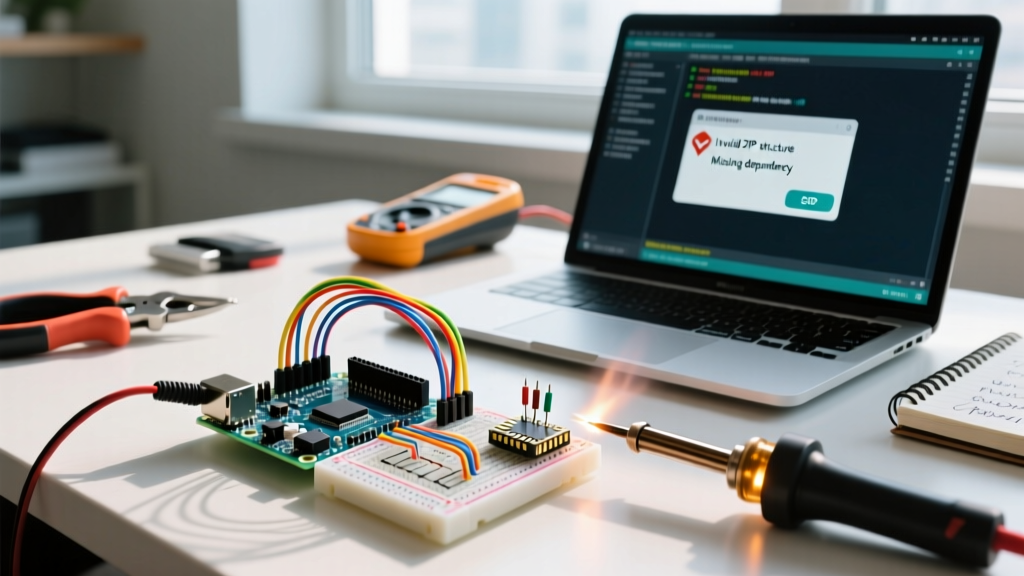
The most pervasive error when figuring out how to install a library in Arduino via a downloaded ZIP is the dreaded "Library is not valid" popup. This is almost always a structural issue, not a code issue.
The GitHub "Download ZIP" Trap
When you click the green "Code" button on GitHub and select "Download ZIP", GitHub packages the repository into a folder named repo-name-branch.zip (e.g., Adafruit_NeoPixel-master.zip). The Arduino IDE expects the library.properties file to be located either at the absolute root of the ZIP archive or inside exactly one root folder.
The Failure Mode: If a developer has nested their actual library code inside a subfolder (e.g., repo-name-branch/library/src/), the IDE's parser will fail to traverse the directories, resulting in an invalid library error. Furthermore, if the library uses the modern src/ folder layout but the developer forgot to include the mandatory library.properties metadata file, the IDE 2.3.x will reject it outright.
The Fix:
- Extract the ZIP manually to your desktop.
- Locate the folder that actually contains
library.propertiesand thesrc/or.cpp/.hfiles. - Compress that specific folder into a new ZIP file.
- Use the IDE's "Add .ZIP Library" tool on your newly structured archive.
Resolving Missing Dependencies in library.properties
Modern sensor and display libraries rarely operate in isolation. A TFT display library, for instance, relies on a graphics core and a hardware abstraction layer. According to the official Arduino IDE documentation, dependencies are declared in the library.properties file using the depends= field.
name=Adafruit ST7735 and ST7789 Library
version=1.10.3
author=Adafruit
maintainer=Adafruit <info@adafruit.com>
sentence=This is a library for the Adafruit ST7735 and ST7789 displays.
depends=Adafruit GFX Library, Adafruit BusIO
The Debugging Scenario: You install the ST7789 library via the Library Manager, but compilation fails with fatal error: Adafruit_BusIO_Register.h: No such file or directory. Why? Because Adafruit BusIO was either deprecated, renamed, or the IDE's dependency resolver timed out during a network glitch.
Actionable Resolution:
- Open the verbose output window (File > Preferences > Show verbose output during: compilation).
- Search the log for the exact missing header file.
- Trace that header file back to its parent library using the Arduino Library Reference.
- Manually install the missing dependency via the Library Manager before recompiling.
Pro-Tip for Advanced Users: If you are working in a headless environment or CI/CD pipeline, use thearduino-cli. Runningarduino-cli lib deps "Adafruit ST7735 and ST7789 Library"will output a complete tree of recursive dependencies before you attempt installation, allowing you to script the exact installation order and avoid resolver failures.
Architecture Mismatches: AVR vs. ARM vs. Xtensa
As developers migrate from the classic 8-bit ATmega328P (Uno R3) to 32-bit ARM Cortex-M4 (Uno R4) or Xtensa LX7 (ESP32-S3), architecture-specific library errors have spiked.
Inside library.properties, the architectures= field dictates compatibility. If a library is written specifically for AVR direct-port manipulation (using registers like PORTB or DDRD), the developer will set architectures=avr.
The Edge Case: If you attempt to install and compile an AVR-only library on an Arduino Uno R4 WiFi (which uses a Renesas RA4M1 ARM chip), the IDE will often skip the library during the build process, or worse, include it but throw hundreds of "PORTB was not declared in this scope" errors. Conversely, if a library uses ESP32-specific hardware I2C DMA buffers and lacks an architecture restriction, it will compile on an AVR board but fail at the linker stage with undefined reference to `i2c_driver'.
How to Debug:
- Always check the library's GitHub README for a "Supported Architectures" matrix.
- If a library lacks an
architecturesrestriction but fails to compile on your specific MCU, check thesrc/folder for conditional compilation flags (e.g.,#if defined(ESP32)). If your board's macro isn't listed, the library simply does not support your hardware, regardless of successful installation.
Fixing the "Multiple Libraries Were Found" Warning
You compile your sketch and notice a yellow warning in the console: "Multiple libraries were found for Servo.h". The IDE lists a path in your Documents/Arduino/libraries folder and another inside the hidden Arduino15/packages directory.
This happens when a board core (like the ESP32 board package) ships with its own optimized version of a standard library, but you also have the legacy AVR version installed globally. The IDE attempts to guess which one to use based on architecture matching, but it often defaults to the wrong one, leading to subtle timing bugs or pin-mapping failures.
The Purge Protocol:
- Navigate to your global libraries folder:
C:\Users\[Username]\Documents\Arduino\libraries(Windows) or~/Documents/Arduino/libraries(macOS/Linux). - Locate the conflicting library folder and delete it.
- If the conflict persists, the duplicate is hiding in the Board Manager core files. Navigate to
C:\Users\[Username]\AppData\Local\Arduino15\packages\[vendor]\hardware\[arch]\[version]\libraries. - Never delete core files directly. Instead, force the IDE to use your preferred version by specifying the exact path in your code using quotes instead of angle brackets:
#include "C:/Users/.../libraries/MyServo/Servo.h"(Note: Use forward slashes even on Windows to prevent escape character errors).
Summary: A Troubleshooter's Checklist
Mastering how to install a library in Arduino requires looking past the IDE's graphical interface and understanding the underlying file structures and compiler behaviors. When an installation or compilation fails, run through this rapid checklist:
- ZIP Error? Verify
library.propertiesis at the root of the extracted folder. - Missing Header? Parse
library.propertiesfor thedepends=field and manually install missing chains. - Register/Scope Errors? Verify the library's
architectures=tag matches your MCU's core (AVR, SAMD, ESP32, RP2040). - Duplicate Warnings? Hunt down rogue folders in the global
libraries/directory and remove them.
By treating library management as a structured debugging process rather than a simple download task, you will eliminate hours of frustration and build vastly more stable firmware for your electrical and electronic projects.