
Beyond the UI: The Command Palette as a Control Protocol
When the Arduino ecosystem transitioned from the legacy Java-based 1.8.x IDE to the modern 2.x architecture, it fundamentally changed how developers interact with microcontrollers. At the heart of this new architecture is the Arduino IDE command palette. While most users view it simply as a quick-search bar for menu items, from a systems engineering perspective, it is actually the central interaction protocol between the user, the Eclipse Theia frontend, and the arduino-cli backend daemon.
Understanding the Arduino IDE command palette not as a mere UI convenience, but as a structured command-routing protocol, allows embedded engineers to drastically reduce compilation overhead, automate repetitive flashing workflows, and debug daemon desynchronization issues that plague complex multi-board projects.
The Architecture: Frontend-to-Backend Communication
To master the command palette, you must first understand the protocol it uses to execute your requests. The modern Arduino IDE is built on Eclipse Theia, a framework that separates the graphical user interface from the underlying toolchain.
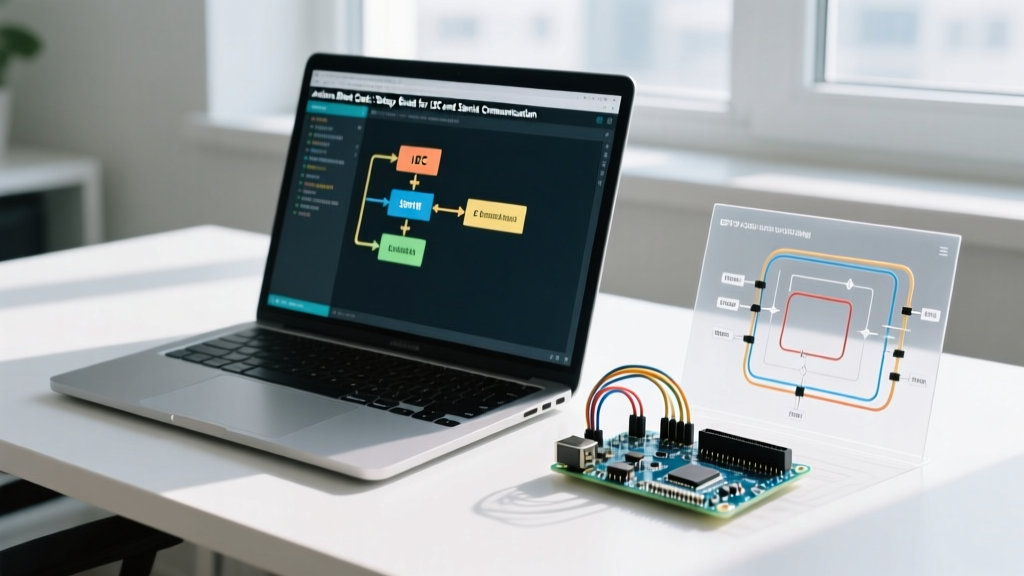
When you invoke a command via the palette (using Ctrl+Shift+P on Windows/Linux or Cmd+Shift+P on macOS), you are not directly calling a compiler. Instead, you are triggering a Theia command registration that formats a payload and sends it via gRPC (Google Remote Procedure Call) to the arduino-cli daemon running locally in the background.
The gRPC Routing Flow
- Invocation: User types
Arduino: Uploadin the palette. - Resolution: The Theia frontend resolves the string to an internal command ID (e.g.,
arduino.upload). - Payload Generation: The IDE gathers the current sketch path, selected FQBN (Fully Qualified Board Name), and active serial port.
- Daemon Transmission: A gRPC request is sent to the local
arduino-clidaemon (typically bound to a dynamic localhost port assigned at IDE boot). - Execution & Streaming: The CLI invokes
avr-gccorarm-none-eabi-gcc, streaming stdout/stderr back to the IDE's output console via the same gRPC channel.
Command Routing Matrix: Subsystems and Execution
Not all commands in the Arduino IDE command palette are created equal. Some interact purely with the frontend state, while others trigger heavy backend toolchain operations. Below is a routing matrix detailing how specific palette commands interact with the underlying system.
| Palette Command String | Target Subsystem | CLI / Backend Equivalent | Avg. Execution Overhead |
|---|---|---|---|
Arduino: Change Board Type |
Frontend State / Daemon Config | arduino-cli board list |
< 50ms |
Arduino: Verify |
Backend Toolchain | arduino-cli compile |
1.5s - 15.0s |
Arduino: Upload Using Programmer |
Backend Toolchain / Hardware | arduino-cli upload -P |
3.0s - 20.0s |
Arduino: Open Serial Monitor |
Frontend / OS Serial API | arduino-cli monitor |
~150ms |
Developer: Reload Window |
Theia Frontend | N/A (Restarts gRPC daemon) | 2.0s - 4.0s |
High-Efficiency Workflows via the Palette
Relying on the mouse to navigate the top menu bar introduces severe latency in rapid prototyping environments. By treating the Arduino IDE command palette as a keyboard-driven protocol, you can chain commands for complex deployment scenarios.
Workflow A: The "Blind" Target Switch
When working with multiple microcontrollers (e.g., an ESP32-S3 for WiFi telemetry and an ATmega328P for low-power sensor nodes), switching targets via the UI requires multiple clicks. Use this palette sequence instead:
- Step 1:
Ctrl+Shift+P→ TypeSelect Board→ Choose target FQBN. - Step 2:
Ctrl+Shift+P→ TypeSelect Port→ Choose COM/tty port. - Step 3:
Ctrl+Shift+P→ TypeUpload→ Hit Enter.
Pro-Tip: The palette remembers your last typed string for the session. If you frequently switch between two specific ports, the fuzzy search algorithm will prioritize them after the first use.
Workflow B: Serial Buffer Injection & Baud Rate Overrides
While the Serial Monitor UI allows you to change baud rates via a dropdown, the command palette allows you to manage the monitor's lifecycle without losing focus on your code editor. Invoking Arduino: Close Serial Monitor before a flash is critical for boards like the ESP8266 or RP2040, which will throw a serial.SerialException: could not open port if the monitor holds the DTR/RTS lines active during the bootloader handshake.
Troubleshooting Protocol Failures and Daemon Desync
Because the Arduino IDE command palette relies on a persistent background daemon, edge cases arise where the frontend and backend lose synchronization. Understanding these failure modes is crucial for advanced users.
Symptom: "Command Not Found" or Infinite Loading
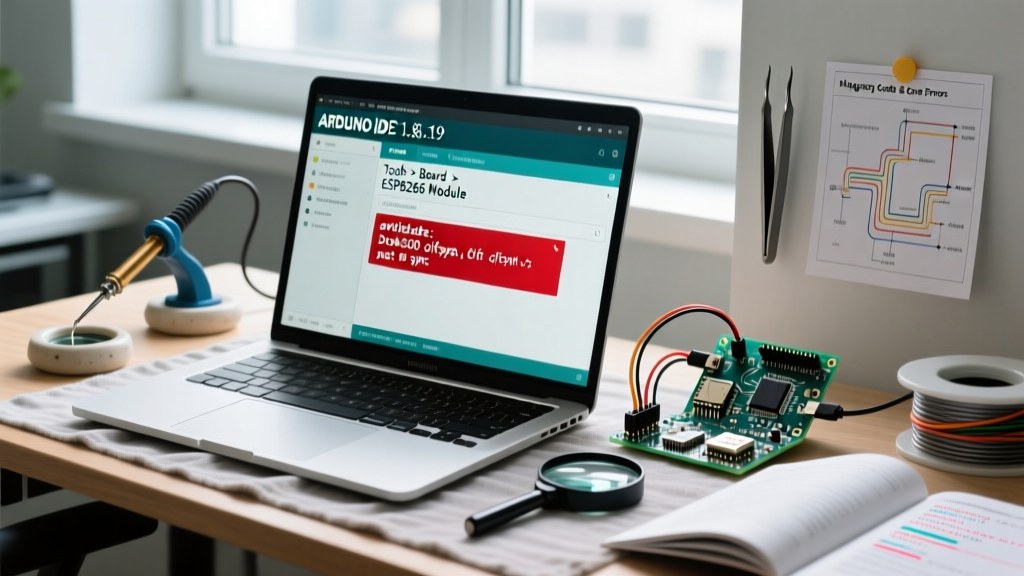
If you invoke Arduino: Upload and the output console remains blank, or the palette fails to resolve board commands, the arduino-cli daemon has likely crashed or deadlocked. This frequently occurs when a USB device triggers a host controller reset, leaving the daemon's gRPC port in a hung state.
The Hard Reset Protocol
Do not immediately reboot your machine. Instead, execute the following recovery sequence:
- Open the palette and run
Developer: Reload Window. This forces the Theia frontend to terminate the existing gRPC connection and spawn a fresharduino-clidaemon process. - If the issue persists, open your OS task manager (Task Manager on Windows, Activity Monitor on macOS) and manually kill any orphaned
arduino-cliprocesses. - Check the official arduino-cli documentation for known issues regarding specific USB-to-Serial chipsets (like the CH340 or CP2102) causing daemon locks on Linux kernels.
Expert Insight: If you are running headless CI/CD pipelines for Arduino firmware testing, you bypass the IDE's command palette entirely and interface directly with the
arduino-clivia shell scripts. However, for local development, the palette's gRPC routing is heavily optimized and caches core index data in~/.arduinoIDE, making it faster than cold-booting the CLI in a terminal.
Extending the Palette: Custom Keybindings
The true power of the Arduino IDE command palette is its extensibility. Because it inherits the Eclipse Theia framework, you can map any palette command to a custom hardware macro or keyboard shortcut.
To do this, open the palette and type Open Keyboard Shortcuts. From here, you can bind complex macros. For example, you can bind Ctrl+Alt+U to a sequence that first runs Arduino: Close Serial Monitor, waits 200ms, and then runs Arduino: Upload. This completely eliminates the "port in use" compilation error that plagues Windows users working with native USB boards like the Arduino Leonardo or Teensy 4.1.
Frequently Asked Questions (FAQ)
Does the command palette work offline?
Yes. Commands related to compilation, uploading, and serial monitoring are routed to the local arduino-cli daemon and do not require an internet connection. However, commands like Boards Manager: Install or Library Manager will fail silently or throw a network timeout error if the IDE cannot reach the Arduino package index servers.
Can I use the command palette to debug code?
Absolutely. If you are using a supported debug probe (like the J-Link, ST-Link, or the onboard CMSIS-DAP on the Arduino Nano 33 BLE), the palette exposes the Arduino: Start Debugging command. This initializes the OpenOCD backend protocol and attaches the GDB server to your target MCU.
Why do some commands show a gear icon next to them?
The gear icon indicates that the command is tied to a specific workspace or user setting in the settings.json file. Modifying these allows you to change default protocol behaviors, such as forcing the compiler to output verbose assembly listings during the Arduino: Verify routine.
Final Thoughts on IDE Mastery
Treating the Arduino IDE command palette as a robust interaction protocol rather than a simple search bar transforms your development workflow. By leveraging the underlying gRPC architecture, mapping custom shortcuts, and understanding how to troubleshoot daemon desynchronization, you eliminate UI friction and keep your focus exactly where it belongs: on the firmware logic and hardware integration.