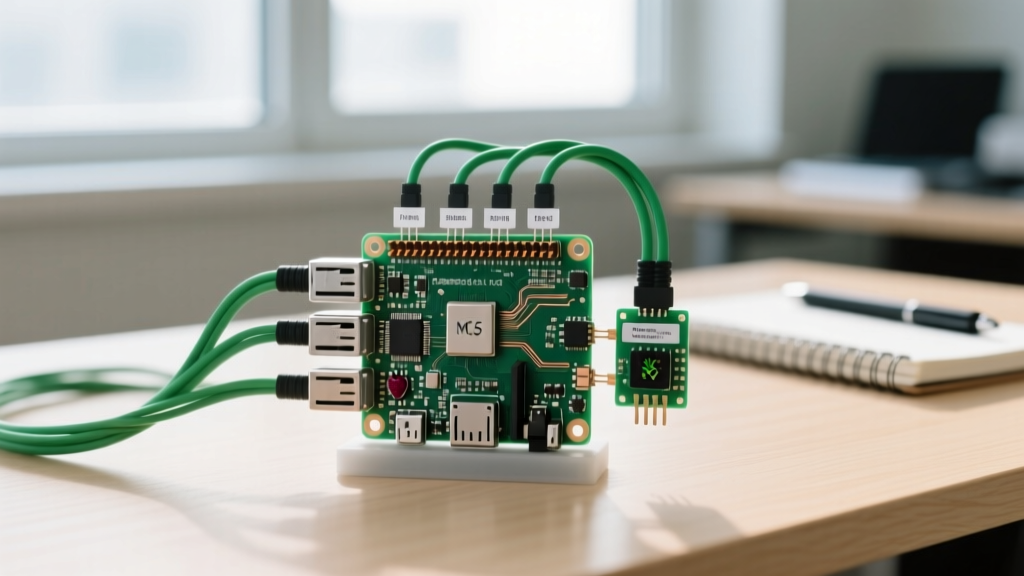
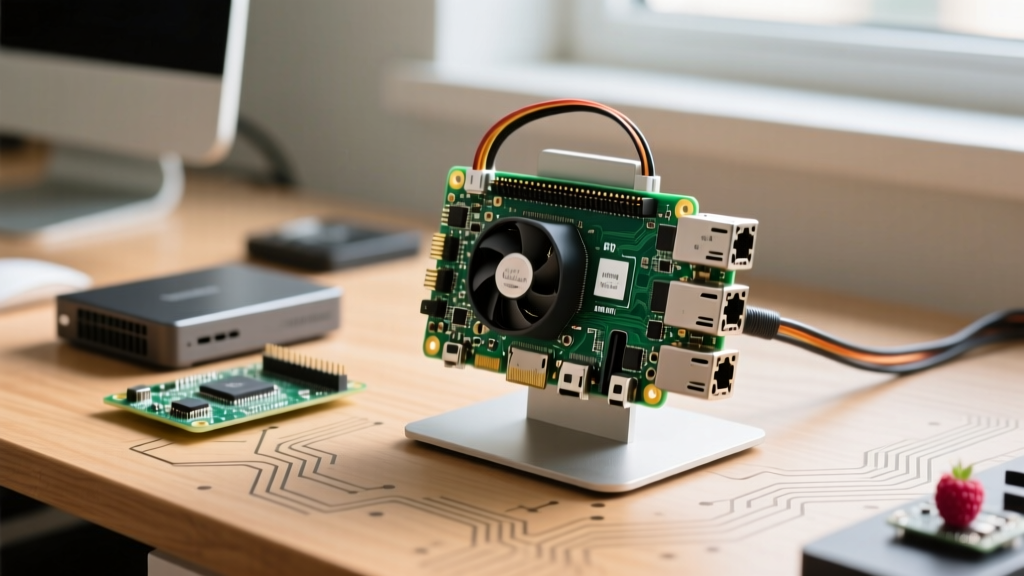
To use a raspberry pi as rdp client, you need a board with hardware video decoding (Pi 4 or Pi 5), a lightweight window manager, and an optimized client like FreeRDP. While you can simply auto-launch an RDP session on boot, a true embedded kiosk requires physical controls. In this guide, we will build a Smart RDP Kiosk Launcher that uses a physical GPIO button to send a Wake-on-LAN (WoL) magic packet to your remote Windows PC, then automatically launches the RDP session, complete with hardware status LEDs.
Project Spec Sheet & Parts List
Building a reliable thin client requires moving beyond bare boards. You need thermal management and stable storage, as RDP kiosk deployments run 24/7. Here is the exact bill of materials for a robust 2026 build.
| Component | Exact Model / Variant | Estimated Price | Why This Part? |
|---|---|---|---|
| Microcontroller | Raspberry Pi 4 Model B (4GB) or Pi 5 (4GB) | $55 - $60 | Hardware H.264 decode; 4GB RAM prevents SWAP thrashing during heavy GUI rendering. |
| Storage | SanDisk Extreme PLUS 32GB microSD (U3/A2) | $14 | A2 rating provides the random I/O needed for OS boot and browser caching. |
| Enclosure | Argon ONE V3 M.2 Case (Pi 5) or Argon ONE V2 (Pi 4) | $25 - $30 | Integrated fan curve, full-size HDMI ports, and protects GPIO headers. |
| Power Supply | Official Raspberry Pi 27W USB-C PD (Pi 5) or 15W (Pi 4) | $12 - $18 | Prevents brownout warnings when USB peripherals draw peak current. |
| Input | Sanwa OBSC-24 24mm Arcade Pushbutton | $4 | High mechanical lifecycle (10M+ presses); NO (Normally Open) contacts. |
| Indicators | 5mm Diffused LEDs (Green, Red) + 330Ω Resistors | $2 | Diffused lenses prevent harsh glare in office/kiosk environments. |
Hardware Wiring & Pin Mapping
We are using three GPIO pins: one for the Wake-on-LAN button input, and two for status outputs. We rely on the Pi's internal software pull-up resistor for the button to keep the wiring simple.
| Function | BCM GPIO Pin | Physical Pin | Wiring Destination |
|---|---|---|---|
| Wake / Connect Button | GPIO 17 | 11 | Button NO terminal (Other terminal to GND, Pin 9) |
| Green LED (Connected) | GPIO 27 | 13 | Anode via 330Ω resistor (Cathode to GND, Pin 14) |
| Red LED (Error/Offline) | GPIO 22 | 15 | Anode via 330Ω resistor (Cathode to GND, Pin 20) |
Software Setup & Compilable Python Code
Before running the code, flash Raspberry Pi OS Lite (64-bit, Bookworm) to your SD card. Boot the Pi, connect to Wi-Fi/Ethernet, and install the required dependencies:
sudo apt update && sudo apt install freerdp2-x11 python3-gpiozero etherwake -y- Enable WoL on your target Windows PC in the BIOS and Windows Device Manager (Network Adapter > Power Management > Allow this device to wake the computer).
- Find your Windows PC's MAC address using
ipconfig /allin Windows CMD.
Below is the complete, production-ready Python script. It handles GPIO debouncing, constructs the WoL magic packet, and launches xfreerdp with optimized flags for the Pi's GPU.
#!/usr/bin/env python3
"""
Smart RDP Kiosk Launcher with Wake-on-LAN
Target Board: Raspberry Pi 4 Model B / Raspberry Pi 5
Dependencies: python3-gpiozero, freerdp2-x11
"""

import socket
import subprocess
import time
import sys
from gpiozero import Button, LED
from signal import pause

# --- PIN DEFINITIONS ---
BTN_PIN = 17
GREEN_LED_PIN = 27
RED_LED_PIN = 22

# --- NETWORK & RDP CONFIG ---
TARGET_MAC = '00:11:22:33:44:55'  # Replace with your Windows PC MAC address
TARGET_IP = '192.168.1.100'
RDP_USER = 'kiosk_user'
RDP_PASS = 'SecurePassword123!' # Use environment variables in production

# Initialize Hardware
# pull_up=True uses the internal 33k pull-up resistor, button press pulls to GND
wake_btn = Button(BTN_PIN, pull_up=True, bounce_time=0.05)
green_led = LED(GREEN_LED_PIN)
red_led = LED(RED_LED_PIN)

def send_wol(mac_address):
    """Constructs and broadcasts a Wake-on-LAN magic packet."""
    mac_bytes = bytes.fromhex(mac_address.replace(':', ''))
    if len(mac_bytes) != 6:
        raise ValueError('Invalid MAC address format')

    # Magic packet: 6 bytes of 0xFF followed by the MAC address repeated 16 times
    magic_packet = b'\xff' * 6 + mac_bytes * 16

    with socket.socket(socket.AF_INET, socket.SOCK_DGRAM) as sock:
        sock.setsockopt(socket.SOL_SOCKET, socket.SO_BROADCAST, 1)
        sock.sendto(magic_packet, ('255.255.255.255', 9))
    print('[INFO] WoL magic packet sent.')

def launch_rdp_session():
    """Launches xfreerdp with Pi-optimized GFX and hardware decoding flags."""
    print('[INFO] Launching FreeRDP session...')

    # /gfx:AVC444 uses H.264 hardware decode on the Pi
    # /cert:ignore bypasses self-signed cert warnings in kiosk mode
    cmd = [
        'xfreerdp',
        f'/v:{TARGET_IP}',
        f'/u:{RDP_USER}',
        f'/p:{RDP_PASS}',
        '/f', # Fullscreen
        '/gfx:AVC444',
        '/rfx',
        '/cert:ignore',
        '/sound:sys:alsa',
        '/network:auto',
        '/clipboard'
    ]

    try:
        # Run blocking so we know when the session ends
        result = subprocess.run(cmd, capture_output=True, text=True)
        return result.returncode, result.stderr
    except Exception as e:
        return -1, str(e)

def on_button_press():
    """Main execution flow triggered by physical button."""
    red_led.off()
    green_led.blink(0.2, 0.2) # Fast blink = Waking/Connecting

    send_wol(TARGET_MAC)
    time.sleep(15) # Wait for Windows to boot and RDP service to start

    returncode, stderr = launch_rdp_session()

    if returncode == 0:
        # Session ended cleanly (user logged out via Windows start menu)
        green_led.off()
        red_led.on()
    else:
        # Error occurred
        print(f'[ERROR] FreeRDP exited with code {returncode}')
        print(f'[STDERR] {stderr}')
        green_led.off()
        red_led.blink(0.5, 0.5) # Slow blink = Error state

# --- MAIN LOOP ---
if __name__ == '__main__':
    print('[INFO] Kiosk Launcher initialized. Press button to connect.')
    red_led.on() # Red LED solid = Idle/Ready state

    wake_btn.when_pressed = on_button_press

    try:
        pause()
    except KeyboardInterrupt:
        print('[INFO] Shutting down kiosk service.')
        sys.exit(0)
Debugging: Protocol Security & Connection Failures
When deploying FreeRDP on an embedded kiosk, the most common failure mode occurs after the WoL packet wakes the PC, but the RDP handshake fails. You will typically see this exact error string in your Python stderr output or systemd journal:
[ERROR][com.freerdp.core] - freerdp_set_last_error_ex ERRCONNECT_LOGON_FAILURE [0x00020014]
or
[ERROR][com.freerdp.core] - freerdp_set_last_error_ex ERRCONNECT_CONNECT_CANCELLED [0x0002000B]
The First Three Things to Check When It Fails
- Network Level Authentication (NLA) Mismatch: FreeRDP defaults to requiring NLA. If your Windows 11 Pro host has 'Require NLA' unchecked in System Properties > Remote, or if the Pi's FreeRDP version lacks the correct TLS libraries, the handshake drops. Fix: Add
/sec:nlaor/sec:tlsto thexfreerdpcommand array in the Python script. - Windows Fast Startup Interference: Windows 'Fast Startup' puts the kernel into a hibernation state that often ignores WoL magic packets or leaves the RDP service (TermService) in a suspended state. Fix: Disable Fast Startup in Windows Control Panel > Power Options > Choose what the power buttons do.
- Certificate Rejection: If the target PC uses a self-signed RDP certificate and you forgot the
/cert:ignoreflag, FreeRDP will prompt for interactive user input. Since this is a headless kiosk script, the prompt times out and throwsERRCONNECT_CONNECT_CANCELLED. Fix: Ensure/cert:ignoreor/cert-tofu(Trust on First Use) is in your command array.
For deeper protocol analysis, consult the official FreeRDP command-line documentation to map specific hex error codes to Windows RDP server rejections.
Extending and Simplifying the Build
Depending on your deployment environment, you may need to scale this project up for enterprise use or strip it down for a quick home-lab setup.
How to Extend the Build
- Add RFID Authentication: Wire an RC522 SPI RFID reader to the Pi's SPI0 pins. Modify the Python script to require a valid UID scan before executing the
send_wol()function. This prevents unauthorized users from waking your workstation. - Monitor Power Control: Use a 5V relay module on GPIO 26 to physically cut power to the HDMI monitor when the RDP session ends, saving energy and eliminating screen burn-in.
How to Simplify the Build
If you don't need Wake-on-LAN or physical buttons, drop the Python script entirely. Create a systemd user service or an X11 autostart file at ~/.config/autostart/freerdp.desktop containing:
[Desktop Entry]
Type=Application
Exec=xfreerdp /v:192.168.1.100 /u:user /p:pass /f /gfx:AVC444 /cert:ignore
Hidden=false
NoDisplay=false
X-GNOME-Autostart-enabled=true
Name=RDPKiosk
This approach reduces the OS footprint and eliminates Python dependency management, ideal for read-only filesystem deployments.
Frequently Asked Questions
Can I use a Raspberry Pi Zero 2 W as an RDP client?
Technically yes, but practically no. The Pi Zero 2 W has only 512MB of RAM. The X11 window manager, FreeRDP client, and the framebuffer memory required for a 1080p RDP stream will immediately force the Pi into SWAP. This results in severe input lag and frame tearing. Stick to the Pi 4 or Pi 5 with a minimum of 2GB RAM (4GB preferred) for a usable thin client experience.
How do I get dual monitors working with a Raspberry Pi RDP kiosk?
Connect both monitors to the Pi's HDMI0 and HDMI1 ports. In your xfreerdp command array, add the /multimon flag. FreeRDP will query the X11 RandR extension to detect the combined resolution and request a multi-monitor session from the Windows host. Note that Windows 10/11 Pro supports multi-mon RDP, but Windows Home edition does not.
Why is my Raspberry Pi RDP session lagging when playing video?
RDP is optimized for static UI elements and text, not high-framerate video. However, if you are experiencing severe stuttering, ensure you are using the /gfx:AVC444 flag (as shown in our code). This forces the Windows host to encode the stream using H.264 AVC, which the Pi's hardware decoder can process efficiently. If you omit this, Windows falls back to RFX (RemoteFX), which relies on CPU decoding and will bottleneck the Pi's ARM cores. For more on remote display protocols, refer to Microsoft's RDP documentation.
Is FreeRDP better than Remmina for a Raspberry Pi thin client?
For a dedicated kiosk, FreeRDP (xfreerdp) is vastly superior. Remmina is a GUI wrapper that introduces GTK overhead and requires a full desktop environment to manage connection profiles. xfreerdp is a lightweight, headless-capable binary that launches directly into the session with lower memory overhead and more granular command-line control over GPU acceleration flags.