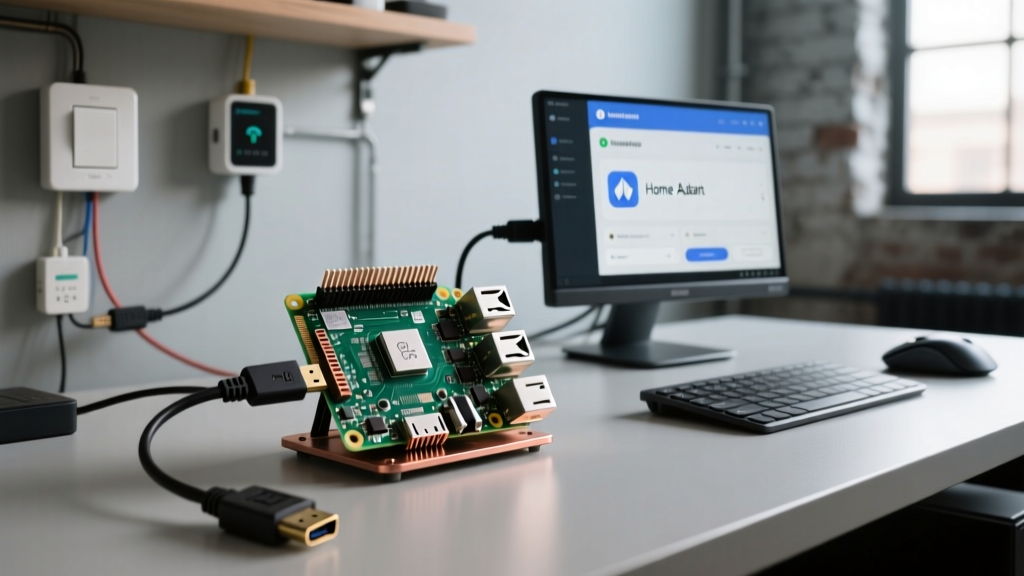
Setting up a raspberry pi print server transforms a legacy USB-only printer into a modern networked device supporting AirPrint, Mopria, and native OS driverless printing. The direct answer for a reliable build in 2026: use a Raspberry Pi 5 (4GB variant) running Raspberry Pi OS Bookworm, install the CUPS (Common UNIX Printing System) daemon, and configure the USB backend with proper power delivery. While older Pi models can handle basic text documents, the Pi 5's PCIe-based USB 3.0 controller and improved power management eliminate the USB brownouts and stalled spoolers that plague Pi 3 and Pi 4 print servers.
Hardware Selection & Power Budget
The most common point of failure in embedded print servers is USB bus undervoltage. Laser printers, in particular, draw significant inrush current when the fuser heats up or the USB controller initializes. Below is a data-dense comparison of current Pi models for print server duties.
| Pi Model | USB Controller | Max USB Power Out | Idle Power Draw | Print Server Verdict |
|---|---|---|---|---|
| Raspberry Pi 5 (4GB) | Native PCIe-to-USB 3.0 | 1.6A (5V) total | ~2.1W | Best Overall: Handles high-speed rasterization and USB hubs without dropping. |
| Raspberry Pi 4 Model B | VIA Labs VL805 (USB 3.0) | 1.2A (5V) total | ~2.7W | Good: Reliable for inkjets, but VL805 firmware bugs can cause USB resets under heavy load. |
| Raspberry Pi Zero 2 W | USB 2.0 (Micro-OTG) | ~0.5A (limited) | ~1.2W | Avoid: Micro-USB OTG port cannot supply enough current for most printer USB controllers. |
| Raspberry Pi 3B+ | LAN9514 (USB 2.0 hub) | 1.2A (shared w/ Ethernet) | ~2.5W | Legacy Only: Shared USB/Ethernet bus causes severe network latency during large print jobs. |
Source: Raspberry Pi Power Supply Documentation
Parts List & GPIO Pin Mapping
To build a robust raspberry pi print server with physical status feedback, you need more than just the board. The official 27W USB-C PD power supply is mandatory for the Pi 5 to negotiate the higher current limits required by USB peripherals.
Bill of Materials
- Compute: Raspberry Pi 5 (4GB RAM)
- Power: Official Raspberry Pi 27W USB-C PD Power Supply (White/Black)
- Storage: 32GB Raspberry Pi SD Card (A1 Class 10 minimum) or NVMe SSD via M.2 HAT
- Indicator: 5mm Green Diffused LED + 330Ω through-hole resistor
- Control: 12mm Momentary Pushbutton Switch (Normally Open)
- Cabling: High-quality USB 2.0 A-to-B or A-to-C cable (keep under 2 meters to prevent signal degradation)
GPIO Pin Mapping (Status & Abort)
We map a status LED to indicate printer health and a physical button to cancel stuck jobs without needing to access the web interface.
| Component | Pi 5 GPIO Pin | Physical Pin # | Wiring Notes |
|---|---|---|---|
| Status LED (Anode) | GPIO 17 | Pin 11 | Connect in series with 330Ω resistor to limit current to ~10mA. |
| Status LED (Cathode) | GND | Pin 9 | Shared ground rail on breadboard. |
| Cancel Button (Leg 1) | GPIO 27 | Pin 13 | Internal pull-up enabled in software; no external resistor needed. |
| Cancel Button (Leg 2) | GND | Pin 14 | Pressing bridges GPIO 27 to Ground, pulling it LOW. |
CUPS Installation & Network Configuration
Follow these numbered steps to configure the CUPS daemon. This assumes you are running Raspberry Pi OS Bookworm (64-bit) and have SSH access.
- Update and Install CUPS:
sudo apt update && sudo apt install cups python3-pycups python3-gpiozero system-config-printer -y - Add User to Admin Group:
sudo usermod -a -G lpadmin pi(Replace 'pi' with your actual username if changed). - Enable Remote Web Access:
Edit the CUPS configuration file:sudo nano /etc/cups/cupsd.conf
ChangeListen localhost:631toPort 631.
Inside the<Location />and<Location /admin>blocks, addAllow @LOCAL. - Restart the Service:
sudo systemctl restart cups - Add the Printer:
Navigate tohttps://[YOUR_PI_IP]:631/adminin your browser. Accept the self-signed SSL warning. Click 'Add Printer', select your USB device, and choose the exact PPD (PostScript Printer Description) driver or select 'Driverless' if your printer supports IPP Everywhere.
Python Status Monitor & Auto-Recovery Code
The following Python daemon targets the Raspberry Pi 5 (Bookworm). It polls the CUPS IPP (Internet Printing Protocol) server every 5 seconds. It turns the GPIO 17 LED solid green when idle, pulses it while printing, and blinks rapidly on errors. If the CUPS service crashes, it attempts an automatic systemd restart. It also binds the GPIO 27 button to cancel all active jobs.
import cups
import time
import subprocess
from gpiozero import LED, Button
from signal import pause
import logging

# --- Pin Definitions ---
STATUS_LED_PIN = 17
CANCEL_BTN_PIN = 27

# --- Hardware Setup ---
status_led = LED(STATUS_LED_PIN)
cancel_btn = Button(CANCEL_BTN_PIN, pull_up=True, bounce_time=0.05)

logging.basicConfig(level=logging.INFO, format='%(asctime)s - %(levelname)s - %(message)s')

def restart_cups_service():
    """Attempts to restart CUPS if the daemon becomes unresponsive."""
    logging.warning('CUPS unresponsive. Attempting systemctl restart...')
    try:
        subprocess.run(['sudo', 'systemctl', 'restart', 'cups'], check=True, timeout=10)
        time.sleep(3) # Allow daemon to initialize
    except subprocess.CalledProcessError as e:
        logging.error(f'Failed to restart CUPS: {e}')

def cancel_all_jobs():
    """Triggered by physical GPIO button press."""
    logging.info('Physical cancel button pressed. Purging queue...')
    try:
        conn = cups.Connection()
        printers = conn.getPrinters()
        for printer_name in printers:
            conn.cancelJob(printer_name, purgeJobs=True)
        status_led.blink(on_time=0.1, off_time=0.1, n=5) # Visual confirmation
    except cups.IPPError as e:
        logging.error(f'IPP Error during cancellation: {e}')

def check_printer_status():
    """Polls CUPS state and updates GPIO LED."""
    try:
        conn = cups.Connection()
        printers = conn.getPrinters()

        if not printers:
            logging.error('No printers configured in CUPS.')
            status_led.off()
            return

        # Assume first printer for single-printer server setups
        printer_name = list(printers.keys())[0]
        state = printers[printer_name].get('printer-state', 0)

        if state == 3:  # Idle
            status_led.on()
        elif state == 4:  # Processing/Printing
            status_led.pulse()
        elif state == 5:  # Stopped/Error
            status_led.blink(on_time=0.2, off_time=0.2)

    except cups.IPPError as e:
        logging.error(f'IPP Connection Failed: {e}')
        status_led.blink(on_time=0.5, off_time=0.5)
        restart_cups_service()
    except Exception as e:
        logging.critical(f'Unexpected daemon error: {e}')
        restart_cups_service()

# Bind hardware interrupt for cancel button
cancel_btn.when_pressed = cancel_all_jobs

if __name__ == '__main__':
    logging.info('Print Server Monitor Started.')
    try:
        while True:
            check_printer_status()
            time.sleep(5)
    except KeyboardInterrupt:
        logging.info('Shutting down monitor.')
        status_led.off()
Troubleshooting: Exact Error Strings & Ranked Causes
When the CUPS web interface shows a job as 'Stopped', check the exact error string in the Job History or by running tail -f /var/log/cups/error_log (after enabling debug logging with cupsctl --debug-logging).
First Three Things to Check When It Fails
- USB Enumeration: Run
lsusbin the terminal. If the printer isn't listed, the Pi's USB bus has crashed or the cable is faulty. Reboot the Pi and swap the cable. - Undervoltage Throttling: Check
dmesg | grep -i volt. If you see 'Under-voltage detected', the Pi is throttling the USB bus. Upgrade to the official 27W PD power supply immediately. - Permissions: Ensure your user is in both
lpadminandlpgroups. Missinglpgroup membership prevents the CUPS backend from reading the raw USB device node.
Ranked Error Strings & Fixes
| Exact Error String | Most Likely Cause | Terminal Fix |
|---|---|---|
Filter failed |
Missing foomatic database or wrong PPD driver selected during setup. | sudo apt install printer-driver-all foomatic-db then re-add printer. |
Unable to open USB device: usb://... |
USB permissions denied, or the printer is in a deep sleep state and dropped the USB link. | Disable USB autosuspend: add usbcore.autosuspend=-1 to /boot/firmware/cmdline.txt. |
cups-browsed daemon not running |
AirPrint/Bonjour broadcasting failed, usually due to Avahi daemon conflicts on the local network. | sudo systemctl enable --now avahi-daemon cups-browsed |
Page header too large |
Raster image processing (RIP) exceeded the Pi's available RAM, common on Pi Zero or 1GB Pi 4. | Lower print resolution in CUPS settings to 300dpi, or upgrade to a 4GB/8GB Pi 5. |
Source: CUPS Official Documentation & Error Logs
Extending or Simplifying the Build
Depending on your deployment environment, you may want to strip this project down to its bare essentials or expand it into a full dashboard.
How to Simplify
If you do not need physical status feedback or automatic daemon recovery, delete the Python script entirely. CUPS natively handles job queuing, and modern OS environments (macOS, Windows 11, iOS) will automatically discover the Pi via Bonjour/mDNS without requiring custom GPIO integrations. This reduces the Pi's idle CPU load to near zero and eliminates the need to manage a custom systemd Python service.
How to Extend
- Add an I2C OLED Display: Wire a 0.96-inch SSD1306 OLED to the Pi's I2C1 bus (GPIO 2/3). Use the
luma.oledPython library to display the Pi's current IP address, the active print job filename, and estimated ink/toner levels (if the printer supports SNMP or IPP markers). - Integrate with Home Assistant: Install the CUPS integration in Home Assistant. This exposes your printer's ink levels and 'paper out' states as native HA sensors, allowing you to trigger automations (e.g., flashing your office smart lights red when the printer runs out of paper).
- Network Isolation (VLAN): For office environments, configure a secondary USB-to-Ethernet adapter on the Pi and place the CUPS service on an isolated IoT VLAN, preventing guest network users from sending malicious raw PostScript commands to the hardware.