To establish a reliable remote desktop connection Raspberry Pi 5 (running OS Bookworm) in 2026, you must use a Wayland-compatible server like RealVNC Connect, RustDesk, or wayvnc. Legacy X11 tools like x11vnc will yield a black screen or fail to start because Raspberry Pi OS now defaults to the Wayfire Wayland compositor. For local LAN headless setups, RealVNC (built into Pi OS) offers the lowest latency; for WAN/tailnet access, RustDesk bypasses NAT traversal issues without port forwarding.
Protocol Selection for Bookworm (Wayland)
Choosing the wrong protocol layer is the number one reason embedded kiosk builds fail in the field. Here is how the major remote desktop protocols stack up on the Pi 5 under Wayland.
| Protocol / Server | Wayland Support | Network Scope | 1080p Latency (LAN) | Cost / Licensing |
|---|---|---|---|---|
| RealVNC Connect | Native (via Pi OS integration) | LAN / Cloud Relay | ~15ms | Free for non-commercial / Lite tier |
| wayvnc | Native (wlroots/sway) | LAN Only | ~25ms | 100% Free / Open Source |
| RustDesk | Native (Wayland capture) | WAN / LAN / Self-hosted | ~30ms | Free / Open Source |
| xrdp | Poor (Requires Xorg fallback) | LAN Only | ~40ms | Free / Open Source |
| x11vnc | Fails (X11 only) | LAN Only | N/A | Free / Open Source |
Hardware Bill of Materials & GPIO Pin Mapping
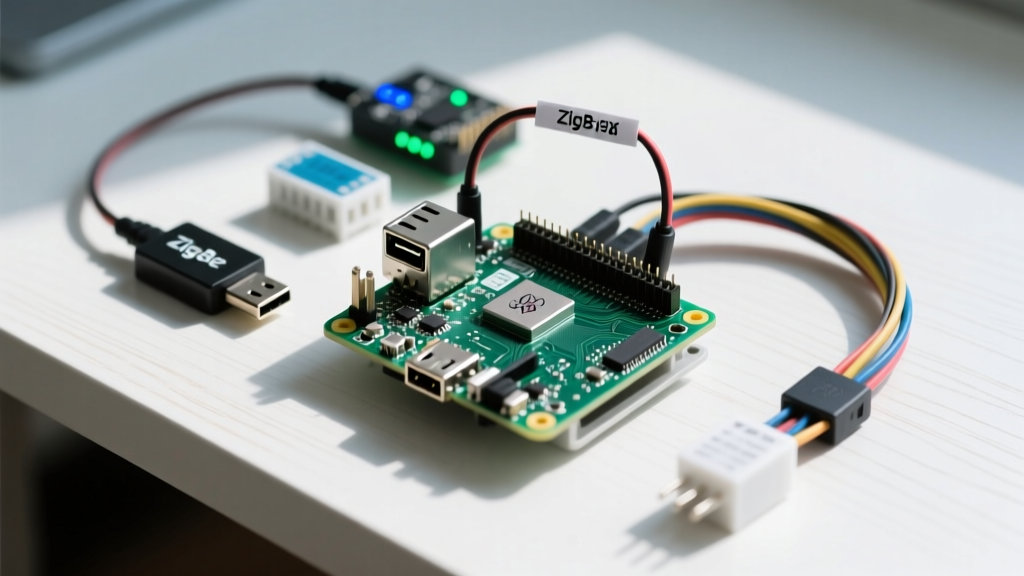
When running headless, you lose the physical monitor feedback loop. We will wire up a hardware watchdog and status indicator so you can visually confirm network and VNC port availability from across the room.
Parts List
- Board: Raspberry Pi 5 (8GB RAM) - Do not use the 4GB variant if running a local Chromium kiosk alongside VNC.
- Power: Official 27W USB-C PD Power Supply - Standard 5V/3A phone chargers will trigger brownout warnings and disable USB peripherals.
- Cooling: Raspberry Pi Active Cooler - Mandatory for Pi 5 headless; thermal throttling drops VNC framerates to <5fps.
- Indicators: 2x 3mm LEDs (Green, Red) with 220Ω current-limiting resistors.
- Input: 1x Momentary tactile pushbutton (for hardware service restart).
GPIO Pin Mapping (BCM Numbering)
| Function | BCM GPIO Pin | Physical Pin | Wiring Notes |
|---|---|---|---|
| Network OK (Green LED) | GPIO 17 | Pin 11 | Anode to GPIO 17 via 220Ω, Cathode to GND |
| VNC Port Open (Red LED) | GPIO 27 | Pin 13 | Anode to GPIO 27 via 220Ω, Cathode to GND |
| Service Reset Button | GPIO 22 | Pin 15 | Switch between GPIO 22 and GND (Internal pull-up used) |
Headless Setup & Wayland Configuration
Follow these steps to configure the Pi 5 for headless remote access without falling back to X11.
- Flash and Boot: Use Raspberry Pi Imager. In the OS Customization settings (Ctrl+Shift+X), enable SSH, set your username/password, and configure your WiFi. Do not disable Wayland in the advanced settings.
- Enable VNC via raspi-config: SSH into the Pi and run
sudo raspi-config. Navigate to Interface Options > VNC and enable it. On Bookworm, this automatically installs and configures the Wayland-compatible RealVNC server. - Force Resolution (Crucial for Headless): Without a monitor attached, the Pi 5 defaults to a low-resolution framebuffer or fails to start the compositor. Edit your boot config:
sudo nano /boot/firmware/config.txtand add:# Force 1080p headless output hdmi_force_hotplug=1 hdmi_group=1 hdmi_mode=16
- Reboot and Verify: Run
sudo reboot. Once back online, SSH in and verify the compositor is running withecho $XDG_SESSION_TYPE. It must returnwayland.
Python GPIO Network & Port Watchdog
This Python script monitors your network connectivity and checks if the VNC port (5900) is actually listening. It drives the GPIO LEDs and provides a hardware button to restart the VNC service if it crashes. This code targets the Pi 5 using the gpiozero library pre-installed on Bookworm.
import socket
import time
import os
from gpiozero import LED, Button
from signal import pause

# --- Pin Definitions (BCM) ---
NET_OK_LED = LED(17)
VNC_OPEN_LED = LED(27)
HW_RESET_BTN = Button(22, pull_up=True, bounce_time=0.2)

# --- Configuration ---
VNC_PORT = 5900
TARGET_HOST = '127.0.0.1'
CHECK_INTERVAL = 5  # seconds

def check_network():
    """Checks if the default gateway is reachable."""
    try:
        # Pinging the router/DNS is a basic connectivity check
        response = os.system('ping -c 1 -W 2 8.8.8.8 > /dev/null 2>&1')
        return response == 0
    except Exception as e:
        print(f'Network check error: {e}')
        return False

def check_port(host, port, timeout=2):
    """Checks if the VNC port is bound and listening."""
    try:
        with socket.socket(socket.AF_INET, socket.SOCK_STREAM) as s:
            s.settimeout(timeout)
            result = s.connect_ex((host, port))
            return result == 0
    except socket.error as e:
        print(f'Socket error on port {port}: {e}')
        return False

def restart_vnc_service():
    """Hardware reset trigger for the VNC service."""
    print('Hardware reset triggered! Restarting VNC...')
    NET_OK_LED.blink(0.1, 0.1)
    VNC_OPEN_LED.blink(0.1, 0.1)
    # Restart the Wayland VNC service (RealVNC or wayvnc depending on setup)
    os.system('sudo systemctl restart vncserver-x11-serviced.service')
    os.system('sudo systemctl restart wayvnc.service') # Fallback if using wayvnc
    time.sleep(3)
    NET_OK_LED.off()
    VNC_OPEN_LED.off()

# Bind the hardware button to the restart function
HW_RESET_BTN.when_pressed = restart_vnc_service

print('Starting RPi Remote Desktop Watchdog...')
try:
    while True:
        # Update Network LED
        if check_network():
            NET_OK_LED.on()
        else:
            NET_OK_LED.off()

        # Update VNC Port LED
        if check_port(TARGET_HOST, VNC_PORT):
            VNC_OPEN_LED.on()
        else:
            VNC_OPEN_LED.blink(1, 1) # Blink if port is closed/service crashed

        time.sleep(CHECK_INTERVAL)

except KeyboardInterrupt:
    print('\nWatchdog stopped by user.')
finally:
    NET_OK_LED.off()
    VNC_OPEN_LED.off()
Debugging Exact Error Strings
When your remote desktop connection fails, the error message dictates the fix. Here are the most common exact error strings encountered on Pi 5 Bookworm builds.
- Compositor State: Run
echo $XDG_SESSION_TYPE. If it saysttyinstead ofwayland, the GUI failed to boot (check your HDMI force-hotplug config). - Loopback Binding: Run
ss -tulpn | grep 5900. If it shows127.0.0.1:5900, the server is only listening locally. You must configure it to bind to0.0.0.0. - Power Brownouts: Run
dmesg | grep -i voltage. If you see 'Under-voltage detected', the Pi 5 is throttling and dropping network packets. Upgrade your USB-C cable and PSU.
1. Error: "Cannot open display" or "couldn't connect to X server"
- Cause: You are trying to run an X11-native VNC server (like
x11vnc) or an X11-dependent script while the Pi is running the Wayland compositor. - Fix: Uninstall
x11vnc. Use the built-in RealVNC server viaraspi-config, or installwayvncviasudo apt install wayvnc. For deeperwayvncconfiguration, consult the wayvnc GitHub repository.
2. Error: "Connection refused (10061)" or "Connection timed out"
- Cause: The VNC service is running, but a local firewall (UFW) is dropping the packets, or the service is bound strictly to localhost.
- Fix: If using UFW, open the port:
sudo ufw allow 5900/tcp. If using RealVNC, open the RealVNC GUI (via a temporary monitor or SSH X-forwarding) and ensure 'Allow remote connections' is checked and not restricted to local subnets.
3. Error: "Black screen with mouse cursor" (Authentication Success, No Video)
- Cause: The VNC client connected to the display server, but the Wayland session hasn't fully painted the desktop environment, or you are connecting to a virtual headless display that lacks a window manager.
- Fix: Ensure you are connecting to the physical display session (usually Display 1 or port 5900 on RealVNC), not a virtual headless session. If using
wayvnc, ensure you are capturing the correct Wayland output viawayvnc -o.
Extending or Simplifying the Build
Not every project needs a full GUI. Evaluate your actual bandwidth and latency requirements before deploying a remote desktop stack.
Simplifying: Drop the GUI for SSH + tmux
If your embedded project only requires log monitoring, script execution, or sensor calibration, drop the remote desktop entirely. The Pi 5's GUI consumes ~400MB of RAM and introduces Wayland compositor overhead. Instead, enable SSH, install tmux (sudo apt install tmux), and use a terminal multiplexer. This reduces network payload by 99% and eliminates Wayland-specific VNC bugs entirely.
Extending: Automated Kiosk Watchdog with Cellular Fallback
If this Pi 5 is deployed in a remote digital signage or agricultural monitoring kiosk, extend the Python script above to integrate a 4G LTE HAT (like the Sixfab Core or Waveshare SIM7600). Modify the check_network() function to test the primary WiFi/Ethernet route; if it fails for 3 consecutive loops, use gpiozero to toggle the power enable pin on the LTE HAT, forcing a failover to cellular. Combine this with a cloud-based VNC relay (like RustDesk or RealVNC Cloud) so you can remote in over the cellular connection without dealing with dynamic CGNAT IP addresses.