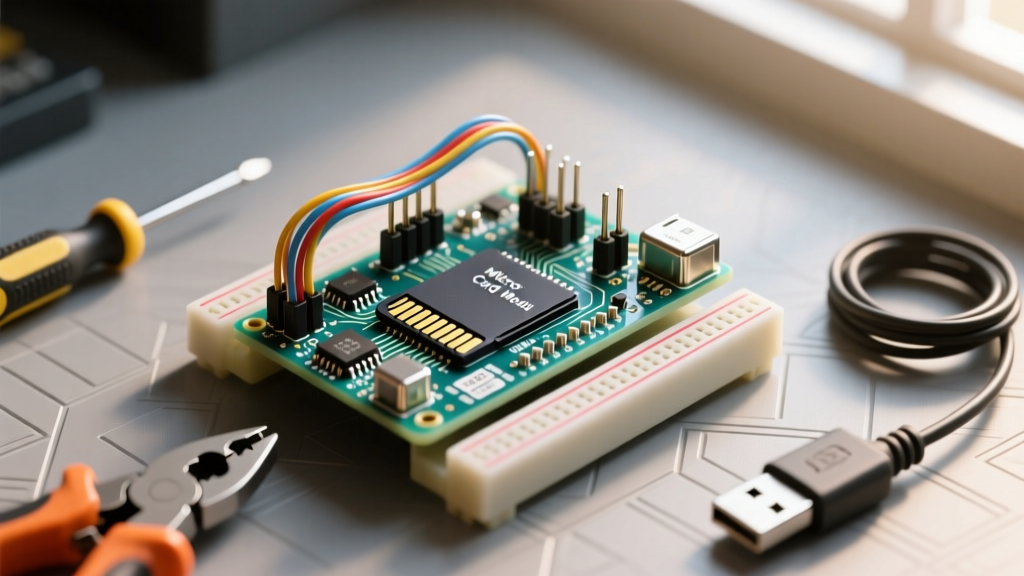
If you are building a dedicated rdesktop raspberry pi thin client in 2026, you need to know upfront that the legacy rdesktop package is officially deprecated in modern Raspberry Pi OS (Bookworm and Trixie). To get a reliable, hardware-accelerated Remote Desktop Protocol (RDP) kiosk today, we use xfreerdp (the FreeRDP command-line client) wrapped in a custom Python controller. This project targets the Raspberry Pi 5 (4GB variant), utilizing physical GPIO buttons and LEDs to create a robust, headless-manageable thin client that survives network drops without needing a local keyboard.
Project Spec Sheet & Parts List
This build requires a board capable of decoding modern RDP graphics streams smoothly. The Pi 5's VideoCore VII GPU handles 1080p/60Hz RDP sessions effortlessly, whereas older Pi 3/4 models will stutter on high-color-depth Windows 11 hosts.
| Component | Exact Variant / Specification | Estimated Cost (2026) |
|---|---|---|
| Microcontroller | Raspberry Pi 5 (4GB RAM) | $60.00 |
| Power Supply | Official 27W USB-C PD Power Supply | $12.00 |
| Storage | 32GB MicroSD (A2 Application Class) | $9.00 |
| Indicators | 5mm Green & Red LEDs + 2x 330Ω Resistors | $1.50 |
| Input | 12mm Momentary Pushbutton (Normally Open) | $1.00 |
| Wiring | Breadboard + Male-to-Female Jumper Wires | $5.00 |
Hardware Wiring & Pin Mapping
We are using gpiozero to manage the physical kiosk controls. The pushbutton allows a user to force-kill a frozen RDP session and trigger a reconnect without reaching for a power cable.
| Function | GPIO (BCM) | Physical Pin | Wiring Destination |
|---|---|---|---|
| Green LED (Connected) | GPIO 17 | Pin 11 | Anode → 330Ω Resistor → Pin 11 | Cathode → GND |
| Red LED (Disconnected) | GPIO 27 | Pin 13 | Anode → 330Ω Resistor → Pin 27 | Cathode → GND |
| Reconnect Button | GPIO 22 | Pin 15 | Leg 1 → Pin 15 | Leg 2 → GND (Uses Internal Pull-Up) |
Raspberry Pi OS Bookworm and later default to the Wayland display server. While
wlfreerdp exists, X11 remains vastly more stable for dedicated single-app RDP kiosks. Run sudo raspi-config, navigate to Advanced Options > Wayland, and select X11 before proceeding with the software setup.
Python Kiosk Controller Code
This script manages the RDP lifecycle. It uses subprocess.Popen so the GUI doesn't block the GPIO event loop, allowing the physical button to kill and restart the connection instantly.
import subprocess
import time
from gpiozero import LED, Button
from signal import pause
import os
import signal

# --- Pin Definitions ---
GREEN_LED = LED(17)
RED_LED = LED(27)
RECONNECT_BTN = Button(22, pull_up=True, bounce_time=0.05)

# --- RDP Target Configuration ---
RDP_SERVER = "192.168.1.100"
RDP_USER = "admin_user"
RDP_PASS = "secure_password_123"

current_process = None

def kill_existing_session():
    """Safely terminate any running FreeRDP process."""
    global current_process
    if current_process and current_process.poll() is None:
        print("Killing frozen/active RDP session...")
        os.kill(current_process.pid, signal.SIGTERM)
        time.sleep(1.5)  # Allow process to release network socket

def launch_rdp():
    """Initialize the xfreerdp client with kiosk-optimized flags."""
    global current_process
    kill_existing_session()

    RED_LED.off()
    GREEN_LED.blink(0.2, 0.2)  # Fast blink indicates connecting state

    # xfreerdp command array
    cmd = [
        "xfreerdp",
        f"/v:{RDP_SERVER}",
        f"/u:{RDP_USER}",
        f"/p:{RDP_PASS}",
        "/f",                 # Fullscreen
        "/cert:ignore",       # Bypass self-signed cert warnings
        "/bpp:32",            # 32-bit color depth
        "/audio-mode:1",      # Redirect audio to Pi
        "+clipboard",         # Enable shared clipboard
        "/gfx",               # Enable modern graphics pipeline
        "/rfx"                # RemoteFX for hardware acceleration
    ]

    try:
        current_process = subprocess.Popen(
            cmd,
            stdout=subprocess.PIPE,
            stderr=subprocess.PIPE
        )
        _, stderr = current_process.communicate()
        err_str = stderr.decode('utf-8')

        # --- Error Handling & Logging ---
        if "Error: connect: Connection refused" in err_str:
            print("DEBUG: Target machine refused the RDP connection.")
        elif "Error: SSL connect problem" in err_str or "ERRCONNECT_CONNECT_TRANSPORT_FAILED" in err_str:
            print("DEBUG: TLS/SSL handshake failed. Check Windows NLA settings.")
        elif "Authentication failure" in err_str:
            print("DEBUG: Bad credentials provided.")
        else:
            print(f"DEBUG: Session ended. Stderr snippet: {err_str[:150]}")

    except FileNotFoundError:
        print("FATAL: xfreerdp not found. Run: sudo apt install freerdp2-x11")
    except Exception as e:
        print(f"Execution error: {e}")
    finally:
        GREEN_LED.off()
        RED_LED.on()  # Solid red indicates disconnected state

def on_button_press():
    print("GPIO Reconnect triggered...")
    launch_rdp()

# --- Main Loop ---
if __name__ == "__main__":
    RED_LED.on()  # Start in disconnected state
    RECONNECT_BTN.when_pressed = on_button_press
    print("Kiosk controller ready. Press physical button to connect.")
    pause()  # Keep script alive, listening for GPIO events
Debugging: Exact Error Strings & Ranked Causes
When an embedded kiosk fails, you rarely have a console attached. Here is how to interpret the exact error strings caught by the Python script's stderr parser.
1. "Error: connect: Connection refused"
Ranked Causes:
- Windows RDP is disabled: The host machine has Remote Desktop toggled off in System Settings.
- Firewall blocking Port 3389: Windows Defender or a third-party AV is dropping inbound TCP traffic on the default RDP port.
- Host is asleep: The target Windows PC entered sleep mode, severing the network stack.
2. "Error: SSL connect problem" (or ERRCONNECT_CONNECT_TRANSPORT_FAILED)
Ranked Causes:
- NLA Mismatch: Windows requires Network Level Authentication (NLA), but the FreeRDP client on the Pi is failing the CredSSP handshake. Fix: Disable NLA on the Windows host or update FreeRDP on the Pi.
- TLS Version Deprecation: The Windows server is enforcing TLS 1.3, and your Pi OS installation has an outdated OpenSSL library.
1. Ping the host: SSH into the Pi and run
ping 192.168.1.100 to verify basic Layer 3 connectivity.2. Verify Windows RDP State: Ensure the target PC is set to "Never Sleep" and Remote Desktop is explicitly enabled.
3. Check NLA Settings: On the Windows host, search for "Remote Desktop settings" and uncheck "Require devices to use Network Level Authentication" to test if the TLS handshake is the bottleneck.
Extending and Simplifying the Build
How to Simplify: If you don't need physical GPIO controls and just want a pure software kiosk, strip out the gpiozero logic. Instead, add the xfreerdp command directly to the Pi's autostart file (~/.config/lxsession/LXDE-pi/autostart) wrapped in a bash while true; do ... done loop. This removes the Python dependency entirely.
How to Extend: For a multi-user environment, replace the momentary pushbutton with an RC522 RFID Reader wired to the SPI0 bus. You can map specific RFID UID tags to different RDP server IPs and user credentials within the Python dictionary, turning a single Pi into a dynamic hot-desk thin client that logs users into their specific virtual machines based on their physical ID badge.
Frequently Asked Questions
How do I fix an rdesktop raspberry pi black screen on Bookworm?
The black screen issue on modern Raspberry Pi OS is almost always caused by the Wayland display server failing to render the X11-based xfreerdp window in kiosk mode. To fix this, open a terminal and run sudo raspi-config. Navigate to Advanced Options > Wayland and switch to X11. Reboot the Pi, and the RDP session will render correctly.
Can I use this rdesktop raspberry pi setup for dual monitors?
Yes, but it requires specific FreeRDP flags. The Raspberry Pi 5 supports dual 4K displays natively. To span the RDP session across both monitors, modify the Python cmd array by removing the /f (fullscreen) flag and replacing it with /multimon and /span. Note that the Windows host must be running Windows 10/11 Pro or Enterprise, as the Home edition does not support multi-monitor RDP sessions.
What are the main differences between rdesktop and xrdp on Raspberry Pi?
They serve opposite purposes. rdesktop (and its modern replacement xfreerdp) turns the Pi into a client that connects to a remote Windows PC. Conversely, xrdp turns the Pi into a server, allowing you to use Windows Remote Desktop to connect into the Pi's Linux desktop environment. If you want to use the Pi as a thin client terminal, you want FreeRDP/rdesktop. If you want to remotely manage the Pi's GUI from your laptop, you want xrdp.
Why does the audio stutter over the RDP connection?
RDP audio redirection is highly sensitive to network jitter. If you experience stuttering, first ensure your Pi is connected via 5GHz Wi-Fi or, preferably, Gigabit Ethernet. Second, add the /audio-mode:1 flag (which forces audio playback on the client device) to your Python script, and ensure the pulseaudio or pipewire daemon is running on the Pi OS background.