If you are connecting a Raspberry Pi to WiFi using Raspberry Pi OS Bookworm (the standard release from late 2023 through 2026), forget everything you know about editing /etc/wpa_supplicant/wpa_supplicant.conf. The underlying network stack has fundamentally changed. Bookworm replaced dhcpcd and wpa_supplicant with NetworkManager. If you follow legacy tutorials, your Pi will simply ignore your configuration files and remain offline.
This guide provides the exact nmcli commands for headless setup, a GPIO-based physical network status indicator, a Python watchdog script with full error handling, and a debugging matrix for the exact error strings NetworkManager throws when connections fail.
Hardware & Board Variants
The instructions and code below are validated for the current generation of Raspberry Pi hardware running the 64-bit Bookworm release. The onboard WiFi chips differ slightly between generations, which affects 5GHz band compatibility and external antenna routing.
| Component | Exact Variant / Model | WiFi Spec & Notes |
|---|---|---|
| Primary Board | Raspberry Pi 5 (8GB) | Dual-band 802.11ac (WiFi 5). Requires active cooler; PCIe Gen 3 available for external NVMe/Network cards. |
| Legacy Board | Raspberry Pi 4 Model B (4GB) | Dual-band 802.11ac. Metal RF shield can slightly attenuate signal if placed inside an unvented metal case. |
| OS Release | Raspberry Pi OS (Bookworm, 64-bit) | Uses NetworkManager and systemd-resolved. wpa_supplicant is deprecated. |
| Status LEDs | 5mm Diffused Red/Green LEDs | With 330Ω current-limiting resistors for 3.3V GPIO logic. |
| Power Supply | 27W USB-C PD (Pi 5) / 15W (Pi 4) | Under-voltage brownouts will drop the WiFi chip before the CPU throttles. |
GPIO Pin Mapping for Network Status
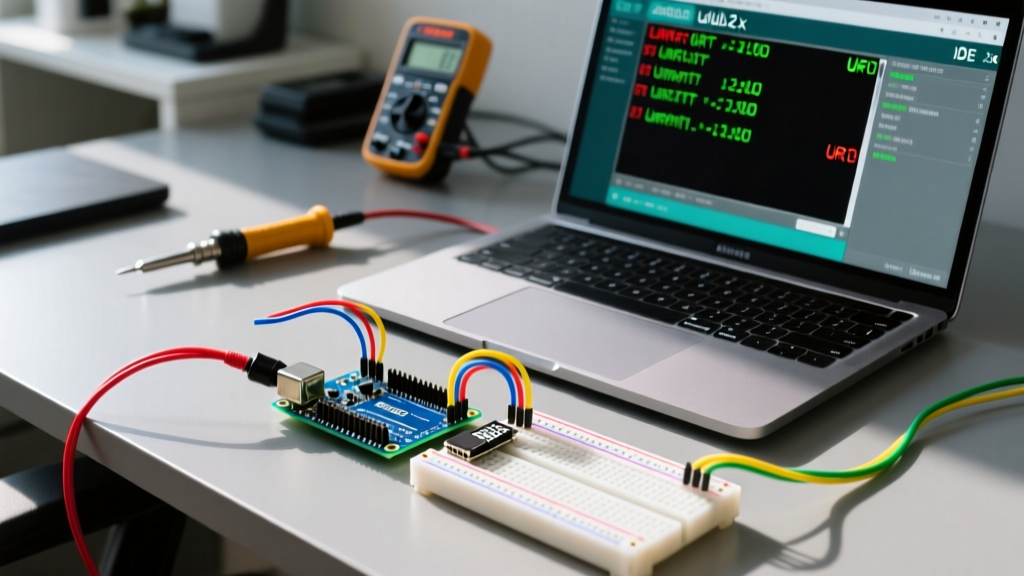
Relying on SSH to check if your Pi has an IP address is tedious when debugging headless units in the field. We map two GPIO pins to physical LEDs to provide instant visual feedback on the WiFi association state. This mapping assumes standard Broadcom (BCM) pin numbering.
| Function | BCM GPIO Pin | Physical Pin (40-pin Header) | Component |
|---|---|---|---|
| No IP / Disconnected | GPIO 17 | Pin 11 | Red LED (Anode) + 330Ω Resistor to GND |
| Connected / Has IP | GPIO 27 | Pin 13 | Green LED (Anode) + 330Ω Resistor to GND |
| Common Ground | GND | Pin 9 or 14 | LED Cathodes |
Headless WiFi Setup via NetworkManager
When booting a fresh Bookworm image headless (via SSH), you must use the nmcli (NetworkManager Command Line Interface) tool. Do not attempt to create /boot/firmware/wpa_supplicant.conf—the first-boot daemon no longer parses it.
- Scan for available networks:
sudo nmcli device wifi rescan
nmcli device wifi list
Wait 5 seconds after the rescan command; the Broadcom/Cypress chips take a moment to populate the BSS table. - Connect to a standard WPA2/WPA3 network:
sudo nmcli device wifi connect "YourSSID" password "YourPassword" - Connect to a Hidden SSID:
sudo nmcli device wifi connect "HiddenSSID" password "YourPassword" hidden yes - Verify the connection and IP assignment:
nmcli connection show --active
ip -4 addr show wlan0
Python WiFi Watchdog & GPIO Status Code
This script polls NetworkManager, updates the GPIO LEDs, and handles the specific exceptions thrown when the network stack is in a transitional state. It targets the gpiozero library, which is pre-installed on Bookworm.
#!/usr/bin/env python3
"""
Raspberry Pi NetworkManager WiFi Watchdog
Targets: Raspberry Pi OS Bookworm (64-bit)
Dependencies: gpiozero (pre-installed), subprocess
"""

import subprocess
import time
import socket
from gpiozero import LED

# --- PIN DEFINITIONS ---
RED_LED = LED(17)   # Indicates Disconnected / No IP
GREEN_LED = LED(27) # Indicates Connected / Valid IP

def check_wifi_connected():
    """Queries NetworkManager for active WiFi state."""
    try:
        # -t for terse (machine readable), -f for specific fields
        result = subprocess.run(
            ['nmcli', '-t', '-f', 'TYPE,STATE', 'device'],
            capture_output=True, text=True, check=True, timeout=5
        )
        for line in result.stdout.strip().split('\n'):
            if 'wifi' in line and 'connected' in line:
                return True
        return False
    except subprocess.CalledProcessError as e:
        print(f"[ERROR] nmcli failed with code {e.returncode}: {e.stderr}")
        return False
    except subprocess.TimeoutExpired:
        print("[ERROR] nmcli command timed out. NetworkManager may be hung.")
        return False
    except Exception as e:
        print(f"[ERROR] Unexpected subprocess error: {e}")
        return False

def has_valid_ip():
    """Checks if wlan0 has a valid IPv4 address assigned."""
    try:
        result = subprocess.run(
            ['ip', '-4', 'addr', 'show', 'wlan0'],
            capture_output=True, text=True, check=True, timeout=3
        )
        # Look for 'inet ' followed by an IP, excluding 169.254.x.x (APIPA)
        for line in result.stdout.split('\n'):
            if 'inet ' in line and '169.254.' not in line:
                return True
        return False
    except Exception:
        return False

def restart_network_manager():
    """Attempt to recover a hung NetworkManager service."""
    print("[ACTION] Restarting NetworkManager...")
    subprocess.run(['sudo', 'systemctl', 'restart', 'NetworkManager'], timeout=15)

def main():
    print("Starting WiFi Watchdog...")
    fail_count = 0

    while True:
        try:
            is_wifi_up = check_wifi_connected()
            has_ip = has_valid_ip()

            if is_wifi_up and has_ip:
                GREEN_LED.on()
                RED_LED.off()
                fail_count = 0
            else:
                GREEN_LED.off()
                RED_LED.on()
                fail_count += 1

                # If failed 5 consecutive times (approx 2.5 mins), restart service
                if fail_count >= 5:
                    restart_network_manager()
                    fail_count = 0

        except KeyboardInterrupt:
            print("\nWatchdog stopped by user.")
            RED_LED.off()
            GREEN_LED.off()
            break
        except Exception as e:
            print(f"[CRITICAL] Main loop exception: {e}")

        time.sleep(30) # Poll every 30 seconds

if __name__ == "__main__":
    main()
Debugging: Exact Error Strings & Ranked Causes
When nmcli fails, it outputs specific error strings. Here is the decision tree for the three most common failures encountered when connecting a Raspberry Pi to WiFi on Bookworm, ranked by probability.
1. "Error: No network with SSID 'MyNetwork' found."
What it means: NetworkManager scanned the RF environment and did not receive a beacon frame matching your SSID.
- Cause A (Most Likely): Band Mismatch. You are using a Pi Zero W or Pi 3B (non-plus), which only have 2.4GHz radios, but your router is broadcasting a 5GHz-only SSID.
- Cause B: Hidden SSID. You omitted the
hidden yesflag in yournmclicommand. NetworkManager will not blindly probe for hidden networks unless explicitly told to. - Cause C: RF Shielding. The Pi is inside a metal enclosure or a case with a metalized heatsink blocking the ceramic chip antenna.
2. "Error: Connection activation failed: (7) Secrets were required, but not provided."
What it means: The Pi found the network, initiated the 802.11 handshake, but the authentication phase failed.
- Cause A (Most Likely): Incorrect Password. A typo in the WPA2-PSK string. Note that
nmcliis case-sensitive and does not strip trailing spaces if you accidentally type one inside the quotes. - Cause B: WPA3 Transition Mode Bug. Some older Broadcom firmware on the Pi 4 struggles with WPA2/WPA3 transition modes on mesh routers (like Eero or Orbi). Fix: Force the router to WPA2-only for the IoT SSID, or update the Pi firmware via
sudo rpi-eeprom-update. - Cause C: Enterprise Network. You are connecting to a WPA-Enterprise (802.1X) network (common in universities) using the standard password flag, which requires a username and CA certificate instead.
3. "Warning: password for 'MyNetwork' not given, but required."
What it means: You ran the connect command without the password argument, and nmcli is trying to open an interactive TTY prompt, which fails in headless/SSH environments without a proper pseudo-terminal.
- Fix: Always pass the password inline:
sudo nmcli device wifi connect "SSID" password "PASS". Alternatively, use the--askflag if you are in an interactive SSH session and wantnmclito prompt you securely.
1. Run
rfkill list to ensure the WiFi radio isn't soft-blocked by the OS.2. Run
dmesg | grep brcmfmac to check if the Broadcom firmware loaded correctly or if the chip crashed due to under-voltage.3. Verify your power supply. A Pi 5 drawing >2A will brownout the 3.3V rail, dropping the WiFi module offline while the CPU keeps running.
Frequently Asked Questions
Why did my old wpa_supplicant.conf file stop working on Bookworm?
Raspberry Pi OS Bookworm shifted to NetworkManager to align with upstream Debian standards and improve support for modern network topologies (like VLANs and complex routing). The legacy wpa_supplicant service is masked (disabled) by default. If you attempt to unmask it and run both simultaneously, they will fight for control of the wlan0 interface, resulting in intermittent disconnects every 60-90 seconds. Stick to nmcli or the nm-connection-editor GUI.
How can I extend this build to log network drops to an SD card?
To extend the Python watchdog script, import the logging module and write to a file in /var/log/wifi_watchdog.log. Add a timestamped entry inside the else block of the main loop. To prevent SD card wear from constant polling, ensure you only write to the log on state changes (e.g., transitioning from Connected to Disconnected) rather than on every 30-second poll. You can track this by storing the previous state in a variable: prev_state = current_state.
How do I simplify the setup for a headless Pi Zero 2 W?
If you don't want to use SSH or nmcli for the initial setup on a Pi Zero 2 W, you can use the official Raspberry Pi Imager software on your desktop PC. Before flashing the SD card, click the "Gear" icon (or press Ctrl+Shift+X) in the Imager. This allows you to inject the NetworkManager WiFi credentials directly into the image. When the Pi Zero boots for the first time, NetworkManager will automatically apply these credentials and connect.
Can I use an external USB WiFi adapter instead of the onboard chip?
Yes, and it is highly recommended for stationary IoT projects where the Pi is mounted inside a metal control panel. Use an adapter with a chipset that has in-tree Linux kernel support, such as the MediaTek MT7921AUN or older RTL8812AU (requires realtek-rtl88xxau-dkms package). When you plug it in, NetworkManager will enumerate it as wlan1. You can then use nmcli device wifi connect "SSID" ifname wlan1 to bind the connection specifically to the external adapter.