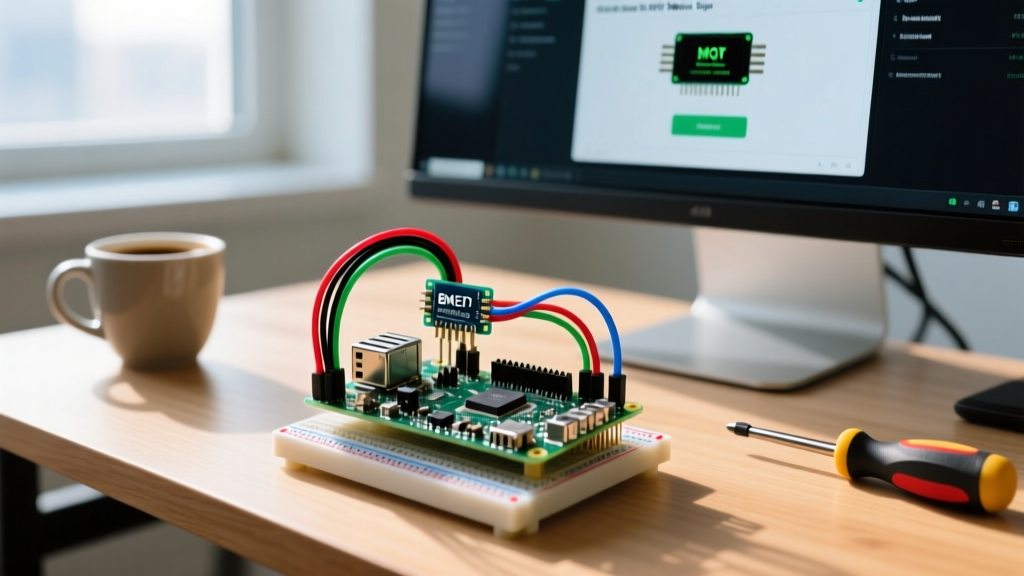
To build a reliable, low-latency media streaming Raspberry Pi node, use the Raspberry Pi 5 (8GB variant) paired with the Pi Camera Module 3 and a Python-based MJPEG pipeline. While off-the-shelf IP cameras are convenient, building your own streaming node gives you raw access to the video buffer, allowing you to inject sensor data, trigger recordings via GPIO, and bypass proprietary cloud locks. This guide walks through the exact hardware, the headless OS configuration, and a production-ready Python streaming server with motion-triggered logging.
Hardware Spec Sheet and Pinout
The Raspberry Pi 5 introduces a dedicated RP1 I/O controller, which changes how camera and GPIO interrupts are handled compared to the Pi 4. We are using the AM312 PIR sensor instead of the common HC-SR501 because the AM312 is immune to the RF interference that often causes false motion triggers when Wi-Fi is heavily utilized on the Pi 5.
| Component | Exact Model / Variant | Approx. Cost (2026) | Why This Specific Part |
|---|---|---|---|
| Compute Board | Raspberry Pi 5 (8GB RAM) | $80.00 | 8GB prevents OOM kills when buffering high-res JPEG frames in Python threads. |
| Camera Module | Pi Camera Module 3 (Standard) | $25.00 | Sony IMX708 sensor with built-in PDAF; natively supported by libcamera. |
| Motion Sensor | AM312 Mini PIR Sensor | $2.50 | 3.3V logic native, 3-pin footprint, no potentiometer drift issues. |
| Power Supply | Official 27W USB-C PD PSU | $12.00 | Required to prevent brownouts when the camera and Wi-Fi spike simultaneously. |
GPIO Pin Mapping Table
The code targets the BCM pin numbering scheme. Connect the AM312 PIR sensor directly to the Pi 5 GPIO header. No pull-down resistors are needed; the Pi 5 internal pull-downs are configured in the software.
| AM312 PIR Pin | Raspberry Pi 5 Physical Pin | BCM GPIO / Rail | Wire Color Recommendation |
|---|---|---|---|
| VCC | Pin 1 | 3.3V Power | Red |
| OUT | Pin 11 | GPIO 17 | Yellow |
| GND | Pin 9 | Ground | Black |
OS Configuration and Dependencies
Do not use the desktop version of Raspberry Pi OS. The Wayland display server consumes VRAM and CPU cycles that your media streaming pipeline needs. Flash Raspberry Pi OS Lite (64-bit, Bookworm) using the Raspberry Pi Imager. Enable SSH and configure your Wi-Fi in the Imager's advanced settings before writing to the microSD card.
- Update the system and install camera dependencies:
sudo apt update && sudo apt upgrade -y
sudo apt install -y python3-picamera2 python3-libcamera python3-rpi.gpio - Verify camera detection:
libcamera-hello --list-cameras
You should see0 : imx708 [4608x2592 10-bit RGGB]. If it returns nothing, reseat the CSI ribbon cable. The metal contacts must face the USB ports on the Pi 5. - Enable the legacy GPIO library (if using Bookworm):
The Pi 5 uses thelgpiobackend by default. If your Python script throws GPIO errors, install the compatibility layer:
sudo apt install -y python3-rpi-lgpio
dmesg | grep -i voltage. If you see 'throttling', your media stream will drop frames randomly under load.
The Streaming Python Server Code
This script initializes the Pi Camera Module 3, configures a 720p video stream, and serves it as an MJPEG stream over HTTP on port 8000. It simultaneously monitors GPIO 17 for PIR motion interrupts. The code uses ThreadingMixIn to ensure that a slow client connecting to the stream does not block the camera capture thread or the GPIO event loop.
import time
import io
import threading
import http.server
import socketserver
from picamera2 import Picamera2
import RPi.GPIO as GPIO

# --- Pin Definitions ---
PIR_PIN = 17
GPIO.setmode(GPIO.BCM)
GPIO.setup(PIR_PIN, GPIO.IN, pull_up_down=GPIO.PUD_DOWN)

# --- Camera Configuration ---
# Target board: Raspberry Pi 5 (8GB) with Pi Camera Module 3
picam2 = Picamera2()
config = picam2.create_video_configuration(main={'size': (1280, 720), 'format': 'RGB888'})
picam2.configure(config)
picam2.start()

class StreamingHandler(http.server.BaseHTTPRequestHandler):
    def do_GET(self):
        if self.path == '/stream.mjpg':
            self.send_response(200)
            self.send_header('Age', 0)
            self.send_header('Cache-Control', 'no-cache, private')
            self.send_header('Pragma', 'no-cache')
            self.send_header('Content-Type', 'multipart/x-mixed-replace; boundary=FRAME')
            self.end_headers()
            try:
                while True:
                    buffer = io.BytesIO()
                    # Capture JPEG directly using libcamera's hardware encoder
                    picam2.capture_file(buffer, format='jpeg')
                    frame = buffer.getvalue()

                    self.wfile.write(b'--FRAME\r\n')
                    self.send_header('Content-Type', 'image/jpeg')
                    self.send_header('Content-Length', len(frame))
                    self.end_headers()
                    self.wfile.write(frame)
                    self.wfile.write(b'\r\n')
            except Exception as e:
                print(f'Stream client disconnected or error: {e}')
        else:
            self.send_error(404)
            self.end_headers()

class StreamingServer(socketserver.ThreadingMixIn, socketserver.TCPServer):
    allow_reuse_address = True
    daemon_threads = True

def motion_callback(channel):
    timestamp = time.strftime('%Y-%m-%d %H:%M:%S')
    print(f'[MOTION] Trigger detected at {timestamp}')
    # Extension point: Trigger a 10-second high-res MP4 recording here

try:
    # Bouncetime prevents mechanical bounce or RF noise from firing multiple events
    GPIO.add_event_detect(PIR_PIN, GPIO.RISING, callback=motion_callback, bouncetime=1000)

    address = ('', 8000)
    server = StreamingServer(address, StreamingHandler)
    print('Starting media streaming server on http://:8000/stream.mjpg')
    server.serve_forever()

except KeyboardInterrupt:
    print('\nServer stopped by user.')
except Exception as e:
    print(f'Fatal server error: {e}')
finally:
    picam2.stop()
    GPIO.cleanup()
    print('Camera and GPIO resources released.')
Debugging: Exact Errors and The First Three Checks
Embedded media streaming on Linux is notoriously fragile. When the pipeline breaks, it rarely fails gracefully. Here are the exact error strings you will encounter and how to fix them.
- Kill zombie camera processes: Run
sudo fuser -k /dev/video0to release the hardware lock. - Inspect the CSI physical layer: Ensure the ribbon cable is fully seated and the blue locking flap is clamped down. A loose cable causes I2C timeout errors during camera initialization.
- Clear bound ports: Run
sudo lsof -i :8000and kill any lingering Python processes holding the TCP socket.
Error 1: RuntimeError: Failed to acquire camera: Device or resource busy
Ranked Causes:
- Another instance of your script is running in the background (common if you used
nohupor&and forgot to kill it). - The
rpicam-appsservice or a cron job is actively polling the camera. - A previous script crashed before reaching the
finally: picam2.stop()block, leaving the libcamera mutex locked.
Fix: Run ps aux | grep picamera and sudo killall python3. If the error persists, a full reboot is required to reset the RP1 camera subsystem.
Error 2: OSError: [Errno 98] Address already in use
Ranked Causes:
- Port 8000 is bound by a previous execution of the script that hasn't released the socket (TIME_WAIT state).
- Another service (like a local web server or Grafana agent) is configured to listen on port 8000.
Fix: The code includes allow_reuse_address = True in the StreamingServer class, which usually prevents this. If it still throws, change the port in the address = ('', 8000) tuple to 8080 or run sudo fuser -k 8000/tcp.
Error 3: GPIO False Triggers (Motion logged without physical movement)
Ranked Causes:
- RF interference from the Pi 5's Wi-Fi/Bluetooth module coupling into the PIR signal trace.
- Missing pull-down resistor on the GPIO line, causing the pin to float when the PIR output goes high-impedance.
Fix: The code explicitly sets pull_up_down=GPIO.PUD_DOWN. If false triggers persist, solder a 10kΩ physical pull-down resistor between the PIR OUT pin and GND, and wrap the PIR sensor in copper tape (grounded to Pi GND) to shield it from 2.4GHz RF noise.
Extending and Simplifying the Build
How to Simplify: If you do not need custom motion logging or GPIO integration, abandon the Python script entirely. Use the native rpicam-vid binary, which leverages the hardware H.264 encoder for significantly lower CPU usage:
rpicam-vid -t 0 --inline --listen -o tcp://0.0.0.0:8554
This creates a raw TCP stream that VLC Media Player can read directly, bypassing the overhead of Python's HTTP server.
How to Extend: MJPEG is bandwidth-heavy (roughly 15-20 Mbps for 720p at 30fps). To build a true low-latency RTSP media streaming Raspberry Pi node, install MediaMTX. You can pipe the output of libcamera-vid directly into MediaMTX, which will serve an H.264 RTSP feed compatible with Frigate NVR, Home Assistant, and OBS Studio, dropping bandwidth to ~2 Mbps while maintaining sub-200ms latency.
Frequently Asked Questions
How do I reduce latency for a media streaming Raspberry Pi setup?
Latency in MJPEG streams is primarily caused by the browser's rendering pipeline and TCP buffering. To drop latency below 200ms, switch from MJPEG to an H.264 RTSP stream using MediaMTX or go2rtc. On the Pi side, add --flush to your libcamera commands to force immediate packet transmission, and disable the camera's auto-white-balance (AWB) and auto-exposure (AE) algorithms, which introduce 2-3 frames of processing delay.
Can I use a Raspberry Pi Zero 2 W for media streaming video?
Yes, but with severe limitations. The Zero 2 W has only 512MB of RAM and lacks the dedicated ISP throughput of the Pi 5. You will be limited to 720p at 15fps over MJPEG before the CPU throttles. Furthermore, the Zero 2 W relies on 2.4GHz Wi-Fi, which shares the same antenna path and frequency band as Bluetooth and often causes the exact RF interference issues that plague PIR motion sensors. For reliable 1080p streaming, the Pi 4 or Pi 5 is mandatory.
Why is my media streaming Raspberry Pi dropping frames on Wi-Fi?
The Pi 5's Wi-Fi module is highly capable, but the default power management settings aggressively put the radio to sleep to save power, causing micro-stutters in the video feed. Disable Wi-Fi power management by running:
sudo iwconfig wlan0 power off
To make this persistent across reboots, add the command to your /etc/rc.local file or create a NetworkManager dispatcher script.
Is RTSP better than MJPEG for a Raspberry Pi media stream?
RTSP (Real Time Streaming Protocol) carrying H.264 video is objectively superior for bandwidth efficiency and NVR integration. An H.264 stream uses inter-frame compression, reducing a 1080p feed from ~30 Mbps (MJPEG) to ~3 Mbps (RTSP). However, MJPEG is vastly simpler to debug, requires no external media server binaries, and renders natively in any web browser via a simple <img> tag without requiring WebAssembly or MSE (Media Source Extensions) JavaScript libraries. Use MJPEG for quick DIY dashboards; use RTSP for permanent security infrastructure.