
The Anatomy of a Python Arduino GUI Failure
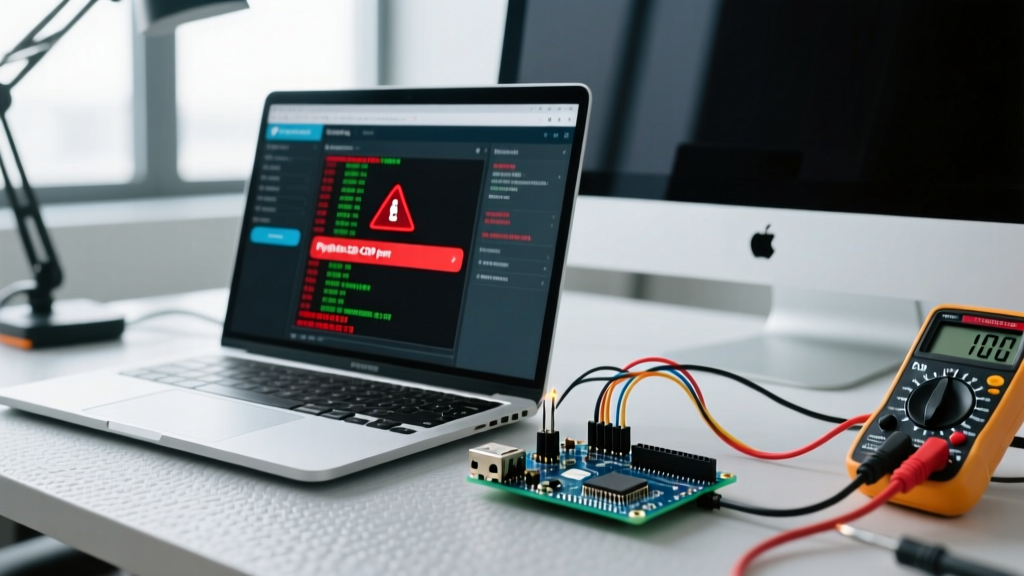
Building a custom desktop interface to control microcontrollers is a rite of passage for embedded developers. However, bridging the gap between a high-level Python environment and low-level MCU serial communication introduces a unique class of bugs. When your Python Arduino GUI fails, it rarely fails silently. You will encounter frozen windows, unhandled exceptions, or corrupted byte streams.
In 2026, the standard stack for these projects involves Python 3.12+, the pyserial library, and a GUI framework like Tkinter, CustomTkinter, or PyQt6. While the hardware (such as the Arduino Uno R4 Minima or ESP32-S3) is more capable than ever, the fundamental bottlenecks of asynchronous serial I/O and single-threaded GUI mainloops remain. This guide provides deep-dive diagnostics for the most critical failure modes in Python-to-Arduino serial pipelines.
Diagnostic Matrix: Symptom vs. Root Cause
Before rewriting your code, map your specific symptom to the underlying architectural flaw. Use this diagnostic matrix to identify your primary failure point.
| Symptom | Exception / Behavior | Root Cause | Targeted Fix |
|---|---|---|---|
| GUI completely freezes upon clicking 'Connect' | No exception; window becomes unresponsive | Blocking serial.read() on the main GUI thread |
Implement threading or root.after() polling |
| Crash on startup with COM port error | PermissionError: [WinError 5] Access is denied |
Arduino IDE Serial Monitor holds the port lock | Close IDE monitor or implement graceful fallback |
Garbage characters (ÿÿÿ or random symbols) |
UnicodeDecodeError or malformed strings | Baud rate mismatch or floating RX pin noise | Verify 115200 baud match; add 10kΩ pull-up on RX |
| Data arrives in delayed, massive chunks | GUI updates lag by 3-5 seconds then burst | OS-level USB-CDC buffering and PySerial timeout | Set timeout=0.1 and use readline() with \n |
| Arduino resets when Python script opens port | Arduino onboard LED 13 flashes on connection | DTR (Data Terminal Ready) line toggling RESET pin | Disable DTR in PySerial or use physical 10µF capacitor |
Error 1: The 'Access Denied' Serial Port Lock
The most common showstopper for beginners is the serial.serialutil.SerialException citing a PermissionError. On Windows 11, the OS strictly enforces exclusive access to virtual COM ports. If your Arduino is connected via USB, and you have the Arduino IDE's Serial Monitor open (or a background slicer like Cura is polling ports), Python will be denied access.
The CH340 vs. FTDI Edge Case
If you are using a budget Arduino Nano clone equipped with the CH340G USB-to-Serial chip (typically costing around $4 to $8), driver conflicts are common. Unlike genuine FTDI FT232RL chips found on premium boards ($15+ cables), the CH340 driver can sometimes 'ghost' COM ports. If your script crashes mid-execution without properly calling ser.close(), the CH340 driver may keep the port locked in the background.
Expert Fix: Always wrap your serial initialization in a
try...finallyblock or use a context manager. According to the official PySerial API documentation, explicitly managing the port lifecycle prevents OS-level port ghosting.
Error 2: GUI Freezing During serial.read() (The Threading Trap)
If your Python Arduino GUI locks up the moment you attempt to read data, you have fallen into the mainloop trap. Frameworks like Tkinter and CustomTkinter rely on a single main thread to process UI events (button clicks, window redraws). The ser.readline() function is blocking—it halts all execution until it receives a newline character (\n) or hits a timeout.
Solution A: The Tkinter after() Polling Method
For lightweight applications, avoid Python's threading module entirely. Instead, use Tkinter's built-in scheduler to poll the serial buffer every 50 milliseconds. This keeps the UI thread responsive.
Implementation Logic:
- Set
ser.timeout = 0.1during initialization soreadline()doesn't block indefinitely. - Create a function
poll_serial()that checksser.in_waiting > 0. - If data exists, read it, update the GUI label, and call
root.after(50, poll_serial).
Solution B: PyQt6 and QThread
If you are building a complex dashboard with PyQt6, polling is inefficient. You must offload serial reading to a separate thread. However, never update PyQt GUI elements directly from a background thread. You must use Qt's Signal/Slot mechanism to pass the decoded string from the QThread back to the main UI thread safely.
Error 3: Baud Rate & Buffer Overflow Garbage Data
When your GUI displays corrupted text or drops packets, the issue usually lies in buffer management. The hardware serial buffer on an ATmega328P (Arduino Uno) is exactly 64 bytes. If your Arduino is transmitting sensor data at 115200 baud continuously, and your Python GUI is busy rendering a complex Matplotlib graph, the Python read cycle falls behind.
Diagnosing the Overrun
- Check the Baud Rate: Ensure both the Arduino
Serial.begin(115200)and Pythonserial.Serial('COM3', 115200)match exactly. As noted in the Arduino Serial Communication Guide, mismatched baud rates result in predictable bit-shifting garbage. - Implement Handshaking: If data loss is unacceptable, implement software handshaking. Have the Arduino send a single byte only when it receives a 'ping' character from Python. This shifts the architecture from 'push' to 'pull', guaranteeing your Python GUI never misses a frame.
- Clear the Buffer on Connect: When first opening the port, call
ser.reset_input_buffer()to flush out any stale data accumulated while the port was idle.
Hardware & Wiring Edge Cases
Sometimes the Python code is flawless, but the physical layer is failing. If you are bypassing USB and using a dedicated USB-to-TTL serial adapter wired directly to the Arduino's RX/TX pins, watch for these hardware traps:
- Voltage Mismatch: Standard Arduinos operate at 5V logic. Many modern USB-TTL adapters (and all ESP32 boards) operate at 3.3V. Feeding 5V into a 3.3V RX pin will cause intermittent reads and eventual silicon degradation. Use a bidirectional logic level converter (e.g., Texas Instruments TXS0108E, approx. $1.50).
- Missing Common Ground: If your Python script reads sporadic noise, ensure the GND pin of your USB-TTL adapter is physically connected to the Arduino GND. Without a common reference, the RX line floats, picking up electromagnetic interference.
Expert Troubleshooting Flowchart
When faced with an uncooperative Python Arduino GUI, follow this strict isolation sequence to identify the faulty layer:
- Isolate the Hardware: Disconnect Python. Open TeraTerm or the Arduino IDE Serial Monitor. If data is corrupt here, the issue is wiring, baud rate, or MCU code. Fix it before touching Python.
- Isolate the Python CLI: Close all serial monitors. Write a 5-line headless Python script using
pyserialto read and print to the console. If it works, your OS drivers and port locks are healthy. - Isolate the GUI Integration: Integrate the working CLI script into your GUI framework using the threading or polling methods outlined above. If it fails here, the bug is strictly in your UI event loop management.
FAQ: Python Arduino GUI Diagnostics
Why does my Arduino reboot when my Python script connects?
This is caused by the DTR (Data Terminal Ready) signal asserting low upon connection, which triggers the Arduino's auto-reset circuit. You can disable this in Python by setting ser.dtr = False immediately after opening the port, or physically by placing a 10µF electrolytic capacitor between the RESET and GND pins on the Arduino.
Can I use asyncio with PySerial for better GUI performance?
Yes, but with caveats. PySerial is inherently blocking. To use it with Python's asyncio (which pairs well with modern async GUI frameworks like Flet or Tauri), you must use the pyserial-asyncio wrapper or run the blocking serial reads in an asyncio.to_thread() executor. For standard Tkinter or PyQt6, traditional threading remains the most stable approach in 2026.
How do I handle UnicodeDecodeError when reading serial data?
The readline() method returns raw bytes. If the Arduino sends malformed data or a partial byte due to noise, calling .decode('utf-8') will crash your script. Always use .decode('utf-8', errors='ignore') or wrap the decoding in a try...except block to drop corrupted packets without killing the GUI thread. For deeper error handling strategies, refer to the Python threading and exception documentation.