
The 'Mount Failed' Error: Why Your LittleFS Won't Initialize
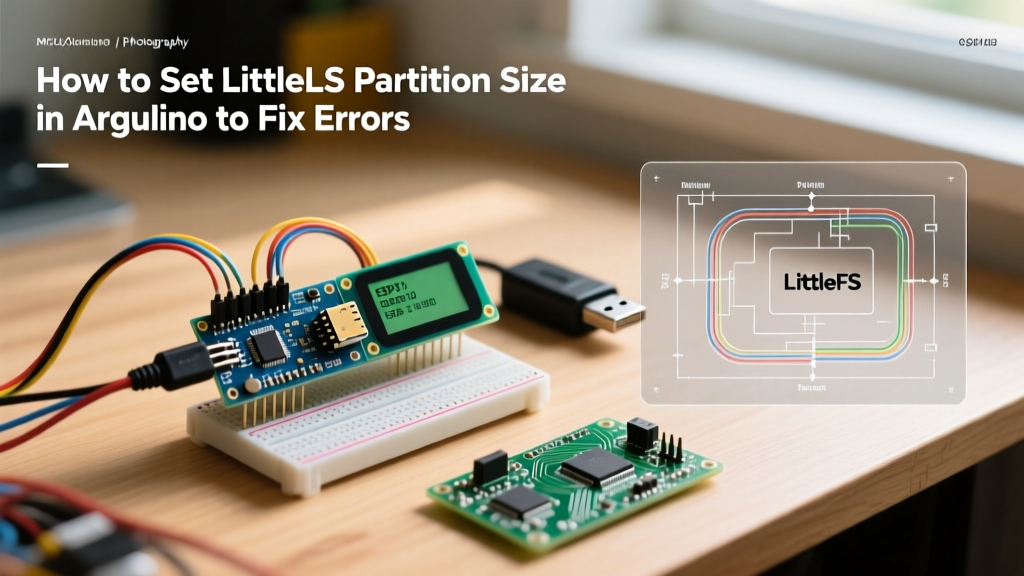
If you have ever stared at the Arduino Serial Monitor watching E (105) esp_littlefs: Failed to mount or LittleFS mount failed scroll by, you are not alone. As the ESP32 and ESP8266 ecosystems have fully transitioned away from the deprecated SPIFFS file system, makers and engineers are increasingly asking how to set partition size of LittleFS in Arduino to resolve these persistent storage errors.
Unlike standard variables stored in RAM, LittleFS relies on a strictly defined region of the microcontroller's external SPI flash. If the Arduino IDE, the bootloader, and your C++ sketch do not agree on the exact hex boundaries of this region, the file system will either fail to mount, silently corrupt your data, or overwrite your OTA (Over-The-Air) update partitions, bricking the device in the field.
Common Error Signatures and Root Causes
- Mount Failed (-1 or -10025): The sketch is trying to mount LittleFS at an offset where no partition exists, or the partition size is set to 0 bytes in the CSV table.
- Format Failed: The allocated flash region is smaller than the minimum required LittleFS block size (typically 4KB), or the flash is write-protected.
- Not Enough Space / Write Errors: The partition table allocates insufficient space for your assets, or the LittleFS plugin uploaded data beyond the defined partition boundary, overlapping into the
app1(OTA) partition.
How to Set Partition Size of LittleFS in Arduino IDE (ESP8266)
For ESP8266 boards (like the NodeMCU 1.0 or Wemos D1 Mini), setting the LittleFS partition size is handled entirely through the Arduino IDE's graphical dropdown menus. The ESP8266 core uses a predefined set of linker scripts to carve up the flash.
- Open the Arduino IDE and navigate to Tools > Flash Size.
- Select the option that explicitly defines the file system size. For a standard 4MB ESP8266 board, select 4MB (FS:2MB OTA:~1019KB).
- This configuration allocates exactly 2,097,152 bytes (2MB) to LittleFS, leaving enough room for the primary sketch and a compressed OTA staging area.
Diagnostic Tip: If you select '4MB (FS:none)', the LittleFS initialization will instantly fail because the linker script assigns 0 bytes to the file system partition. Always verify the 'FS' value in the dropdown.
Setting LittleFS Partition Size on ESP32 (Custom CSV Tables)
The ESP32 architecture (including the ESP32-S3 and ESP32-C3) does not use simple dropdowns for file system allocation. Instead, it relies on a partitions.csv file. This is where most developers encounter critical errors when trying to figure out how to set partition size of LittleFS in Arduino.
By default, the Arduino ESP32 core uses a hidden default CSV table that allocates roughly 1.4MB to SPIFFS/LittleFS. To customize this, you must create your own partition table.
Step 1: Create the partitions.csv File
Create a file named partitions.csv in the exact same directory as your .ino sketch file. The Arduino IDE will automatically detect and compile this table instead of the default one.
Here is a robust, production-ready partition table for a standard 4MB ESP32-WROOM-32 module that allocates exactly 1MB to LittleFS while preserving dual OTA capability:
# Name,   Type, SubType, Offset,  Size, Flags
nvs,      data, nvs,     0x9000,  0x5000,
otadata,  data, ota,     0xe000,  0x2000,
app0,     app,  ota_0,   0x10000, 0x140000,
app1,     app,  ota_1,   0x150000,0x140000,
littlefs, data, spiffs,  0x290000,0x170000,
Step 2: The 'Spiffs' Subtype Quirk (Crucial Edge Case)
Notice in the CSV above that the SubType for the LittleFS partition is still labeled as spiffs (or hex 0x82). According to the official Espressif ESP-IDF Partition Tables documentation, the bootloader and the Arduino core's partition parser still rely on the legacy SPIFFS subtype identifier to recognize a generic data partition meant for a file system. If you change this to an unrecognized string, the ESP32 will ignore the partition, and LittleFS.begin() will return false.
Step 3: Select Custom Partition Scheme
In the Arduino IDE, go to Tools > Partition Scheme and select Custom (or 'Default with spiffs' if you are modifying the core directly, but 'Custom' is safer for sketch-level overrides).
ESP32 Flash Size vs. Recommended LittleFS Allocation
When designing custom hardware or ordering specific dev boards like the Adafruit QT Py ESP32-S3 ($9.95) or the Espressif ESP32-DevKitC V4 ($6.50), you must match your CSV offsets to the physical flash chip on the PCB. Below is a reference matrix for safe LittleFS allocations.
| Flash Chip Size | OTA Support? | Max App Size (per OTA) | Safe LittleFS Allocation | LittleFS Hex Size |
|---|---|---|---|---|
| 4MB (Standard) | Yes (Dual) | 1.25 MB | ~1.4 MB | 0x160000 |
| 8MB (ESP32-S3) | Yes (Dual) | 2.5 MB | ~2.8 MB | 0x2C0000 |
| 16MB (High-Cap) | Yes (Dual) | 4.0 MB | ~7.5 MB | 0x780000 |
| 4MB (No OTA) | No (Single App) | 2.5 MB | ~1.4 MB | 0x160000 |
Diagnosing Hidden Partition Conflicts and Alignment Errors
If you have correctly defined the CSV but are still experiencing crashes or Guru Meditation Error: Core 1 panic'ed (Cache disabled but cached memory region accessed), you are likely suffering from a flash alignment violation.
The 4KB and 64KB Alignment Rules
As detailed in the Arduino ESP32 Core Partition Tools repository, partition offsets and sizes must adhere to strict alignment rules:
- Standard Alignment: All data partitions (including LittleFS) must be aligned to at least 4KB (0x1000) boundaries.
- App Partition Alignment: Application partitions (
app0,app1) must be aligned to 64KB (0x10000) boundaries. If your LittleFS partition ends at an offset that forcesapp1to start at, say, 0x155000, the bootloader will reject the partition table entirely upon reboot.
OTA Overwrite Bricking
A catastrophic failure mode occurs when developers use the Arduino Filesystem Uploader Plugin to push a 2MB LittleFS image, but their custom CSV table only allocates 1MB to the file system. The plugin blindly writes the 2MB image starting at the LittleFS offset, overwriting the adjacent app1 OTA partition. The next time the device attempts an OTA update, it will write to the corrupted app1 space, fail the checksum, and enter an infinite bootloop. Always verify your binary image size against the CSV allocation before uploading.
Verifying Your LittleFS Mount and Size at Runtime
Never assume your partition table compiled correctly. Add this diagnostic snippet to your setup() function to query the ESP32's partition API directly and confirm the exact byte allocation the microcontroller sees at runtime.
#include
#include

void verifyLittleFSPartition() {
  const esp_partition_t* partition = esp_partition_find_first(ESP_PARTITION_TYPE_DATA, ESP_PARTITION_SUBTYPE_DATA_SPIFFS, NULL);

  if (partition) {
    Serial.printf("[DIAG] LittleFS Partition Found!\n");
    Serial.printf("[DIAG] Label: %s\n", partition->label);
    Serial.printf("[DIAG] Address: 0x%X\n", partition->address);
    Serial.printf("[DIAG] Size: %u bytes (%.2f MB)\n", partition->size, partition->size / 1048576.0);
  } else {
    Serial.println("[ERROR] No LittleFS/SPIFFS partition found in flash table!");
  }

  if(!LittleFS.begin(true)){
    Serial.println("[ERROR] LittleFS Mount Failed");
  } else {
    Serial.printf("[OK] Total Bytes: %d\n", LittleFS.totalBytes());
    Serial.printf("[OK] Used Bytes: %d\n", LittleFS.usedBytes());
  }
}
Frequently Asked Questions (FAQ)
Why does my ESP32 say 'LittleFS' is not defined?
In older versions of the ESP32 Arduino Core (prior to v2.0.0), LittleFS was not natively supported, and developers had to use the lorol/LITTLEFS third-party library. As of 2026, the modern Espressif Arduino Core includes native LittleFS support. Ensure you are using the official #include <LittleFS.h> and have updated your board manager to the latest v3.x release.
Can I resize the LittleFS partition without losing data?
No. Changing the partition boundaries in your partitions.csv file alters the physical hex offsets on the flash chip. When you upload the new sketch, the bootloader will see an unrecognized file system header at the new offset and, if LittleFS.begin(true) is called, it will automatically format the partition, wiping all existing files. Always back up your LittleFS data via serial dump before altering partition sizes.
Does LittleFS wear-leveling consume extra partition space?
Yes. LittleFS requires a small amount of overhead for its wear-leveling algorithms and block allocation tables. If you allocate exactly 64KB (0x10000) to LittleFS, your usable payload space will be slightly less than 64KB. Always allocate at least 128KB (0x20000) to ensure the file system has enough breathing room to manage bad blocks and metadata without throwing 'Disk Full' errors prematurely.