
The End of an Era: Why Migrate from Legacy IDE 1.8.x?
For over a decade, the Arduino IDE 1.8.x branch was the undisputed workhorse of the maker community. However, as of 2026, the legacy Java-based IDE has been fully retired in favor of the modern, Electron-based Arduino IDE 2.x. If you are returning to microcontroller development after a hiatus, or managing a fleet of legacy workstations in a university lab, understanding how to download Arduino software and properly migrate your environment is critical.
The IDE 2.x branch introduces a modern Language Server Protocol (LSP) for real-time code autocomplete, native integration with the arduino-cli backend, and hardware-level debugging via CMSIS-DAP and J-Link probes. But this architectural shift means that simply installing the new software is only half the battle; migrating your custom board definitions, third-party cores, and local libraries requires a strategic approach.
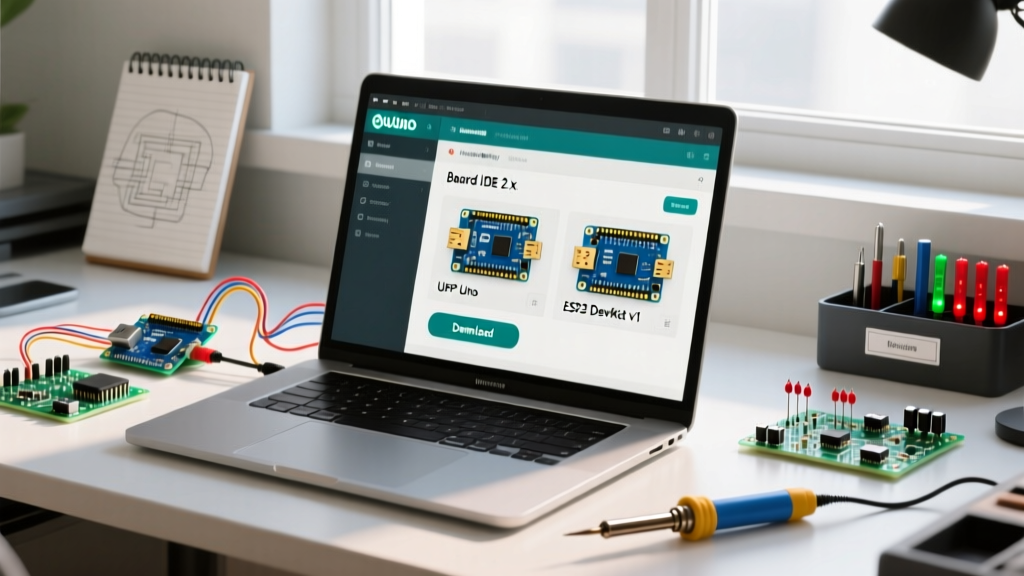
Step-by-Step: How to Download Arduino Software (IDE 2.x)
Before initiating a migration, you must secure the correct installer for your host operating system. Head to the official Arduino software repository to grab the latest stable release (currently the 2.3.x branch).
Windows (10, 11, and ARM64)
- The Installer (.exe): Recommended for most users. It automatically registers the
.inofile extension and installs the necessary USB driver certificates. - The ZIP Package: Choose this if you are running a portable setup from a USB drive or operating in a restricted enterprise environment without admin privileges. Extract to
C:\ArduinoIDEand runarduino-ide.exedirectly.
macOS (Apple Silicon vs. Intel)
Apple's transition to M-series chips means you must select the correct architecture. Download the Apple Silicon (ARM64) DMG for M1/M2/M3/M4 Macs to ensure native compilation speeds. Download the Intel (x86_64) version only for legacy 2019 or older MacBooks. Note that macOS Gatekeeper will likely block the initial launch; we will cover the terminal bypass in the troubleshooting section.
Linux (AppImage and CLI)
Linux users should download the AppImage for a self-contained desktop experience. However, for headless servers, CI/CD pipelines, or Raspberry Pi build stations, bypass the GUI entirely and install the arduino-cli via the official install script. The GUI is merely a wrapper; the CLI is where the actual compilation heavy lifting occurs.
Migrating Sketchbooks, Libraries, and the 'Arduino15' Folder
The most common point of failure during an upgrade is the assumption that IDE 2.x uses a completely isolated directory structure. In reality, IDE 2.x shares the legacy Arduino15 configuration folder to maintain backward compatibility with downloaded board cores.
Expert Insight: Never delete your Arduino15 folder when migrating. IDE 2.x relies on this directory to cache the JSON indexes for your Board Manager. Deleting it will force you to re-download gigabytes of toolchains (like the ARM GCC compiler and ESP32 xtensa tools).
Locating Your Hidden Directories
| Operating System | Sketchbook & Libraries Path | Core Config (Arduino15) Path |
|---|---|---|
| Windows 11 | C:\Users\[User]\Documents\Arduino | C:\Users\[User]\AppData\Local\Arduino15 |
| macOS 15+ | ~/Documents/Arduino | ~/Library/Arduino15 |
| Ubuntu / Debian | ~/Arduino | ~/.arduino15 |
Migration Action: If you used a "Portable" setup in IDE 1.8.x (where a portable folder sits next to the executable), IDE 2.x does not natively support the portable folder trick out of the box. You must manually copy the contents of portable/packages into your OS-specific Arduino15 directory, and move portable/sketchbook to your default Documents folder.
Re-establishing Third-Party Board Cores
While your installed cores will survive the jump, your Additional Boards Manager URLs list often resets or fails to parse legacy JSON formats. You must re-enter these into the IDE 2.x preferences menu (File > Preferences > Additional Boards Manager URLs).
Below are the canonical, up-to-date JSON URLs for the most popular third-party microcontrollers in 2026:
- Espressif ESP32:
https://raw.githubusercontent.com/espressif/arduino-esp32/gh-pages/package_esp32_index.json(Reference the Espressif ESP32 Arduino Core GitHub for the latest ESP-IDF framework mappings). - Espressif ESP8266:
http://arduino.esp8266.com/stable/package_esp8266com_index.json - Raspberry Pi RP2040 (Pico):
https://github.com/earlephilhower/arduino-pico/releases/download/global/package_rp2040_index.json - ATTinyCore (SpenceKonde):
http://drazzy.com/package_drazzy.com_index.json
USB-to-UART Driver Migration (CH340, CP2102, FTDI)
Downloading the software is useless if your host machine cannot talk to the microcontroller. The migration to modern operating systems (Windows 11 23H2, macOS Sequoia) has broken several legacy USB-to-UART drivers commonly found on clone boards.
The CH340 / CH341 Clone Chip Issue
Cheap Arduino Nano and Uno clones utilize the WCH CH340 chip. Older 1.8.x tutorials link to unsigned Windows drivers from 2014. Do not use these. Modern Windows 11 will flag them as security risks. Download the latest signed CH341SER.EXE directly from the WCH manufacturer site. On macOS, the CH340 driver requires a kernel extension that is increasingly blocked by Apple's System Integrity Protection (SIP). If your clone fails to show up in the /dev/cu.usbserial-* list, consider buying a board with a genuine FTDI FT232RL or Microchip ATmega16U2 USB interface to avoid driver hell entirely.
CP2102 and NodeMCU Boards
Silicon Labs' CP2102 is standard on most ESP8266 NodeMCU boards. The driver is generally natively supported on Windows 11, but macOS users migrating to Apple Silicon must ensure they have installed the CP210x VCP Driver for macOS 11+ (Universal Binary), otherwise the port will appear in the system report but remain inaccessible to the IDE.
Troubleshooting Edge Cases & Gatekeeper Blocks
Even with the Arduino IDE 2.x documentation at your side, OS-level security features frequently interrupt the migration process. Here is how to bypass the most common 2026 roadblocks:
macOS Gatekeeper "App is Damaged" Error
Because the Arduino IDE is open-source and not distributed via the Mac App Store, macOS Gatekeeper often quarantines the application. To strip the quarantine flag, open your terminal and execute:
xattr -cr /Applications/Arduino.app
This recursively removes the com.apple.quarantine extended attribute, allowing the Electron framework to boot without throwing a corrupted file warning.
Linux 'Permission Denied' on Upload
Unlike Windows, Linux requires explicit user permissions to access serial TTY devices. If you download the AppImage and hit a "Permission Denied" error during compilation upload, your user is not in the dialout group. Fix this permanently by running:
sudo usermod -a -G dialout $USER
Note: You must log out and log back in (or reboot) for the group policy changes to take effect.
Windows Defender Blocking the ZIP Extraction
If you opted for the portable ZIP version on Windows, Microsoft Defender SmartScreen may silently block the execution of arduino-cli.exe (the backend compiler) when it attempts to write temporary build files to your AppData\Local\Temp directory. To resolve this, add the extracted Arduino folder to your Windows Security Exclusion list under Virus & threat protection > Manage settings > Exclusions.
Summary: Embracing the Modern Toolchain
Understanding how to download Arduino software in the modern era goes far beyond clicking a "Download" button. By properly mapping your legacy Arduino15 directories, updating your Board Manager JSON endpoints, and resolving modern OS driver signing requirements, you ensure a frictionless transition to IDE 2.x. The result is a vastly superior development environment with real-time linting, native dark mode, and professional-grade debugging capabilities that bridge the gap between hobbyist tinkering and commercial firmware engineering.