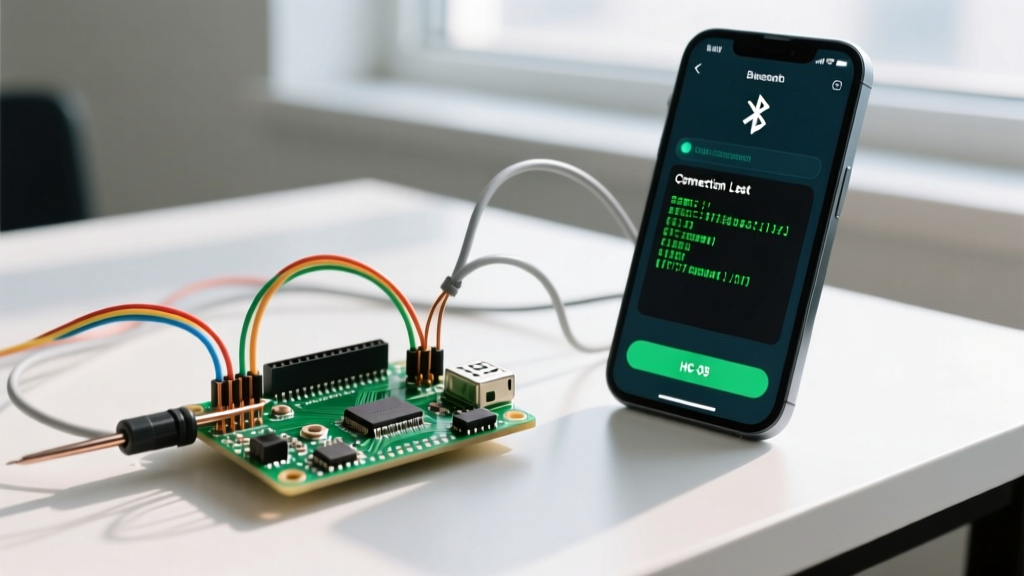

Why Your Arduino Bluetooth Controller App Keeps Disconnecting
Building a Bluetooth-controlled robot car or robotic arm is a rite of passage for embedded systems hobbyists. You wire up the motors, upload the sketch, and open your favorite Arduino Bluetooth controller app on your smartphone. But instead of smooth control, you are met with 'Connection Refused' errors, random disconnects when the motors spin, or garbled serial data that sends your robot crashing into a wall.
Troubleshooting Bluetooth communication requires a systematic approach across three distinct layers: the physical hardware, the OS-level pairing protocol, and the Arduino serial parsing logic. In this guide, we will debug the most common failure modes encountered when using Classic Bluetooth (HC-05/HC-06) and BLE (HM-10) modules with popular Android and iOS controller applications in 2026.
The Physical Layer: Wiring and Power Diagnostics
Before blaming the app or your C++ code, you must verify the physical electrical signals. The most common hardware-induced data corruption stems from logic level mismatches and voltage brownouts.
1. The 5V to 3.3V Logic Level Mismatch
The ubiquitous HC-05 module operates on a 3.6V to 6V power supply, but its RX (receive) data pin is strictly 3.3V tolerant. If you connect the Arduino's 5V TX pin directly to the HC-05 RX pin, you will overload the module's internal logic gate. This results in the Arduino Bluetooth controller app showing a successful pairing, but the Arduino receives absolute garbage data or nothing at all.
The Fix: You must implement a voltage divider on the Arduino TX to HC-05 RX line. Use a 1kΩ resistor in series with the TX line, and a 2kΩ resistor pulling the RX pin to ground. This safely drops the 5V logic down to approximately 3.33V. The HC-05 TX to Arduino RX line does not require a divider, as the Arduino's 5V logic pins easily recognize the 3.3V HIGH signal.
2. Motor-Induced Voltage Brownouts
If your app disconnects the exact moment you press the 'Forward' button on your controller app, you are experiencing a voltage brownout. The HC-05 module can draw peak currents of 50mA to 80mA during heavy RF transmission. If your Arduino and a TB6612FNG motor driver are sharing the same onboard 5V linear regulator, the sudden current spike from the motors causes the 5V rail to sag below 3.2V. The HC-05's internal voltage regulator resets, dropping the Bluetooth link instantly.
- Solution A: Add a 470µF electrolytic decoupling capacitor directly across the VCC and GND pins of the HC-05 module to buffer transient current spikes.
- Solution B: Power the HC-05 and Arduino logic from a dedicated 5V BEC (Battery Eliminator Circuit) rated for at least 3A, completely isolating it from the motor power rail.
The Protocol Layer: OS Restrictions and Baud Rates
Not all smartphones can talk to all Bluetooth modules. Understanding the difference between Serial Port Profile (SPP) and Bluetooth Low Energy (BLE) is critical for app compatibility.
iOS MFi Restrictions vs. Android SPP
If you are using an HC-05 or HC-06 module (Classic Bluetooth SPP) and your Arduino Bluetooth controller app cannot find the device on an iPhone or iPad, this is not a bug. Apple's iOS strictly blocks standard SPP profiles to enforce their MFi (Made for iPhone) hardware licensing program.
Classic SPP modules will only work with Android devices. If your project requires iOS compatibility, you must use a BLE module like the HM-10 or, preferably for modern 2026 builds, an ESP32-C3 development board (typically priced around $4.00), which features native BLE 5.0 support and bypasses the need for external UART modules entirely.
Baud Rate Desynchronization
By default, most HC-05 modules ship with a baud rate of 9600 bps. However, some batches from third-party sellers are pre-configured to 38400 bps or 115200 bps. If your app connects but the Arduino Serial Monitor prints continuous '???' or square symbols, your baud rates are mismatched. Use an app like 'Serial Bluetooth Terminal' to send raw AT commands (e.g., AT+UART=9600,0,0) while the module is in AT mode (hold the onboard button while powering on) to force the module back to 9600 bps.
The Software Layer: Parsing Hidden Characters
The most frustrating debugging scenario occurs when the hardware is perfect, the app is connected, but your if/else logic refuses to trigger. This is almost always caused by hidden newline and carriage return characters appended by the smartphone app.
The 'Garbage Data' String Mismatch
When you configure a button in an Arduino Bluetooth controller app to send the letter 'F' for Forward, the app rarely sends just the single byte 0x46. Depending on the app's developer (e.g., Keuwlsoft's Bluetooth Electronics vs. xRobot's Arduino Bluetooth Controller), the app often appends a Carriage Return (\r) and a Line Feed (\n) to terminate the string.
If your Arduino code looks like this:
String cmd = Serial.readString();
if (cmd == "F") { moveForward(); }
This will fail silently. The Arduino actually receives "F\r\n", which does not equal "F".
The Robust Parsing Solution
To fix this, you must read the serial buffer until the newline character is detected, and then use the .trim() function to strip away any hidden whitespace, carriage returns, or line feeds. Refer to the official Arduino Serial Reference for deeper buffer management techniques.
void loop() {
  if (Serial.available() > 0) {
    String cmd = Serial.readStringUntil('\n');
    cmd.trim(); // Removes \r and \n
    if (cmd == "F") { moveForward(); }
  }
}
Data Table: App Output vs. Arduino Parsing
| App Button Action | Raw Hex Bytes Sent | Naive Serial.read() Result | Corrected Parsing Method |
|---|---|---|---|
| Forward (Single Char) | 0x46 0x0D 0x0A | Reads 'F', misses '\r\n' in buffer | readStringUntil('\n').trim() |
| Speed Command | 0x53 0x32 0x30 0x30 0x0A | Reads 'S', leaves '200' in buffer | Custom packet parser <S:200> |
| Joystick X/Y Axis | 0x58 0x31 0x32 0x38 0x2C ... | Buffer overflow, dropped bytes | Serial.parseInt() with delimiters |
Advanced Latency: Joystick Data and Buffer Overflows
Button presses are easy to debug because they happen sporadically. Joystick control, however, sends a continuous stream of X and Y coordinates, often 30 to 60 times per second. If you are using the SoftwareSerial library on an Arduino Uno, you will quickly hit a wall. As noted in the Arduino SoftwareSerial documentation, software-based UART struggles to maintain reliable timing at baud rates above 38400, and even at 9600 baud, a flood of joystick data will overflow the 64-byte serial buffer, resulting in severe input lag and dropped packets.
Implementing Packet-Based Parsing
To handle high-frequency joystick data from your Arduino Bluetooth controller app without lag, abandon simple string matching. Instead, enforce a strict packet structure from the app side, such as <X:128,Y:255>.
On the Arduino side, use Serial.readBytesUntil() or Serial.parseInt() to extract the integers directly into memory, bypassing the heavy overhead of the Arduino String class, which causes memory fragmentation and eventual heap crashes on ATmega328P microcontrollers.
- Wait for the start delimiter
<. - Use
Serial.parseInt()to grab the X integer (it automatically skips non-numeric characters like 'X' and ':'). - Use
Serial.parseInt()again to grab the Y integer. - Verify the end delimiter
>to ensure packet integrity.
2026 Hardware Migration: Ditching the HC-05
While the HC-05 remains a staple in legacy tutorials, sourcing genuine, high-quality HC-05 modules in 2026 is increasingly difficult, with many cheap clones suffering from erratic voltage regulators and poor RF shielding. For new robotic projects requiring app-based Bluetooth control, migrating to an ESP32-C3 or ESP32-S3 is highly recommended. These microcontrollers cost roughly $4.00, feature native BLE 5.0 (compatible with all iOS and Android controller apps), and possess hardware UART buffers that completely eliminate the software serial bottleneck, ensuring your robot responds to joystick inputs with zero perceptible latency.
Quick-Reference Debugging Checklist
- No Power LED? Check if VCC is connected to 5V (HC-05) or 3.3V (HM-10).
- iOS Can't Find Device? You are using Classic SPP. Switch to BLE (HM-10 or ESP32).
- Garbage Characters? Build a 1k/2k voltage divider on the RX pin.
- Disconnects on Motor Start? Add a 470µF capacitor to the Bluetooth module VCC/GND.
- Code Ignores Commands? Add
.trim()to your serial read function to strip hidden app newlines.
By isolating the problem to the physical wiring, the OS protocol, or the serial buffer logic, you can transform a frustrating, unresponsive robot into a precision-controlled machine. For deeper dives into RF protocols, consult the SparkFun Bluetooth Tutorial for advanced baud-rate and master/slave pairing configurations.