
Mastering the Arduino IDE for Mac: A Communication Setup Guide
Setting up the Arduino IDE for Mac involves far more than simply dragging the application into your Applications folder. With the industry-wide shift to Apple Silicon (M1/M2/M3/M4 architectures) and the stringent privacy enforcements introduced in macOS Sonoma and Sequoia, establishing reliable USB and serial communication requires precise driver management and OS-level permission handling. Whether you are programming an Arduino Uno R4 Minima, an ESP32-S3, or a custom ATmega328P board, the communication handshake between your Mac and the microcontroller is the most common point of failure.
This guide bypasses generic advice and dives deep into the exact system configurations, driver matrices, and terminal-level troubleshooting required to achieve flawless serial communication and code uploading on modern macOS environments in 2026.
The macOS USB Accessory Permission Hurdle
Starting with macOS 13 (Ventura) and heavily reinforced in macOS 15 Sequoia and later, Apple implemented strict security policies regarding USB data connections. When you plug a microcontroller into your Mac for the first time, the OS intercepts the data request.
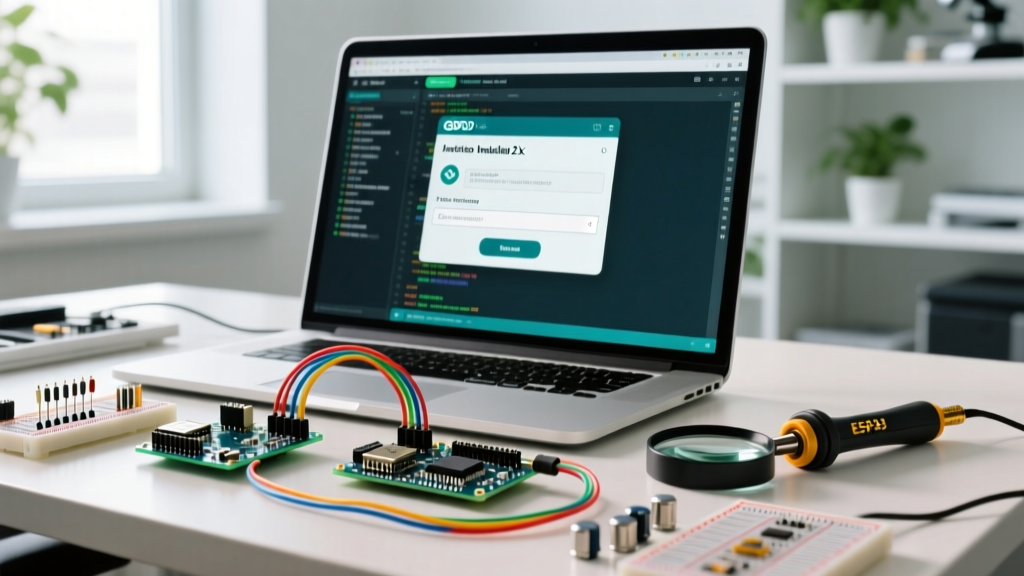
Critical macOS Prompt: You will see a system dialog stating: "Allow accessory to connect?" with options for 'Allow', 'Don't Allow', or 'Allow for 30 days'. If you accidentally click 'Don't Allow', the Arduino IDE will not see the serial port, and the Tools > Port menu will remain greyed out.
How to Reset USB Accessory Permissions
If you missed the prompt or denied it, you must manually clear the security block:
- Open System Settings > Privacy & Security.
- Scroll down to the Security section.
- Locate the USB Accessories or Allow accessories to connect setting.
- Set the dropdown to Always Ask or Automatically When Unlocked.
- Unplug the microcontroller, wait 5 seconds, and plug it back in to trigger the prompt again.
USB-to-Serial Chip Architecture & Driver Matrix
Not all microcontrollers communicate natively with macOS. While genuine Arduino boards utilizing the ATmega16U2 or Renesas RA4M1 (Uno R4) chips often enumerate natively, clone boards and ESP32 dev kits rely on third-party USB-to-UART bridge chips. Below is the definitive 2026 driver matrix for Apple Silicon and Intel Macs.
| Bridge Chip | Common Boards | Intel Mac (macOS 14+) | Apple Silicon (M-Series) | Download Source |
|---|---|---|---|---|
| FTDI FT232RL | Arduino Nano (Genuine), Adafruit FTDI Friend | Native (No driver) | Native (No driver) | N/A |
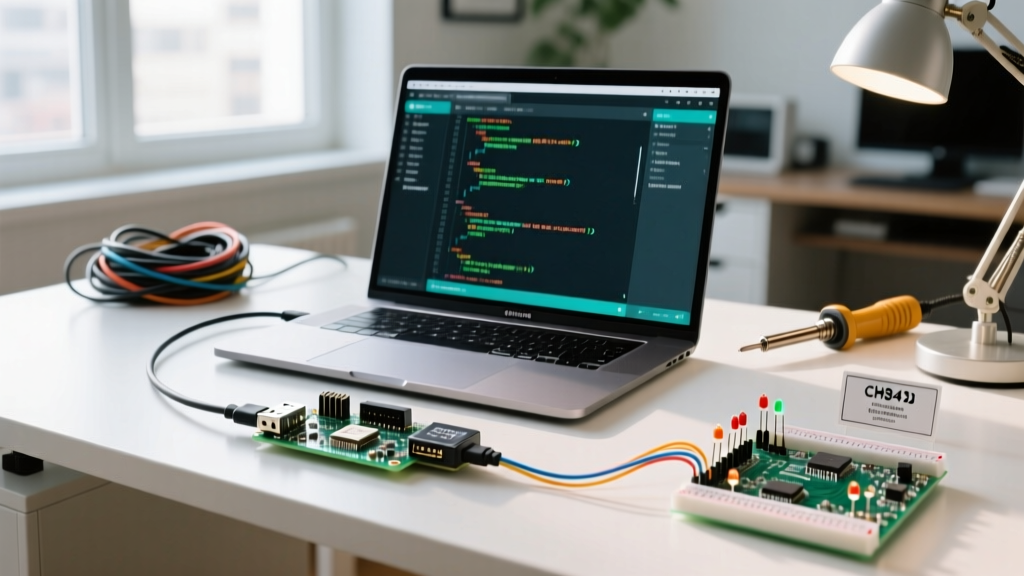
| WCH CH340 / CH341 | Nano Clones, ESP32 DevKit V1, D1 Mini | CH34xVCP v1.7 | CH34xVCP v1.8+ (Universal Binary) | SparkFun CH340 Guide |
| Silicon Labs CP2102 | NodeMCU, ESP32-WROOM, Adafruit Huzzah | CP210x VCP v6 | CP210x Universal v6+ | Silicon Labs VCP |
| ATmega16U2 / RA4M1 | Uno R3, Uno R4 Minima/WiFi, Mega 2560 | Native CDC-ACM | Native CDC-ACM | Arduino IDE Docs |
The Apple Silicon SIP Trap (CH340)
Historically, installing CH340 drivers on early M1 Macs required disabling System Integrity Protection (SIP) to load unsigned kernel extensions (kexts). Do not do this in 2026. Modern WCH CH34xVCP drivers (version 1.8 and above) are fully signed universal binaries that utilize Apple's approved DriverKit framework, requiring zero SIP modifications. Always download the latest Mac ARM64/Universal package directly from the manufacturer or verified distributors.
Terminal-Level Port Verification
Before blaming the Arduino IDE 2.3.x backend for a missing port, verify that the macOS BSD kernel actually recognizes the USB device. The IDE relies on the arduino-cli tool to enumerate /dev/ directories. If the OS doesn't see it, the IDE won't either.
Open the Terminal app and run the following command with your board unplugged:
ls /dev/cu.*Next, plug in your microcontroller and run it again. You should see a new device appear. Pay strict attention to the naming convention:
/dev/cu.usbserial-XXXX: 'cu' stands for Call Up. This is the correct port for outgoing serial communication and uploading sketches./dev/tty.usbserial-XXXX: 'tty' stands for Teletype. On macOS, selecting thettyport in the Arduino IDE can cause the Serial Monitor to hang indefinitely or result in 'Resource Busy' errors during compilation.
Pro-Tip: Always select the port prefixed with cu. in the Arduino IDE Tools menu.
Advanced Communication: ESP32 & The Serial Timeout Edge Case
When using the Arduino IDE for Mac to program ESP32 or ESP8266 boards via the esptool.py Python utility, Mac users frequently encounter a specific communication failure: the upload progress bar reaches 100%, hangs, and throws a Failed to connect to ESP32: Timed out waiting for packet header error.
The Hardware Handshake Workaround
This occurs because the Mac's USB-C to USB-A adapters (or native USB-C hubs) often fail to pulse the DTR/RTS (Data Terminal Ready / Request To Send) hardware handshake lines fast enough to trigger the ESP32's bootloader mode.
- Click Upload in the Arduino IDE.
- Watch the black console window at the bottom. Wait for the text:
Connecting........_____..... - The exact moment you see the underscores, press and hold the BOOT button on your ESP32 board.
- Hold it for exactly 2 seconds until the console says
Chip is ESP32... Hash of data verified, then release the BOOT button.
This manual intervention forces the GPIO0 pin low, bypassing the Mac's flaky DTR signal and establishing a successful serial handshake.
Troubleshooting Matrix: Common Mac Communication Failures
Use this diagnostic matrix to resolve the most persistent communication bottlenecks specific to the macOS environment.
| Symptom | Root Cause | Mac-Specific Solution |
|---|---|---|
| Port menu is greyed out / empty | macOS Privacy block or missing DriverKit extension. | Check System Settings > Privacy > USB Accessories. Reinstall CH340/CP2102 Universal driver. |
| Upload hangs at 'Uploading...' indefinitely | Selected the tty port instead of cu, or cable is charge-only. |
Switch to /dev/cu.*. Test cable with system_profiler SPUSBDataType in Terminal. |
| Serial Monitor outputs garbled text | Baud rate mismatch or Mac sleep state interrupting USB bus power. | Match IDE baud rate to Serial.begin(). Disable 'Put hard disks to sleep' in Energy Saver. |
| 'Permission Denied' on /dev/cu.* | User lacks 'dialout' or 'wheel' group permissions (rare on modern macOS). |
Optimizing the IDE 2.3.x Serial Plotter
The Arduino IDE 2.x branch introduced a significantly upgraded Serial Plotter, which is invaluable for visualizing sensor data over I2C or SPI via serial debugging. However, on Apple Silicon Macs, rendering high-frequency data streams (e.g., 115200 baud with 1000+ data points per second) can cause the plotter window to stutter.
To optimize communication throughput:
- Increase the baud rate to
921600or2000000(supported natively by the Uno R4 and ESP32 hardware UARTs). - In your code, use
Serial.print()instead ofSerial.println()for the data payload, appending a newline character only at the end of the packet loop to reduce bus overhead. - Ensure your Mac is plugged into AC power; macOS throttles background USB polling and GPU rendering for the Java/Electron-based IDE when on battery saver mode.
By understanding the underlying BSD architecture of macOS, respecting the new privacy sandboxes, and utilizing the correct driver frameworks for Apple Silicon, you can transform the Arduino IDE for Mac into a highly reliable, professional-grade embedded development environment.