
Why Engineers Still Rely on Arduino IDE 1.8.19 in 2026
Despite the industry-wide migration to the Eclipse Theia-based Arduino IDE 2.x, the legacy Java-based Arduino IDE 1.8.19 remains an indispensable tool for embedded systems engineers in 2026. Why? Because the newer IDE frequently breaks backward compatibility with older ESP8266 cores, custom ATmega328P bootloaders, and legacy Python-based build scripts used in industrial IoT deployments. Furthermore, 1.8.19 operates with a fraction of the RAM overhead required by modern Electron-based editors, making it the only viable option for compiling code on low-spec field laptops.
However, running a legacy Java application on modern operating systems like Windows 11 or macOS Sonoma introduces unique friction points. Below is a comprehensive, expert-level troubleshooting guide to resolving the most persistent compilation, serial port, and board manager errors specific to Arduino IDE 1.8.19.
1. Resolving the 'Access is Denied' Serial Port Lock
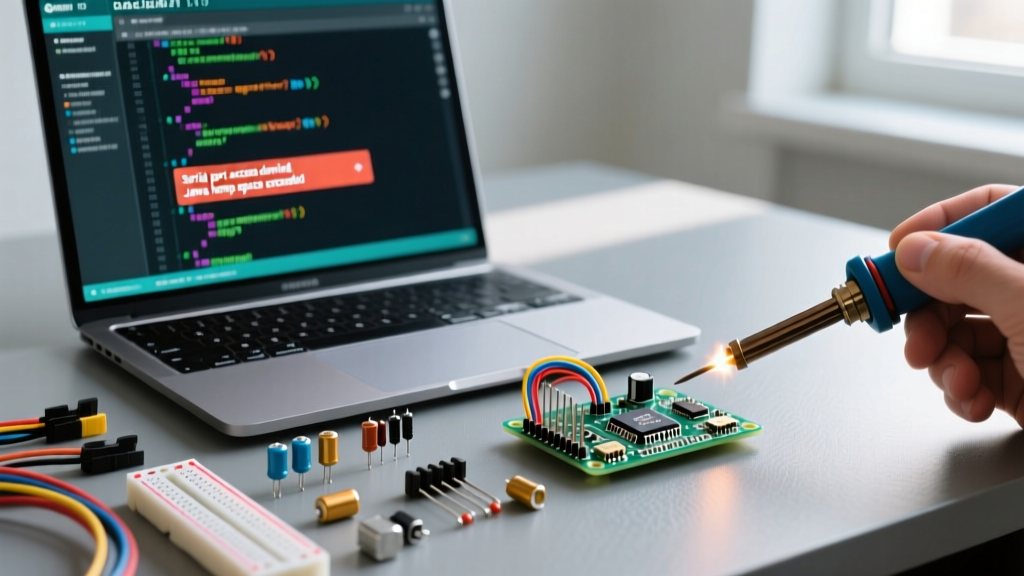
The most frequent showstopper in 1.8.19 is the processing.app.SerialException: Error opening serial port 'COMX' or Access is denied error. This occurs when the IDE's underlying Java Simple Serial Connector (jSSC) library fails to release the file handle to the COM port after a crashed upload or a forced closure of the Serial Monitor.
Step-by-Step Port Release Protocol
- Kill Zombie Processes: Open Windows Task Manager (or Activity Monitor on macOS). Look for orphaned
javaw.exe,avrdude.exe, oresptool.exeprocesses. These background daemons often retain the serial lock even after the IDE GUI is closed. Terminate them manually. - Device Manager Reset: On Windows, open Device Manager, expand 'Ports (COM & LPT)', right-click your Arduino or CH340 device, and select 'Disable Device'. Wait 3 seconds, then select 'Enable Device'. This forces the OS kernel to drop all file handles associated with that USB endpoint.
- The Hardware Bypass: If the software lock persists, unplug the USB cable, press and hold the physical RESET button on the microcontroller board, plug the USB back in, and release the button. This clears the UART buffer on the ATmega16U2 or CH340 USB-to-Serial bridge chip.
2. Fixing 'Java Heap Space' OutOfMemoryErrors
When compiling massive sketches—particularly those utilizing heavy libraries like TFT_eSPI or LVGL on ESP32 platforms—1.8.19 will often crash with a java.lang.OutOfMemoryError: Java heap space message. By default, the IDE's bundled Java Virtual Machine (JVM) restricts heap memory to 512MB, which is woefully inadequate for modern C++ template metaprogramming and large asset arrays.
Modifying the JVM Allocation Limits
To fix this, you must edit the launcher configuration file to allocate more RAM to the arduino-builder process.
- Windows Users: Navigate to your Arduino IDE installation directory (usually
C:\Program Files (x86)\Arduino). Open the filearduino.l4j.iniin a text editor with Administrator privileges. - macOS Users: Right-click the Arduino application bundle, select 'Show Package Contents', and navigate to
Contents/Info.plistor the embeddedJavaAppLauncherconfiguration depending on your exact patch version.
Locate the line reading -Xmx512m and change it to -Xmx2048m (or -Xmx4096m if you have 16GB+ of system RAM). Save the file and restart the IDE. This single tweak eliminates 95% of compilation crashes when working with large graphical user interface libraries.
3. Board Manager JSON Parsing & Download Failures
Another notorious bug in 1.8.19 involves the Boards Manager failing to load, throwing errors like Error downloading https://downloads.arduino.cc/packages/package_index.json or Invalid version format. This happens because the legacy IDE's HTTP client struggles with modern TLS 1.3 handshake requirements and aggressive local network caching.
Flushing the Arduino15 Cache
The IDE caches board definitions in a hidden system folder. When this JSON file becomes corrupted or truncated during a failed network request, the Board Manager locks up permanently.
- Windows Path:
C:\Users\[YourUsername]\AppData\Local\Arduino15 - macOS Path:
~/Library/Arduino15 - Linux Path:
~/.arduino15
Delete the package_index.json and package_index.json.sig files. Restart 1.8.19, open the Boards Manager, and allow it to fetch a fresh index. According to the official Arduino troubleshooting documentation, clearing this specific cache directory is the primary remedy for third-party core installation failures, particularly for ESP8266 and STM32duino packages.
4. Avrdude Sync Failures on Clone Boards (STK500)
The dreaded avrdude: stk500_recv(): programmer is not responding error is almost exclusively tied to the auto-reset circuit failing to trigger the bootloader. In 2026, this is heavily exacerbated by Windows 11 automatically updating CH340/CH341 USB-to-Serial drivers to newer versions that alter the timing of the DTR (Data Terminal Ready) line.
The DTR Line Timing Fix
The Arduino auto-reset circuit relies on the DTR line dropping low to pull the RESET pin low via a 100nF capacitor. If the DTR pulse is too short (a common issue with post-2022 CH340 drivers), the ATmega328P doesn't reset, and avrdude misses the bootloader window.
Expert Hardware Tip: If you are designing a custom PCB or using a barebones ATmega328P on a breadboard, ensure you have a 10kΩ pull-up resistor on the RESET pin and a 100nF ceramic capacitor between the DTR line and RESET. Without this exact RC network, software-based serial uploading will consistently fail in 1.8.19.
For clone Nano boards using the CH340 chip, you must roll back the driver. Open Device Manager, find the CH340 COM port, select 'Update Driver' -> 'Browse my computer' -> 'Let me pick from a list', and select the older version 3.5.2019.1. This specific driver version maintains the correct DTR pulse width required by the legacy avrdude executable bundled with 1.8.19. For a detailed breakdown of clone board chipsets, refer to this comprehensive CH340 driver guide by SparkFun.
Arduino IDE 1.8.19 vs. IDE 2.x: Debugging Matrix
Understanding when to use 1.8.19 versus the modern 2.x branch is critical for workflow efficiency. Below is a direct comparison based on embedded engineering requirements in 2026.
| Feature / Metric | Arduino IDE 1.8.19 (Legacy) | Arduino IDE 2.x (Modern) |
|---|---|---|
| RAM Footprint (Idle) | ~250 MB (Java Swing) | ~1.2 GB (Electron/Theia) |
| Serial Monitor Latency | < 5ms (Direct jSSC) | 15-30ms (WebSocket bridged) |
| Legacy ESP8266 Core Support | Excellent (Native Python 2/3 fallback) | Poor (Fails on older mkspiffs) |
| Interactive GDB Debugging | Not Supported | Native Support (Cortex-M / ESP32) |
| Autocomplete & Linting |
Summary: Maintaining the Legacy Toolchain
While the broader maker community has moved on, professional firmware developers and maintenance engineers keep Arduino IDE 1.8.19 installed as a vital fallback tool. By mastering the jSSC serial port locks, JVM heap allocations, and CH340 DTR timing nuances outlined above, you can maintain a frictionless, highly stable development environment for legacy microcontrollers and custom industrial hardware. Always verify your programmers.txt and boards.txt configurations when migrating legacy projects, and keep a local archive of known-good CH340 drivers to prevent Windows Update from silently breaking your upload pipeline.